
Use Google Maps as an AI Travel Planner– Google has transformed Google Maps from a traditional turn by turn navigation tool into a conversational, Gemini powered travel assistant. Through a major update to Ask Maps on Android and iOS, alongside an expansion into 30 European countries bringing availability to over 200 countries and territories, travellers can now plan multi day road trips, adjust stops mid journey, search saved lists for live availability, and even have AI find and book local appointments. Understanding how these features work together allows you to replace scattered browser tabs, spreadsheets, and booking apps with a single, live map interface.
What the New Ask Maps Update Does
Previously, AI features inside Google Maps were split across separate prompts and place chips. The updated Ask Maps experience consolidates spontaneous outing suggestions, place questions, route intelligence, and conversational trip planning into one unified interface.

Instead of searching for one landmark or restaurant at a time, you can speak or type complex, multi part requests in natural language. Ask Maps cross references Google’s real time database—covering business hours, live traffic, user reviews, parking availability, and weather—to build structured, actionable plans directly on your map.
Step by Step Guide to Using Google Maps as an AI Travel Planner
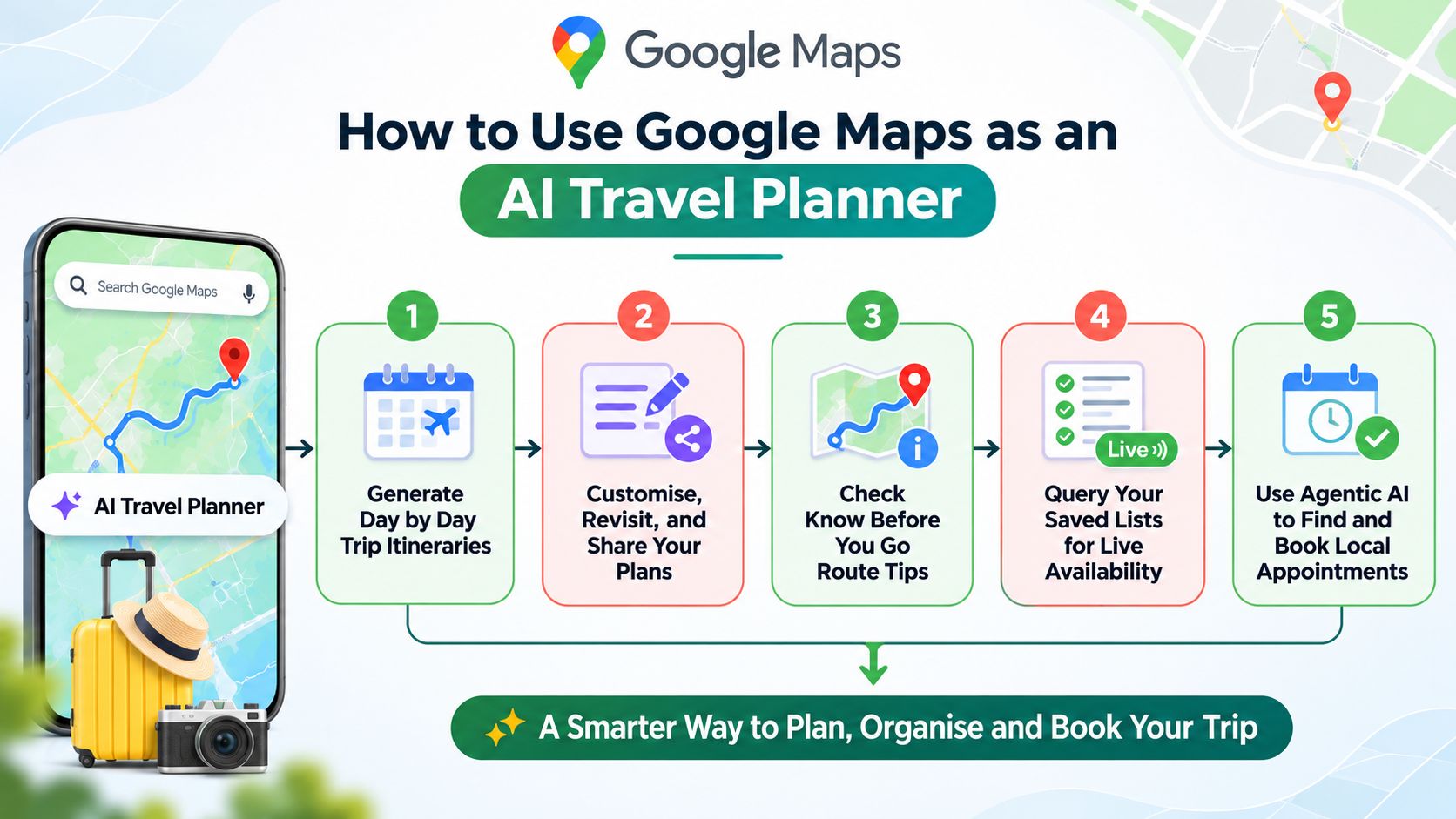
1. Generate Day by Day Trip Itineraries
To start building a trip, open the Google Maps app on Android or iOS, tap the Ask Maps search bar or button, and describe your trip goals in plain language.
-
Be specific about duration and vibe: Ask for something like, “Plan a three day coastal road trip from San Francisco to Big Sur with scenic hikes and oceanfront lunch spots,” or “Build a one day holiday shopping and coffee itinerary in central London.”
-
Review numbered map pins: Ask Maps generates a structured day by day schedule paired with numbered pins on an overview map so you can immediately see the geographic flow of your route.
-
Check built in logistics: Each stop includes insider tips from reviews, opening and closing hours, live traffic estimates, and atmosphere details so you avoid arriving at closed venues.
2. Customise, Revisit, and Share Your Plans
Travel plans rarely stay static once you hit the road. Google Maps treats your itinerary like an ongoing conversation rather than a fixed list.
-
Edit on the fly: While viewing your plan or travelling between stops, ask the assistant to remove a location, swap a restaurant, or “add a scenic viewpoint along the way.” The map pins and drive times recalculate automatically.
-
Reopen past trips with the itinerary badge: If you close the app or switch tasks, tap the clock icon next to Ask Maps to open your chat history. Saved trips display an itinerary badge, letting you jump straight back into your schedule and tap any stop for instant navigation.
-
Share or export to Google Docs: Once your route is ready, tap the share icon at the top of the itinerary to send the interactive plan to travel companions or export the full schedule directly into a Google Doc on desktop.
3. Check Know Before You Go Route Tips
When you pull up directions for a road trip or local errand, Google Maps now surfaces proactive Know Before You Go cards tailored to your specific drive.
-
Parking and EV charging: See recommended parking garages near your destination or reliable electric vehicle charging stations along your route.
-
Live road conditions: Receive advance warnings about toll roads, weather shifts, and potential traffic bottlenecks before you depart.
4. Query Your Saved Lists for Live Availability
Many travellers save dozens of restaurants, cafés, and attractions to custom Google Maps lists months before a trip, only to struggle when deciding where to go in the moment. Ask Maps can now search directly across your personal saved collections.
You can ask questions such as, “Which spots saved in my lists have availability for five people in the next 30 minutes?” The AI scans your saved places, filters out venues that are closed or too far away, checks live seating availability, and presents ready to visit options.
5. Use Agentic AI to Find and Book Local Appointments
Beyond sightseeing and dining, Google Maps now incorporates Gemini’s agentic AI capabilities to handle practical errands while travelling or preparing for a trip.
If you need a last minute appointment—such as beauty services, nail or hair salons, pet care, auto repair, or home services—you can ask Maps to check availability for you. For example, typing “Find me a 4 p.m. nail appointment near me” prompts Ask Maps to scan online booking systems and, where necessary, place automated AI calls to local businesses on your behalf to verify open slots. You can then review the confirmed options and choose which one to book.
Traditional Map Planning vs. Ask Maps AI Planning
| Planning Task | Traditional Google Maps Workflow | Updated Ask Maps AI Workflow |
| Building an Itinerary | Manually searching places, checking hours one by one, and adding multiple stops | Single conversational prompt builds a numbered, day by day route with hours and tips |
| Mid Trip Adjustments | Deleting waypoints manually and searching along the route separately | Conversational edits like “add a lunch spot on the way” update the whole plan |
| Using Saved Places | Opening each saved list and manually checking distance and opening times | Asking AI which saved spots can seat your group right now |
| Booking Services | Calling multiple businesses individually or switching to third party apps | Agentic AI checks online slots and calls local businesses to find open times |
| Trip Sharing | Copying individual place links or taking screenshots | One tap itinerary sharing or direct export to Google Docs |
Practical Tips for Better AI Travel Prompts
In practice, we noticed that the quality of an AI generated itinerary depends heavily on the constraints you provide upfront. Following a few simple prompting habits produces noticeably stronger routes:
-
Include pace and transport mode: Specify whether you are walking, taking public transit, or driving, and whether you prefer a relaxed two stop afternoon or a packed sightseeing schedule.
-
State dietary or group needs early: Mention if you are travelling with children, need step free access, or want vegetarian dining options so every numbered pin fits your group.
-
Anchor your start and end points: Telling Ask Maps where your hotel or starting neighbourhood is located prevents the AI from zig zagging inefficiently across a city.
-
Verify critical reservations: While Ask Maps pulls live business data, always double check operating hours or holiday closures for remote attractions before driving long distances.
Regional Availability and Rollout Details
Google is rolling out these updates across both Android and iOS devices. With the expansion into 30 European countries—including the United Kingdom, Germany, and Spain—Ask Maps is now accessible in more than 200 countries and territories worldwide.
However, feature availability varies slightly by region at launch:
-
Global rollout: AI day by day itineraries, itinerary badges, Google Docs export, and saved list availability searches are available everywhere Ask Maps is supported.
-
Initial U.S. launch: Proactive Know Before You Go route cards and agentic appointment calling are launching first in the United States, with wider international expansion scheduled to follow.
If the new interface does not appear immediately on your device, ensure your Google Maps app is updated to the latest version through the Google Play Store or Apple App Store.
Frequently Asked Questions
1. Is the Ask Maps AI travel planner free to use?
Yes. The Ask Maps itinerary builder, saved list search, and route tips are included free inside the standard Google Maps app on Android and iOS without requiring a paid subscription.
2. Which devices support the new Google Maps AI features?
The update is rolling out to both Android smartphones and iPhones via the official Google Maps mobile app, with the ability to export completed itineraries to Google Docs on desktop.
3. How do I find a trip itinerary I created earlier?
Open Google Maps, tap the clock icon beside the Ask Maps bar to view your conversation history, and select the chat marked with the itinerary badge to reopen your pins and schedule.
4. Can I edit an AI generated itinerary after it is created?
Yes. You can continue chatting inside the same itinerary thread to remove stops, change dining preferences, or ask Google Maps to insert a scenic detour or coffee break along your route.
5. How does Google Maps search my saved lists?
Ask Maps scans all places you have saved across your custom lists, checks their current opening status, distance, and live table availability, and recommends spots that match your group size and timing.
6. What types of appointments can Google Maps book for me?
Using Gemini’s agentic AI, Ask Maps can locate and check availability for beauty treatments, hair and nail salons, pet care, auto maintenance, and home repair services by checking online schedules or calling businesses directly.
7. Are all new Ask Maps features available in Europe?
Ask Maps has expanded to 30 additional European countries—including the UK, Germany, and Spain—where users can build itineraries and search saved lists. However, agentic appointment calling and Know Before You Go route cards are launching in the U.S. first.
8. Can I share my Google Maps AI itinerary with friends?
Yes. Every generated itinerary includes a share button at the top of the screen that lets you send the route directly to travel companions or export the full day by day breakdown to Google Docs.
9. Does Ask Maps account for real time traffic and opening hours?
Yes. Unlike static text chatbots, Ask Maps builds itineraries using live Google Maps data, factoring in current traffic conditions, business operating hours, parking options, and weather updates.
10. What should I do if Ask Maps is not showing up in my app?
Update Google Maps to the latest release in your device’s app store, restart the app, and confirm you are signed into your Google account in a supported country or region.

Selva Ganesh is a Computer Science Engineer, Android Developer, and Tech Enthusiast. As the Chief Editor of this blog, he brings over 10 years of experience in Android development and professional blogging. He has completed multiple courses under the Google News Initiative, enhancing his expertise in digital journalism and content accuracy. Selva also manages Android Infotech, a globally recognized platform known for its practical, solution-focused articles that help users resolve Android-related issues.




Leave a Reply