
If you’ve recently updated your Android device to version 14 and discovered that Google Lens is no longer seamlessly integrated with your Pixel Camera, you’re in good company. Google’s strategic move to decouple these two features has stirred curiosity among users seeking ways to reacquaint themselves with this valuable tool. In this article, we’ll delve into the motives driving this change and provide you with a step-by-step guide on how to reunite Google Lens with your Pixel Camera on Android 14. We aim to shed light on the reasons behind this separation and offer a solution to ensure you can continue benefiting from the convenience and functionality of Google Lens without the prior integration.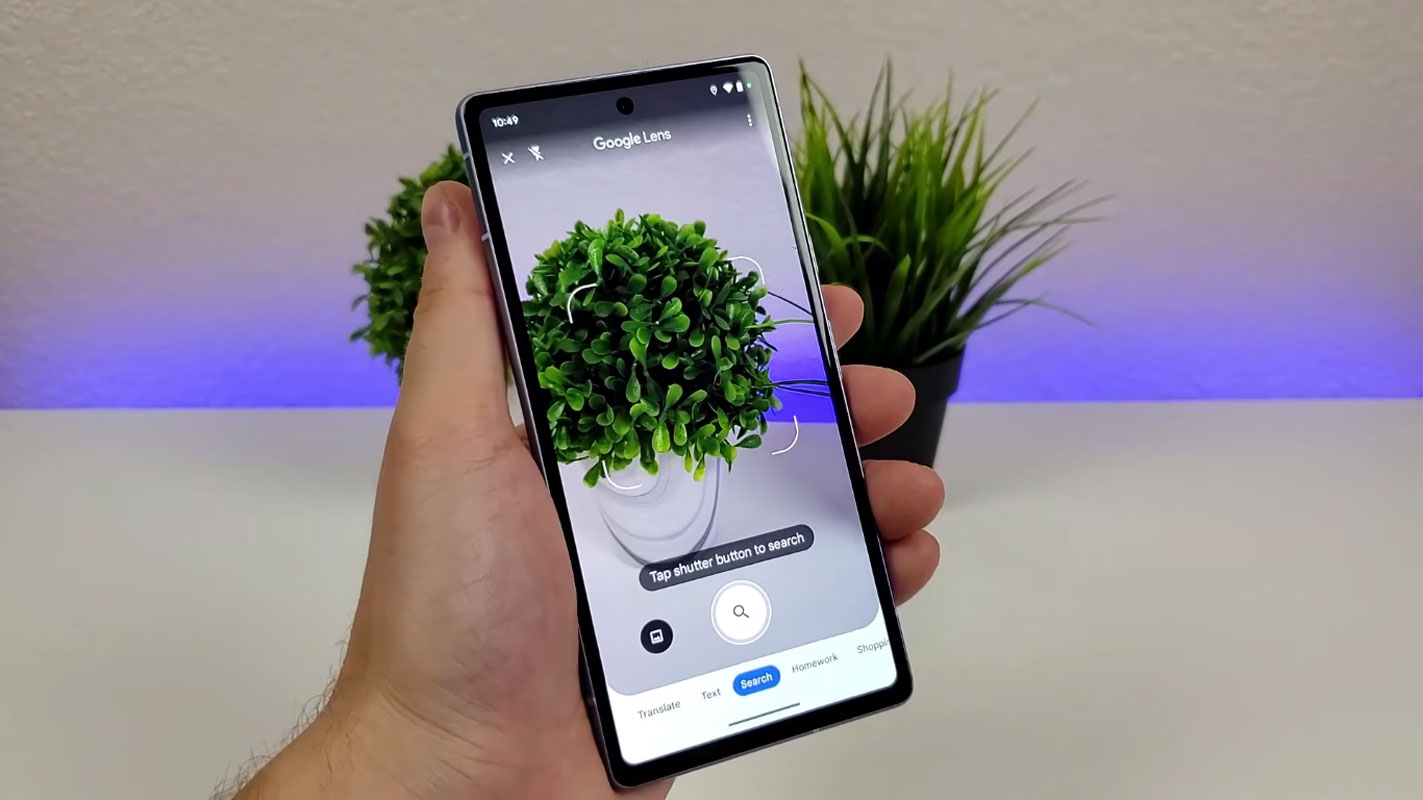
The Disappearing Act
Google Lens is a powerful tool that allows you to identify objects, scan barcodes, read QR codes, translate text, and more. Its seamless integration with Google’s suite of apps has made it a go-to feature for many users. It was accessible directly from the camera app, simplifying the user experience.

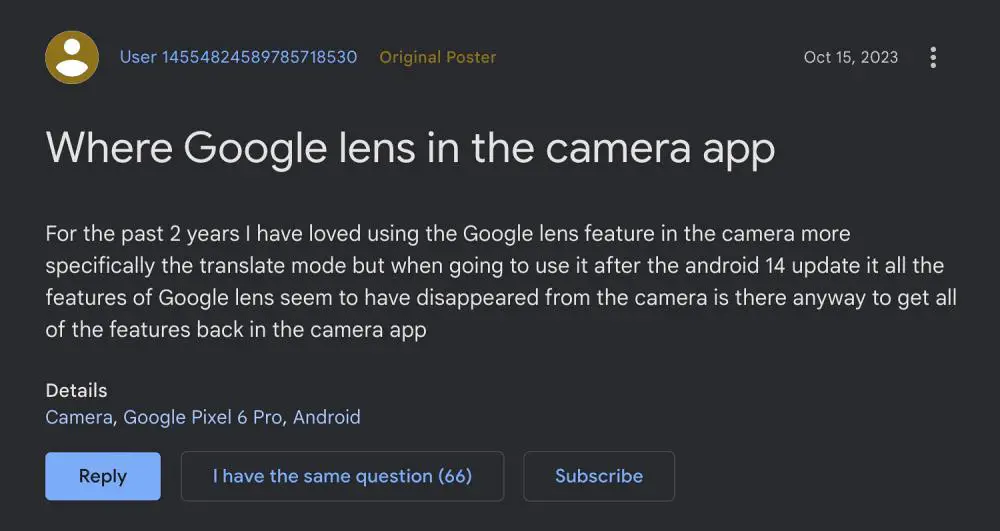
However, with the Android 14 update, Google made a significant change. They rebranded the Pixel Camera app and removed the Lens integration. This decision was driven by their goal to streamline the camera app’s focus on photography and videography, eliminating unnecessary integrations.
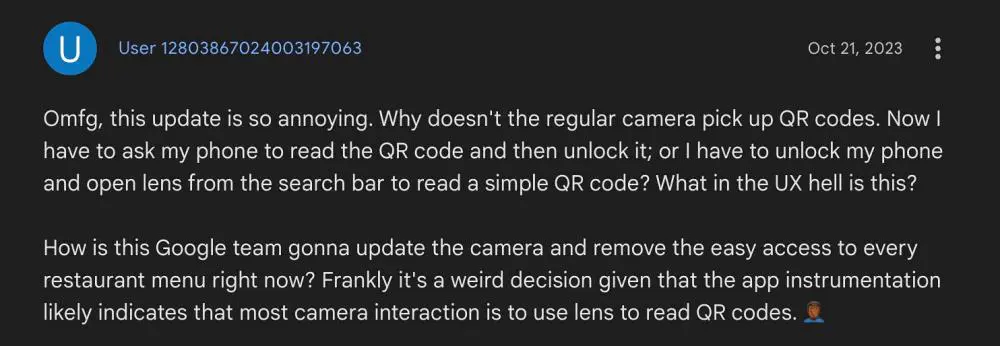
While the logic behind this move is sound, Google Lens could have been an exception. After all, its core functionality relies on the device’s camera app. So, what’s the best way to bring it back?
Accessing Google Lens in Android 14
The Shortcut: Home Screen
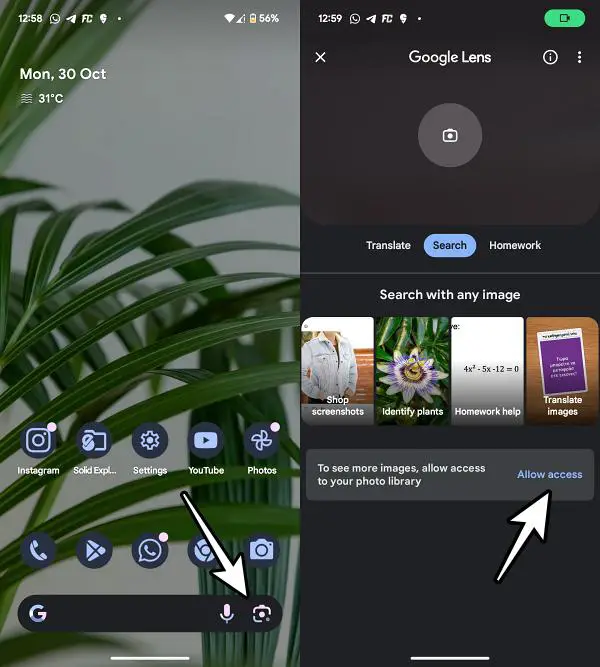
- The quickest route to Google Lens on Android 14 is by tapping on the camera icon located to the right of the Google Search bar on your home screen.
- This approach has become a preferred method for many users due to its simplicity.
- If you’re using this method for the first time, you must grant it access to your device’s gallery.
- Tap the “Allow Access” button, and you’re ready.
Standalone App
- Another way to access Google Lens is by using its standalone app.
- Although it’s not as seamless as the previous integration, it gets the job done.
- You can download the Google Lens app from the Play Store and enjoy its features by using the app directly.
Camera App
- For some users, accessing Google Lens via the camera app remains their preferred choice.
- To do this, launch the camera app, go to the “Modes” section, and select “Lens.”
- While it might involve a few extra steps, some users find this method convenient, especially if Lens auto-invokes when it detects QR codes or other objects.
FAQs
Why did Google remove Google Lens from the Pixel Camera app on Android 14?
Google’s decision to streamline the camera app’s focus on photography and videography led to the removal of Google Lens integration. They wanted to eliminate unnecessary features.
Can I still use Google Lens on my Android 14 device?
Yes, you can still use Google Lens. You can access it through a shortcut on your home screen, use the standalone app, or access it through the camera app.
Which is the quickest way to access Google Lens on Android 14?
The quickest method is to tap the camera icon on your home screen to the right of the Google Search bar.
Can I grant access to my device’s gallery to use Google Lens from the home screen?
The first time you use the home screen shortcut, you must grant access to your device’s gallery.
Is Google Lens still accessible through the camera app on Android 14?
Yes, you can still access Google Lens through the camera app by going to the “Modes” section and selecting “Lens.”
Why was Google Lens initially integrated with the camera app?
Google Lens was integrated with the camera app for convenience, allowing quick access to its features, especially when auto-invoked.
Wrap Up
Google’s decision to detach Google Lens from the Pixel Camera app on Android 14 was primarily motivated by a strategic move to streamline the camera’s core functions. The idea behind this separation was to emphasize the camera app’s primary role: capturing photos and videos. This change may need users to adjust, but it’s vital to know the versatile Google Lens is still accessible through alternatives. For instance, you can still easily access Google Lens through a home screen shortcut, making it a convenient and quick option for users. Alternatively, you can use the standalone Google Lens app, which offers the same feature set.
Furthermore, Google Lens can be accessed within the camera app using specific navigation. The choice is yours, allowing you to tailor your Google Lens experience to your preferences, ensuring you can harness its capabilities efficiently and effectively.

Selva Ganesh is a Computer Science Engineer, Android Developer, and Tech Enthusiast. As the Chief Editor of this blog, he brings over 10 years of experience in Android development and professional blogging. He has completed multiple courses under the Google News Initiative, enhancing his expertise in digital journalism and content accuracy. Selva also manages Android Infotech, a globally recognized platform known for its practical, solution-focused articles that help users resolve Android-related issues.




Leave a Reply