
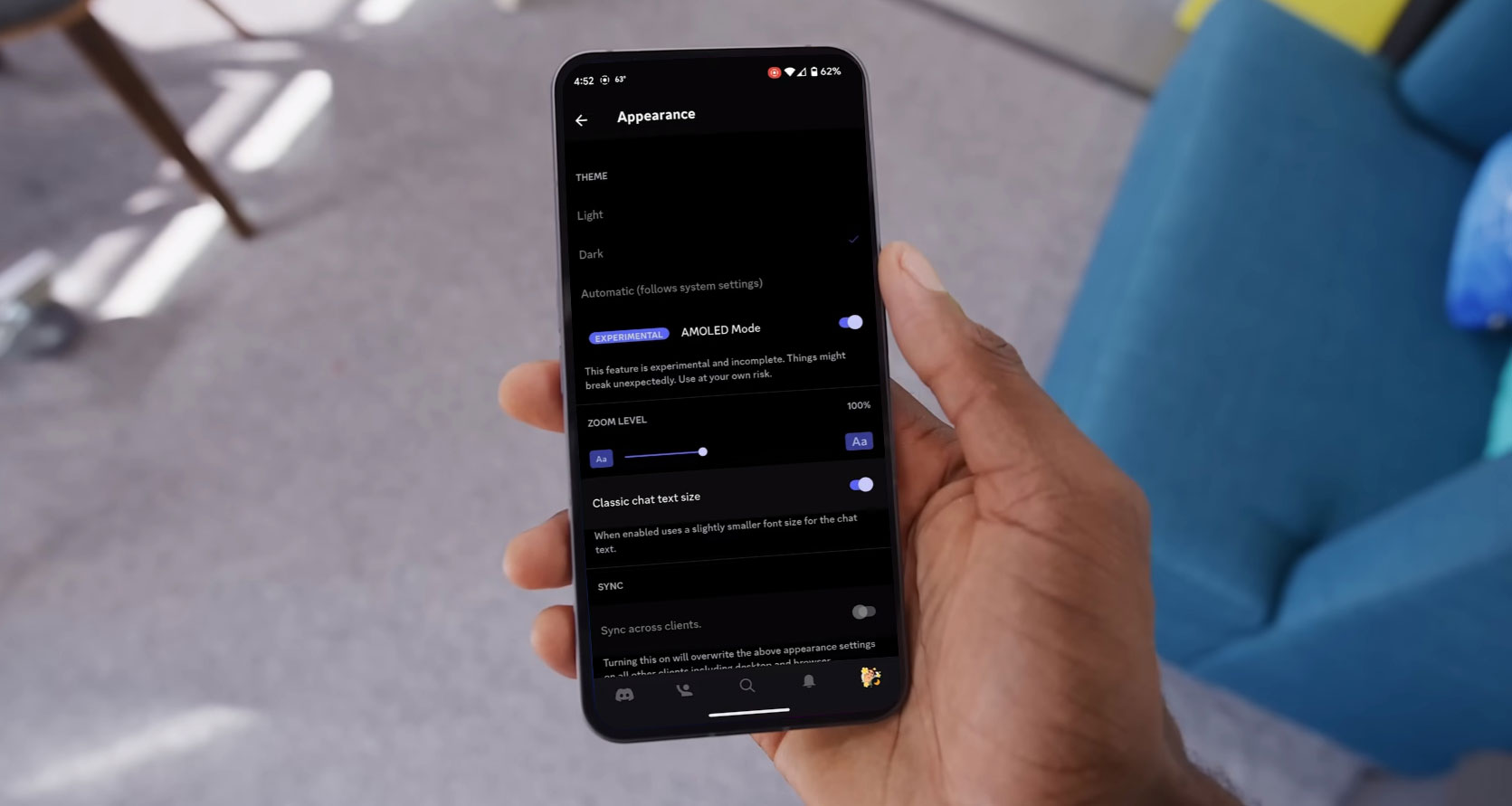
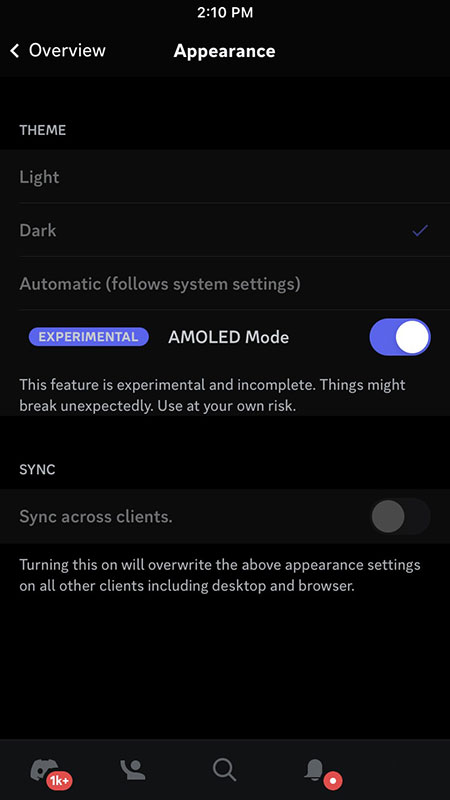
Discord has become a prominent platform for instant messaging and VoIP, renowned for its captivating features and user-friendly interface. The AMOLED Mode, known for its darker aesthetics, has garnered popularity among users. Nevertheless, specific individuals have encountered problems with this feature, which has been classified as “experimental and incomplete,” leading to frustration. This guide addresses these concerns and offers a clever workaround to resolve the AMOLED Dark Mode not functioning as expected in Discord. By providing users with a step-by-step solution, they can enjoy an enhanced experience on the platform and fully embrace the aesthetic appeal of the Discord AMOLED Mode.
Why is AMOLED Dark Mode Broken on Android?
Before we delve into the solutions, it’s essential to understand why AMOLED Dark Mode might suddenly stop working. The issue could arise due to recent updates or software glitches, but the exact cause may not always be apparent. Whether you are on the latest version or a beta release, the AMOLED Dark Mode might get stuck in the regular “grey” dark mode, refusing to switch to the intended AMOLED Mode.

Troubleshooting Steps to Fix AMOLED Dark Mode
To resolve the issue of AMOLED Dark Mode not working in Discord, you can try the following methods:
Leave Discord Beta Channel
If you are part of the Discord Beta Testing program and experiencing issues with AMOLED Dark Mode, consider leaving the beta channel and moving to the stable release. Here’s how you can do it:
- Open the Google Play Store and navigate to the Discord Beta page.
- Look for the “Leave Beta Testing” option and tap on it.
- Wait a few seconds, and you’ll receive a stable update from the Play Store.
- Download and install the regular version of Discord.
- Launch the app and check if the AMOLED Dark Mode works as expected.
Downgrade to Discord Stable
If leaving the beta channel doesn’t resolve the issue, you can downgrade Discord to a stable version. Follow these steps:
- Go to your device’s Settings and select “Apps” or “App Management.”
- Locate and tap on “Discord” from the list of installed apps.
- Select “Uninstall” and confirm the action in the prompt.
- Now, download an older version of Discord from a reputable source and install it on your device.
- Clear Cache and Data.
Clearing the cache and data of the Discord app can sometimes help resolve software-related issues. Here’s how you can do it:
- Go to your device’s Settings and select “Apps” or “App Management.”
- Locate and tap on “Discord” from the list of installed apps.
- Select “Storage” and then click on “Clear Cache” and “Clear Data.”
Precise data will log you out from Discord, so ensure you have your login credentials handy.
Check for Discord Updates
Keep your Discord app up-to-date by checking for the latest updates on the respective app store. Developers often release updates to fix bugs and improve the app’s performance.
Report the Issue to Discord Support
If none of the above methods work, contact Discord Support for further assistance. Please provide them with detailed information about your issue, including your device model, OS version, and any other relevant details.
FAQs
Why is my Discord AMOLED Dark Mode not working?
The issue with Discord’s AMOLED Dark Mode could be due to various reasons, such as recent updates, beta channel glitches, or software conflicts. By following the troubleshooting steps provided in this guide, you can attempt to fix the problem.
I left the Discord beta channel, but AMOLED Dark Mode is still not working. What should I do?
If leaving the beta channel didn’t resolve the issue, consider downgrading to a stable version of Discord. This might help you get the AMOLED Dark Mode working again.
Will clearing cache and data delete my Discord messages and settings?
Clearing data will log you out from Discord, and your messages and settings will be deleted. Ensure you have a backup or remember your login credentials before proceeding.
How often does Discord release updates?
Discord developers regularly release updates to improve the app’s performance and fix bugs. It’s essential to keep your Discord app up-to-date to enjoy the latest features and improvements.
What should I do if none of the fixes work for my Discord AMOLED Dark Mode?
If you’ve tried all the troubleshooting methods and the issue persists, we recommend contacting Discord Support. Provide them with as much detail as possible about the problem, and they will assist you in resolving the issue.
Wrap Up
Experiencing issues with Discord’s AMOLED Dark Mode can be exasperating, but the good news is that there are practical solutions to tackle this problem. Users facing such difficulties have several options at their disposal, such as leaving the beta channel if they are part of it, downgrading to a stable version of the app, clearing cache and data to eliminate any potential conflicts, or reaching out to Discord Support to report the issue for further assistance.
Using these methods, users can successfully troubleshoot the AMOLED Dark Mode not working problem and revel in Discord’s visually appealing and darker theme. With the issue resolved, users can fully immerse themselves in the vibrant Discord community and explore the platform with a more eye-friendly and immersive interface that enhances their overall experience.

Selva Ganesh is a Computer Science Engineer, Android Developer, and Tech Enthusiast. As the Chief Editor of this blog, he brings over 10 years of experience in Android development and professional blogging. He has completed multiple courses under the Google News Initiative, enhancing his expertise in digital journalism and content accuracy. Selva also manages Android Infotech, a globally recognized platform known for its practical, solution-focused articles that help users resolve Android-related issues.




Leave a Reply