
How Google Pics AI Image Creation Works – Visual content drives digital communication, but creating custom graphics has traditionally required expensive software, complex design skills, or hours spent hunting for stock photography. With Google Pics, Google has reimagined how professionals and everyday users generate and edit visuals directly within Google Workspace. Built right into applications like Google Docs and Google Slides, Google Pics lets anyone generate high-quality images and perform precise canvas edits using standard text commands.
This guide breaks down how Google Pics works, explaining its underlying technology in non-technical terms, its standout editing features, and practical applications for everyday tasks.

What Is Google Pics?
Google Pics is an intuitive, AI-powered image generator and editor integrated into Google Workspace. Powered by Google’s advanced Gemini and image-generation models, it bridges the gap between text ideas and polished graphics.
Instead of opening a external graphic design app, exporting files, and uploading them to your documents, Google Pics operates natively. Users can launch the editor directly inside a document or presentation using shortcut access like pics.new.
Key Features at a Glance:
-
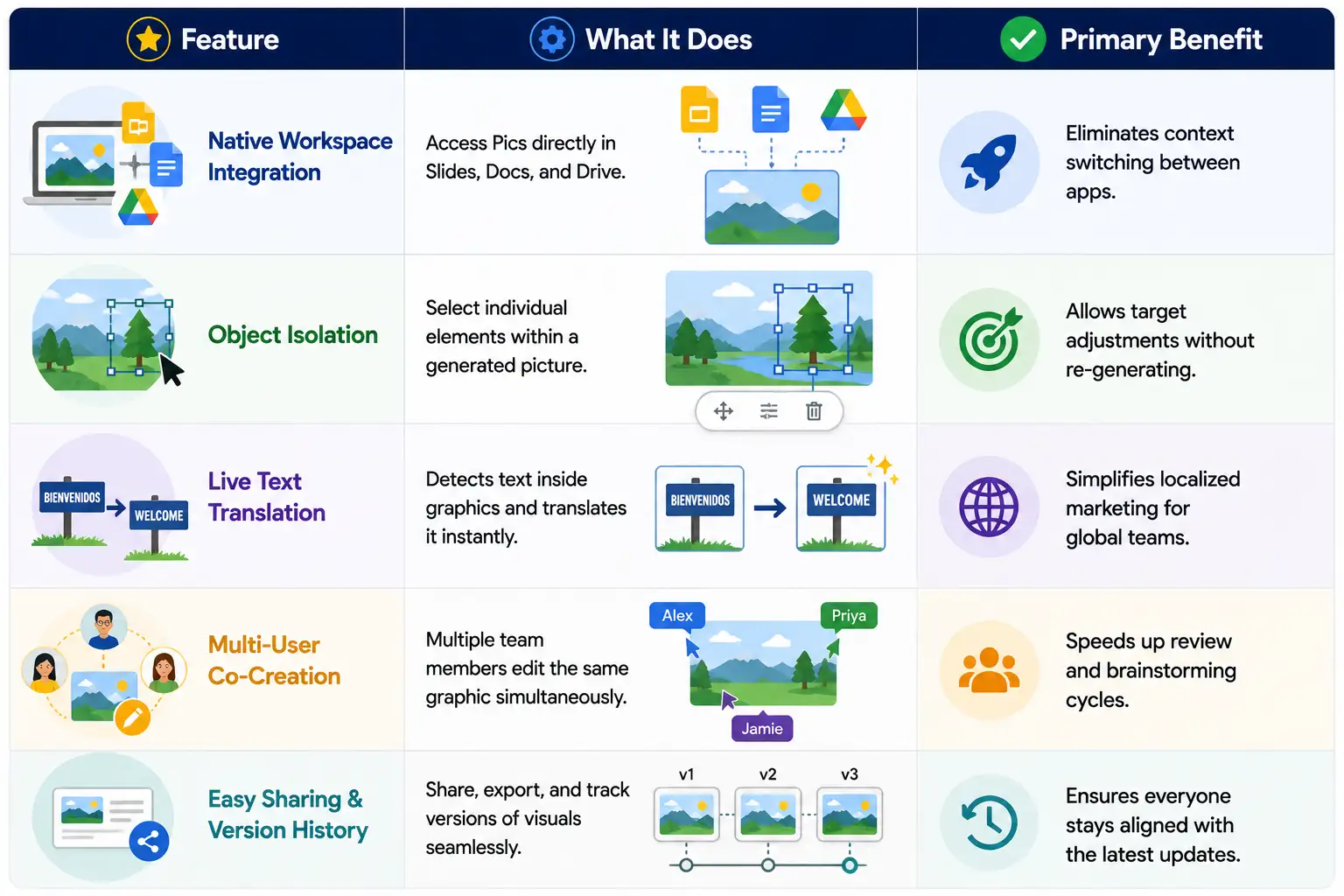
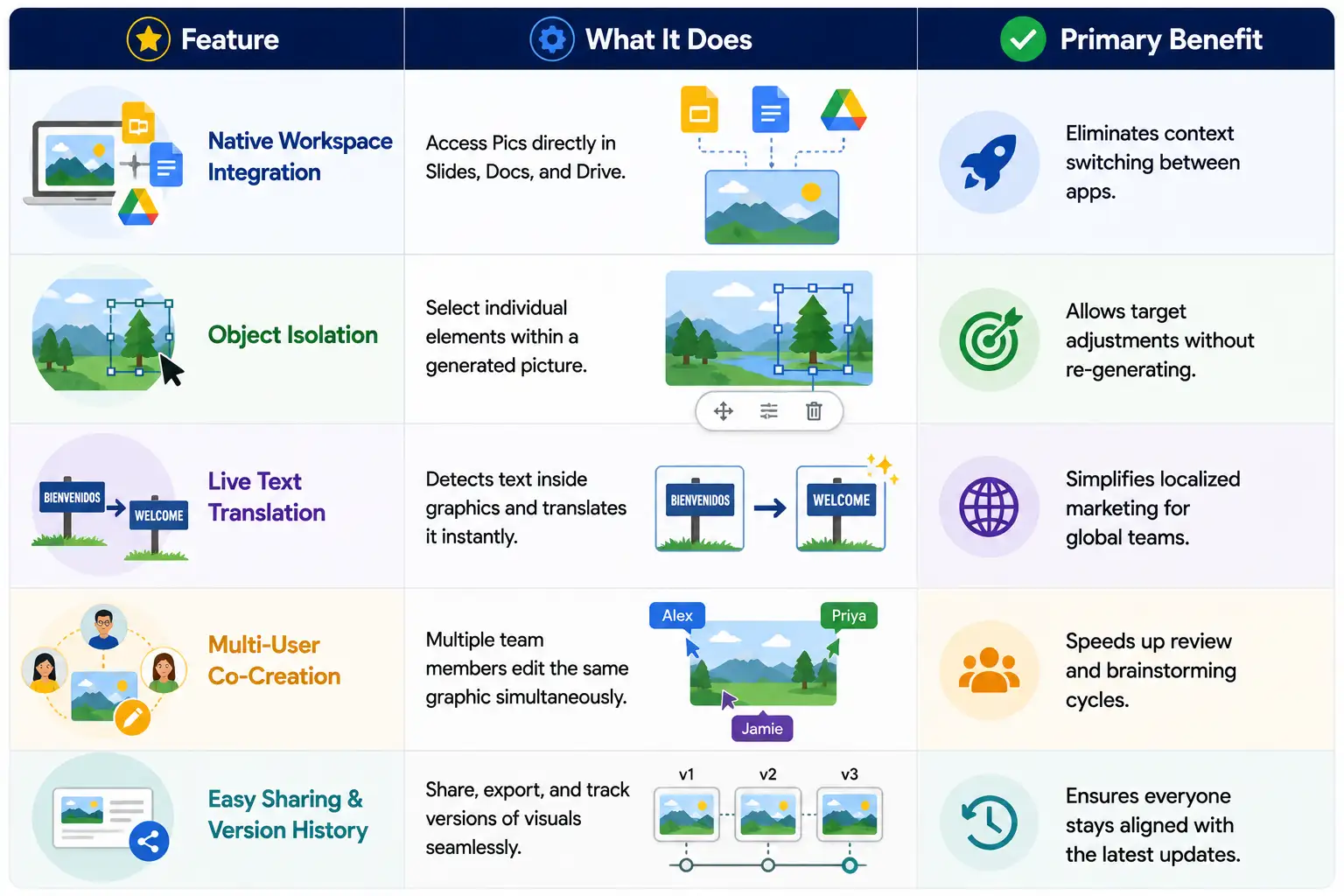
Text-to-Image Generation: Type a description, and the AI converts your words into a unique image.
-
Precision Object Controls: Move, scale, or edit specific elements without regenerating the entire image.
-
In-Image Text Modification: Change words appearing on graphic assets or translate text directly on the canvas.
-
Real-Time Collaboration: Team members can work on the same image simultaneously, just like editing a shared Google Doc.
How Google Pics Works?
AI image generation often sounds complex, but the core process behind Google Pics boils down to three straightforward stages: understanding text, building the image, and refining details.
1. Translating Text into Concepts
When you type a prompt such as “a modern office desk with a laptop and a steaming cup of coffee,” the system does not simply search a database of existing pictures. Instead, Gemini AI analyzes the words to understand context, mood, objects, and relationships. It identifies the core subjects (laptop, cup), the setting (office desk), and subtle details (steaming coffee).
2. Crafting the Visual Pixel by Pixel
Once the AI understands your prompt, it uses an advanced image generation engine (such as Google’s Nano Banana architecture) to build the visual from scratch. The system starts with a digital visual “canvas” and shapes pixels to form shapes, lighting, colors, and textures until a clear photo or illustration emerges.
3. Precision Editing Without “Prompt-and-Pray”
Traditional AI generators force you to rewrite your entire text prompt if a small detail is incorrect, often changing the whole picture in the process. Google Pics introduces layer-based precision editing. You can select a single object—such as a mug—and request to adjust its color, move it to another side, or remove it entirely, leaving the rest of the image untouched.
Standout Capabilities of Google Pics
Steps to Create and Edit an Image in Google Workspace
Best Practices for Crafting AI Image Prompts
To get the most accurate results from Google Pics, follow these prompting guidelines:
-
Be Specific About Subject Matter: Instead of writing “a bird,” write “a vibrant parrot perched on a tropical tree branch.”
-
Define the Lighting and Environment: Add details like “warm sunset lighting,” “soft office studio light,” or “misty morning background.”
-
Specify the Medium: Indicate whether you want a “high-resolution photograph,” a “flat vector icon,” or a “watercolor painting.”
-
Keep It Simple First: Start with a concise description, then use interactive click-and-edit tools to make specific adjustments.
Why Google Pics Changes Workplace Productivity
By embedding Generative AI image creation directly into everyday productivity tools, Google eliminates friction for teams. Marketers can quickly prototype campaign banners, educators can generate illustrative diagrams for lesson plans, and business managers can format slide decks with custom graphics—all without relying on external design departments or stock subscription libraries.
Google Pics brings powerful visual creation tools directly into the document editor, making high-end visual design accessible to everyone.

Selva Ganesh is a Computer Science Engineer, Android Developer, and Tech Enthusiast. As the Chief Editor of this blog, he brings over 10 years of experience in Android development and professional blogging. He has completed multiple courses under the Google News Initiative, enhancing his expertise in digital journalism and content accuracy. Selva also manages Android Infotech, a globally recognized platform known for its practical, solution-focused articles that help users resolve Android-related issues.




Leave a Reply