
Free AI Grammar Keyboard on Android– Typing on a small mobile screen frequently introduces awkward phrasing, missing punctuation, and subtle grammatical slips. Microsoft SwiftKey AI Keyboard solves this directly inside whatever app you are using, pairing real-time predictive typing with built-in artificial intelligence tools that proofread, rewrite, and refine messages without requiring a paid subscription. Instead of copying text into a separate grammar checker or browser tab, you can clean up emails, social posts, and everyday chats right from your Android keyboard toolbar. Below is a complete walkthrough of how the AI features work, how to set them up properly, and how to get reliable results in daily writing.

What Makes Microsoft SwiftKey an AI Grammar Keyboard
Standard mobile keyboards rely mainly on basic spell-check dictionaries that flag obvious typos while ignoring sentence structure. Microsoft SwiftKey combines an adaptive prediction engine with cloud-assisted AI writing tools powered by Microsoft Copilot.
In practice, we noticed that SwiftKey handles writing assistance on two distinct levels:
-
Passive Real-Time Corrections: As you tap or swipe using SwiftKey Flow, the keyboard evaluates surrounding words to catch missed spaces, incorrect contractions, and common word mix-ups before you finish a sentence.
-
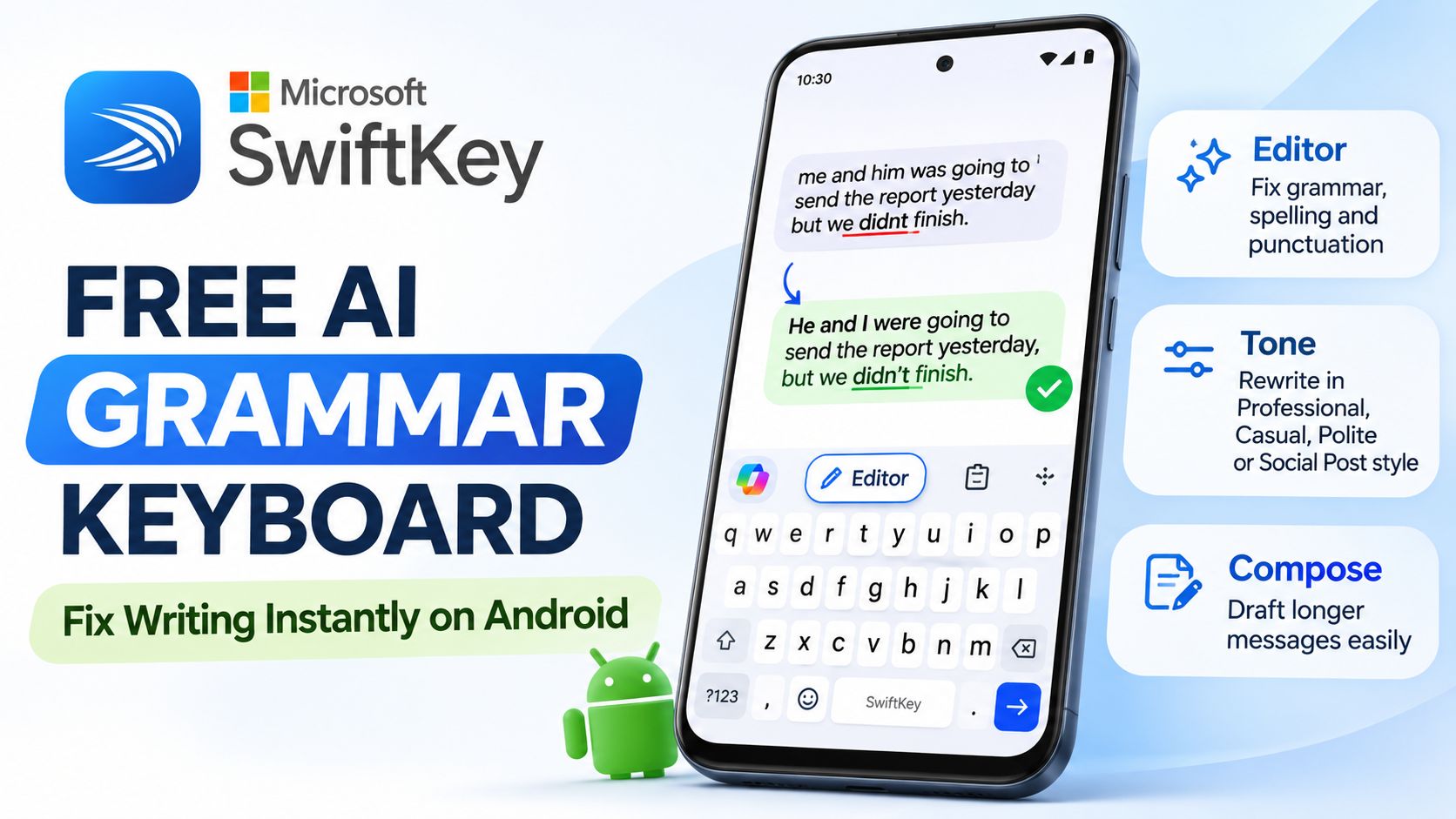
Active AI Proofreading and Rewriting: Through the built-in Editor and Tone features, you can analyze an entire paragraph at once to fix grammar, tighten punctuation, or shift your writing style from casual to formal with a single tap.
Because these tools sit directly in the keyboard toolbar, they work across Gmail, WhatsApp, Slack, LinkedIn, and virtually any Android text field.
How to Install and Set Up Microsoft SwiftKey on Android
Getting the AI tools running takes only a couple of minutes, though one detail often trips up new users: pre-installed versions of SwiftKey on certain Android phones may lack the latest Google Play Store AI features. Installing or updating directly from the Play Store ensures full access to Editor and Copilot tools.
Step 1: Download or Update the App
-
Open the Google Play Store on your Android device.
-
Search for Microsoft SwiftKey AI Keyboard.
-
Tap Install (or Update if a pre-installed version is already on your phone).
Step 2: Enable SwiftKey as Your Active Keyboard
-
Open the Microsoft SwiftKey app from your app drawer.
-
Tap Enable SwiftKey, which redirects you to your Android On-screen keyboard settings.
-
Toggle Microsoft SwiftKey AI Keyboard on and confirm the standard Android input prompt.
-
Return to the setup screen, tap Select SwiftKey, and choose it as your default input method.
Step 3: Sign In and Configure Toolbar Shortcuts
Signing in with a free Microsoft account syncs your personal dictionary across devices and ensures uninterrupted access to cloud-based AI features. Once inside the SwiftKey app settings, open Typing to verify that Autocorrect and Quick prediction insert are enabled so basic spelling fixes happen automatically while you type.
How to Fix Grammar Instantly Using SwiftKey Editor
The Editor tool is SwiftKey’s dedicated AI proofreader. It scans your draft for grammatical errors, missing commas, spelling mistakes, and awkward phrasing, then presents a cleaned-up version ready to swap into your message.
Checking a Full Message
-
Open any app and type your message as you normally would. Keep in mind that Editor requires at least three words before it activates.
-
Look at the top toolbar above the number row. Tap the Editor icon (or tap the three dots menu
...on the right side of the toolbar and select Editor). -
Wait a moment while the AI analyzes your sentence structure.
-
Review the suggested correction displayed in the keyboard panel.
-
Tap Replace to overwrite your original draft immediately, or tap Copy if you want to paste the corrected version elsewhere.
Checking Only a Highlighted Section
When you are writing a long email and only want to fix one troublesome sentence, you do not need to run the entire message through the tool:
-
Long-press and drag the selection handles to highlight the specific sentence or paragraph you want to fix.
-
Tap the three dots menu … on the SwiftKey toolbar and choose Editor.
-
Tap Replace to update only the highlighted portion while leaving the rest of your document untouched.
Adjusting Writing Style with Tone and Compose
Correct grammar alone does not always guarantee the right impression. A message that is grammatically accurate can still sound overly blunt in a client email or too stiff in a group chat. SwiftKey includes Tone and Compose inside its Copilot menu to handle stylistic adjustments.
Using Tone to Rewrite Drafts
-
Type your rough thoughts into any text box.
-
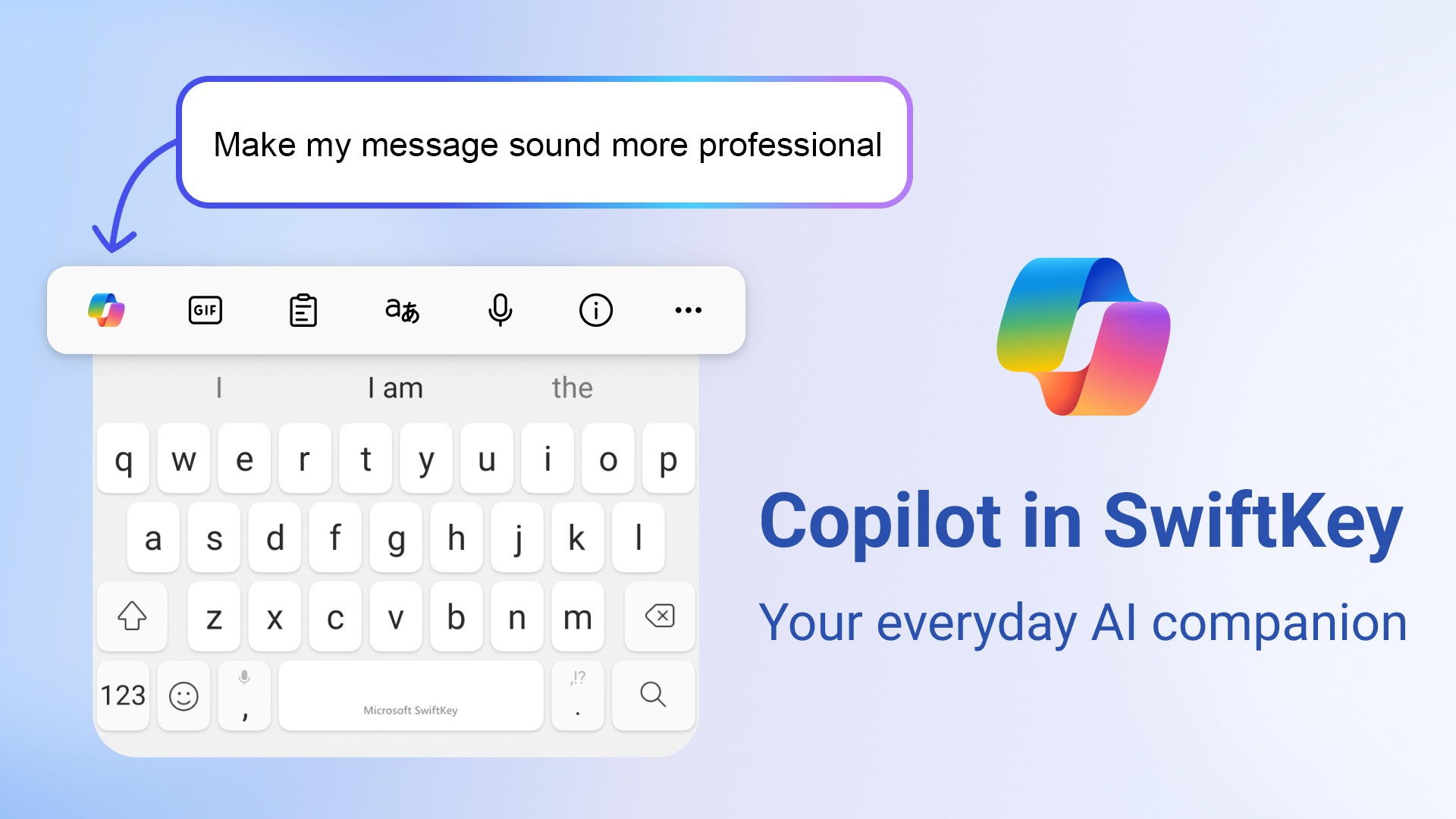
Tap the Copilot icon on the left side of the keyboard toolbar and select Tone.
-
Your text automatically loads into the rewrite box. Tap the arrow icon to generate variations.
-
Swipe through the four built-in presets: Professional, Casual, Polite, and Social Post.
-
Tap Replace (or Accept) on the version that fits your audience.
Using Compose for Longer Messages
If you are staring at a blank email field, tap Copilot and choose Compose. Enter a brief description of what you need to say, pick your preferred tone, format (such as an email or paragraph), and length, then generate a structured draft ready to insert into your app.
Practical Examples of SwiftKey AI Fixes
Seeing how the keyboard transforms rough mobile typing makes it easier to know when to rely on Editor versus Tone:
| Original Mobile Draft | Selected Tool | AI Output | What Changed |
| me and him was going to send the report yesterday but we didnt finish | Editor | He and I were going to send the report yesterday, but we didn’t finish. | Fixed pronoun case, subject-verb agreement, comma placement, and apostrophe. |
| send me the updated invoice asap need it for accounting | Tone (Polite) | Could you please send me the updated invoice as soon as possible? I need it for accounting. | Softened abrupt phrasing while keeping the core request clear. |
| our new update is live now check out the link below | Tone (Social Post) | Our new update is officially live! Check out the link below to explore what’s new. | Added energetic punctuation and engaging phrasing suited for social feeds. |
Key Features That Improve Daily Accuracy
Beyond one-tap grammar checks, several supporting tools inside SwiftKey reduce typing errors before you ever need to open Editor:
-
Multilingual Typing Across Five Languages: You can enable up to five languages simultaneously without manually toggling keyboard layouts, allowing bilingual writers to switch languages mid-sentence while keeping autocorrect active.
-
Custom Toolbar Pinning: If you use Editor frequently, open the three dots menu
..., press and hold the Editor icon, and drag it onto your primary top bar for single-tap access. -
Incognito Mode for Sensitive Typing: Tapping Incognito in the toolbar stops SwiftKey from learning words or storing predictive patterns while you enter confidential notes or private details.
-
Personal Dictionary Management: Whenever SwiftKey flags a brand name, technical term, or local slang word you use regularly, tapping the left-hand prediction slot teaches the keyboard to stop correcting it. If an unwanted typo gets saved, long-press the prediction and tap OK to remove it.
Benefits and Limitations to Keep in Mind
Understanding where SwiftKey excels—and where its boundaries lie—helps you avoid frustration during fast-paced writing.
Advantages
-
Completely Free Core Experience: Unlike third-party grammar keyboards that lock tone rewrites or advanced punctuation fixes behind monthly subscriptions, SwiftKey provides Editor, Tone, and Compose free of charge.
-
System-Wide Availability: Because it operates at the Android input level, grammar checking works inside apps that lack native spell-checkers.
-
Strong Swipe and Prediction Engine: Even without cloud AI features, SwiftKey’s local predictive model adapts closely to your vocabulary over time.
Limitations
-
Requires an Internet Connection for AI Tools: Basic autocorrect and word predictions run offline, but Editor, Tone, and Compose rely on cloud processing and will not load without mobile data or Wi-Fi.
-
Minimum Word Threshold: Editor will not trigger on one- or two-word fragments; you need at least three words in the text box.
-
Occasional Over-Formality: When rewriting casual texts, AI suggestions can sometimes strip away natural personality, so reviewing the preview before tapping Replace remains essential.
Troubleshooting Common SwiftKey AI Issues
If the Editor or Tone tools do not appear or fail to load suggestions, check these quick fixes:
-
Missing Editor or Copilot Icon: Verify that you installed Microsoft SwiftKey AI Keyboard from the Google Play Store rather than using an outdated factory-installed version. Also check the three dots menu
...on the toolbar, as newly added icons often sit inside the overflow drawer until you pin them. -
Editor Button Grayed Out: Confirm that your text field contains at least three words and that you are not typing inside a restricted password or banking security field, where Android blocks third-party AI processing.
-
Slow Loading or Connection Errors: Close the keyboard by tapping the back button, check your internet connection, reopen the text field, and tap Try again inside the Editor panel. Clearing the app cache under Android Settings – Apps – Microsoft SwiftKey – Storage also resolves occasional sluggishness.
Frequently Asked Questions
1. Is Microsoft SwiftKey’s AI grammar checker completely free on Android?
Yes. Microsoft SwiftKey is free to download on the Google Play Store, and its built-in Editor, Tone, and Compose AI writing tools do not require a paid subscription.
2. Why is the Editor option not showing up on my SwiftKey keyboard?
If Editor is missing from your top bar, tap the three dots menu ... on the right side of the keyboard toolbar to locate it. If it is still absent, update the app via the Google Play Store, as pre-installed OEM versions sometimes omit newer AI features.
3. Does SwiftKey Editor work offline without internet access?
Basic spell-checking, autocorrect, and word predictions work offline on your device. However, AI-powered Editor grammar checks and Tone rewrites require an active internet connection to process text.
4. How many words do I need to type before using SwiftKey Editor?
You must enter at least three words in the text field before the Editor feature can analyze your sentence and generate grammar suggestions.
5. Can I fix grammar in just one sentence instead of a whole email?
Yes. Highlight the specific sentence you want to correct using Android’s text selection handles, tap the three dots menu ... on SwiftKey, and select Editor to replace only that selected passage.
6. Do I need a Microsoft account to use AI grammar features in SwiftKey?
While basic typing works immediately after installation, signing in with a free Microsoft account is recommended to ensure full access to cloud-powered AI features and to sync your personal dictionary across devices.
7. Does SwiftKey read passwords or sensitive banking information?
No. Android automatically switches to a secure input mode or disables predictive and cloud AI tools inside password fields and protected banking screens so sensitive credentials are not processed.
8. How do I stop SwiftKey from correcting custom brand names or slang?
When you type a custom term, tap the exact spelling shown on the left side of the prediction bar before hitting space. SwiftKey learns your custom vocabulary automatically over time.
9. What is the difference between SwiftKey Editor and Tone?
Editor focuses strictly on proofreading—fixing grammar, spelling, and punctuation while keeping your original wording intact. Tone rewrites your sentences to match a specific style, such as Professional, Casual, Polite, or Social Post.
10. Can I use SwiftKey’s AI grammar check in languages other than English?
Yes. SwiftKey supports over 700 languages for typing and offers AI Editor proofreading across multiple major languages, though suggestion depth can vary depending on the language selected.

Selva Ganesh is a Computer Science Engineer, Android Developer, and Tech Enthusiast. As the Chief Editor of this blog, he brings over 10 years of experience in Android development and professional blogging. He has completed multiple courses under the Google News Initiative, enhancing his expertise in digital journalism and content accuracy. Selva also manages Android Infotech, a globally recognized platform known for its practical, solution-focused articles that help users resolve Android-related issues.




Leave a Reply