
How to Use Gmail Live – Managing a cluttered email inbox can often feel like a full-time job. Sorting through hundreds of messages, tracking down specific flight numbers, and extracting school event details manually takes up valuable time. To solve this problem, Google introduced Gmail Live, a groundbreaking feature designed to simplify how we interact with our correspondence. Instead of traditional typing and scrolling, this technology allows us to use our voice to talk to our inbox just like we would talk to a human assistant.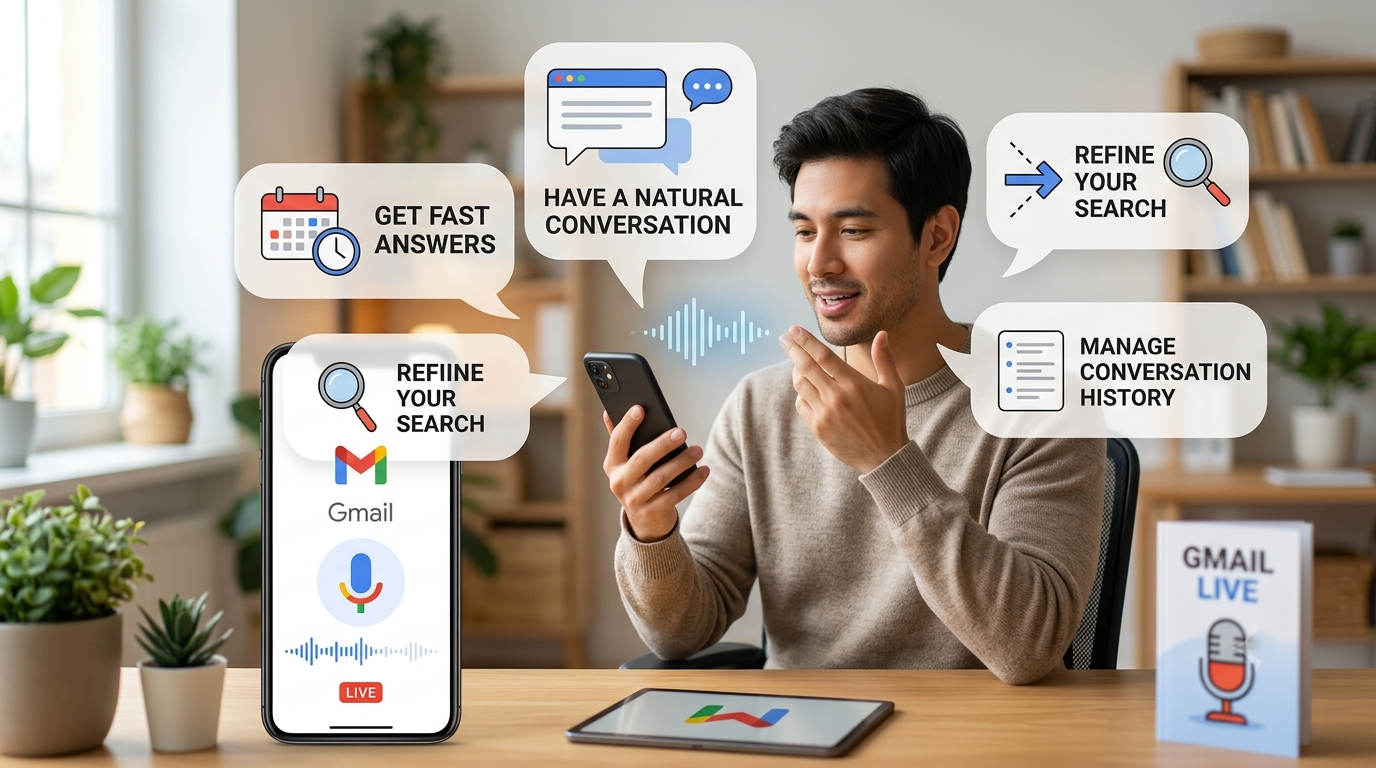
We have put together this comprehensive guide to explain exactly how to use Gmail Live, what requirements must be met to access it, and how non-technical users can make the absolute most of this tool to achieve an organized, stress-free inbox.

What is Gmail Live and How Does It Work?
Gmail Live is an AI-powered voice assistant integrated directly into the mobile application. Built on Google’s advanced Gemini intelligence, it allows users to have natural, back-and-forth spoken conversations about the contents of their email accounts.
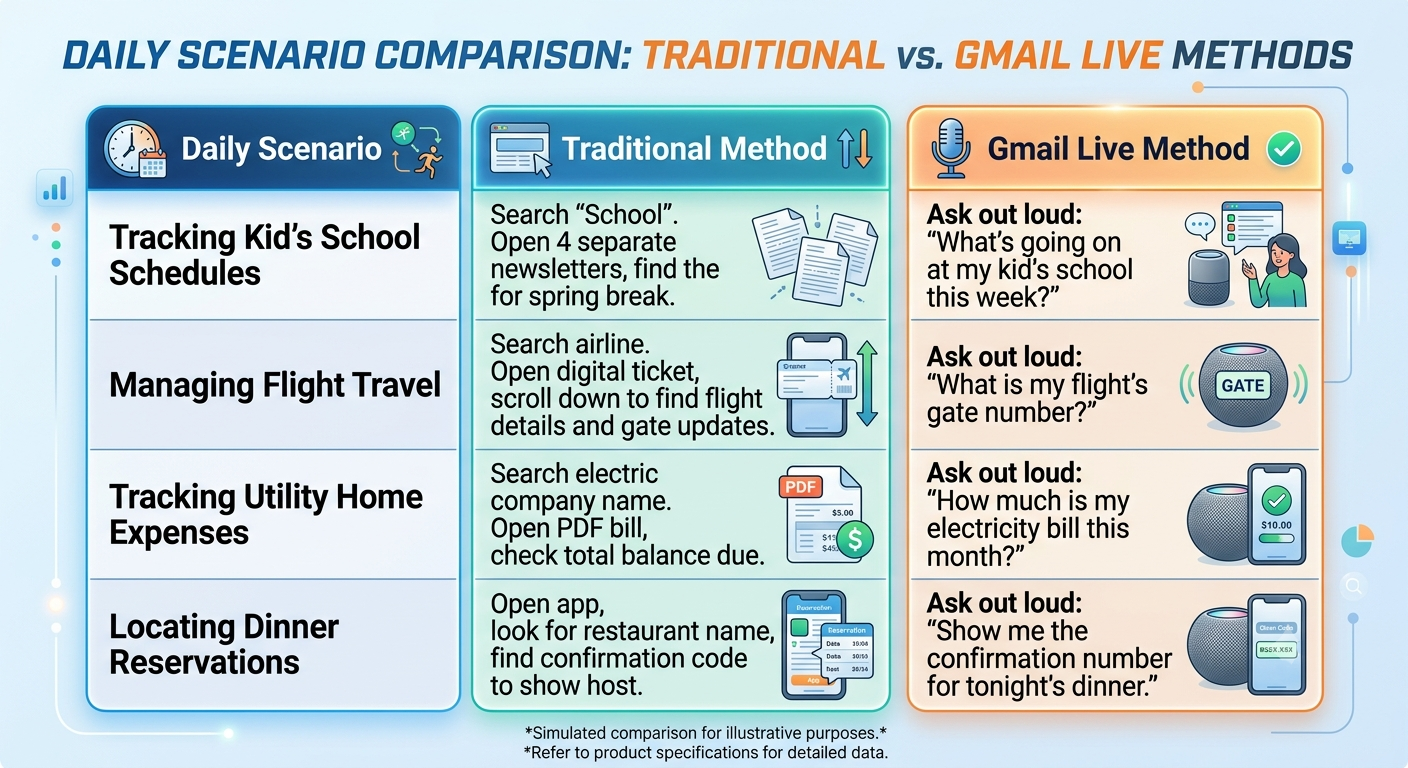
Instead of opening the app, clicking the search bar, typing a keyword, and opening multiple threads to piece information together, we can simply ask a question out loud. The system instantly analyzes the relevant messages, extracts the precise details needed, and speaks the answer back.
The true magic lies in its conversational flexibility. Users can interrupt Gmail Live mid-sentence to shift topics, ask for further clarification, or drill down into specific details without having to start a brand new search from scratch. It removes the technical barrier of searching data tables or filters, making advanced inbox management accessible to anyone who can hold a spoken conversation.
Essential Prerequisites for Using Gmail Live
Before attempting to activate this feature, certain account types and regional settings must be verified. Because this tool relies on early-access artificial intelligence architecture, Google restricts availability during its initial rollout phases.
-
Geographic and Language Availability: At this time, the feature is exclusively available in the United States and functions solely when the device and account language are set to English.
-
Account Type Requirements: The tool is not automatically active on standard, base accounts. Access requires a personal Google Account that is explicitly enrolled in Google Workspace Experiments. This early-access program allows regular users to test upcoming experimental features before they are widely released to the global public.
-
The Gmail Mobile Application: This feature cannot be accessed via a desktop computer web browser. It is strictly available on mobile devices using the official mobile application for Android, iPhone, and iPad.
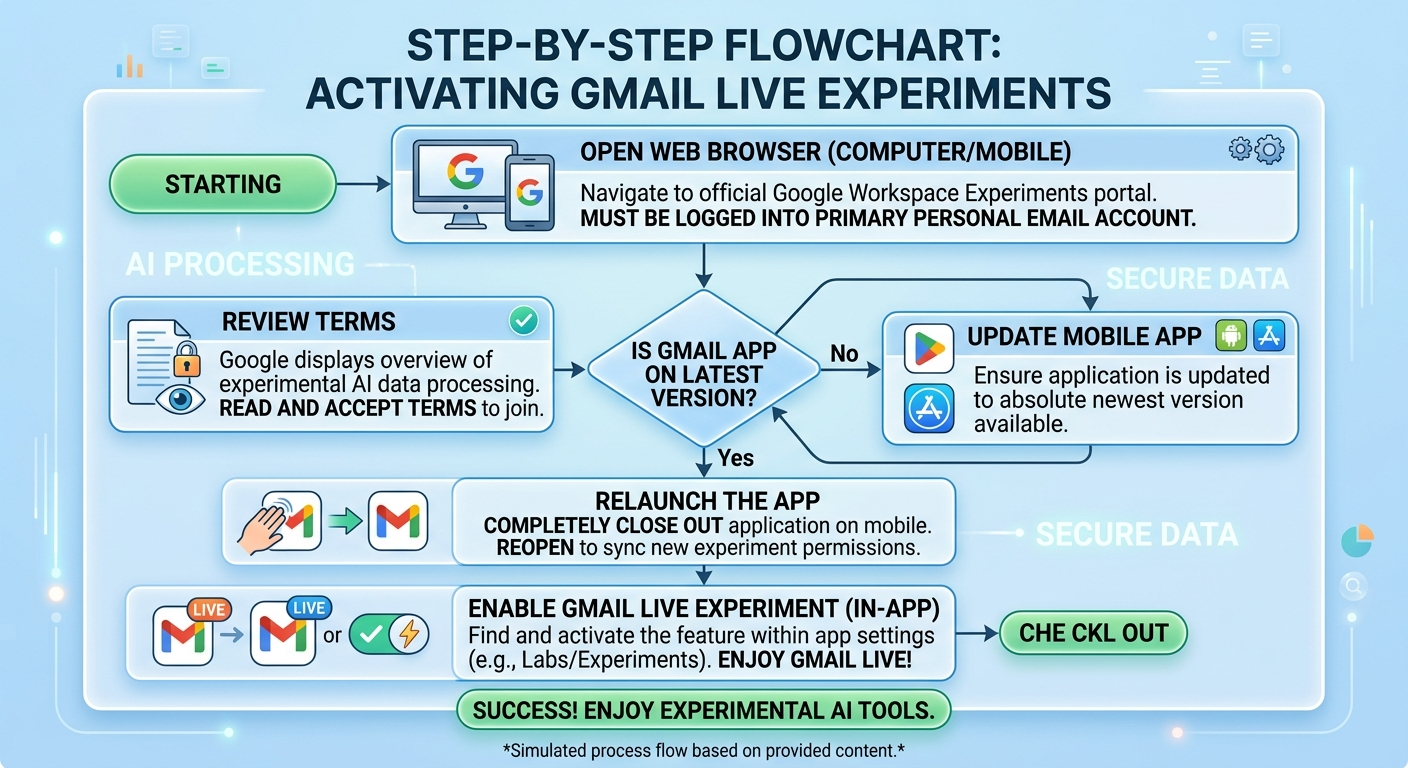
Step-by-Step Guide to Activating Google Workspace Experiments
For non-tech people, entering an experimental program sounds intimidating, but the process is highly straightforward. To grant the mobile app permission to use these advanced voice capabilities, the experiment flag must be turned on.
Master the Core Features: Conversations with Your Inbox
Once active, a distinct microphone or conversation icon becomes available near the search interface inside the app. Tapping this icon initiates a live session. We have broken down the primary ways to leverage this system for maximum daily efficiency.
1. Synthesizing Fast and Immediate Answers
Instead of opening multiple messages to figure out a schedule, we can ask for summary breakdowns. The AI reviews the incoming messages and provides a cohesive, translated response out loud.
Example Prompt: “What time does my package arrive tomorrow, and which carrier is delivering it?”
The system will skip past promotional filler text, look specifically for shipping confirmation emails from recent days, cross-reference tracking details, and tell us the carrier name and arrival time instantly.
2. Conducting Complex Multi-Turn Dialogues
Traditional search engines require one search at a time. If the results are wrong, we must delete the text and type a new query. With this conversational system, we can talk dynamically.
If we ask, “What’s my flight’s gate number?” and the app provides the answer, we can immediately say, “And what’s the check-in time for the hotel?” The system understands the context of travel and scans hotel confirmation vouchers next, keeping the conversation fluid.
3. Real-Time Topic Interruption
If we ask the assistant to list the school activities happening this week, it might start reading off a long list of events. If we realize halfway through that we only care about Friday’s events, we do not need to wait for it to finish. We can interrupt the voice assistant directly by speaking over it and saying, “Actually, just tell me what time the bake sale starts on Friday.” The tool stops its current reading path and recalibrates immediately to pinpoint that single event.
Practical Everyday Examples for Non-Tech People
To help understand how this changes daily life, let us look at real-world scenarios where voice-searching an inbox eliminates administrative frustration.
Managing and Deleting Your Conversation History
Because this interaction functions like an ongoing text and voice dialogue, Google maintains a log of these interactions. For security and personal privacy, keeping track of where this data is stored remains vital.
Every spoken conversation held with the app is automatically captured as a written transcript. These files are saved directly inside a specialized privacy section called the Gemini in Workspace conversation history.
If a user discusses sensitive financial matters or personal scheduling data and later wishes to remove that data trail, they can do so easily. By opening a standard desktop or mobile web browser, navigating to the Google Activity Controls page, and selecting the Workspace history tab, users can view a chronological list of every query made. From there, individual items or entire days of history can be wiped out permanently with a single click.
Troubleshooting Common Issues
If the system fails to respond properly or the option does not appear within the interface, use these troubleshooting steps to restore functionality:
-
Verify Account Restrictions: Double-check that a work or school email account is not being used. Gmail Live does not support enterprise Workspace accounts unless the specific system administrator has bypassed experimental restrictions. It runs smoothly on standard personal
@gmail.comaccounts. -
Confirm Smart Features Are Turned On: Google requires data sharing preferences to be enabled for AI features to scan emails. Navigate to app settings, open the specific account settings, and make sure “Smart features and personalization” is checked. If this box is unchecked, the system is blocked from reading messages to generate answers.
-
Check Network Connection: Because the voice synthesis and language processing occur securely on Google’s remote servers, a stable cellular data or Wi-Fi connection is mandatory. A dropped connection will cause the assistant to say it is having trouble reaching servers.
By embracing Gmail Live, non-technical users can step away from the tedious mechanics of inbox organization. Treating our emails as a searchable, conversational knowledge base saves time and changes how we interact with our digital lives.

Selva Ganesh is a Computer Science Engineer, Android Developer, and Tech Enthusiast. As the Chief Editor of this blog, he brings over 10 years of experience in Android development and professional blogging. He has completed multiple courses under the Google News Initiative, enhancing his expertise in digital journalism and content accuracy. Selva also manages Android Infotech, a globally recognized platform known for its practical, solution-focused articles that help users resolve Android-related issues.




Leave a Reply