
How to Improve Galaxy Watch Battery Life – Experiencing rapid battery drain on Samsung Galaxy Watch devices can disrupt daily routines, from fitness tracking to staying connected on the go. Fortunately, battery depletion is rarely caused by a hardware flaw. In most cases, rapid power drain stems from background processes, active network connections, and unoptimized display settings.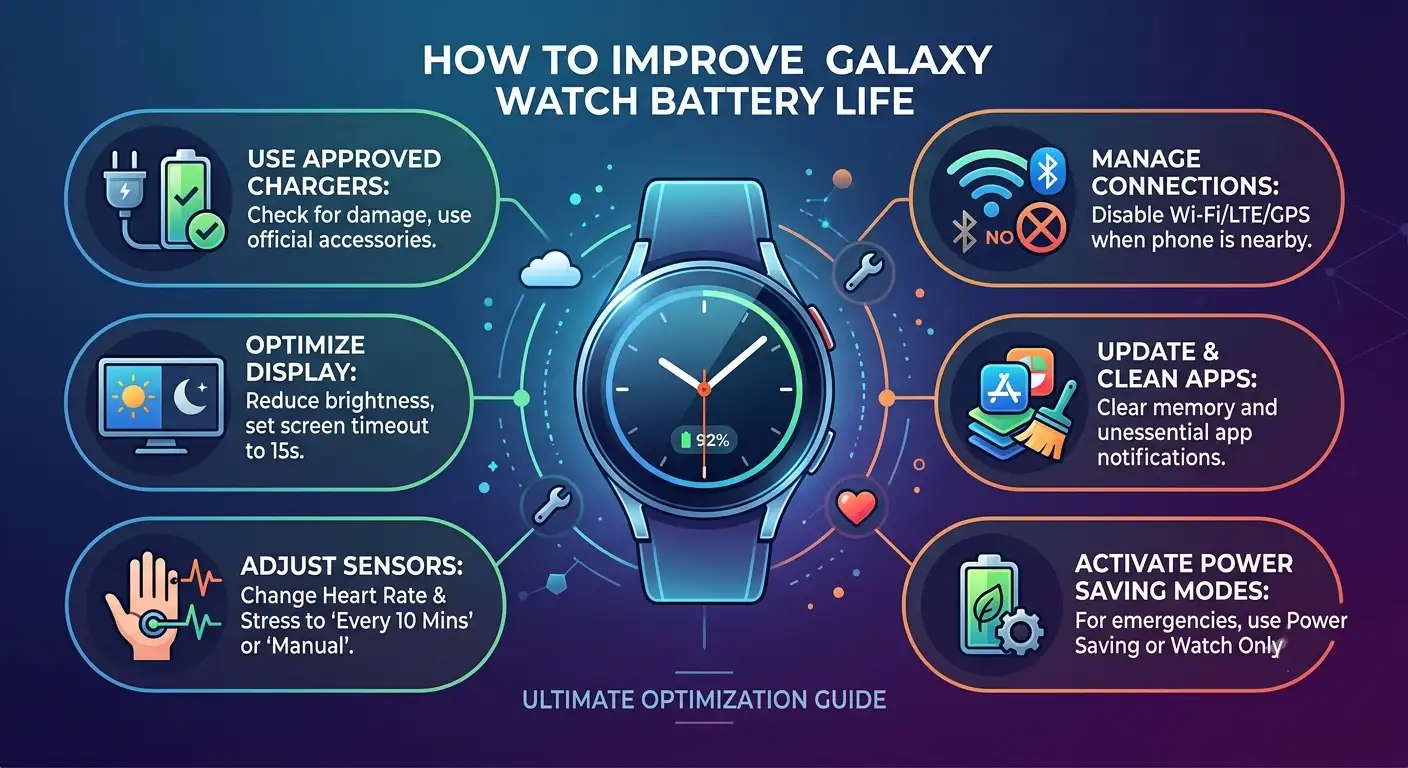
We have compiled this definitive, easy-to-follow guide to help optimize your Samsung Galaxy Watch for maximum daily endurance without sacrificing essential smart features.

1. Hardware and Charging Diagnostics
Before adjusting digital settings, verify the physical integrity of your smartwatch and power accessories. Hardware faults or improper charging equipment can mimic severe software-based battery issues.
-
Inspect physical components: Check your watch casing and charging pad for physical or liquid damage. Moisture or corrosion inside the contacts prevents optimal power delivery.
-
Use Samsung-approved chargers: Always charge your device with official Samsung-approved wireless chargers. Third-party charging docks often fail to regulate voltage correctly, leading to overheating, inefficient charging cycles, and accelerated long-term battery degradation.
-
Avoid temperature extremes: Lithium-ion batteries perform poorly under high environmental stress. Exposing your Galaxy Watch to sub-zero temperatures or leaving it in a direct-sunlight vehicle degrades chemical battery health rapidly.
2. Display Settings Optimization
The high-resolution AMOLED display on your Galaxy Watch is its single largest consumer of battery power. Strategic visual adjustments yield immediate gains in operational time.
Disable Always On Display (AOD)
The Always On Display feature keeps the screen lit continuously. Turning off AOD can extend your daily battery life by up to 30%.
-
Swipe up on your watch face to open the Apps screen.
-
Tap Settings (gear icon) and select Display.
-
Toggle off Always On Display.
Reduce Screen Brightness and Timeout
Set your screen brightness to a medium level (around 40–50%) and set the screen timeout to 15 seconds. Enable Auto-Brightness so the display automatically dims in darker environments.
Choose Battery-Friendly Watch Faces
Dark or minimal watch faces consume significantly less power on AMOLED displays because black pixels are completely turned off. Avoid animated watch faces or those requiring constant real-time data feeds like live weather animations and live step counters.
3. Managing Wireless Connections
Constant search protocols for local wireless networks drain significant power reserves. Managing connectivity prevents background searching when these networks are not actively needed.
Disable Unnecessary Networks
When your watch is connected to your smartphone via Bluetooth, secondary connections like Wi-Fi, GPS, and LTE/Mobile Networks remain unnecessary for most basic operations.
-
Wi-Fi: Swipe down to access the Quick Settings panel and turn off Wi-Fi. Alternatively, go to Settings > Connections > Wi-Fi and switch to Off.
-
Location / GPS: Open Settings > Location and turn off location tracking when not running outdoor navigation or workout routes.
-
Mobile Networks (LTE Models): For LTE-enabled Galaxy Watches, set Mobile Networks to Auto instead of Always On, or turn it Off entirely when your paired phone is nearby.
4. Fine-Tuning Notifications and Alert Settings
Receiving notifications forces the watch processor to wake up, turn on the display, and activate the vibration motor. Customizing incoming alerts drastically lowers overall system power draw.
Customize Notification Delivery via Galaxy Wearable App
-
Open the Galaxy Wearable app on your connected smartphone.
-
Navigate to Watch Settings > Notifications.
-
Tap App Notifications and turn off alerts for non-essential applications (games, shopping apps, promotional alerts).
Disable Immediate Screen Activation
By default, some models illuminate the screen every time a notification arrives.
-
In the Notifications menu of your Galaxy Wearable app, tap Advanced notification settings.
-
Turn off Turn on screen and Show with details. This allows you to receive haptic vibration alerts without powering on the high-draw display panel automatically.
5. Optimizing Health and Fitness Trackers
Samsung Health continuously runs monitoring algorithms in the background. Tailoring continuous monitoring settings frees up processing power and saves energy.
Adjust Heart Rate Monitoring
Continuous real-time heart rate tracking keeps the optical sensor active 24/7.
-
Open Samsung Health on your watch.
-
Scroll to and select Heart Rate.
-
Access Auto HR Settings (or tap Settings at the bottom).
-
Change the continuous reading option to Every 10 mins while still or Manual only.
Disable Continuous Stress and Sleep Tracking
-
Stress Tracking: Open the Stress menu in Samsung Health, navigate to settings, and switch Auto Stress Settings to Off or Manual.
-
Blood Oxygen During Sleep: In Samsung Health Sleep settings, toggle off Blood oxygen during sleep and Snore detection if you do not strictly require overnight health analysis.
6. App Management and Storage Maintenance
Outdated apps, memory clutter, and rogue background software frequently cause excessive battery drain.
Update Watch Software and Applications
Developers issue updates to patch memory leaks and bugged routines that cause CPU overuse.
-
System Updates: Open the Galaxy Wearable app on your phone, go to Watch Settings, tap Watch Software Update, and select Download and install.
-
App Updates: Open the Galaxy Store on your watch or through the Galaxy Wearable app, navigate to My Apps or Updates, and perform an Update All.
Clean System Storage and Background Apps
Unused media files and stacked background applications consume system memory (RAM), increasing processing overhead.
-
Open the Galaxy Wearable app on your phone.
-
Select Watch Settings > About Watch (or Device Care / Storage depending on your One UI Watch version).
-
Tap Storage and remove cached audio files or images no longer needed on the wrist.
-
Tap RAM or Memory and execute a Clean Now action to clear active background processes.
7. Utilizing Built-In Power Saving Modes
When extended battery operation is required, built-in system power modes offer instant efficiency improvements.
Power Saving Mode
Activating Power Saving Mode limits CPU performance, disables Wi-Fi/LTE, switches the screen to a streamlined grayscale display, disables touch-wake gestures, and limits high-draw features while preserving core functions like calls, text messages, and Bluetooth notifications.
-
Quick Access: Swipe down from the top of the watch face to open Quick Settings and tap the Battery / Power Saving icon.
-
Settings Access: Go to Settings > Battery and toggle on Power saving.
Watch Only Mode
For emergency situations where power is almost fully depleted, enable Watch Only mode under Settings > Battery. This turns off all smartwatch software, disabling connectivity and fitness tracking entirely, leaving only a basic digital time display that can run for multiple days on low remaining power.
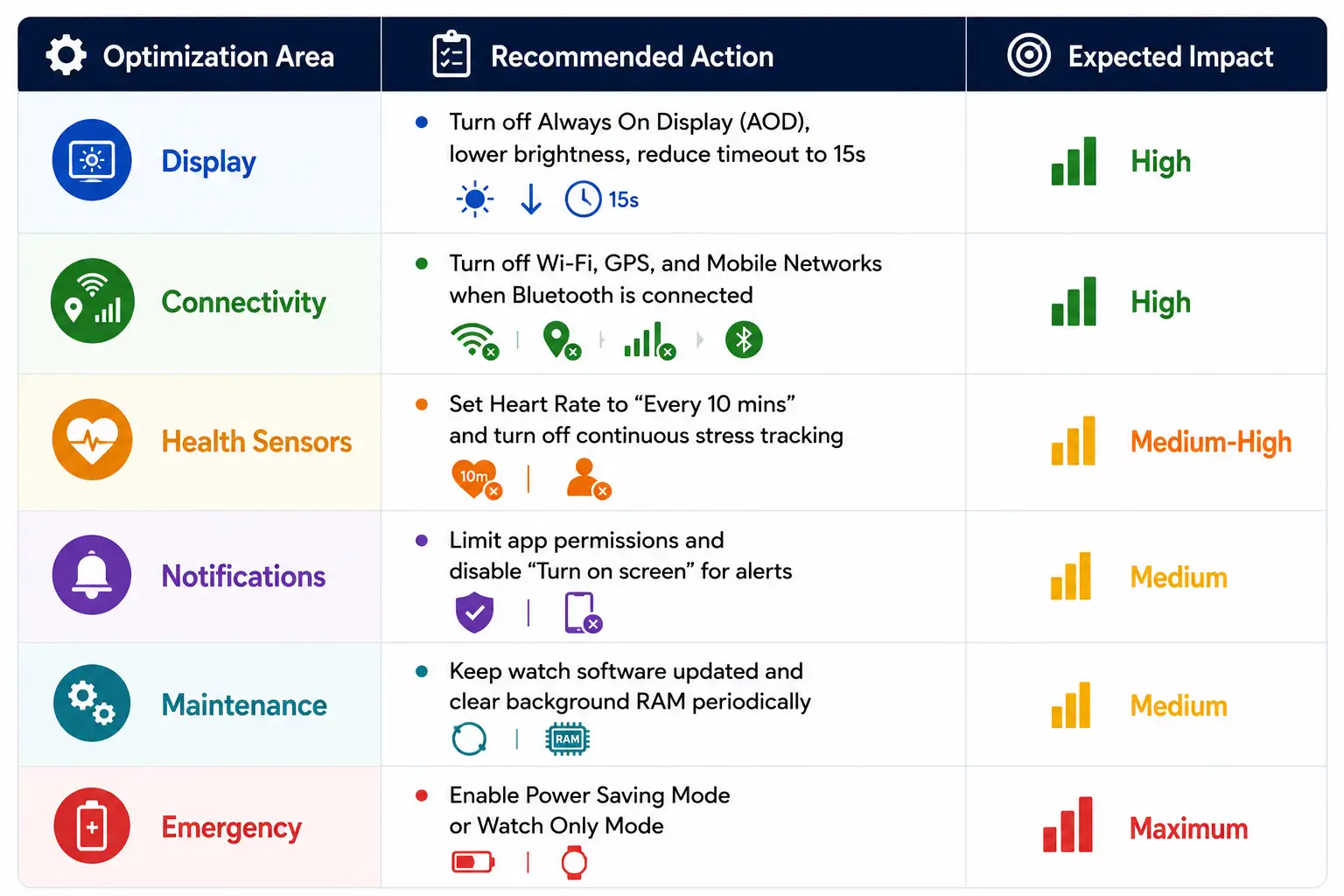
Summary Checklist for Galaxy Watch Battery Optimization

Selva Ganesh is a Computer Science Engineer, Android Developer, and Tech Enthusiast. As the Chief Editor of this blog, he brings over 10 years of experience in Android development and professional blogging. He has completed multiple courses under the Google News Initiative, enhancing his expertise in digital journalism and content accuracy. Selva also manages Android Infotech, a globally recognized platform known for its practical, solution-focused articles that help users resolve Android-related issues.




Following these systematic troubleshooting steps proves that battery depletion is rarely a permanent hardware failure. A few thoughtful software adjustments can easily revitalize an underperforming smartwatch.
Disabling touch-to-wake alongside the always-on display gives me the absolute maximum battery life possible. It takes a little getting used to, but the extended longevity is totally worth it.
Reviewing the detailed battery consumption charts helped me pinpoint exactly which background processes were at fault. Fixing those rogue apps brought my daily screen-on time back up.
Keeping Bluetooth connected securely while turning off redundant Wi-Fi radios optimized my connectivity profile. This balanced approach keeps me connected without sacrificing battery health.
Disabling continuous blood oxygen measurements during sleep was the key to fixing my overnight battery drain. Now my watch tracks my rest without draining half its capacity.
Using a simpler watch layout without live weather animations drastically improved my daily battery duration. It just proves that unoptimized display settings are usually the primary culprit.
Taking the time to review every single app permission has completely eliminated my battery anxiety. Removing unnecessary location and background access made my Galaxy Watch reliable again.
Limiting the number of weather updates pushed to my wrist throughout the day helped conserve valuable power. It is amazing how much energy constant background syncing consumes.
Disabling the voice assistant wake word eliminated those frustrating micro-stutters and sudden battery drops. My watch feels snappier and lasts significantly longer between charges now.
Updating all my installed applications to their latest versions patched several known background memory leaks. Software optimization is genuinely the best cure for poor wearable battery life.
Turning off automatic Wi-Fi switching stopped the watch from constantly scanning for open networks in public places. That constant searching was definitely the main source of my power drain.