
Even If Facebook always caught on many controversies, It is the most used social media network in the world. The platform has billions of active daily users; plus, the company has acquired/developed quite a couple of other IM and social media apps. Messenger, a standalone IM platform is Facebook’s official app for sending messages. Also, Messenger lets you send SMS, chat, video call, and has much more features. However, Messenger doesn’t have a “Logout” option; thus, it is difficult, if not impossible, to log out from Facebook Messenger on a device. Nevertheless, in this article, we are going to share how you can completely log out from Facebook messenger on any device, whether it is Android, iOS, or the web version.
Logout Completely and Make your Status as Offline in Facebook Messenger in Android Mobiles
Firstly, let’s discuss how to log out from an Android smartphone. The method is quite straightforward and easy to understand. This method is for Android smartphone users, for iOS users, check the following way. We can’t log out from the current user device. So, We have to go back and forth on several mobiles and PCs to make our status offline and log out from Facebook Messenger. In some apps like Facebook, Web View versions, they allow us to log out from all devices completely.

Method One: Log out from the Messenger App
If you think the first method discussed above is a bit hectic, then you should try this one. Follow the steps below to log out of Messenger from the app itself.
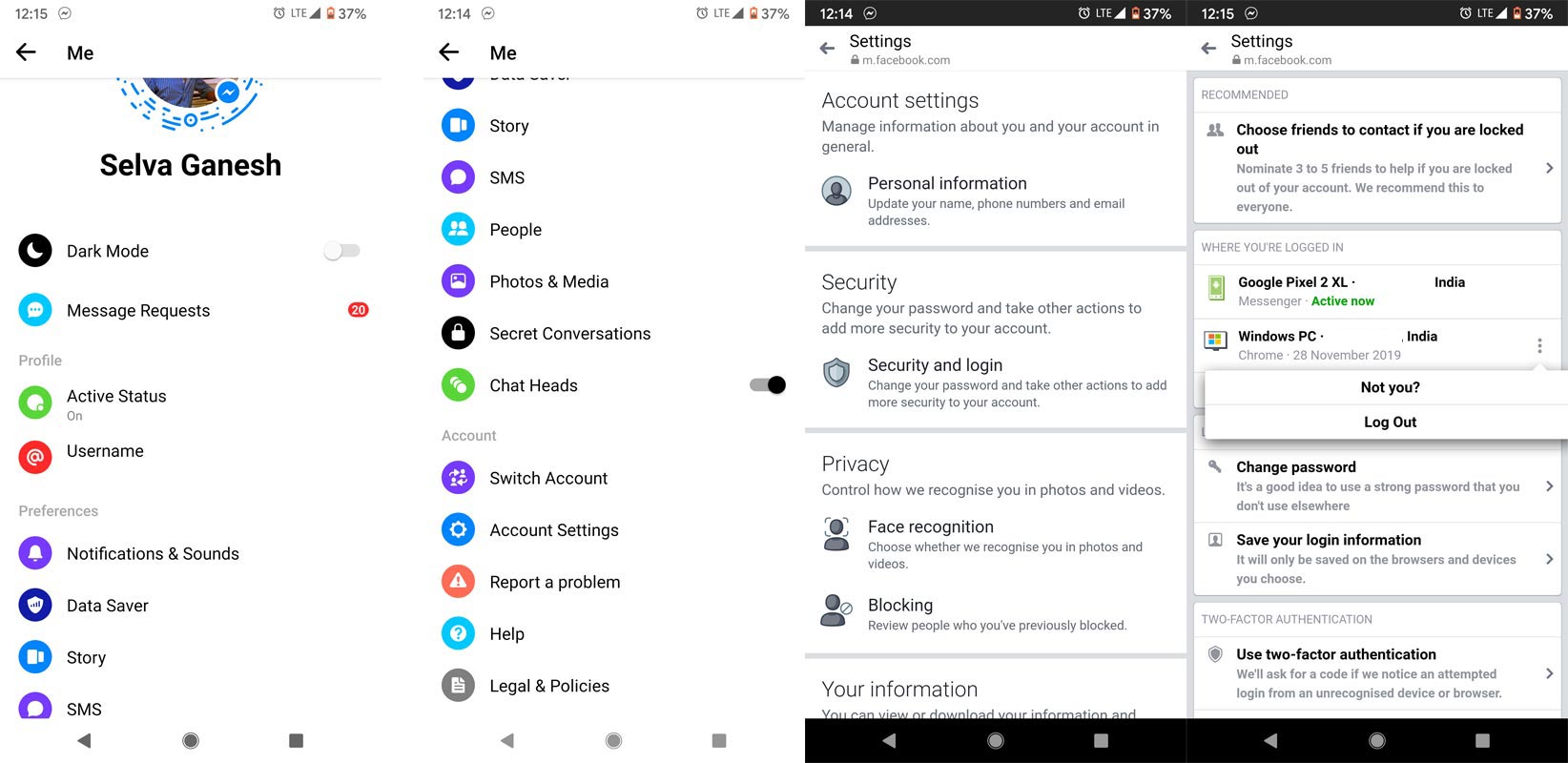
- Open the Messenger app on your Android device
- Click on your profile icon, make your Active Status “Offline,” and scroll down to “Account Settings.”
- Select “Security and Login”
- You’ll see all the places (devices) where your Facebook account is logged in. From here, tap on the “options” icon and select log out.
You can continue logging out on all devices you’ve previously logged in.
That’s it! Following either of these two methods above, you can easily log out of Messenger completely. However, the methods discussed above are for Android smartphones’ users’. iOS users should read below.
Note: The “method one” is not feasible for people using Messenger Lite or Facebook Lite apps. You need the full version. You can also add one more account and log out from your Current Account. Facebook Messenger allows us to use two or more profile accounts.
Method Two: Using Facebook App
This method will help you completely log out from all sessions, including messenger, App, and Web view versions. When you forgot to log out from the devices that are not yours, you can use this method. It is always better to use two-factor authentication to protect your account.
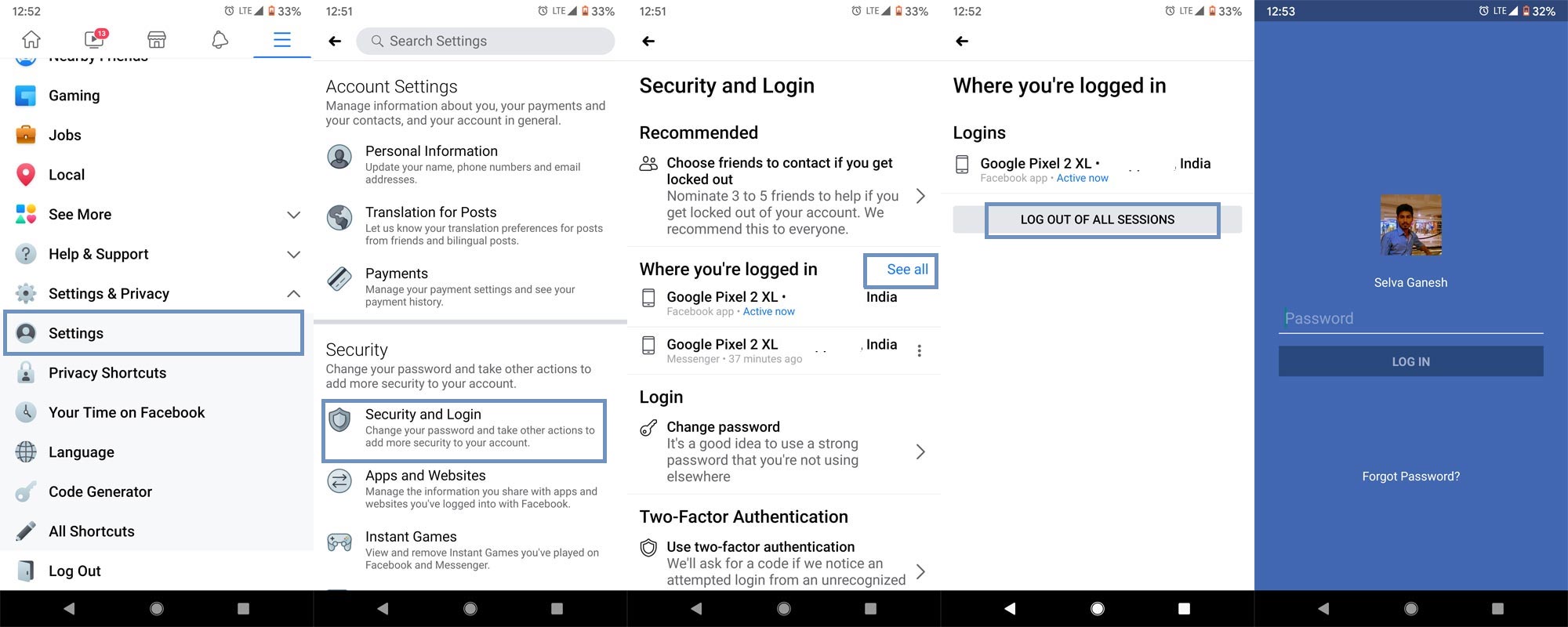
- Open the Facebook app on your device and go to the settings menu by clicking on the three vertically-arranged dots seen at the lower right-hand corner of your screen. Then scroll down until you see the “Settings and Privacy” option.
- Click on the “Settings” row to open the available settings offered by Facebook.
- Tap on “Security and Login”
- Now, you will see the list of all the devices and PCs your Facebook account is active.
- Select “See All” and select the device you want to log out your Messenger account from, click on the “More” icon, and choose “Log Out.” If you want to log out from all sessions, You can select “LOG OUT OF ALL SESSIONS.”
- After you log out from all devices, now you have to log out from the current mobile. Again Tap on the flat hamburger icon. Scroll down to the bottom, and you will find the option- Log out. Select that option to log out from the current device.
Note: If you forgot to log out from the Facebook app unless you set your status as offline, You would be shown to others as Online. So, you have to log out of your current mobile also.
Method Three: Clear Messenger’s app data
On Android devices, once you clear an app’s data, everything user data, settings, and info on the app get erased. Removing an app’s data is different from clearing cache. When you clear an app’s cache, it merely clears the “cache” files, but when you remove the app’s data, you delete every user configuration or settings, just like resetting your device to “Factory default settings.” So, to remove Messenger’s app data, follow the steps below.
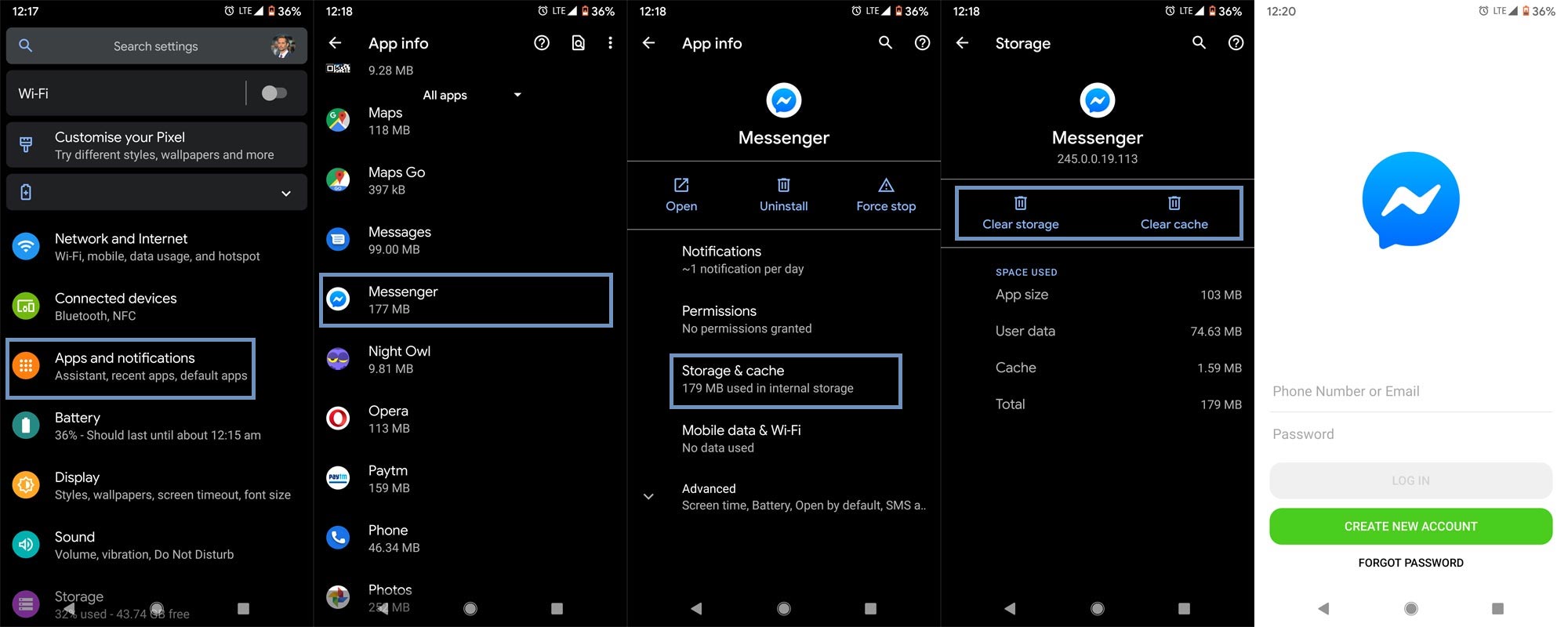
- Go to your device settings and scroll down to “Apps” or “Apps & notifications.”
- Click on the “Apps” option
- Tap on “See all apps.”
- Scroll down and search for “Messenger” on the list of apps on your Android device
- Now, tap on the “Messenger” option and further click on “Storage.”
- Here, you will see “Clear Storage” and “Clear Cache” options. The “Clear Storage” option is the same as the “Clear Data” option. The anchor texts differ from one OEM to another.
- So, click on then “Clear Storage” or “Clear Data” option to erase the app’s data.
- When you click on the option, you’ll see a warning message, tap “Ok” to clear the app’s data
Once you erase the app’s data, you’ll automatically be logged out of messenger on that device. That is to say; you’ll need to log-in again if you want to access Messenger from that particular Android device. This method is very simple and straightforward. Nevertheless, there’s another way to get this done – log out of FB Messenger completely.
Note: Even If we remove the data, sometimes the Messenger Asks our profile as “continue as,” It will allow us to log in again without providing a password. If you face this issue, I advise you to use the Web view method to log out from your account completely.
How to log out from Messenger on the iPhone?
To log out from Messenger on iOS devices, you need to go through the Facebook app itself. That said, you must install the official Facebook mobile app for iOS on your iPhone or iPad device to continue with this process.
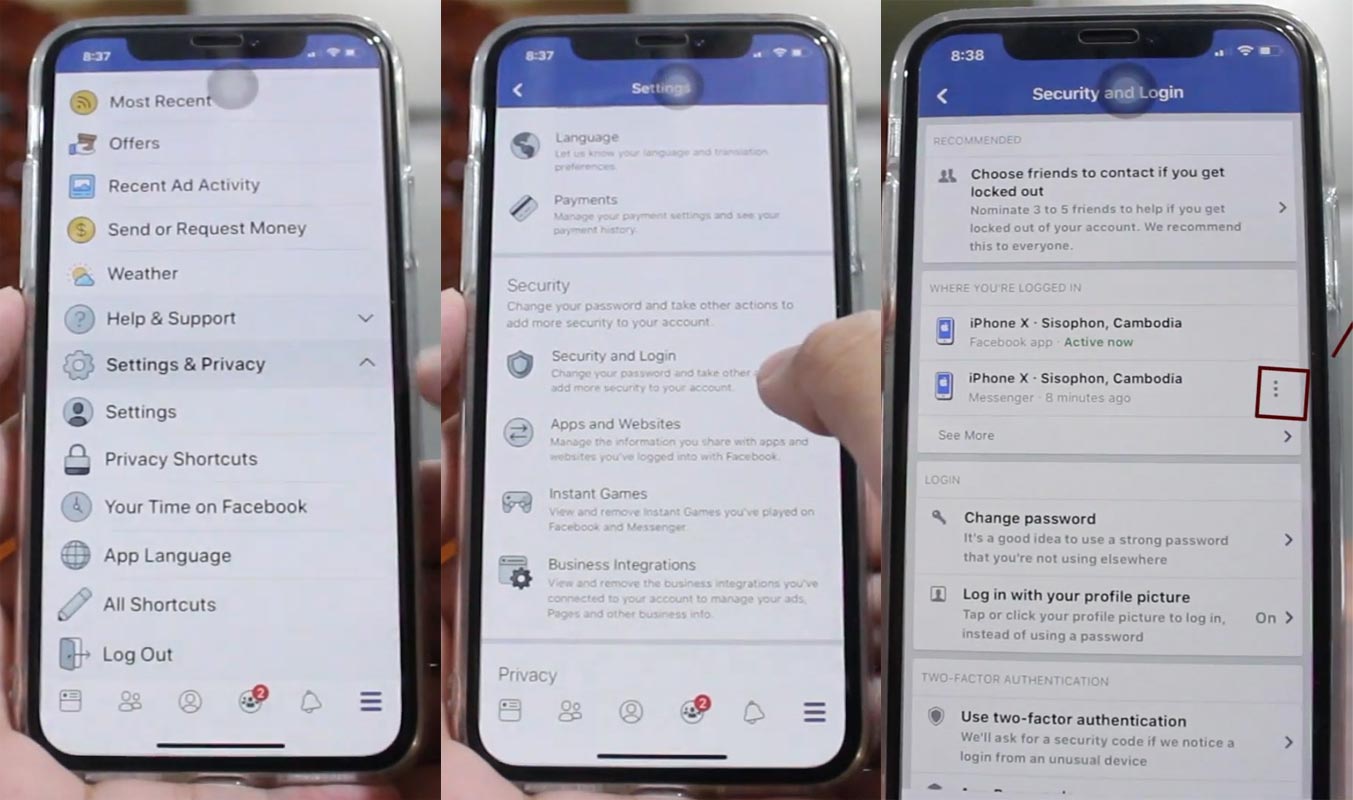
- Open the Facebook app on your iOS device and go to the settings menu by clicking on the three vertically-arranged dots seen at the lower right-hand corner of your screen. Then scroll down until you see the “Privacy and Security” option.
- Click on the “Privacy and Security” row to open the available settings offered by Facebook to iOS users.
- Tap on “Security and Login”
- Now, you will see the list of all the devices and PCs your Facebook account is active on, or it is logged in.
- Similarly, as Android users would do, select the device you want to log out your Messenger account from, click on the “More” icon and select “Log Out.”
Interestingly, you can also use the official Messenger app for iOS to try these steps above. All you need do is to access the settings menu and log out from the “Security” tab.
So, that’s how you can completely log out of Messenger on iOS devices- iPhones and iPads. More so, you log out from the web version at www.facebook.com.
Log out from the Messenger using the Facebook web version
Similar to how you would do it from your mobile app, logging out from messenger via Webview isn’t a tough task.
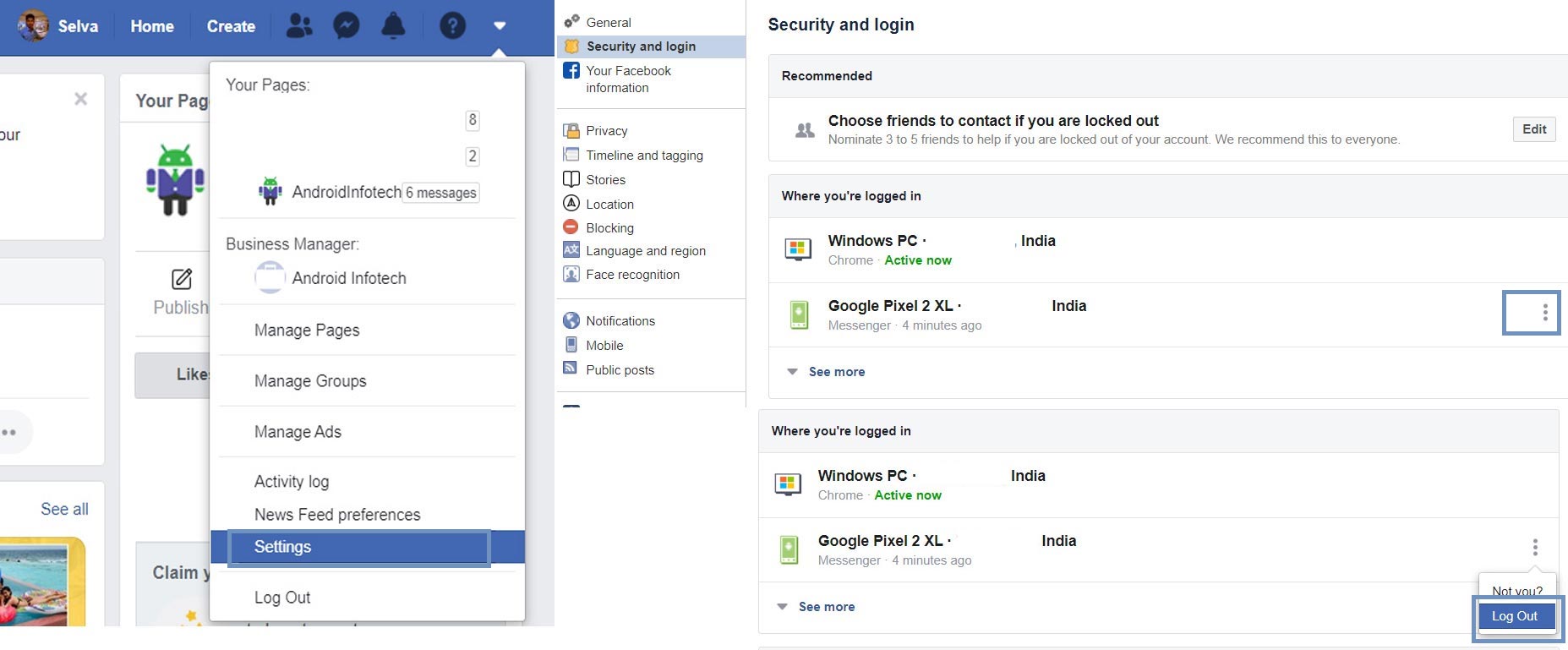
- Visit the official website at facebook.com
- Access the settings menu
- Go to Security and Login
- View the devices and computers where your account is currently active and deactivate all of them.
That’s all; it’s nothing different from the apps’ methods. However, this web method will be handy if you don’t use the Facebook app or you’re using the Lite version. Also, this method is quite faster and clear to follow.
What more?
There’s no way to log out of messenger. Even if you log out from Facebook, you haven’t logged out of Messenger because it is a standalone app, meaning that Messenger can function a device where the Facebook app is not installed. The only thing you can do on Messenger is to disable your active status and show yourself as offline. But with these methods, you can completely go offline on Messenger or sign out your account from any smartphone or PC. They are safe to practice and don’t require any form of stress.
Finally, you can log in to more than one messenger account on one smartphone and switch accounts when you want to access the other one. Don’t download some modified Messenger third-party apps that give you extra controls. You may get banned like Whatsapp by Facebook. What is your experience of not getting out before these methods? Comment below.

Selva Ganesh is a Computer Science Engineer, Android Developer, and Tech Enthusiast. As the Chief Editor of this blog, he brings over 10 years of experience in Android development and professional blogging. He has completed multiple courses under the Google News Initiative, enhancing his expertise in digital journalism and content accuracy. Selva also manages Android Infotech, a globally recognized platform known for its practical, solution-focused articles that help users resolve Android-related issues.





This guide was useful after I logged into Messenger on a temporary phone. The session management option allowed me to remove access afterward.
I appreciate the warning about modified third-party Messenger apps. Using the official app and account security settings seems like the safer approach.
The difference between cache and app data was a useful reminder. I would probably have cleared only the cache without that explanation.
I followed the instructions for Security and Login and successfully signed out of an older device. The device list also helped me spot sessions I no longer needed.
The article explains an annoying Messenger limitation in a very practical way. I now know where to look when I need to remove a session.
I found the web logout method to be the fastest option when managing an account from a computer. It is convenient when the mobile app is unavailable.
This tutorial saved me from repeatedly searching through Messenger menus. The steps are direct and easy to understand.
The clear storage method worked well on my Android phone. It was reassuring to know that this removes the app data and requires another login.
The active device list is a great way to check whether an account is still signed in somewhere. I used it to remove a laptop session I had forgotten about.
I had trouble finding the logout option after opening Messenger settings. The explanation of managing sessions through Facebook finally made the process clear.
The guide is practical because it does not assume that everyone uses the same device. The separate Android, iPhone, and web instructions make it easier to choose the right method.
I like that the article mentions two-factor authentication as an additional security measure. Logging out old sessions and protecting the account together is a sensible approach.
The iOS instructions answered my question about signing out of Messenger on an iPhone. The security section is the important part to look for.
This article came in handy when I switched to a new phone. I could remove the old Messenger session without needing to keep the previous phone connected.
I followed the Facebook app method and found the logout controls for my old Messenger session. The steps were much clearer than what I found elsewhere.
The instructions for checking all active devices are very useful for account security. I now regularly review the list and remove devices I no longer recognize.
I was surprised that Messenger does not provide an obvious logout button. This article gave me a reliable workaround for managing my account sessions.
The guide explains several ways to handle the same problem, which is helpful because app menus can differ between devices. The Android method worked well for me.
I needed to remove Messenger from a phone I had given to someone else. The security settings method was exactly what I was looking for.
The explanation of clearing app data versus clearing cache prevented me from choosing the wrong option. That small detail makes the tutorial more practical.