
We understand the frustration of having a perfect musical rhythm shattered by loud, disruptive commercial breaks. While upgrading to a premium subscription is the official solution, many listeners seek alternative ways to preserve their audio environment without the monthly cost. We have found that the most reliable, ethically sound method to achieve uninterrupted listening on a free Spotify account is not to block advertisements entirely, but to automatically mute audio ads the moment they trigger.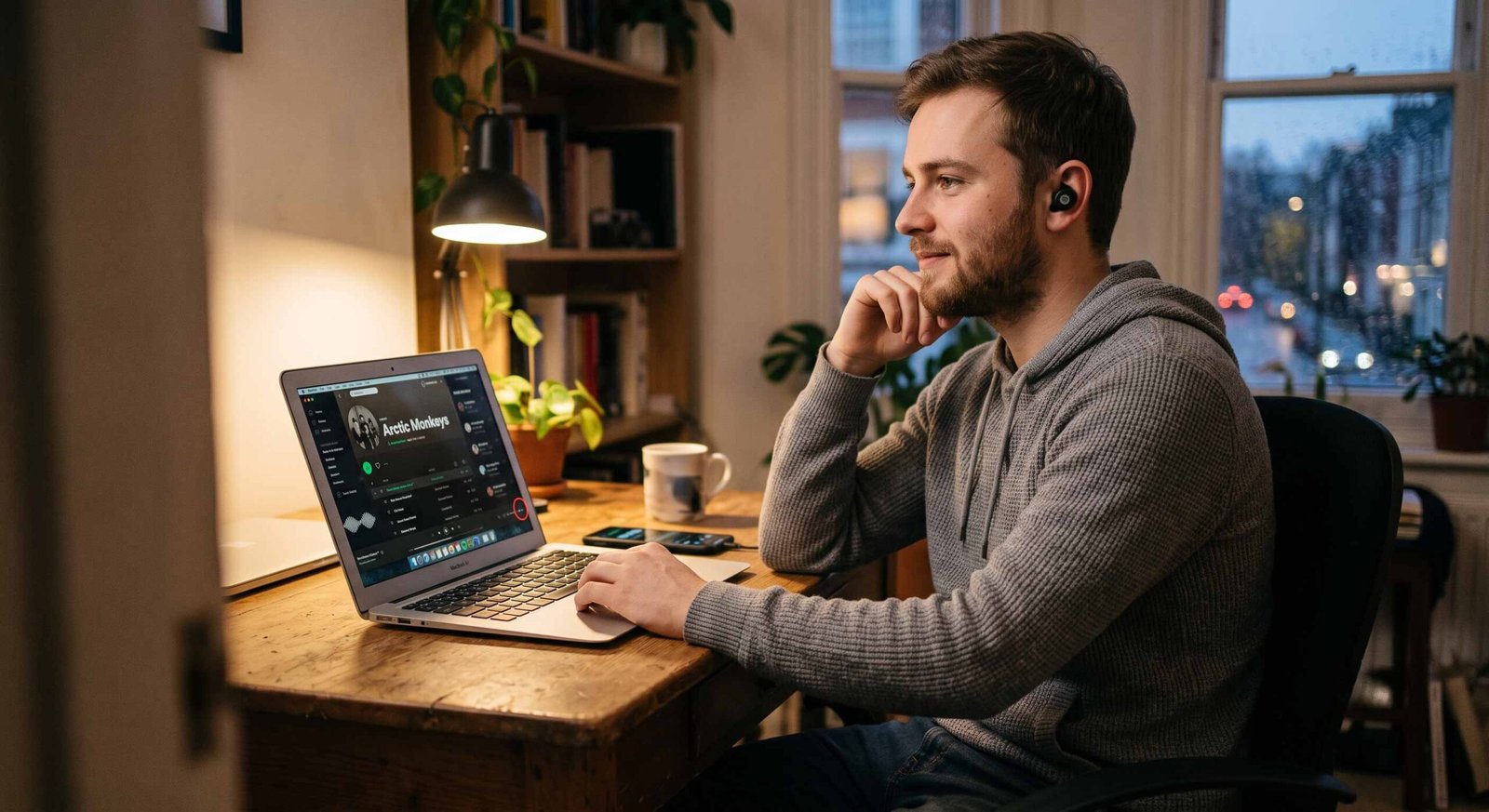
By utilizing targeted background applications and browser extensions, we can dynamically silence commercial audio while still allowing the native platform to function properly. We will guide you through the process of setting up these automated ad-muters in both desktop browsers and Android mobile devices, transforming your free listening experience.

Mute Spotify Ads with Spotless on Desktop
For users who prefer streaming music through a desktop interface, the Spotify web player accessible at open.spotify.com provides an ideal environment for automated customization. Rather than employing aggressive network-level blocking scripts that frequently break the web interface or trigger platform compliance flags, we highly recommend using a specialized browser extension called Spotless.
Understanding the Spotless Ad Muter Mechanics
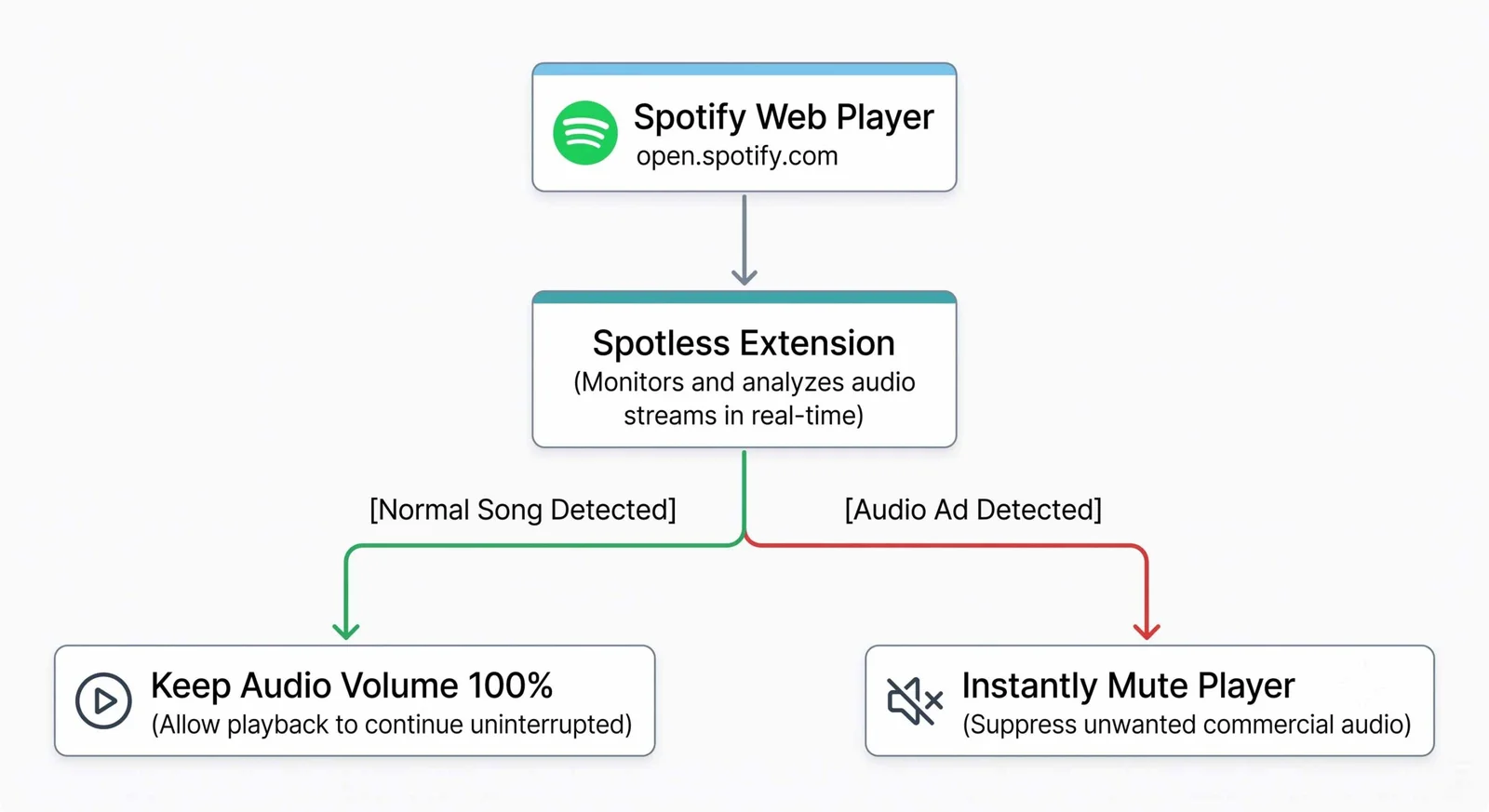
Spotless is NOT an ad blocker in the traditional sense. Traditional ad blockers intercept and strip out resource requests, which often causes web players to freeze, throw error codes, or stall indefinitely while waiting for assets that never arrive.
Instead, Spotless works as a smart volume manager. It allows the advertisement to load completely in the background, fulfilling the platform’s technical requirements, but automatically mutes the audio track for the exact duration of the commercial intermission. The moment the advertisement concludes and your selected playlist resumes, the extension seamlessly restores your original playback volume.
Step-by-Step Installation for Desktop Web Players
To integrate this system into your daily streaming setup, follow these structural steps:
- Open the Chrome Web Store: Launch your Google Chrome browser (or any Chromium-based alternative like Brave, Microsoft Edge, or Opera) and navigate to the extension store.
- Search for Spotless: In the search query interface, locate the Spotless: Spotify Ad Muter extension.
- Install the Extension: Click the “Add to Chrome” confirmation button to download and integrate the tool directly into your active browser profile.
- Configure Extension Permissions: Click the extension icon in your browser toolbar to verify the configuration settings. Ensure that the Automatically mute audio ads parameter is toggled to the active position.
- Establish Platform Allowlists: We strongly advise that you access your primary content filtering tools—such as uBlock Origin or AdBlock—and completely disable them for open.spotify.com. By allowing the domain on your main ad blockers, you prevent interface errors, while Spotless safely handles the audio suppression completely behind the scenes.
Control Android Audio with Mutify
Transitioning away from the desktop environment requires a completely different technical approach. Because mobile operating systems restrict browser extensions within standalone applications, mobile listeners need a robust background service to handle native app audio tracking. For this specific use case, we have found that Mutify is the best Spotify ad silencing app available for the Android operating system.
The Architecture of Background Silencing
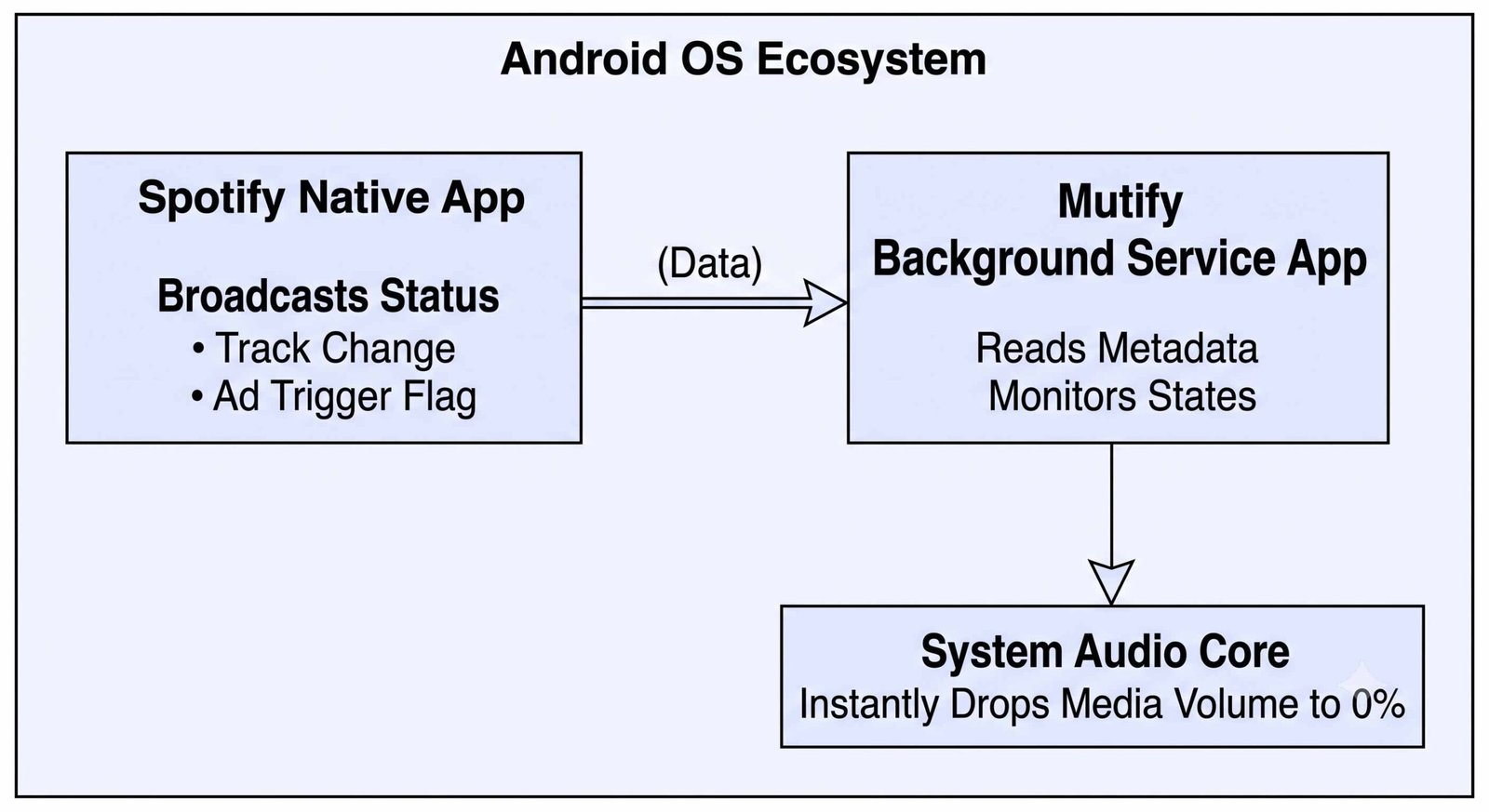
Similar to its desktop counterpart, Mutify does not modify the official application’s native code, nor does it require administrative root access on your Android device. It functions entirely by leveraging the built-in communication systems of the Android architecture.
When the primary streaming application transitions from a standard musical track to a commercial asset, it broadcasts a structural metadata change across the operating system layer. The Mutify background listener intercepts this specific notification packet, instantly recognizes that an advertisement has started playing, and automatically lowers the system media volume to zero. The moment the song metadata returns, the system volume is immediately restored to its exact previous position.
Essential Android Configuration Protocol
To guarantee that the background service runs reliably without being terminated by aggressive memory management systems, you must configure the application according to the following procedure:
1. Download the Application: Google Play Store.
Locate and download the official Mutify – Mute annoying ads application from the Google Play Store. Ensure you are downloading the authentic package developed by Teekam Suthar.
2. Enable Spotify Broadcast Status: In-App Settings.
Launch your native music application, tap the Settings (Gear Icon) in the upper-right corner, scroll down to the absolute bottom of the preferences menu, and toggle the Device Broadcast Status parameter to the active green position. This is critical; without this setting enabled, the app cannot broadcast track transitions to external listeners.
3. Disable Battery Optimization: Android System Level.
Access your Android system settings menu, search for Optimize Battery Usage, change the application filter list from “Apps not optimized” to All, locate the application, and toggle the slider to turn off optimization. This prevents the Android OS from killing the monitoring process when your screen turns off.
4. Activate the Mute Engine: App Control Interface.
Return to the main application interface, acknowledge the completion of the setup prerequisites, and activate the Mute Ads master switch. The application will now sit silently in your device notification tray, actively managing your media volume whenever a commercial break occurs.
Comparing Desktop and Mobile Solutions
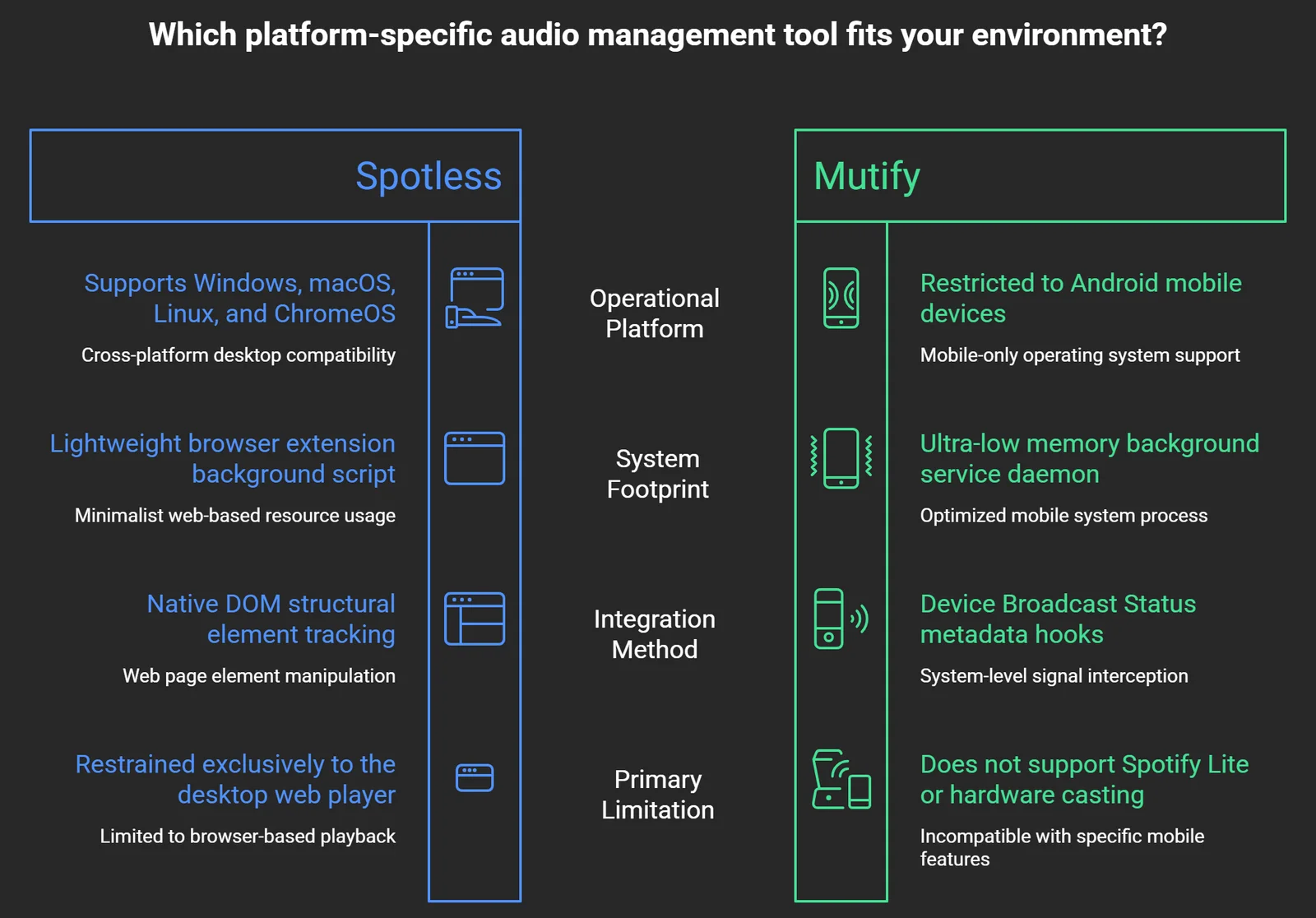
To help you decide which tool fits your specific hardware arrangement, we have compiled a direct structural breakdown highlighting the operational differences between desktop web player customization and background mobile manipulation.
Critical System Exclusions
We must explicitly state that Mutify does not support Spotify Lite due to the intentional removal of the device broadcasting framework within that stripped-down package. Furthermore, audio muting systems cannot intercept or modify volume streams sent directly to smart TVs or external streaming hardware via casting protocols. If you rely heavily on casting features, the local volume manipulation will not affect the target cast hardware.
Frequently Asked Questions
Will using an automatic ad muter get my free account banned?
No. Because these tools do not inject malicious code or modify the underlying streaming platform’s app binary, they do not trigger standard anti-tamper account bans. The advertisements are still fully requested and processed by the system servers; only your local physical device volume is being adjusted during playback.
Why am I still hearing a brief second of audio before the ad mutes?
This slight delay occurs because your local operating system or browser engine requires a brief fraction of a second to read the updated track metadata broadcast and update the hardware volume slider state. This is normal system behavior.
Do these utility tools consume significant smartphone battery life?
No. Both tools are engineered to remain completely idle until a hardware broadcast state change is triggered by the system. They consume less than one percent of total battery capacity over an extended multi-hour listening session.
Can I use these volume silencers while connected to a car Bluetooth system?
Yes. As long as the media stream is processing through your Android phone’s primary audio core out to a standard Bluetooth headset, speaker, or car stereo receiver, the background service will successfully control the volume levels.
What should I do if the extension suddenly stops muting audio tracks?
If the system stops functioning, check for a pending browser or application update. Platform layout updates can occasionally alter metadata attributes, requiring the tool developers to push a compatibility hotfix.
Is there a similar automatic muting app available for Apple iOS devices?
Apple’s closed sandbox ecosystem tightly restricts background tasks from tracking metadata broadcasts from other active apps. As a result, automated background tools like Mutify cannot function on un-rooted iOS platforms.
Why do I need to turn off uBlock Origin for the web player explicitly?
Keeping strict content filters active on the web player causes structural script crashes that break continuous playback loops. Disabling them lets the web player stream smoothly, while the extension handles the audio ads quietly.
Does the application require access to my personal data or accounts?
No. The tools highlighted in our guide operate entirely locally without requiring account creation, external cloud tracking servers, or intrusive system permissions, ensuring your streaming privacy remains fully intact.
Can these utilities skip the audio ads instead of muting them?
No. True skipping requires modifying the platform’s incoming server data stream or injecting code to trick the server, both of which violate the platform’s terms of service. Muting is the safest, most stable compromise.
Will these tools work if my internet connection drops into offline mode?
Free streaming accounts require an active data connection to pull tracks and validate platform states. If your device goes completely offline, the media streaming player will pause entirely until network access is re-established.

Selva Ganesh is a Computer Science Engineer, Android Developer, and Tech Enthusiast. As the Chief Editor of this blog, he brings over 10 years of experience in Android development and professional blogging. He has completed multiple courses under the Google News Initiative, enhancing his expertise in digital journalism and content accuracy. Selva also manages Android Infotech, a globally recognized platform known for its practical, solution-focused articles that help users resolve Android-related issues.




This is much better than installing random modified apps. Thanks for recommending a safer alternative.
I was looking for a simple solution like this. Thanks for sharing an option that doesn’t violate Spotify’s terms.
I was looking for a simple solution like this. Thanks for sharing an option that doesn’t violate Spotify’s terms.
The instructions were straightforward and beginner friendly. Keep posting more helpful Spotify tips.
This article answered all my questions. The explanation about ethical usage was a nice touch.
I was looking for a simple solution like this. Thanks for sharing an option that doesn’t violate Spotify’s terms.
This is much better than installing random modified apps. Thanks for recommending a safer alternative.
Very informative and easy to understand. I’ll definitely recommend this guide to friends.
I tested this today and it worked well. Really useful information for free Spotify users.
The instructions were straightforward and beginner friendly. Keep posting more helpful Spotify tips.
This is much better than installing random modified apps. Thanks for recommending a safer alternative.