
You can Remove Discord GG Sans Font and Use Different Font using the below methods. People are permanently stuck with their favorite small things. It always makes them comfortable. Sometimes companies even don’t know that until they change a few things. Discord got lots of negative feedback after they changed their fonts. Yes. People stick with the font style ad when Discord change it; They can’t be comfortable with the new view. There are no updates from the Discord site regarding that. Fortunately, we can change the Font ourselves until they give us good options.
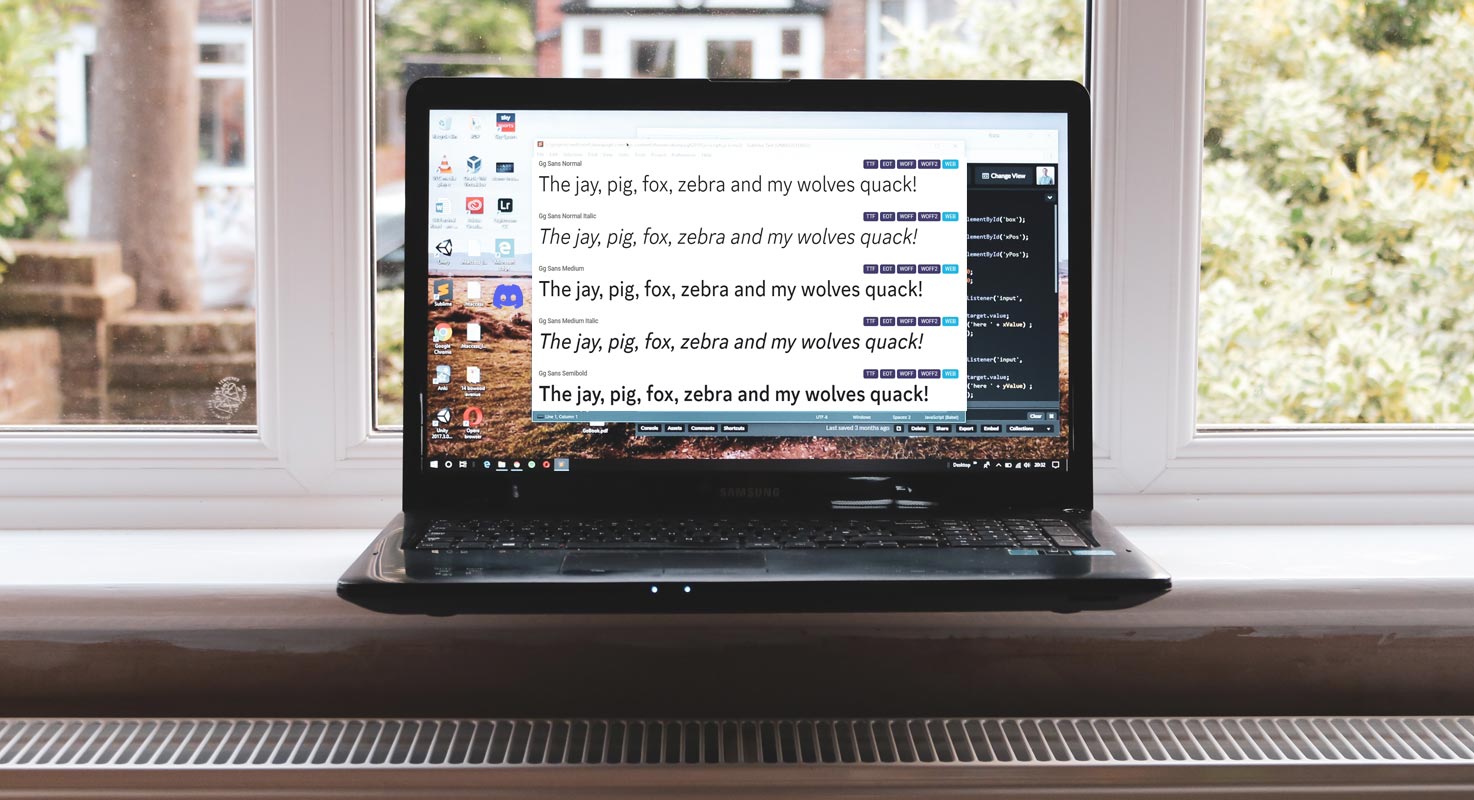
Discord Changes Its Default Font, Sparks Controversy
Discord, the popular gaming communication platform, recently changed its default font to “gg-sans.” The change was criticized by users who expressed dissatisfaction with the new Font and called for an option to revert to the previous Font.

The platform created the new Font, gg-sans, and intended to be a modern, versatile font. However, users have expressed that the Font is challenging to read, especially for those with visual impairments. Some have even called it a “meme font” and strongly preferred the previous Font.
Discord’s change has sparked a heated debate among users, with some pointing out that the platform is often used for severe discussions, making readability an essential factor. Some have also expressed that the new Font feels out of place on the platform and is inconsistent with its overall aesthetic.
Despite the criticism, Discord has yet to respond to the call for an option to revert to the previous Font. This has led to frustration among users who feel that the platform is not considering their opinions.
How to Remove Discord GG Sans Font and Use Old One?
Do you want to change the default font in Discord from gg sans to a different font? Here’s how to do it.
- Open File Explorer and go to the location, or open run and hit the following command: %AppData%/Discord/settings.json
- Open the settings.json file in a text editor like Notepad++.
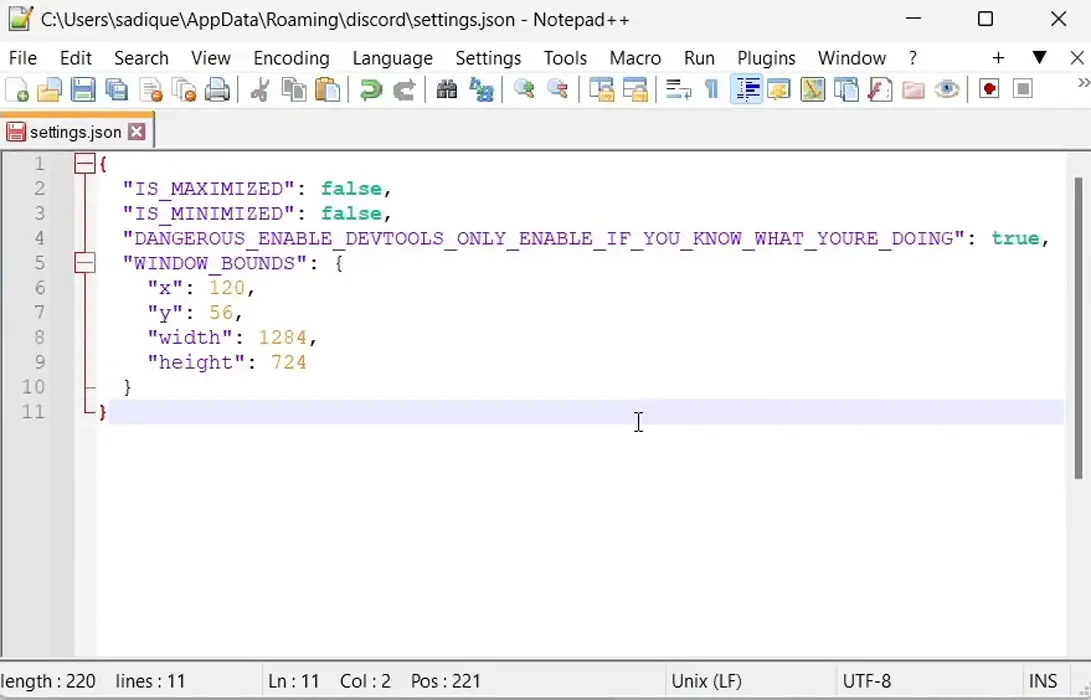
- Add the following key to the settings data:
"DANGEROUS_ENABLE_DEVTOOLS_ONLY_ENABLE_IF_YOU_KNOW_WHAT_YOURE_DOING": true,
The file should now look like this:
{
"BACKGROUND_COLOR": "#202225",
"IS_MAXIMIZED": true,
"IS_MINIMIZED": false,
"DANGEROUS_ENABLE_DEVTOOLS_ONLY_ENABLE_IF_YOU_KNOW_WHAT_YOURE_DOING": true,
"WINDOW_BOUNDS": {
"x": 988,
"y": 0,
"width": 1408,
"height": 1392
}
}
- Relaunch Discord and press CTR + SHIFT + I to open the Inspector.
- Under the styles on the right, click the search box and type in “font.” You should now see the: root selector defining -font-primary as:
“gg sans”,”Noto Sans”,”Helvetica Neue”,Helvetica,Arial,sans-serif
- Double-click “gg sans” to change the Font and replace it with any other installed font you choose from Google Fonts.
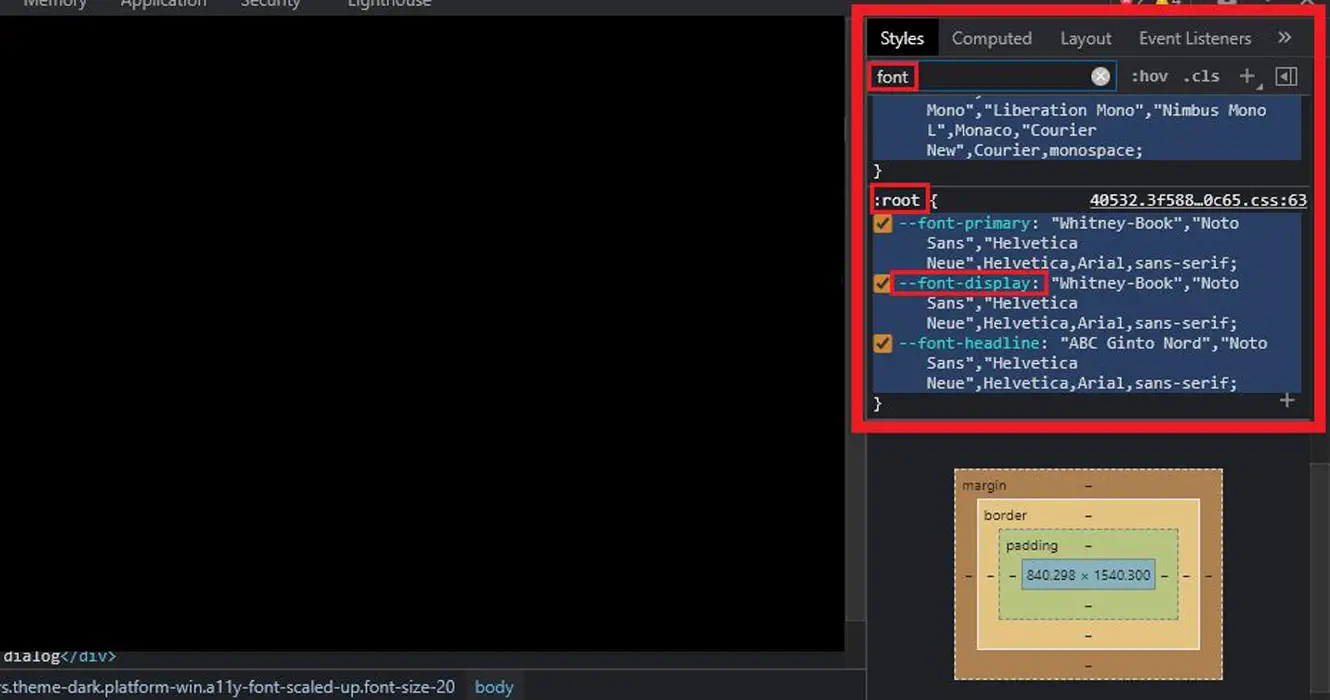
- If you prefer, do the same for -font-display.
By following these steps, you can easily change the Discord GG Sans font to a font of your choice.
How to Remove Discord GG Sans Font using Better Discord?
Fear not if you are one of the users unhappy with the new Font. This article will show you how to remove the gg-sans Font from Discord and revert to the old Font.
Step 1: Install BetterDiscord
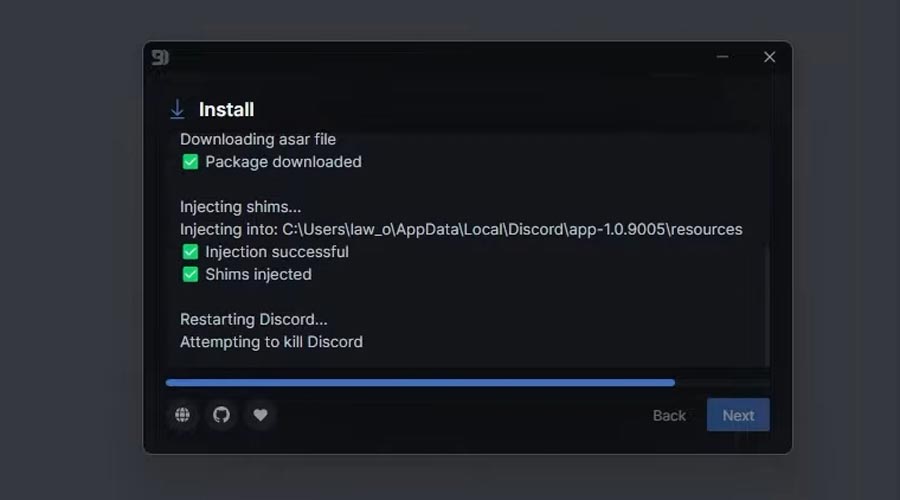
The first step to removing the gg-sans Font from Discord is to install BetterDiscord. BetterDiscord is a third-party modification for Discord that allows users to customize the appearance and functionality of the platform.
Step 2: Install the Old Font
Once you have installed BetterDiscord, you will need to install the old Font you want to use. To do this, navigate to the Google Fonts website and download the old Font of your choice. After downloading your favorite Font, Open the Font and select install.
Step 3: Change the Font in Discord
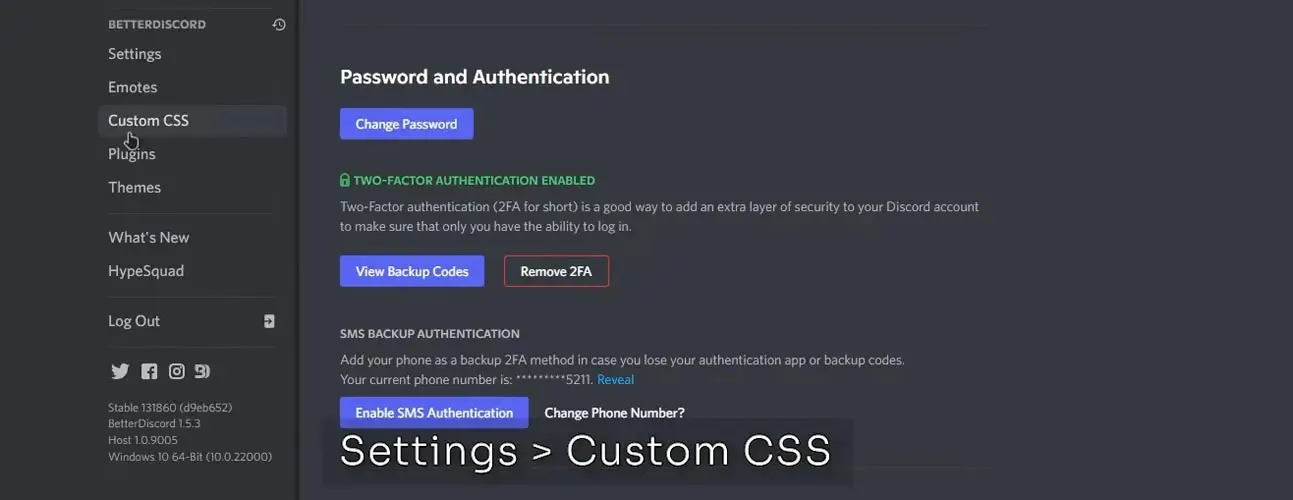
- With the old Font installed, open Discord and navigate to the BetterDiscord settings. From there, select the “Custom CSS” tab and paste the following code:
@import url('https://example.com/oldfont.css');

body {
  font-family: "Old Font", sans-serif !important;
}
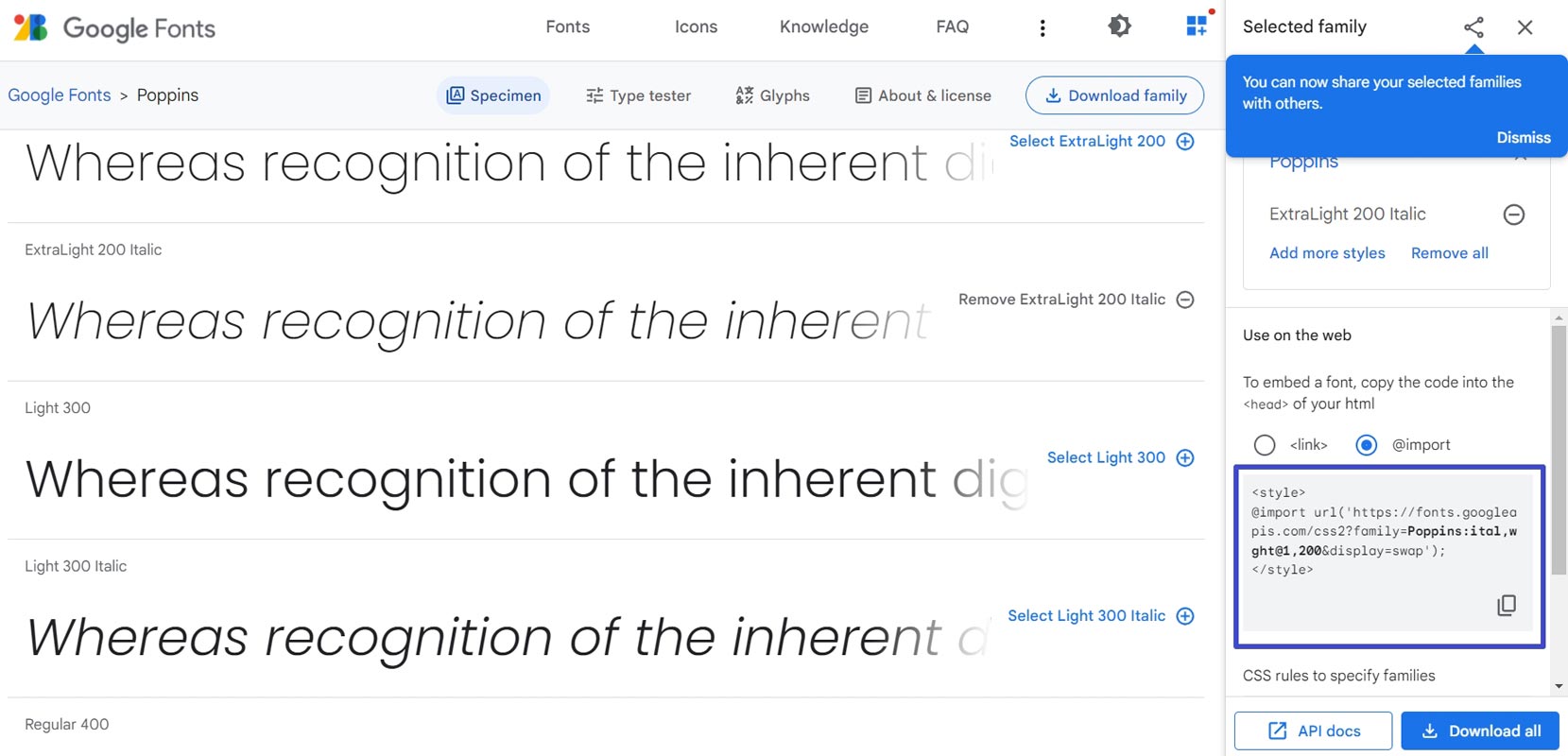
- Replace “https://example.com/oldfont.css” with the URL of the old Font you have installed and “Old Font” with the Font’s name. Use the URL in the CSS code. For example, Choose any variant on the Google Font website after downloading and installing the Font. Select the file, and choose “import.” You will get the respective URL of the Font.
Step 4: Save and Close
Finally, save the changes and close the BetterDiscord settings. The gg-sans Font will now be removed from Discord, and your selected old Font will be used instead.
Wrap Up
If you are not a fan of the new gg-sans Font on Discord, you can easily remove it and revert to the old Font using BetterDiscord. Discord’s recent font change has been met with controversy and criticism by users who feel that the new Font is unsuitable for the platform. While the change was intended to bring a modern touch to the forum, it has resulted in frustration among users who feel that their opinions are not being heard. It remains to be seen how the platform will respond to the call for an option to revert to the previous Font. Follow the steps outlined in this article to get back to using the Font you prefer.

Selva Ganesh is a Computer Science Engineer, Android Developer, and Tech Enthusiast. As the Chief Editor of this blog, he brings over 10 years of experience in Android development and professional blogging. He has completed multiple courses under the Google News Initiative, enhancing his expertise in digital journalism and content accuracy. Selva also manages Android Infotech, a globally recognized platform known for its practical, solution-focused articles that help users resolve Android-related issues.




Leave a Reply