
Samsung Galaxy A71 Android 16 Lineage OS 23– The Samsung Galaxy A71, a powerhouse of the mid-range market, continues its impressive longevity with the arrival of the official LineageOS 23 ROM. Based on the cutting-edge Android 16 (QPR2) platform, this release brings the sophisticated Material 3 Expressive design to your device, offering a radical UI overhaul with fluid animations and deep color customization. By transitioning from Samsung’s One UI to this clean, lightweight firmware, users can unlock peak performance and the latest security patches far beyond the manufacturer’s original support window. This guide provides a comprehensive, step-by-step walkthrough to safely unlock your bootloader, flash the official recovery, and install LineageOS 23.2, ensuring your Galaxy A71 remains at the forefront of the mobile experience with unparalleled speed and privacy.
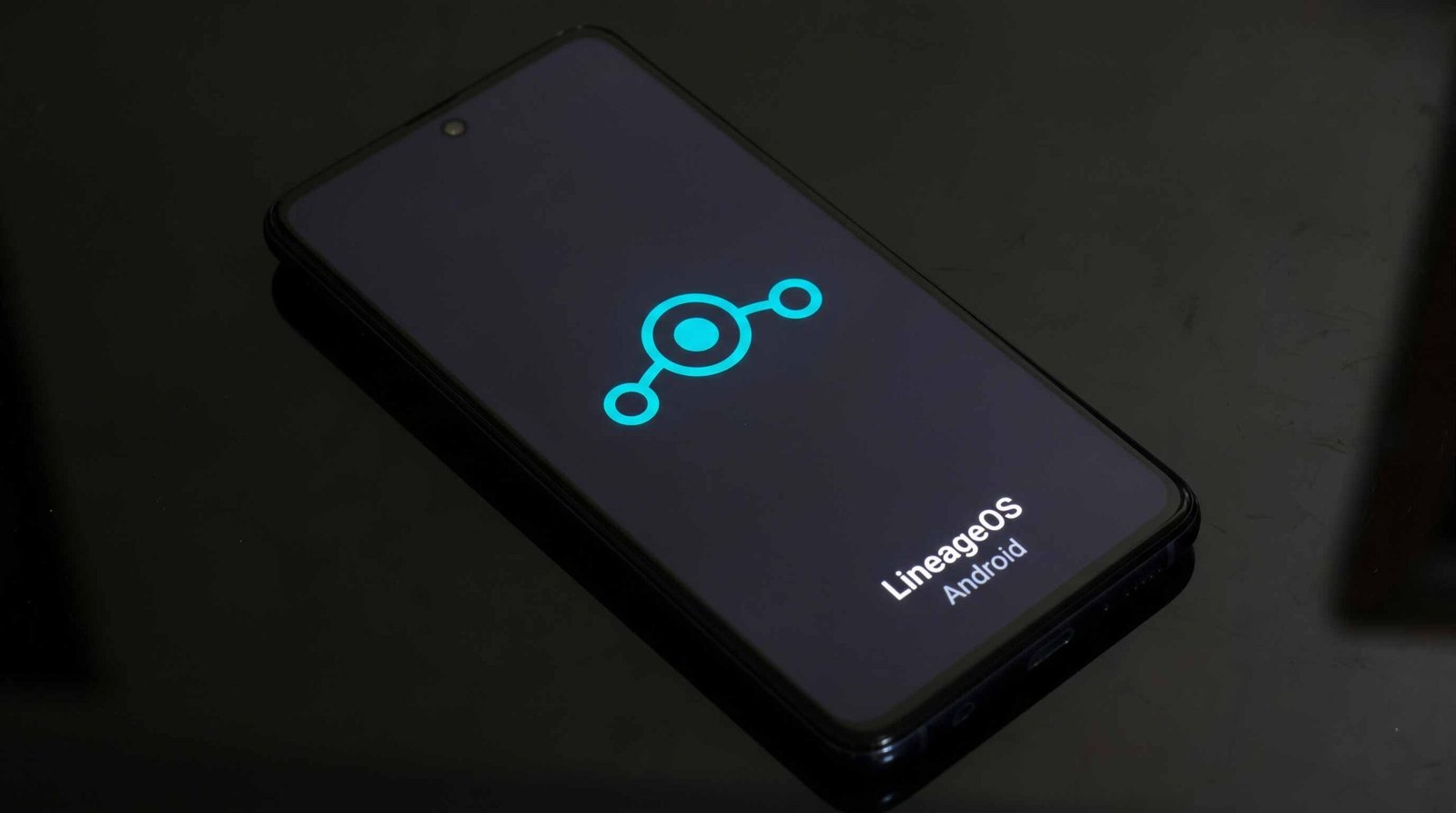
Before going to flash Custom ROMs
The following Lineage OS version is the official version, which means it is fully compatible with your mobile and free from most major bugs. If you are a regular user, I advise you not to go for root and flash this custom ROM to stay secure with the latest patch updates. Because with Stock Android, you can remain safe from significant issues even if you are not getting regular patch updates. Official Custom ROMs are always better; they are free from essential matters and will receive regular patch updates. You should have root access with Custom Recovery installed on your mobile to flash the firmware.

Should you need to flash Official Lineage OS 23 Android 16 on Samsung Galaxy A71?
We are thankful for the Hard Work of the Lineage OS team. Without this team, this method is not possible. Your mobile has 6/8 GB of RAM. It is more than enough for everyday usage. The problem is that Google stopped maintaining the security patch and Major upgrades; It has a Good Qualcomm SDM730 Snapdragon 730 processor. But when it comes to OS, you already have the latest Android 16 OS. The OS is not old. But, If you are comfortable using custom ROMs, you can use Lineage OS. Most users use Lineage ROM for the Stock Android Experience. You can use this official Lineage OS if you love extra features. It is near the Stock Android and has a lot of features.
If we optimize correctly with the correct Lineage OS after rooting, we can see some Improvements. So, after rooting, can I expect a Lag-free experience? Probably. If we hibernate, eliminate many unwanted apps, and optimize some apps, your device is hardware-limited. Within these limits, we can enhance performance by 30-40% compared with your old usage. If you use Lineage Custom ROMs, you can expect a 50-80% improvement in performance.
How to Install Samsung Galaxy A71 Lineage OS 23 Android 16 Official ROM
Samsung Galaxy A71 has a flexible bootloader, which is different from Verizon devices. Verizon devices have a locked Bootloader, which means we can easily root different smartphone variants. The device can also install TWRP recovery or any custom recovery file/app.
This article explained the easiest method to follow and install TWRP recovery on the Samsung Galaxy A71. TWRP recovery is a custom recovery file installed on Google devices because you can root them successfully. However, the tool required to root this device is the Magisk App.
With the help of TWRP Recovery, you can quickly flash the latest version of Lineage OS into your Samsung Galaxy A71. Before sharing the tutorial, you may want to know that, with the TWRP recovery on your device, you can easily install any custom ROM or firmware. Does it seem complicated? Relax; We will explain everything briefly in bullets. If you didn’t root your mobile, Refer– To Root Samsung Galaxy A71.
Things to check out for;
-
Check your device model number.
- Snapdragon processor variants.
- It would be best to have TWRP custom recovery installed on your mobile.
-
Make sure your device’s battery is above 50%.
-
You should back up your current files and data, just in case (save them on external storage using TWRP Backup).
Pre-Requirement Steps
-
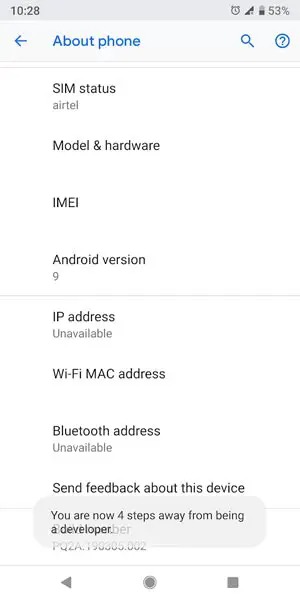
Enable USB Debugging Mode and OEM Unlock on your mobile. To do this, go to settings >>> about >>> Tap on the “Build Number” 7-10 times consistently to enable “Developer Options,” then go to the “Developer Options” and enable USB Debugging Mode and OEM Unlock. There is no complicated process in the Samsung Galaxy A71.
-
Download Samsung Galaxy A71 Lineage ROM 21.0 and copy it to your SD Card/ Pendrive OTG Cable. There is plenty of work that we can do with the OTG Cable.
- Samsung Galaxy A71
Flash Lineage OS 23 on Samsung Galaxy A71 using TWRP
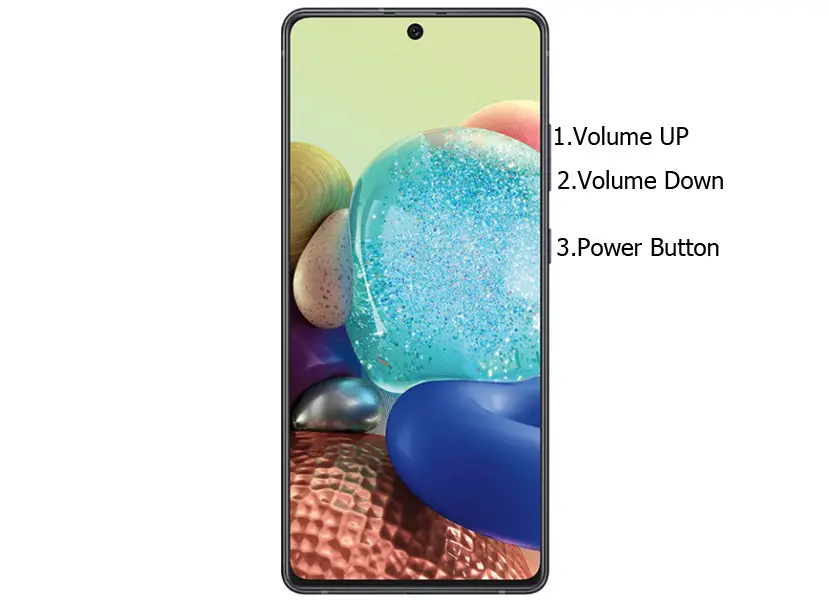
- Switch off your device. Then, enter Recovery mode. To do this, press and hold down the Volume UP button + Power Button and connect your USB Cable. While holding Volume Up, release the Power Button.
-
Press the Volume Up button to continue when you see the warning message.
- Now, it Will Boot into TWRP Recovery Mode.
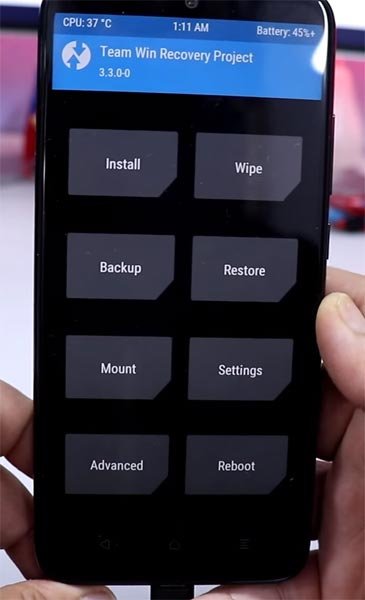
- Select Wipe-> Advanced Wipe->Select Cache, Dalvik, and System Data. System Data will delete all files, including your Current OS.
- Return to the Home of TWRP and select Install.
- Select Lineage OS.Zip.
- After the Installation, Reboot Your Mobile.
- We have successfully installed Lineage OS on our mobile device.
Install Gapps For Samsung Galaxy A71
Google Apps are Called Gapps and are Pre-Installed on All Android Mobiles. Google apps are Gmail, Google Maps, Play Store, YouTube, Google+, Search, Google Docs, and Music. Due to licensing problems, these Gapps are not Pre-Installed With Custom ROMs like CyanogenMod and others. All Gapps Applications are the property of Google, and there is no Re-modification in the Gapps.
Steps
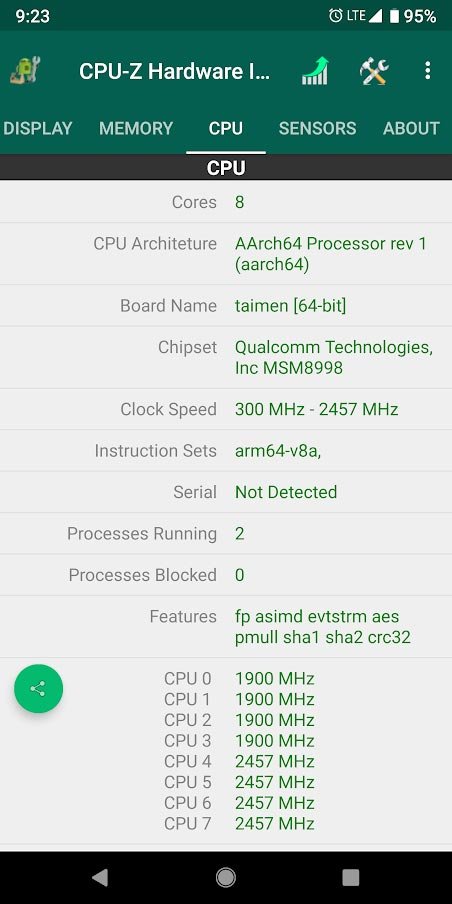
- Install the CPU Hardware app on your mobile. Go to the CPU and Note down your Architecture. It is essential to select the correct Gapps for your mobile.
- Download Gapps For Samsung Galaxy A71 Official ROM 21.0 Android 16 version and copy it into your Internal Memory. If you are confused about the packages, you can refer to the official Gapps Package comparison.
- Switch Off Your Mobile. Boot it into recovery mode->Volume Up + Power Button.
- Now, it Will Boot into TWRP Recovery Mode.
- Select Wipe->Advance Wipe->Select Cache Data.
- Return to the Home of TWRP and select Install. Select Gapps.Zip.
- After the Installation, Reboot Your Mobile.
Samsung Galaxy A71 Lineage OS 23 Android 16 Features
1. Trebuchet Launcher: “Bakery” Integration
The default launcher now includes a deeper integration of “Bakery,” a redesigned search and shortcut interface. It allows for universal search across apps, files, and system settings with a cleaner, more minimalist UI that matches the Android 16 design language.
2. Advanced Privacy Guard 2.0
Privacy Guard returns with a more granular permission manager. You can now spoof “empty” data for apps that refuse to function without certain permissions, such as sending a blank contact list to a social media app instead of your actual data.
3. Integrated MicroG Support (Toggleable)
For the first time, the official build includes a seamless toggle for MicroG implementation. This allows users to enjoy location services and push notifications without installing proprietary Google Play Services, maintaining a completely “de-Googled” experience.
4. Enhanced “SeedVault” Backups
LineageOS 23.0 updates its built-in encrypted backup solution. SeedVault now supports incremental backups to self-hosted Nextcloud instances or external USB drives, ensuring your data stays off the big-tech cloud.
5. Per-App Refresh Rate Control
Building on Android 16’s framework, LineageOS allows you to force specific refresh rates on a per-app basis. You can set your e-reader to 1Hz or 10Hz to save battery, while keeping your games pinned at 120Hz.
6. Livedisplay 3.0
The proprietary display engine now features an “Outdoor Mode” that intelligently boosts contrast and saturation beyond the hardware default, alongside a “Grayscale” scheduler to help reduce screen addiction during late-night hours.
7. Global Network Firewall
A system-level firewall is now accessible directly from the Quick Settings. You can block any app from accessing Cellular data, Wi-Fi, or both, preventing background telemetry from leaking your usage habits.
8. Custom “Status Bar” Tuner
While Android 16 simplifies the status bar, LineageOS expands it. You can move the clock to the center, show network traffic monitors, or use the “brightness slider” gesture (sliding across the status bar to dim the screen).
9. Parallel Space (Native App Cloning)
LineageOS 23.0 introduces a native way to clone apps without third-party tools. This is perfect for managing two separate accounts on apps that don’t natively support multi-login, isolated within their own sandboxed profiles.
10. AudioFX with Spatial Logic
The legendary AudioFX app gets an overhaul. It now supports spatial audio virtualization for any pair of wired or Bluetooth headphones, regardless of whether the hardware officially supports it, using software-level HRTF algorithms.
11. Custom Charging Control
To preserve battery health, a new “Battery Limit” feature allows you to stop charging at a specific percentage (e.g., 80%) and only resume when the battery hits a lower threshold (e.g., 70%), preventing the stress of a constant 100% charge.
12. Improved Button Mapper
For devices with physical buttons or alert sliders, the mapping engine is now more robust. You can assign long-press or double-tap actions to trigger the flashlight, take a partial screenshot, or toggle the Global Firewall.
13. System-Wide Theming (Monet+)
While Android 16 uses “Monet” for theming, LineageOS 23.0 adds “Monet+,” allowing users to manually pick hex codes for their accent colors rather than relying solely on wallpaper-generated palettes.
14. Trust Interface: USB Restricted Mode
A new security layer in the “Trust” menu allows you to completely disable the USB data port whenever the device is locked. This protects against hardware-based exploits and unauthorized data extraction at public charging stations.
15. The “Aperture” Camera 2.0
The default camera app, Aperture, now includes a “Pro Mode” with manual ISO, shutter speed, and focus controls. It also gains a “Privacy Mode” that strips all EXIF metadata (location, device info) from photos automatically before they are saved.
What More?
Samsung Galaxy A71 is a flagship-level device; we can expect some improvement by rooting it. But, If you use Lineage Custom Roms, you can expect considerable performance Improvement. If you have little tech knowledge and know what you are doing, you can root and flash Lineage Custom ROM. If you flash other Custom ROMs, check what is working and what is not working. It is wise to use Some Official Custom ROMs like Lineage. Like Lineage OS, plenty of other best Android 16-based custom ROMs are available for your device. If you feel you are limited in hardware, trust me: 8 GB RAM is more than enough for heavy usage. Refer- How Much RAM do you need? During the process, if you face any problems, comment below.

Selva Ganesh is a Computer Science Engineer, Android Developer, and Tech Enthusiast. As the Chief Editor of this blog, he brings over 10 years of experience in Android development and professional blogging. He has completed multiple courses under the Google News Initiative, enhancing his expertise in digital journalism and content accuracy. Selva also manages Android Infotech, a globally recognized platform known for its practical, solution-focused articles that help users resolve Android-related issues.




Leave a Reply