
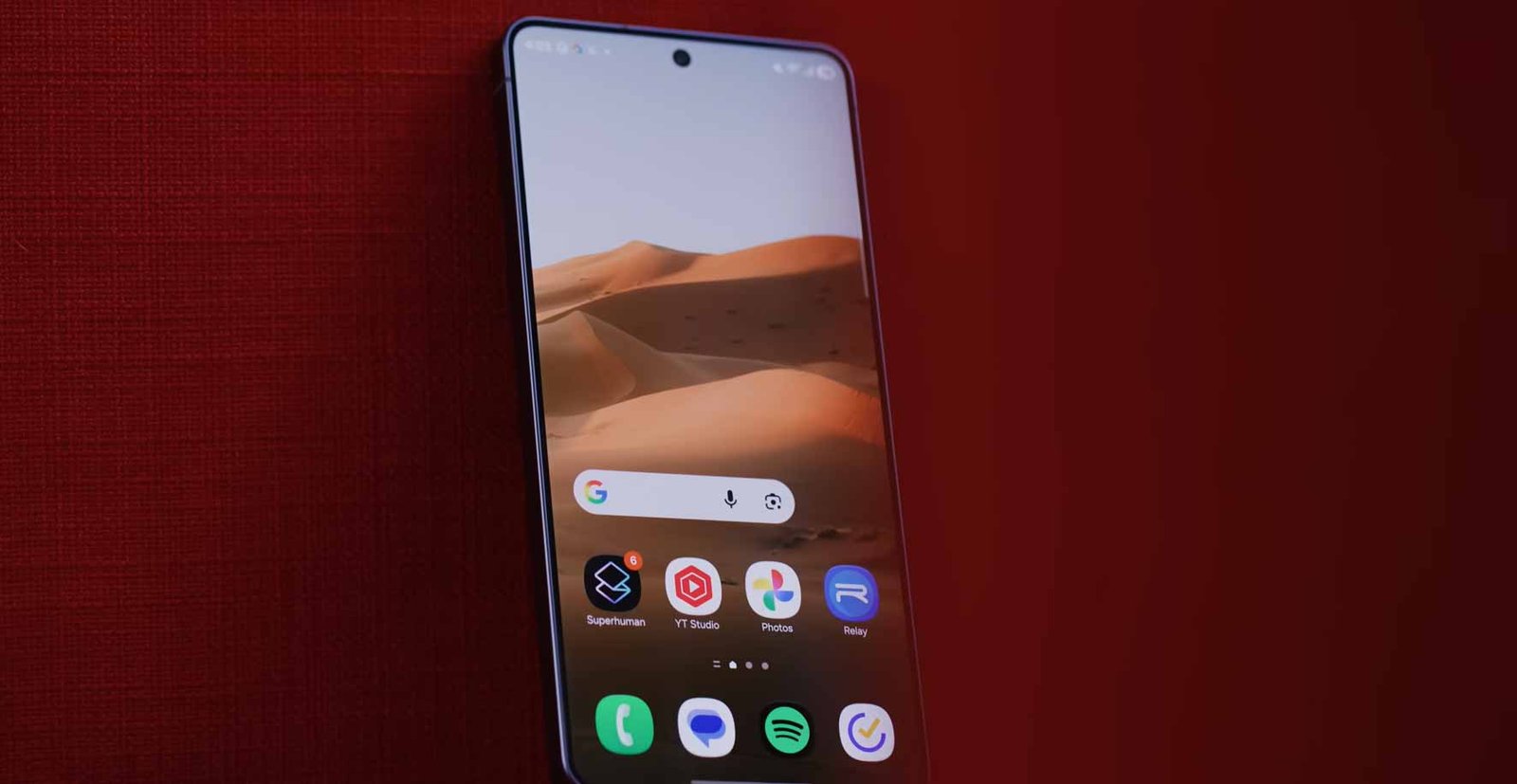
Samsung Galaxy S26 Android 16 users looking to restore, update, or manually flash their device can now download the latest One UI 8.5 firmware with improved performance, stronger security, and fresh Galaxy AI enhancements. Official firmware files are useful for fixing boot loops, removing software bugs, unbricking devices, or returning to stock condition after root or custom ROM use. The new One UI 8.5 update also brings smoother animations, better battery optimisation, camera refinements, and updated privacy controls for a more polished experience. Whether you own the standard Galaxy S26, the Plus, or the Ultra, installing the correct firmware ensures maximum stability and full feature support. In this guide, you can find Samsung Galaxy S26 Android 16 One UI 8.5 firmware download links, installation steps, and compatibility details.
One UI Android 16 Firmware Flash- Samsung Galaxy S26
Official OTA Method
If you want to update a security patch to the current month. Don’t go for the manual method. Try this Automatic method.

The process is straightforward and simple.
-
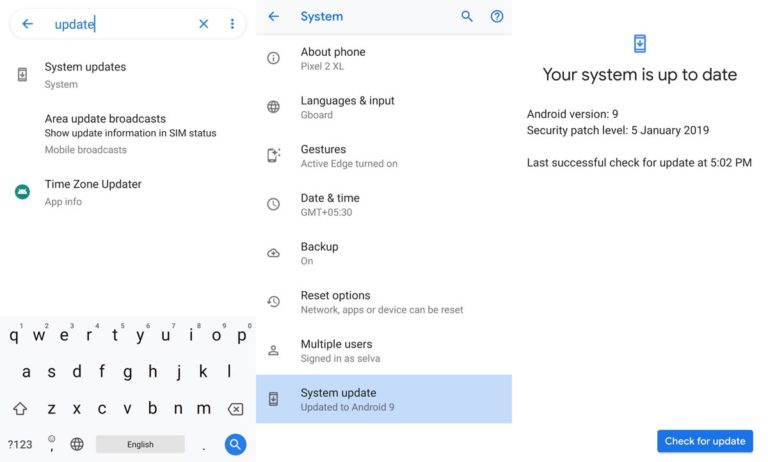
Go to your device settings menu and scroll down to the bottom
-
Tap on “Software Update”
-
You may need to refresh the page to start the OTA upgrade.
Manual Method
Note
- Check Your Device Mobile No. If you flash a different model number, you will lose some features based on your region.
- Battery Percentage Above 50.
- Backup Your Device.
Using the ODIN Method
-
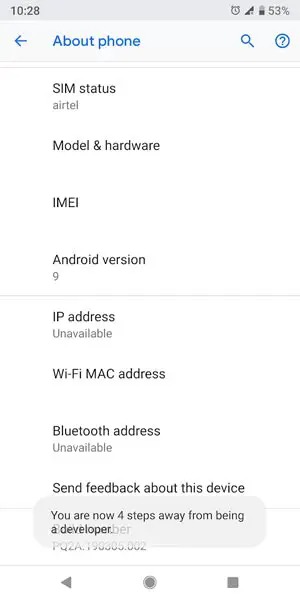
Enable USB Debugging Mode and OEM Unlock; you’ll find these options at Settings >>> Developer options. If you didn’t see the developer options in your settings menu, go to about >>> build number; tap the “Build Number” row about 10 times to activate the “Developer Option” on your device.
- Download the Samsung USB driver and install it on your PC.
- We are using third-party software flashing. Download ODIN and install it on your PC as well. In the version select Pie supporting version ODIN.
- Download Firmware from the links below for Samsung Galaxy S26 Official Firmware.
- Select recent firmware. When selecting firmware, refer to How to choose the correct firmware

- Switch off your Mobile. Enter into Download mode->Volume Down + Power Buttons. Connect your mobile to the PC via USB cable. After the Samsung logo appears, release all keys.
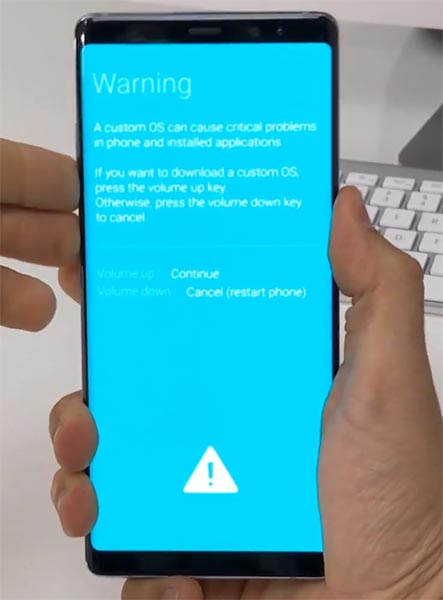
- After entering Download Mode, it will display a warning: “Press Volume Up button to continue.”
- Launch the Odin Application.
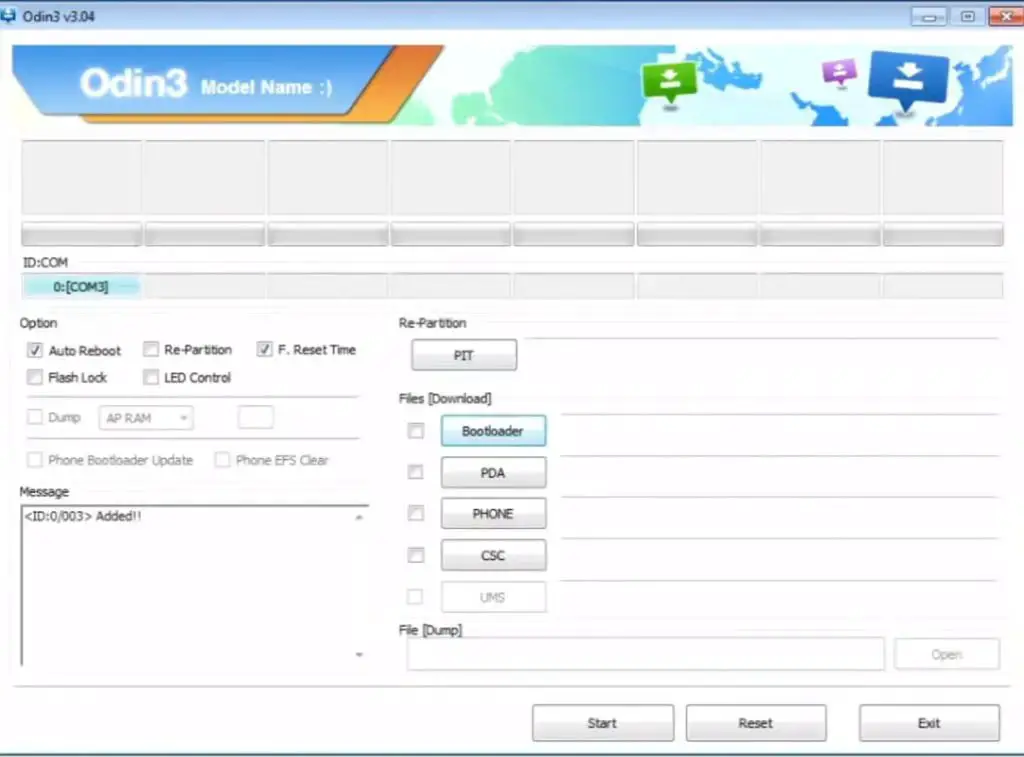
- It Will Show the message added.
- If you did not get this message, repeat the above steps.
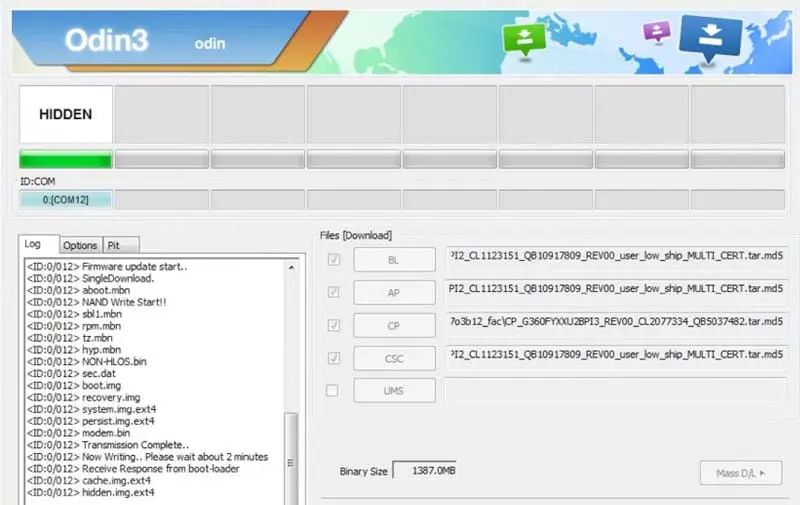
- After getting the ” Added Message Select, AP/PDA button, then browse for the Firmware file, select it. Tick the Auto Reboot.
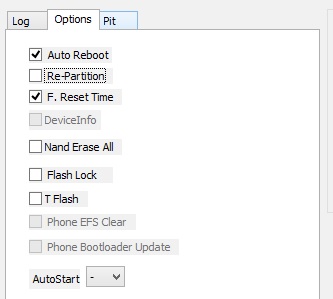
- Press Start, wait for the tasks to complete. It will automatically reboot after the process completes.
- You can check the Firmware Details->Settings->About->Version.
One UI Features
AI & Productivity Enhancements
- 1. Continuous Photo Assist Editing: Unlike previous versions that required saving after every change, you can now apply multiple generative AI edits in one session and review the full history before finalizing.
- 2. Notification Summaries & Prioritization: One UI 8.5 uses on-device AI to analyze incoming alerts, grouping promotional clutter while providing condensed bullet-point overviews of important threads.
- 3. Proactive Notification Nudges: The system learns your patterns and suggests actions—like “Mute this group for 1 hour” or “Reply to this urgent message”—directly within the notification shade.
- 4. Smart Quick Share: When sharing photos, the system uses facial recognition to instantly suggest the contacts actually appearing in those images for one-tap sending.
- 5. Advanced Samsung DeX Windowing: Developed in collaboration with Google’s new “Desktop Windowing” API, DeX now allows for much more fluid resizing and snapping of multiple app windows.
- 6. Calculator Clipboard Integration: Copied numbers or complex math formulas now appear as instant suggestions when you open the Calculator app.
UI & Personalization
- 7. Material 3 Expressive Design: Android 16’s new design language brings “Liquid Glass” aesthetics to One UI, featuring floating buttons and bouncy, rubber-banding animations.
- 8. Fully Customizable Quick Panel: You can now resize individual tiles (1×1 or 2×1), rearrange the entire layout, and eliminate unwanted toggles for a cleaner look.
- 9. Compact “Pill” Notifications: A new lock screen setting that condenses all notifications into a single, elegant pill shape that expands only when tapped.
- 10. AI Cinematic Wallpapers: The “Cinematic” tab in wallpaper settings uses AI to add a 3D depth effect to any standard 2D photo from your gallery.
- 11. Live Weather Alarms: Your alarm screen now features dynamic background animations that reflect the current local weather conditions as you wake up.
- 12. Intelligent Lock Screen Layout: If your wallpaper features a person or pet, the system automatically shifts the clock and widgets so they don’t obscure the subject’s face.
System & Connectivity
- 13. Multi-Device Storage Share: “My Files” now allows you to browse and manage storage across all connected Galaxy devices (tablets, PCs, and TVs) as if they were local folders.
- 14. Predictive Back Gestures: Holding the back button now provides a “peek” animation of the previous screen, helping you decide whether to complete the gesture or stay on the current page.
- 15. Progress-Centric Notifications: A new API for apps like Uber or food delivery that shows real-time progress bars (milestones) directly in the notification shade or “Now Bar.”
- 16. Audio Broadcasting (Auracast): You can now broadcast your phone’s microphone audio to multiple compatible Bluetooth devices simultaneously—ideal for shared listening or announcements.
- 17. Adaptive Refresh Rate Sync: Improved APIs allow apps to sync more perfectly with the display’s variable refresh rate, reducing micro-stuttering during high-speed scrolling.
Security & Accessibility
- 18. Advanced Protection Mode: A high-security toggle that hardens the device against sophisticated online attacks, harmful apps, and unauthorized USB data access.
- 19. Failed Authentication Lock: A new theft-protection feature that automatically locks the device down and requires a secondary “Identity Check” after too many failed biometric attempts.
- 20. Native Hearing Aid Controls: Bluetooth hearing aids can now be managed directly from the volume pop-up or accessibility shortcut, including program switching and ambient sound toggles.
Wrap Up
Selecting the correct firmware is the Major step in this process. Based on your country or region, choose the firmware. It is a Manual ODIN process; You can flash the latest version. But if you use the sideload method, you should flash the next version of your mobile firmware; otherwise, the process may brick your device.

Selva Ganesh is a Computer Science Engineer, Android Developer, and Tech Enthusiast. As the Chief Editor of this blog, he brings over 10 years of experience in Android development and professional blogging. He has completed multiple courses under the Google News Initiative, enhancing his expertise in digital journalism and content accuracy. Selva also manages Android Infotech, a globally recognized platform known for its practical, solution-focused articles that help users resolve Android-related issues.




Leave a Reply