
The transition from standard conversational chatbots to autonomous AI agents represents one of the most significant shifts in modern workflow optimization. For years, we have relied on generative models that respond exclusively to direct, immediate prompts. While helpful, this reactive format creates an inherent bottleneck, requiring constant human intervention to extract value.
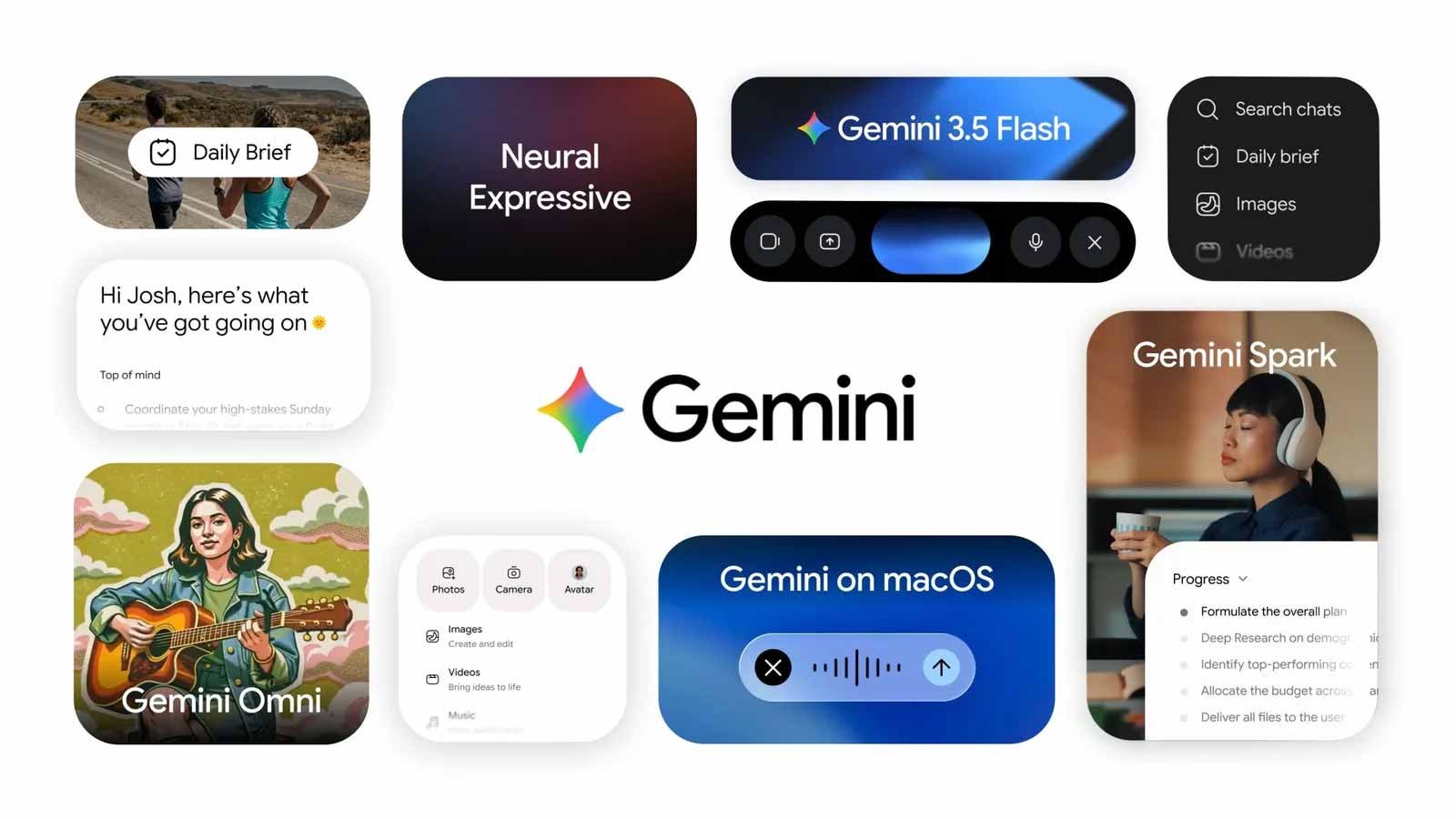

Google Gemini Spark completely redefines this dynamic. As an advanced, background-running digital ecosystem, it operates under your oversight to manage complex, cross-application workflows natively. By shifting the workload from manual prompting to structured automation, it acts as a proactive helper capable of orchestrating data across your entire corporate or personal cloud environment.
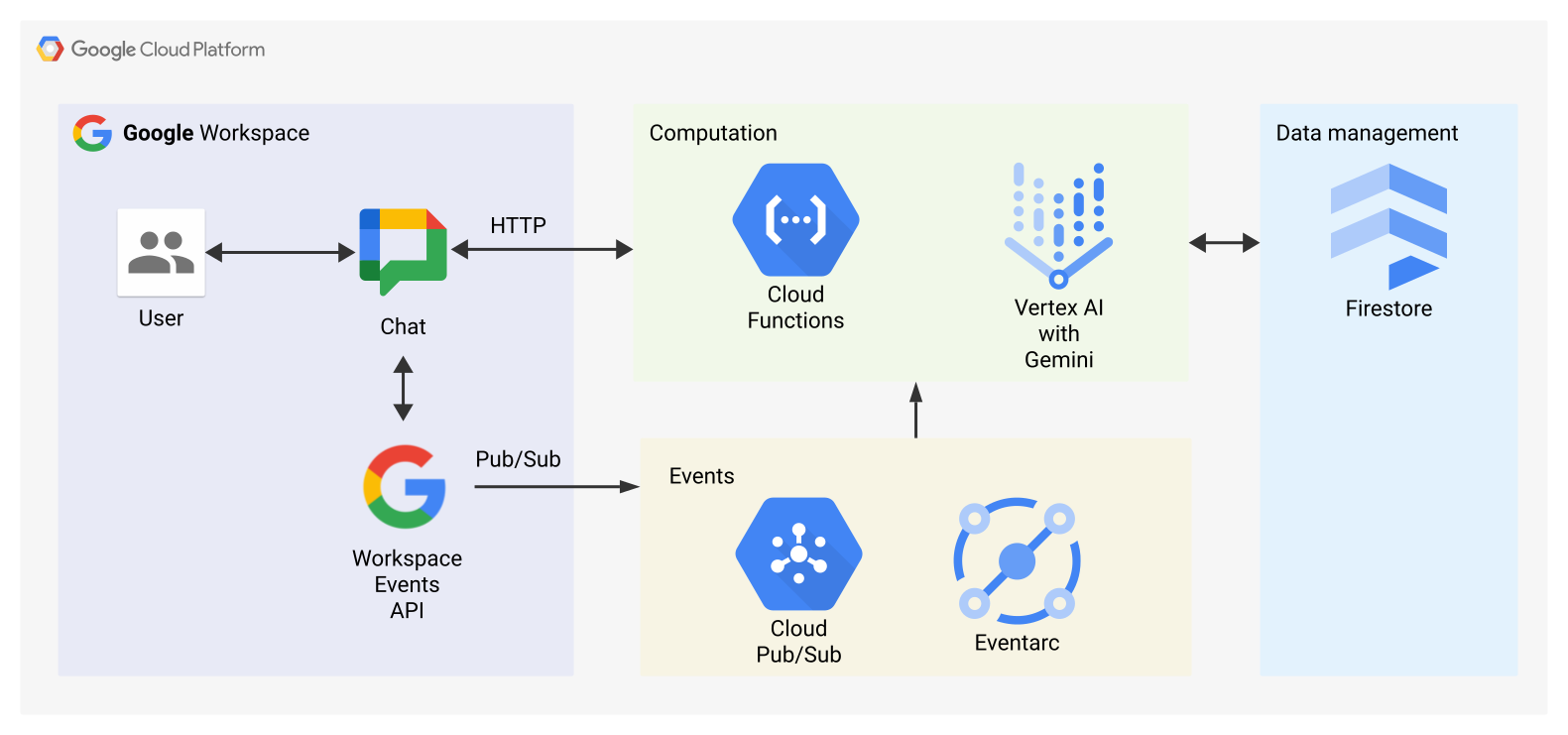
To help visualize how this agent interacts with your environment, the following structural diagram outlines the automated pipeline connecting your daily interface with the background processing engine:
Our hands-on experience setting up and refining this tool has revealed that unlocking its full potential requires moving far beyond basic text commands. True efficiency lies in mastering its three fundamental pillars: Tasks, Skills, and Schedules. This technical guide provides a definitive, actionable walkthrough to integrate this powerful system into your daily routine seamlessly.
Activating Google App Extensions Natively
By default, the core capabilities of this system are contained within an isolated sandbox. To bridge the gap between the underlying model and your operational data, you must explicitly authorize access to your personal cloud. This is accomplished by turning on Google Workspace Extensions, which establish secure, native data highways to tools like Gmail, Google Drive, Google Calendar, and Google Maps.
Because these connections are deactivated out of the box to preserve data sovereignty, the initialization process requires a manual override within your primary panel.
Navigating the Activation Panel
To establish these native data connections safely, we follow a precise sequence within the account infrastructure.
1. Access the Core Engine Settings: Account Interface.
Open your primary dashboard interface and locate the user profile node or the gear icon situated in the upper-right quadrant. Click through to open the primary Settings overlay panel.
2. Locate the Extensions Menu: Integration Management.
Within the primary sidebar navigation menu, scroll down until you locate the dedicated Extensions or Connections sub-menu. Selecting this opens the global toggles for all first-party application nodes.
3. Authorize First-Party Application Nodes: Data Highway Provisioning.
Individually toggle the switches for Gmail, Google Drive, Google Docs, Google Calendar, and Google Maps. Each toggle prompts a standard security disclosure regarding data access; review and accept to confirm authorization.
4. Verify OAuth Authentication Status: Security Check.
Ensure that a green confirmation checkmark or an “Active” indicator appears next to each authorized application. This confirms that the secure token exchange between the background engine and your Workspace account is complete.
Once these extensions are fully initialized, the background system gains the contextual awareness needed to read, summarize, and cross-reference information across your entire digital workspace under your explicit direction.
Building Custom Skills for Repetitive Workflows
A common point of friction with standard language models is the necessity of writing long, repetitive contextual prompts every time a specific action is required. This agent eliminates that overhead through the concept of Skills. A Skill is a pre-configured template that dictates exactly how the system should parse data and execute tasks when triggered by a specific event or keyword.
Instead of typing out multi-step instructions daily, you save those logical frameworks directly into the engine’s memory. This lets the agent complete complex, multi-app operations seamlessly behind the scenes.
[Trigger Condition] ➔ [Data Extraction: Google Drive] ➔ [Analytical Processing] ➔ [Execution: Draft Gmail Response]
When building these automations, we focus on three core principles to ensure consistent execution:
- Explicit Data Parameters: Clearly define which folders in Google Drive or categories in Gmail the system is authorized to evaluate.
- Structured Output Definitions: Instruct the engine to format outputs using predictable layouts, such as bulleted action items or tabular summaries.
- Human-in-the-Loop Safeguards: Ensure that high-impact actions—such as sending final emails or altering calendar event times—are staged as drafts or pending confirmations rather than executing autonomously without review.
Designing Time-Based and Conditional Schedules
The true separation between a traditional conversational interface and an autonomous execution agent lies in the implementation of Schedules. While conventional tools sit dormant until a user manually hits enter, this system actively monitors environmental conditions and temporal markers to initiate complex tasks completely on its own terms.
Schedules allow you to transform a static, on-demand assistant into an always-on operational engine.
Schedule Type Underlying Mechanism Primary Practical Use Case
Time-Based Triggers execute at precise chronological points (e.g., daily at 08:00 AM, weekly on Fridays). Generated automated morning briefings and compiled weekly productivity logs.
Conditional Triggers: Execute when a specific web event or data state is reached (e.g., an unread email containing specific keywords arrives)—instant extraction of critical client metrics into a shared tracking document.
By pairing structured execution rules with custom Schedules, you effectively offload the mental burden of tracking routine project statuses. The system handles the logistics in the background, surfacing data to your attention only when critical thresholds are met.
Advanced Email Management Strategies
For professionals drowning in unread correspondence, using this tool as an AI agent for email management is a major paradigm shift. Rather than manually sorting through hundreds of messages to find critical updates, you can offload triage, synthesis, and initial drafting to the background processor.
Incoming Stream ➔ Priority Categorization ➔ Action-Item Extraction ➔ Draft Generation
A common concern regarding this level of autonomy is data privacy. It is critical to understand that the system does not read your emails indiscriminately. It operates entirely within a sandboxed permission structure, executing deep textual analysis only on threads that match your pre-configured parameters, rules, or explicit operational instructions.
To maximize efficiency, we routinely implement a three-tiered automated email management strategy:
- Context-Aware Triage: The system scans incoming subject lines and body text against active projects, automatically bubbling time-sensitive technical or operational requests to the top while filtering out low-priority promotional notifications.
- Automated Action Item Extraction: Long, multi-participant email threads are instantly distilled into crisp, bite-sized summaries that highlight exactly who owes what deliverable by which date.
- Proactive Reply Generation: When an incoming message requires a standard response—such as scheduling an introductory call or acknowledging a project delivery—the agent pulls free blocks directly from Google Calendar and crafts a complete response draft, leaving it ready for your final approval.
Frequently Asked Questions
How does Gemini Spark differ from a standard AI chatbot?
Standard chatbots are completely reactive, waiting for a manual prompt before providing an answer. This platform operates as an active AI agent, meaning it can autonomously monitor schedules, run multi-app workflows, and take background actions across your Google apps based on your preset rules.
Will the AI agent read all my private emails automatically?
No. The system works strictly under your direction and within established boundaries. It does not indiscriminately scan your entire personal data stream; instead, it processes information to assist with your specific email management instructions, custom Skills, or active Schedules.
Do I need programming skills to configure custom Skills or Schedules?
Not at all. The entire interface is designed for natural language interaction. You configure advanced, multi-app behaviors and conditional automation rules using plain, everyday English.
Can I set the system to send emails completely on its own?
While capable of drafting highly complex responses, the platform is built by default around a human-in-the-loop model. It typically stages emails as drafts within Gmail, ensuring you always have the final review before any message is sent.
How do I turn off an Extension if I no longer want to share data?
You retain complete data control. You can revoke application access instantly at any time by returning to the Extensions menu within your dashboard settings and toggling off the specific application link.
Can the background agent cross-reference data between entirely different apps?
Yes, that is its primary strength. For example, it can extract technical specifications from a PDF stored in Google Drive, organize those metrics into a summary in Google Docs, and then draft a summary email to a colleague via Gmail.
Does running continuous background Schedules drain my local device battery?
No. Because all tracking, data analysis, and workflow executions occur directly on Google’s secure cloud infrastructure, running complex, time-based schedules places absolutely zero processing load on your local phone or computer.
Can it help me coordinate schedules with external team members?
Yes. By linking directly with Google Calendar, you can instruct the agent to scan your upcoming availability window and compile clear text options for a meeting, cross-referencing your locations via Google Maps to guarantee realistic travel buffers.
What happens if a conditional trigger criterion is met multiple times?
The engine handles recurring conditional triggers sequentially. Each instance of the trigger arriving kicks off an independent execution loop, ensuring every matching item is systematically processed according to your defined Skills.
Is there an easy way to see a history of all background actions taken?
Yes. The platform includes a transparent activity log dashboard. This central portal lets you quickly audit every execution, review which Schedules were triggered, and verify exactly what actions were taken across your workspace apps.

Selva Ganesh is a Computer Science Engineer, Android Developer, and Tech Enthusiast. As the Chief Editor of this blog, he brings over 10 years of experience in Android development and professional blogging. He has completed multiple courses under the Google News Initiative, enhancing his expertise in digital journalism and content accuracy. Selva also manages Android Infotech, a globally recognized platform known for its practical, solution-focused articles that help users resolve Android-related issues.




Leave a Reply