
Digital Home Keys in Google Wallet– Google Wallet now supports digital home keys connected through the Google Home app on Android, turning your smartphone into a contactless credential for compatible smart locks. Built on the open Aliro access standard developed by the Connectivity Standards Alliance, this integration allows you to unlock your front door either with a quick Near Field Communication (NFC) tap or completely hands-free via Ultra-Wideband (UWB) proximity detection.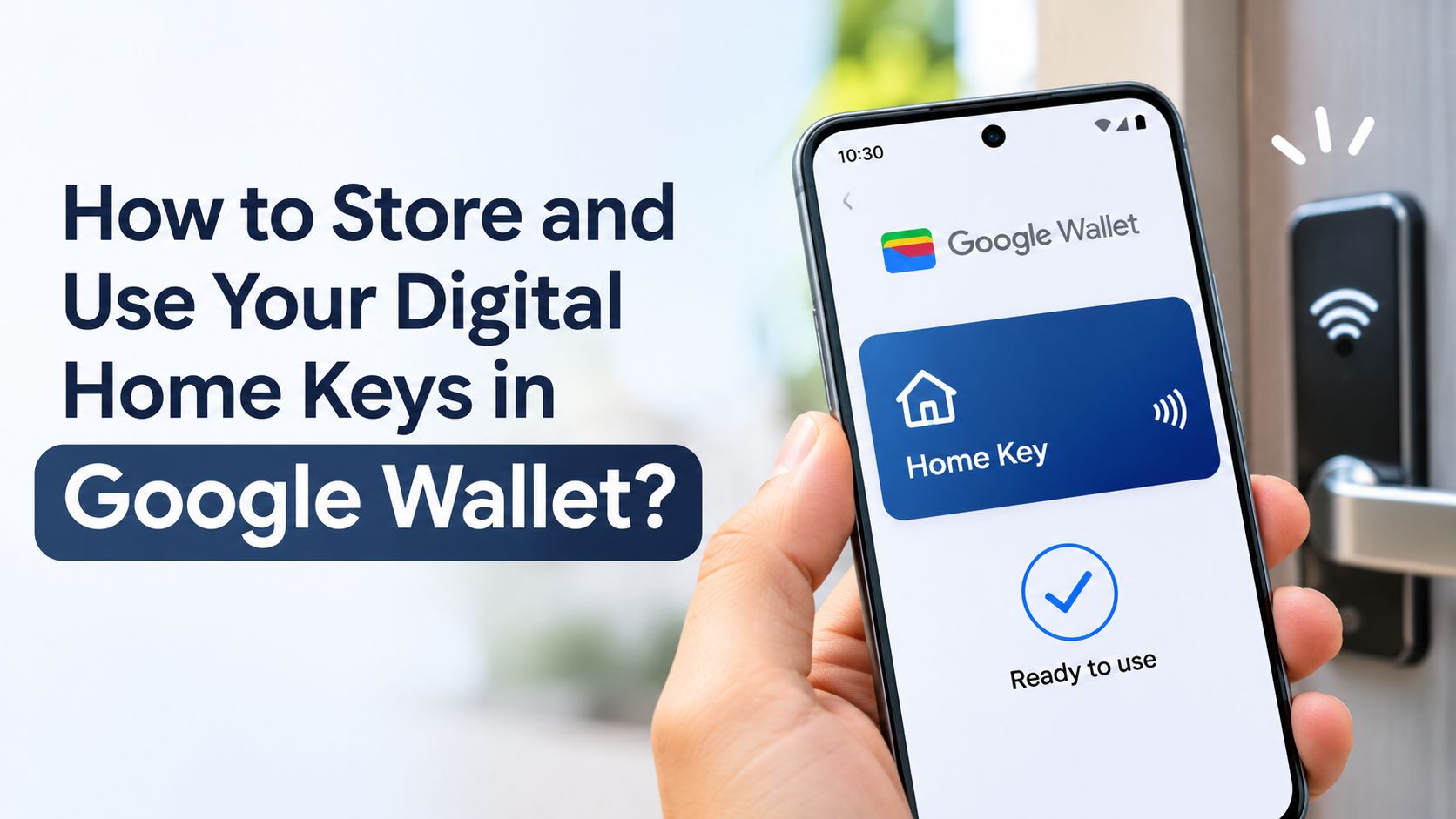
Rather than generating a separate pass for every door in your house, Google ties a single digital key directly to your broader Google Home environment. Once configured, that single key operates across every compatible Aliro smart lock assigned to that home, syncs automatically across eligible Android devices signed into your Google Account, and can be shared with household members.
What You Need Before Setting Up a Digital Home Key
Because digital home keys rely on encrypted local communication and unified smart home standards, every component in the chain—your phone, hub, software, and door hardware—must meet specific baseline requirements.
Software and Rollout Availability
At launch, digital home keys are rolling out first to users enrolled in the Google Home Public Preview program, with broader general availability scheduled to follow in the coming weeks. To access the feature, ensure both the Google Home app and Google Wallet app are updated to their latest versions on your Android smartphone.
Smartphone Hardware Requirements
The device requirements depend on which unlocking method you plan to use:
-
Tap to Unlock (NFC): Requires an NFC-enabled Android smartphone running Android 9 or later.
-
Unlock on Approach (Hands-Free UWB): Requires an Aliro UWB-compatible Android phone, specifically the Google Pixel 10 Pro series or newer (including Pixel 10 Pro XL and Pixel 10 Pro Fold models) or select UWB-enabled Samsung Galaxy smartphones.
-
Wear OS Limitation: Wear OS smartwatches are not supported at launch, meaning all tapping and proximity unlocking must happen through your phone.
Smart Locks and Hub Infrastructure
Your smart home setup requires two core hardware elements:
-
A Matter-Enabled Google Hub with Thread Border Router Support: The lock communicates locally with your smart home network using Matter over Thread. Compatible hubs include the Nest Hub (2nd gen), Nest Hub Max, Nest Wifi Pro, and Google TV Streamer.
-
An Aliro-Compatible Smart Lock: At launch, officially supported models include:
-
Aqara Smart Lock U400 (supports both NFC tap and UWB hands-free unlocking)
-
Schlage Sense Pro (supports NFC at launch, with UWB support scheduled to follow)
-
Nuki Keypad 2 NFC (supports NFC tap unlocking)
-
Comparing Tap to Unlock vs. Unlock on Approach
Google Wallet provides two distinct ways to interact with an Aliro smart lock. Understanding how each behaves helps you balance speed against physical security.
| Feature | Tap to Unlock (NFC) | Unlock on Approach (UWB) |
| Wireless Technology | Near Field Communication (NFC) | Ultra-Wideband (UWB) |
| User Action Required | Hold the back of the phone near the lock reader | Walk up to the door with your phone in your pocket or bag |
| Default Status | Active once key is added | Disabled by default for security |
| Phone OS Requirement | Android 9 or newer with NFC | Pixel 10 Pro series or newer / select UWB Galaxy phones |
| Lock Requirement | Any Aliro NFC-compatible smart lock | Aliro UWB-compatible smart lock (such as Aqara U400) |
| Simultaneous Connections | Works across all compatible locks in your home | Actively tracks up to 4 locks simultaneously |
How to Add Your Digital Home Key to Google Wallet
You can provision your digital home key either while pairing a brand-new smart lock or after a compatible lock has already been installed in your Google Home setup.
Option 1: During Initial Lock Setup
-
Install your Aliro-compatible smart lock on your door following the manufacturer’s hardware instructions.
-
Open the Google Home app on your Android phone and follow the on-screen pairing flow to connect the Matter lock to your Thread border router.
-
When the setup wizard finishes pairing the lock, select Get Started on the prompt inviting you to create a digital key.
-
Create a backup passcode for the lock if prompted, then tap Next.
-
Tap Add to Wallet and confirm your Google Account details to save the credential inside Google Wallet.
Option 2: For an Existing Smart Lock in Google Home
If your compatible lock is already connected to Google Home, you do not need to reset or re-pair the hardware:
-
Open the Google Home app on your Android device.
-
Navigate to Settings (or open your lock’s device tile and tap its Settings gear icon).
-
Select Google Wallet key.
-
Follow the on-screen steps to generate the credential and tap Add to Wallet.
Once added, the key appears inside Google Wallet displaying the Google Home emblem alongside your home’s name in the upper-right corner.
How to Use Your Digital Home Key
After saving the pass to Google Wallet, you can unlock your door immediately without opening the Wallet app.
Using Tap to Unlock
-
Ensure NFC is switched on in your Android device settings.
-
Hold the upper back portion of your phone—where the NFC antenna is typically positioned—directly against the smart lock’s reader.
-
Keep the phone steady for one to two seconds until you feel haptic feedback or hear the lock mechanism engage.
By default, Tap to Unlock works even while your phone screen is locked, provided the device has been unlocked within the past few hours. If your phone has remained idle for an extended period or was recently restarted, Android will prompt you to unlock your screen before transmitting the key.
Enabling and Using Unlock on Approach
Because hands-free unlocking triggers automatically as you near your entrance, Google keeps it turned off by default so you do not inadvertently unlatch your door while walking past a hallway or front porch. To turn it on:
-
Open the Google Wallet app on your UWB-compatible phone.
-
Tap on your Google Home digital key card.
-
Toggle on Unlock on approach. (Note: This toggle only appears if both your phone and at least one lock in your home support Aliro UWB.)
When enabled, your phone uses directional Ultra-Wideband ranging to determine your exact distance and trajectory relative to the door, unlocking it as you approach. While you can enable the setting across all UWB locks in your home, your phone actively maintains simultaneous UWB ranging connections with a maximum of four locks at once.
Security Controls, Household Sharing, and Key Management
Requiring Device Unlock Verification
If you prefer an extra layer of authentication before anyone holding your phone can open your front door, you can disable express locked-screen tapping:
-
Open Google Wallet and select your digital home key.
-
Tap the three-dot menu (More) in the top-right corner.
-
Enable Require device unlock.
With this option active, you must verify your identity via fingerprint, face unlock, or PIN before tapping your phone against the lock.
Multi-Lock, Multi-Phone, and Household Syncing
-
One Key per Home: Adding a single digital key covers every Aliro-compatible lock assigned to that home in the Google Home app. If you manage multiple properties—such as a primary residence and a vacation home—each home structure receives its own separate key card in Google Wallet.
-
Automatic Cross-Device Sync: If you carry two compatible Android phones signed into the same Google Account and Google Wallet profile, your home key automatically syncs to the secondary device.
-
Household Members: Anyone invited as a member of your home in the Google Home app can add their own personal copy of the digital key to Google Wallet on their Android phone.
Removing or Revoking a Key
You can delete a digital home key at any time by opening the key inside Google Wallet, tapping the top-right menu, and selecting Remove. Keep in mind that removing the key deletes it across all Android devices signed into your Google Account. Additionally, if you remove a lock from Google Home or remove a household member from your home structure, their associated digital key deactivates automatically.
Practical Troubleshooting Tips
-
Keep a Physical Backup: Always carry a physical key or ensure you know your keypad PIN code, especially if your phone battery runs low or you are testing Public Preview software.
-
Adjust Phone Alignment: If an NFC tap fails to register, move the phone slightly lower or higher against the reader; NFC coil placement varies across Android phone models.
-
Check Lock Battery and Thread Connection: Ensure your Matter-over-Thread hub is online and your lock batteries are charged, as offline locks may experience delays syncing credential updates.
Frequently Asked Questions
1. What is the Aliro standard used by Google Wallet home keys?
Aliro is an open communication protocol created by the Connectivity Standards Alliance that standardizes how smartphones and wearables communicate with smart locks over NFC and Ultra-Wideband, ensuring cross-brand interoperability without proprietary lock apps.
2. Can I unlock my door if my Android phone screen is locked?
Yes. By default, Tap to Unlock works while your phone screen is locked as long as the phone was unlocked within the last few hours. You can disable this behavior in Google Wallet by turning on the Require device unlock setting.
3. Do I need a separate digital key for my front door and back door?
No. A single digital home key in Google Wallet links to your entire Google Home setup and works across every compatible Aliro smart lock assigned to that home.
4. Which phones support hands-free Unlock on Approach?
Hands-free Unlock on Approach requires an Aliro Ultra-Wideband-compatible smartphone. At launch, supported devices include the Google Pixel 10 Pro, Pixel 10 Pro XL, Pixel 10 Pro Fold, newer Pixel models, and select UWB-equipped Samsung Galaxy phones.
5. Can I use a Wear OS smartwatch to tap and unlock my door?
No. Google confirmed that Wear OS smartwatches are not supported for digital home keys at launch, so you must use a compatible Android smartphone.
6. Which smart locks work with Google Wallet digital home keys?
Launch-compatible locks include the Aqara U400 (NFC and UWB), Schlage Sense Pro (NFC at launch, UWB coming later), and Nuki Keypad 2 NFC. Additional Aliro-certified locks from other manufacturers are expected over time.
7. Do I need a Google smart home hub to use digital home keys?
Yes. You must have a Matter-enabled Google hub with a built-in Thread border router—such as a Nest Hub (2nd gen), Nest Hub Max, Nest Wifi Pro, or Google TV Streamer—to set up and manage the lock in Google Home.
8. How do I share a digital home key with family members?
Invite them to join your home inside the Google Home app. Once they are listed as household members, they can open Google Home on their own compatible Android phone and add the home key directly to their personal Google Wallet.
9. Why is Unlock on Approach turned off by default?
Google disables Unlock on Approach by default as a precaution so your door does not unlock unintentionally when you walk near the entrance without intending to go inside. You can enable it manually inside the key’s settings in Google Wallet.
10. How do I get access if the Google Wallet key option is missing in Google Home?
The feature is rolling out initially to users enrolled in the Google Home Public Preview program. You can join Public Preview through the Google Home app settings or wait for the broader public rollout scheduled over the coming weeks.

Selva Ganesh is a Computer Science Engineer, Android Developer, and Tech Enthusiast. As the Chief Editor of this blog, he brings over 10 years of experience in Android development and professional blogging. He has completed multiple courses under the Google News Initiative, enhancing his expertise in digital journalism and content accuracy. Selva also manages Android Infotech, a globally recognized platform known for its practical, solution-focused articles that help users resolve Android-related issues.



Leave a Reply