
How to Use Find Hub’s New ‘Remembered Items’ Tab – Losing everyday essentials inside your own home is one of life’s most frustrating daily micro-annoyances. Whether it is a spare set of house keys tucked away in a decorative bowl, an annual passport stowed inside a bookshelf, or emergency cash hidden in a jacket pocket, physical items without electronic trackers often vanish right when we need them most.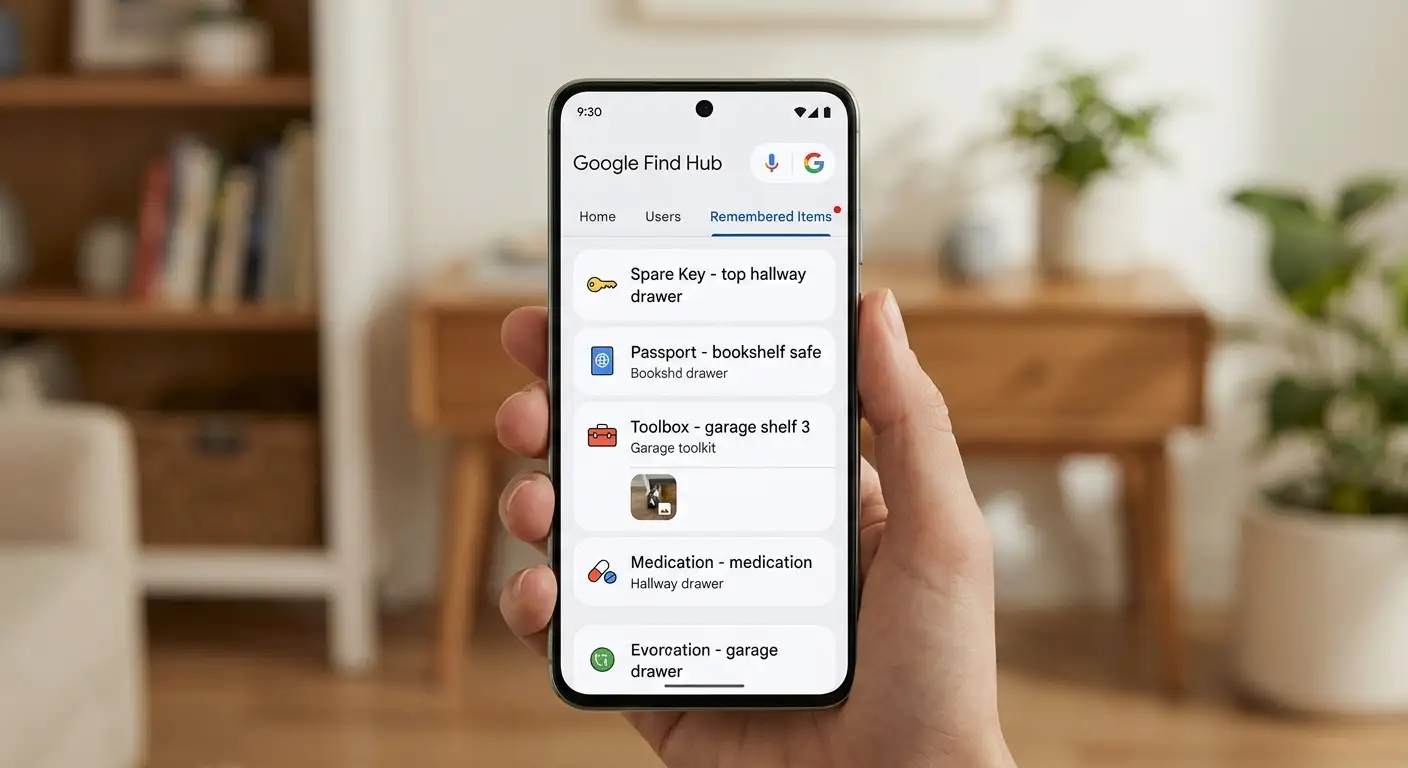
To solve this universal problem, Google has introduced the ‘Remembered Items’ tab within the updated Find Hub app. Rolled out globally as part of the September Android feature release, this capability merges the smart conversational memory of Google Gemini with the centralized tracking power of Google Find Hub.

In this detailed guide, we break down everything you need to know about setting up, managing, and using the Remembered Items tab, written in clear, non-technical language that anyone can follow.
What is the ‘Remembered Items’ Tab in Find Hub?
Historically, location-tracking services relied strictly on GPS signals or Bluetooth tracker tags attached physically to an object. While that works exceptionally well for car keys or wallets, it is impractical to attach battery-powered tracker tags to items like paper documents, birth certificates, spare eyeglasses, or seasonal tools.
The Remembered Items tab bridges this exact gap. It serves as a digital memory log inside your Find Hub application, allowing you to record the exact physical hiding spot or storage location of non-tracked personal items. By pairing Gemini voice commands or visual photo uploads directly with your Google Account, you can store context-rich notes about where your possessions are located.
When you inevitably forget where an item was placed months later, you no longer need to tear your house apart. You simply check your Find Hub app or ask your phone where you put it.
Supported Devices and Compatibility Requirements
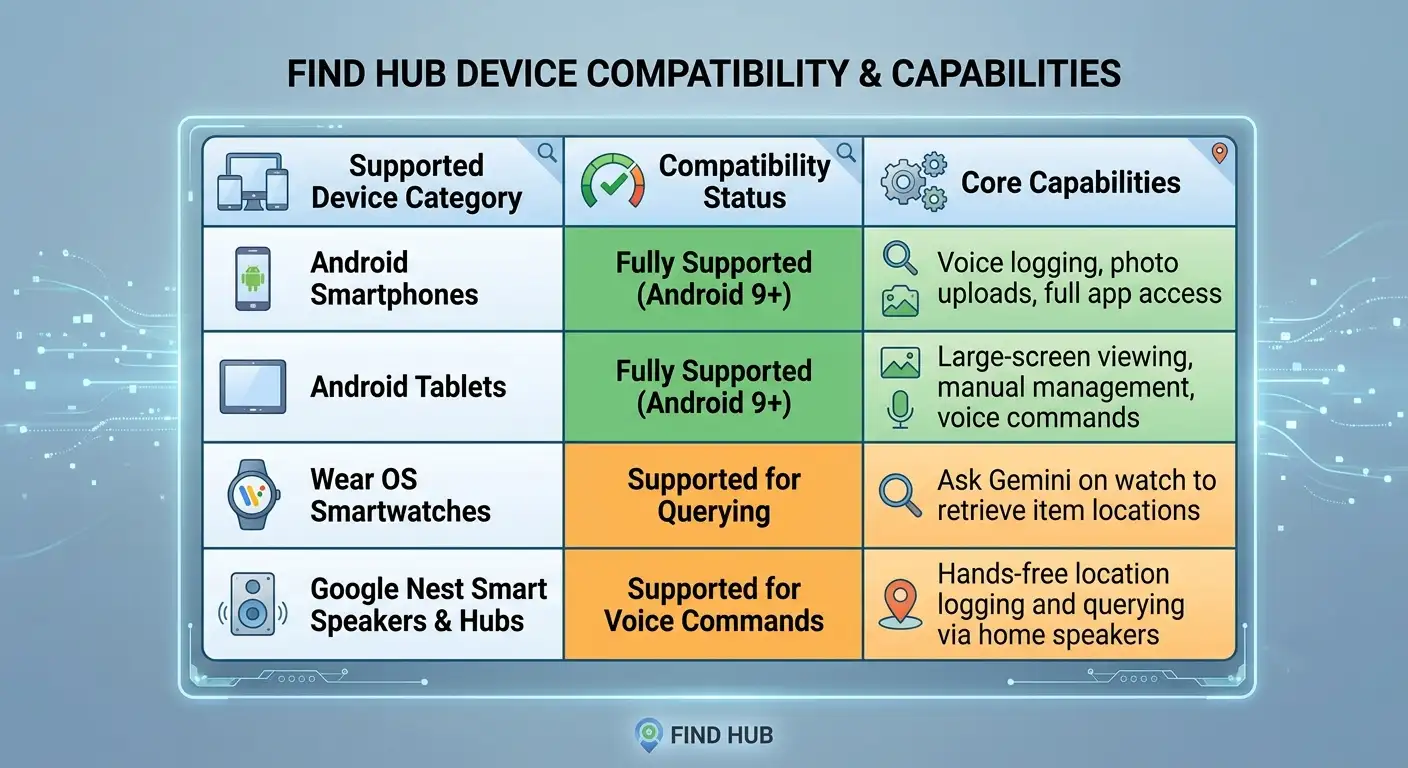
Google designed the Remembered Items feature to work seamlessly across a broad range of hardware. You do not need the newest flagship device to take advantage of this feature, though your software must meet a few baseline standards.
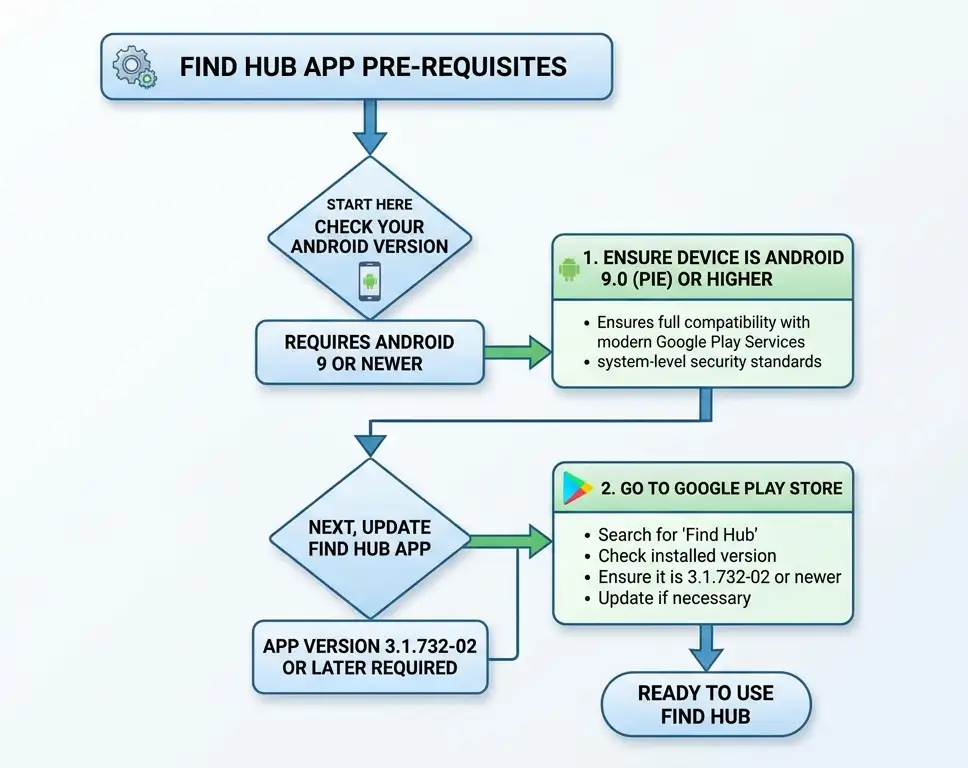
Make sure Google Gemini is set as your active digital assistant on your Android device to process natural language logging and retrieval.
Device Category Support Summary
Step-by-Step Guide: How to Use the ‘Remembered Items’ Tab
Using this feature requires zero technical expertise. Follow these straightforward steps to start cataloging your essential belongings today.
Step 1: Log an Item Using Your Voice or Text
-
Wake your device by saying “Hey Google” or holding down the power button to launch Gemini.
-
State clearly what you are storing and where. For instance: “Remember I put my passport inside the blue binder on the second shelf of the office cabinet.”
-
If prompted, capture a photo of the location using your phone’s camera to attach visual proof to the record.
Step 2: Access the ‘Remembered Items’ Tab in Find Hub
-
Open the Find Hub app on your home screen or app drawer.
-
Look at the main navigation bar located at the bottom of your screen.
-
Tap on the Remembered Items tab (located alongside your existing Devices, Items, and People tabs).
-
Here, you will see a neatly arranged list of every physical item you have logged.
Step 3: Edit or Delete Stored Items
-
Tap on any item in your list to view its full details, including the full text summary and attached photo.
-
If you move an item to a new spot, tap Edit to update the location text or replace the photo.
-
Once an item is no longer relevant (or has been permanently used), tap Delete or tell Gemini: “Hey Google, forget where my spare keys are.”
Practical Everyday Use Cases for ‘Remembered Items’
While electronic tracker tags excel at keeping tabs on items that move constantly—like your daily keyring or handbag—the Remembered Items feature shines for static, high-value, or rarely used possessions:
-
Important Personal Documents: Birth certificates, property deeds, tax records, vehicle titles, and passports that live inside specific safes or folders.
-
Seasonal & Emergency Gear: Snow tire chains, camping stoves, spare flashlight batteries, or holiday decorations stored in labeled attic or garage boxes.
-
Spare Tools & Hardware: Specialized screwdriver bits, spare paint cans matched to specific rooms, or spare lawnmower parts.
-
Healthcare & Personal Items: Spare prescription eyeglasses, medical records, or extra medication travel cases.
Privacy and Data Encryption Standards
Because personal item locations can reveal sensitive information about your home layout and private documents, Google safeguards all Remembered Items data with multi-layered privacy controls:
-
End-to-End Security: Location entries stored in Find Hub are protected using robust account-level encryption tied directly to your primary Google Account credentials.
-
Zero Public Network Exposure: Unlike Bluetooth tracking tags that participate in crowdsourced location networks to help locate lost items outside, Remembered Items entries remain 100% private to you. They are never shared across the crowd network or accessible by nearby devices.
-
Granular Control: You retain full ownership to edit, export, or permanently purge any logged item at any given time directly from the app.
FAQs
1. What is the ‘Remembered Items’ tab in Find Hub?
It is a dedicated section within the Find Hub app that logs the physical storage locations of non-trackable personal belongings—such as documents, spare keys, or seasonal tools—without requiring physical Bluetooth tracker tags.
2. How does the Remembered Items feature work?
The feature pairs natural language commands and visual inputs via Google Gemini with your Google Account. You tell Gemini where you placed an item or take a photo, and the app saves the entry with names, descriptions, timestamps, and photos.
3. Do I need physical tracker tags like AirTags or Chipolo to use this tab?
No. Unlike standard item tracking that relies on Bluetooth or GPS hardware, Remembered Items functions as a smart, searchable digital log for items that cannot easily hold a physical tracker.
4. How do I log an item using voice commands?
Activate Google Gemini on your device and say a natural prompt such as, “Hey Google, remember that I put my spare car key in the top drawer of the hallway side table.” Gemini will automatically generate an entry in your Find Hub list.
5. Can I attach photos to my remembered items?
Yes. You can take and attach clear photos of the specific drawer, shelf, or container where the item is stored to provide visual context when reviewing the entry later.
6. How do I retrieve a saved item’s location later?
You can either ask Google Gemini directly (e.g., “Hey Google, where did I put my spare car key?”) to hear the saved note, or manually open the Find Hub app and browse the Remembered Items tab.
7. Where do I find the Remembered Items tab inside the Find Hub app?
It is located on the main bottom navigation bar of the Find Hub application, sitting alongside the existing Devices, Items, and People tabs.
8. How do I edit or delete an item if I move it?
Open the Remembered Items tab, tap on the specific item, and select Edit to update the text or photo. To remove an entry, tap Delete or tell Gemini: “Hey Google, forget where my spare keys are.”
9. Are my remembered item locations shared with the Find My Device crowdsourced network?
No. Remembered Items data is completely private to your personal Google Account. It is secured with account-level encryption and is never broadcast across public crowdsourced location networks.
10. What types of items are best suited for this feature?
It is ideal for static, high-value, or rarely used possessions that don’t need active GPS tracking, including passports, birth certificates, emergency cash, seasonal equipment, spare eyeglass cases, and specialty tools.

Selva Ganesh is a Computer Science Engineer, Android Developer, and Tech Enthusiast. As the Chief Editor of this blog, he brings over 10 years of experience in Android development and professional blogging. He has completed multiple courses under the Google News Initiative, enhancing his expertise in digital journalism and content accuracy. Selva also manages Android Infotech, a globally recognized platform known for its practical, solution-focused articles that help users resolve Android-related issues.





Leave a Reply