
Most of us have a habit of putting our mobile in vibrate mode forever. Other than this mode, when you are using Ringtone mode, you out your mobile into silent mode or Airplane mode when you attend meetings or in urgent situations where you are not want to receive calls. But, When you put your mobile into Airplane mode and want to use mobile data only, you can do that using the following simple method. You should follow the actual Airplane conducts as per your Airline Instructions. Here I am explaining the typical scenario where you don’t want to receive calls But want to use mobile data. The following method is for Android mobiles.
When do You need to use Mobile Data in Airplane Mode?
As I mentioned earlier, In actual Airplane traveling, most of the time, your mobile will not get a signal, or the Airlines advise you to put your mobile into Airplane mode as per FCC law. Even if you are traveling in domestic planes where some planes will not go the high distance, and you may receive signal, It is not advisable to use your mobile network. So, When you are in the actual Airplane, the following method won’t work and not advisable to use. So, Where can you use this method? You out your mobile in Airplane mode to avoid the calls to your number, Can’t make a call and want to use the mobile data connection to search for something or chat with your loved ones.
How to use Mobile Internet Data only in Airplane Mode on Android Mobiles?
The process is simple. You don’t need any apps to be installed in your mobile from Play Store or third-party apps installation. You can do this using your dial pad on your mobile.

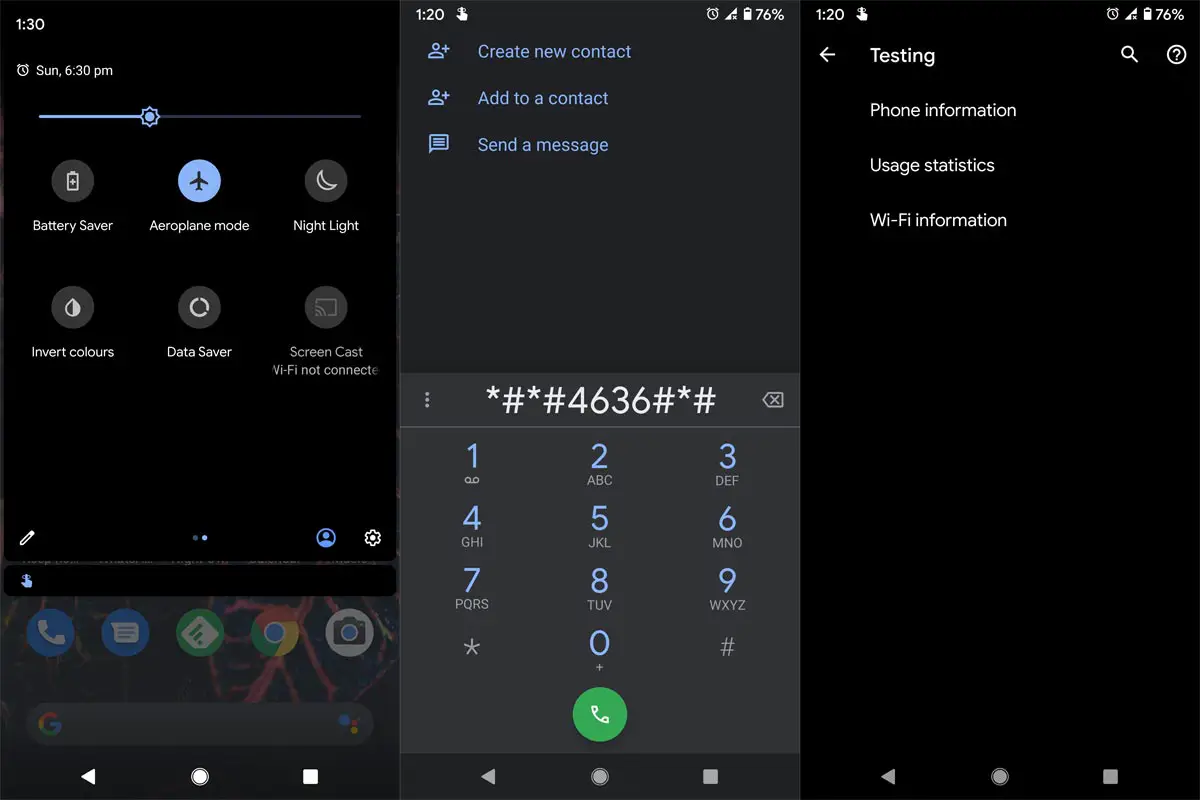
- Enable Airplane mode on your mobile.
- Open your Dial pad on your mobile.
- Type “*#*#4636#*#*” or “*#*#4838#*#*.
- You will get the Testing screen. Select “Phone Information.”
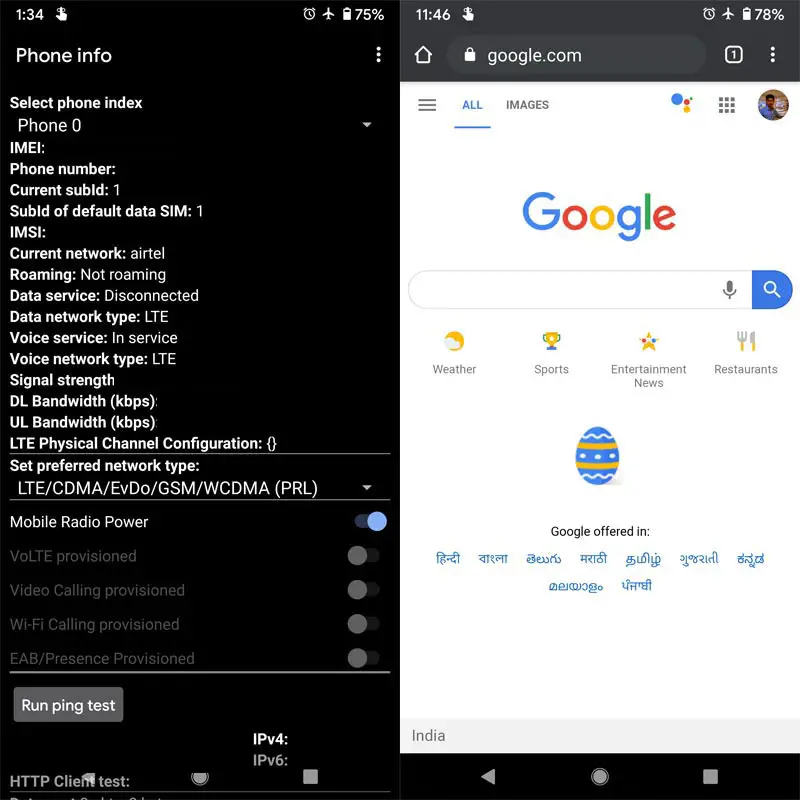
- Scroll down and enable Mobile Radio Power. You won’t get the mobile data indication. But, you can use cellular data on your mobile.
- To check whether it is working or not, Open your mobile browser and check with some random pages. You can also use any apps that work with the data connection.
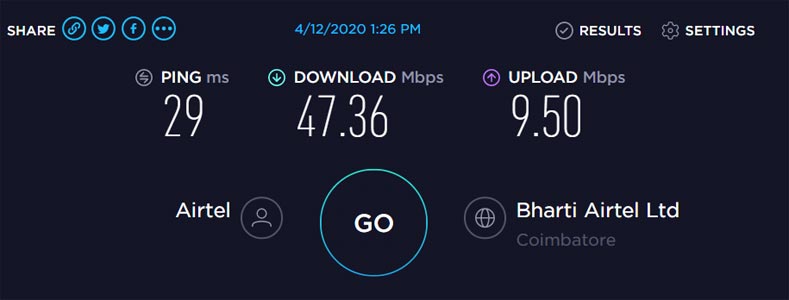
- You will get the same data speed on your mobile.
Wrap Up
When we can’t do simple things in some unavoidable situations, it can make us feel worse. The above method can help you when you don’t want to get calls from others and show them that you are in airplane mode and want to use mobile data to release yourself from the boring meetings..:) Never install the third-party apps that from untrusted sources and do this kind of job. These apps may require call and contacts permission. They may do the job. But, the app can get your contacts and call logs. So, Always prefer some default methods. I hope this method will help you in some situations. When you are using different ways other than the above one, Comment below.

Selva Ganesh is a Computer Science Engineer, Android Developer, and Tech Enthusiast. As the Chief Editor of this blog, he brings over 10 years of experience in Android development and professional blogging. He has completed multiple courses under the Google News Initiative, enhancing his expertise in digital journalism and content accuracy. Selva also manages Android Infotech, a globally recognized platform known for its practical, solution-focused articles that help users resolve Android-related issues.




Leave a Reply