
Even though users often use some tasks, Tech companies may forget or overlook them unless the users request them. Google Docs is an excellent tool for all devices without additional software or applications. In the beginning, Google struggled to understand how much Docs is better than others. But in recent times, most fo people always prefer Google Docs. Since it is always available online, You can collaborate anywhere without uploading or carrying Pendrive with a document. Google keeps pushing new features often and also misses one. Now, Google has the option to view non-printing characters in Google Docs.
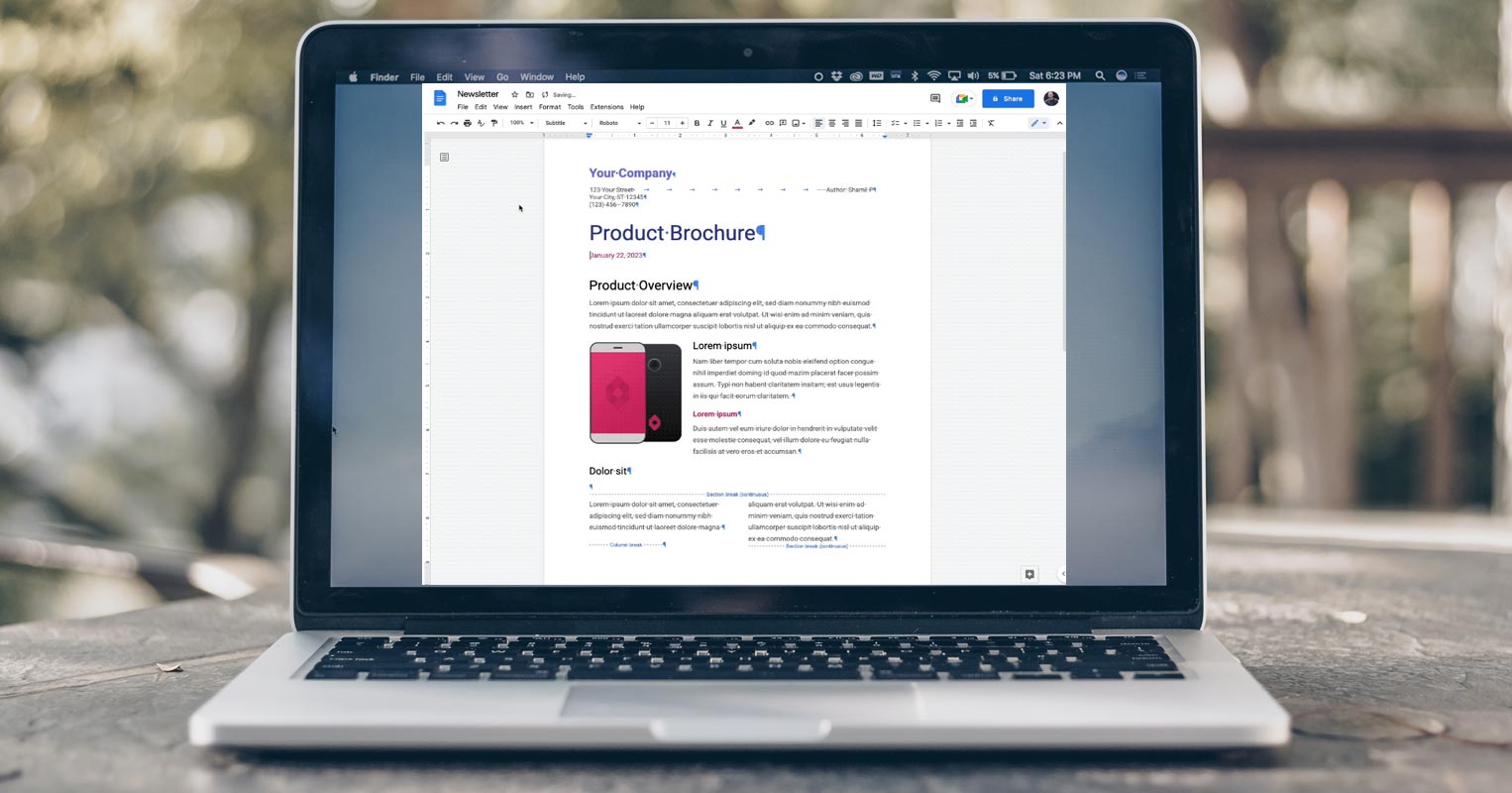
non-printing characters in Google Docs
Google announced in a recent blog post that it would be introducing a new feature to its Google Docs platform, allowing users to view non-printing characters, including spaces, tabs, and line breaks. This option, accessible through the View menu, aims to make editing documents more straightforward by accurately representing the document’s formatting rather than relying solely on visual cues to distinguish tabs from spaces, for example. Additionally, this feature can be beneficial when troubleshooting formatting issues within a document.
People use third-Party Add-ons for this feature
In the past, individuals had to turn to external add-ons for Google Docs to view, such as spaces, tabs, and line breaks. Although this is not a feature that most users frequently utilize, there was an apparent demand for it. A request for this feature on Google’s IssueTracker received over 80 votes from people affected by the lack of visibility of these characters.

How does the view of non-printing characters in Google Docs work?
When working on a Google Doc, it can be challenging to understand the document’s layout as non-printing characters such as line breaks, tabs, and spaces are not visible by default. Now, Google Docs has added a feature to allow users to view these non-printing characters. By enabling this option, symbols or text will appear on the document to represent the following types of non-printing characters:
- Paragraph/Hard breaks
- Line/Soft breaks
- Section breaks
- Page breaks
- Column breaks
- Tabs
- Spaces
By seeing these characters, users can better understand the document’s layout, making it easier to navigate and edit as needed.
How to view non-printing characters in Google Docs?
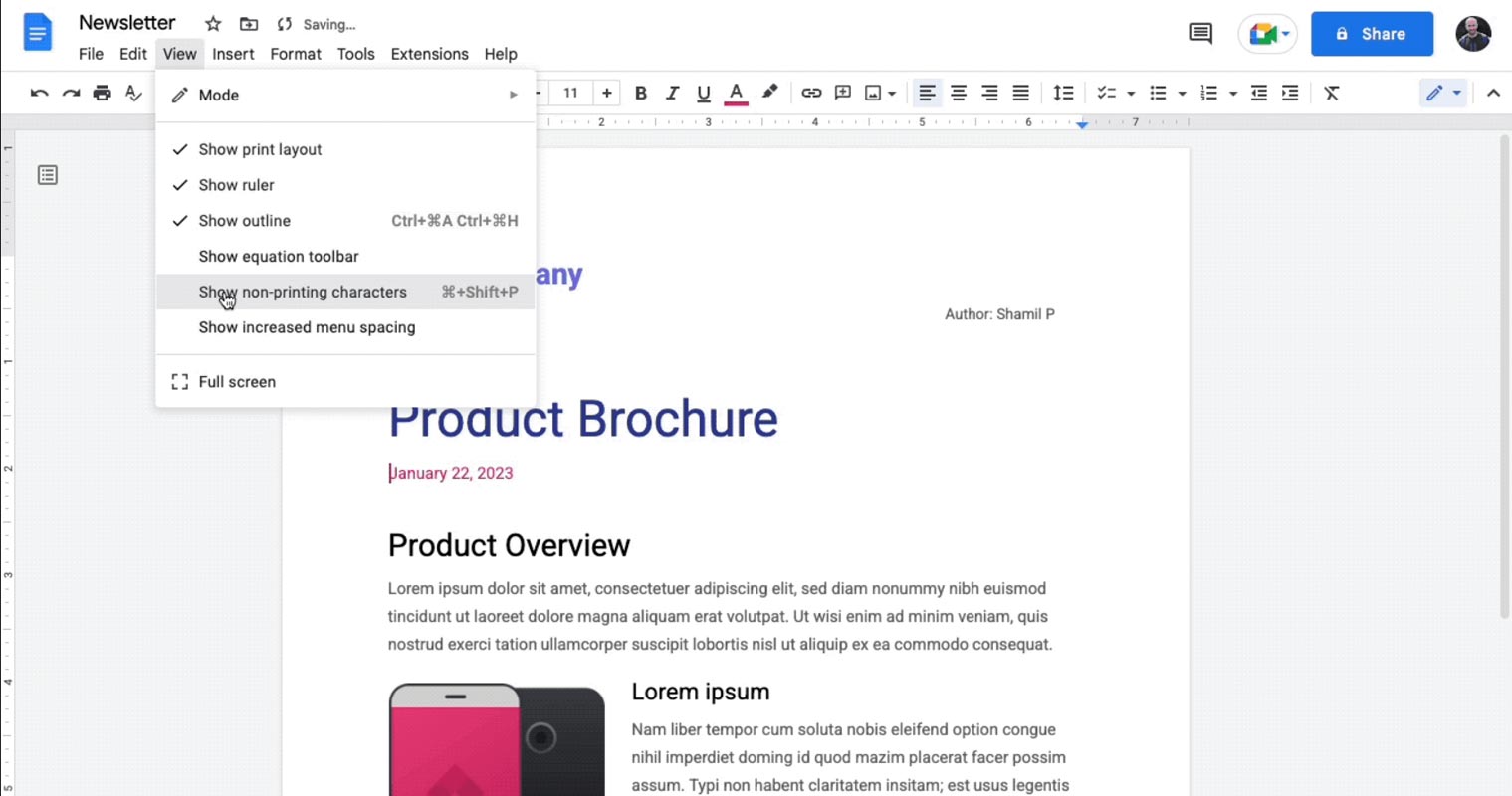
To view non-printing characters within a Google Doc, navigate to the “View” menu and select “Show non-printing characters.”
Availability and Rollout
The feature to view non-printing characters in Google Docs will be rolled out gradually, with Rapid Release domains seeing the quality up to 15 days starting January 9, 2023, while Scheduled Release domains will see the feature up to 15 days beginning January 23, 2023. This feature will be available to all Google Workspace customers, as well as legacy G Suite Basic and Business customers, and also will be accessible to users with personal Google Accounts.
Wrap Up
Along with the rollout of the new feature, Google should focus on other user requests too. Some user recommendations may be a must-need one and avoiding those issues, May force users to go back to their existing platforms or a new one. Since Google is a vast company, We can’t expect open-source-level patch-up or feedback from Google. But compared with other companies, Google has plenty of options to reach them, and they constantly interact with the users and try to provide the most need as much as possible. Did you get the non-printing characters to view option in Google Docs? How much it helps you? Share your experience below.

Selva Ganesh is a Computer Science Engineer, Android Developer, and Tech Enthusiast. As the Chief Editor of this blog, he brings over 10 years of experience in Android development and professional blogging. He has completed multiple courses under the Google News Initiative, enhancing his expertise in digital journalism and content accuracy. Selva also manages Android Infotech, a globally recognized platform known for its practical, solution-focused articles that help users resolve Android-related issues.




Leave a Reply