
How to Watch Instagram Reels on Samsung TV, Fire TV & Android TV – The way we enjoy social media has completely shifted. No longer are short-form videos confined to small hand-held smartphone screens. We now have the power to bring trending vertical clips, hilarious comedy skits, breathtaking travel highlights, and culinary tutorials straight into our living rooms. With Meta’s latest dedicated TV application and expanded features, watching Instagram Reels on a Smart TV has become a seamless, shared living room experience.
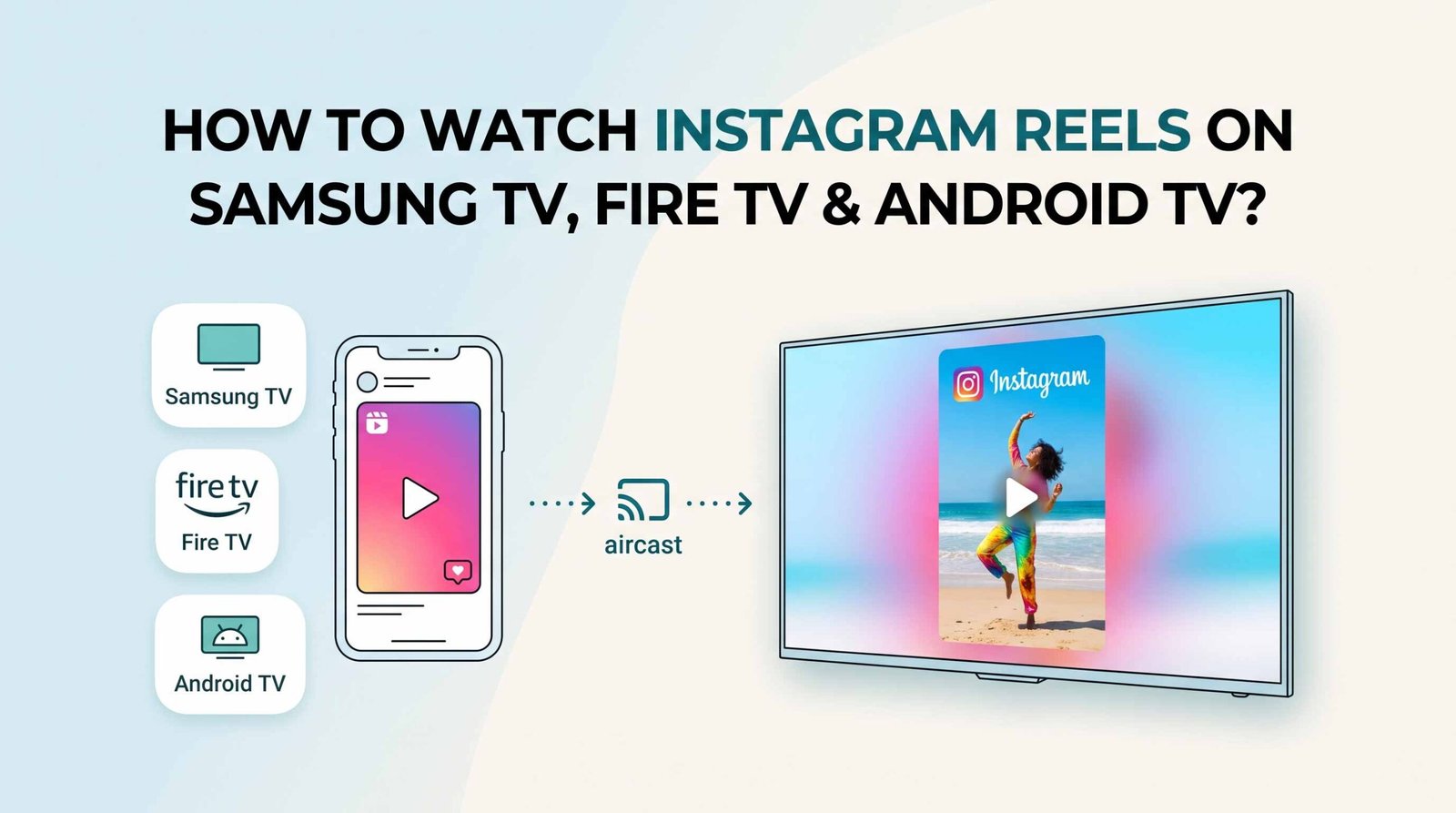
Whether you are hosting a gathering with friends, relaxing on the couch with your family, or simply want to appreciate short video content on a massive display with full room audio, we have created this definitive, non-technical guide to help you set up and stream effortlessly across all major smart TV platforms.
Why Watch Instagram Reels on the Big Screen?
Before diving into the quick setup methods, we must highlight why millions of households are making the transition to viewing Reels on their televisions:
-
A Shared Living Room Experience: Watching videos on a phone is an inherently isolated activity. Playing Instagram Reels on TV allows everyone in the room to laugh, react, and comment together without crowding around a small display.
-
Simplified Remote Navigation: We no longer need to constantly swipe a mobile screen. TV-optimized interfaces allow you to cycle through videos, pause, and browse channels using standard direction buttons on your TV remote control.
-
Dedicated Themed Channels: Instead of relying purely on a fast-paced personal feed, the TV application organizes popular content into curated channels such as Comedy, Travel, Sports Highlights, and Music, giving you a continuous, lean-back viewing session.
-
Multi-Account Support for Families: You can link up to five Instagram accounts to a single TV device, allowing every family member to access their custom feed or browse shared interest hubs with ease.
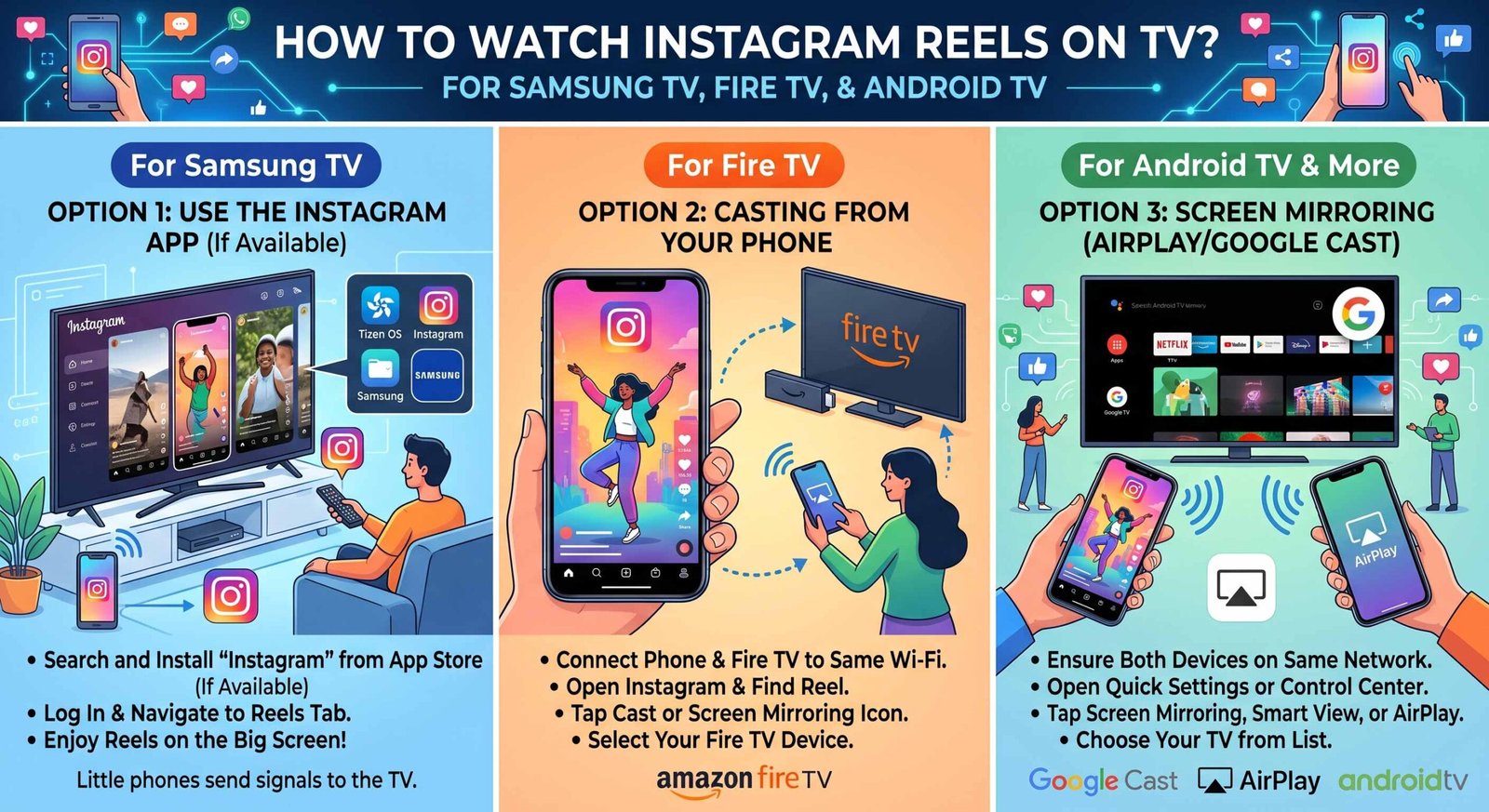
Method 1: The Official Instagram for TV App (Samsung TV, Fire TV & Android TV)
The simplest and most direct way to access your favorite videos is by using the official, free Instagram for TV application. Meta has rolled out native app support for Samsung Smart TVs (2020 models and newer), Amazon Fire TV devices, and Android TV / Google TV systems.
1. How to Install and Watch on Samsung Smart TV
-
Turn on your Samsung Smart TV and press the Home button on your remote to open the main menu navigation bar.
-
Navigate to and select the Apps icon.
-
Select the Search icon (magnifying glass) at the top right corner and type “Instagram” or “Instagram for TV”.
-
Select the official application from the search results and click Install.
-
Once installed, select Open to launch the application.
-
A login screen with a QR code will display on your TV screen.
-
Open the camera app on your smartphone, scan the displayed QR code, and follow the quick browser prompt to approve the connection. Your TV screen will automatically refresh and open your Instagram dashboard.
2. How to Install and Watch on Amazon Fire TV
-
Turn on your Amazon Fire TV or Fire Stick streamer.
-
From the Home screen, navigate to the Find menu and choose Search.
-
Type or voice-search using Alexa for “Instagram for TV”.
-
Select the app under the Apps & Games row.
-
Click Get or Download to install the free application on your device.
-
Launch the app and scan the on-screen QR code with your phone to instantly synchronize your account.
3. How to Install and Watch on Android TV and Google TV
-
From your Android TV or Google TV home interface, navigate to the Apps tab or open the Google Play Store.
-
Click the search bar and enter “Instagram for TV”.
-
Select the official app and click Install.
-
Open Instagram for TV after the download completes.
-
Complete the one-time QR code sign-in using your mobile device to display your personalized “For You” feed and saved video collections.
Method 2: Wireless Screencasting & Casting from Your Phone
If your TV model does not support the native app, or if you want to quickly share a specific short video you just stumbled upon while scrolling on your phone, wireless casting is the ideal solution. We have broken down how to mirror or cast content without dealing with complicated cables or technical jargon.
Casting via Built-in App Feature (Google TV & Fire TV)
Meta now includes direct Reels Casting options within mobile devices for supported TV streaming sticks.
-
Ensure both your smartphone and your Smart TV / Streaming Device are connected to the exact same home Wi-Fi network.
-
Open the Instagram mobile app on your iOS or Android phone.
-
Start playing the Reel or navigate to your Saved video tab.
-
Tap the Share / Send icon (the paper airplane symbol) on the right side of the screen.
-
Select the Cast to TV button and choose your television from the popup list.
-
The video will instantly display on your television screen with crystal-clear audio output.
Screen Mirroring for iPhone (Apple AirPlay)
-
Verify that your iPhone and Samsung Smart TV or AirPlay-enabled device are on the same Wi-Fi connection.
-
Swipe down from the top right corner of your iPhone to open the Control Center.
-
Tap the Screen Mirroring icon (two overlapping rectangular screens).
-
Select your TV name from the list of available wireless devices.
-
Open Instagram on your iPhone and hit play on any video—it will instantly mirror onto your big screen in full resolution.
Screen Mirroring for Android (Smart View / Wireless Display)
-
Swipe down twice from the top of your Android phone screen to expand the Quick Settings panel.
-
Tap the Smart View, Cast, or Wireless Projection tile.
-
Tap on your Samsung TV, Fire TV, or Android TV name.
-
Confirm the connection request on your TV screen if prompted.
-
Open your Instagram application and enjoy uninterrupted video viewing.
Understanding Key Features of Instagram for TV
To give you the most satisfying watching experience, we want to highlight what you can expect when using Instagram on a television display:
1. Lean-Back Channel Browsing
Instead of endlessly flicking your finger, the TV app categorizes content into pre-made topic hubs. You can easily navigate across Trending Comedy, Travel Exploration, Cooking & Food, Fitness, and Creator Showcases using your remote’s left and right navigation buttons.
2. On-Screen Comments and Reactions
When playing videos on the app, you can see live comment streams and creator captions side-by-side with the playing media, allowing you to catch the full context of every viral video while keeping the main video clearly visible.
3. Saved Content Library Access
Every video you bookmark on your phone by clicking the save icon is instantly synced to your TV profile. When planning upcoming holidays, reviewing recipes, or watching home DIY projects with others, you can pull up your Saved Tab directly on the large screen.
4. Continuous Playback Mode
Once you start watching a video channel on the TV application, the system automatically queues up related high-interest videos. This eliminates constant button pressing and creates an effortless, channel-like broadcast flow.
Troubleshooting Common TV Streaming Issues
If you run into minor hiccups while trying to watch content, we recommend running through these simple, non-technical troubleshooting checks:
-
App Not Showing Up in the TV Store: Ensure your smart TV’s operating system is updated to the latest software version. The dedicated app targets Samsung Smart TVs manufactured from 2020 onward, as well as modern Fire TV and Android TV platforms. If your TV model is older, utilize the wireless screencasting method described above.
-
Casting Device Not Found: Make sure your mobile phone and TV are connected to the exact same Wi-Fi signal name (e.g., watch out for splitting between 2.4GHz and 5GHz network bands on home routers).
-
Video Playback Lag or Stuttering: Close background applications on your mobile phone or reboot your Smart TV by unplugging its power chord for 30 seconds before plugging it back in.
-
Black Screen During Mirroring: Check your phone settings to ensure that screen recording permissions or battery saver modes are not restricting social app background streaming.
Final Thoughts
Bringing social video platforms to television displays marks an exciting evolution in home entertainment. By installing the native app or taking advantage of simple wireless casting features, we can transform individual smartphone scrolling into an enjoyable, collective experience for everyone in the room. Try installing the application on your Samsung TV, Fire TV, or Android TV today to experience your favorite creators on the biggest screen in your home!

Selva Ganesh is a Computer Science Engineer, Android Developer, and Tech Enthusiast. As the Chief Editor of this blog, he brings over 10 years of experience in Android development and professional blogging. He has completed multiple courses under the Google News Initiative, enhancing his expertise in digital journalism and content accuracy. Selva also manages Android Infotech, a globally recognized platform known for its practical, solution-focused articles that help users resolve Android-related issues.





I had not considered using my Android TV for Instagram Reels before reading this. The article makes the possibility much clearer.
The explanation of watching vertical content on a television is interesting. It is a good example of how social media viewing habits are changing.
I often find recipes and travel ideas through Reels, so seeing them on a TV would be convenient. This guide gives me a good idea of where to start.
The TV viewing experience sounds like a great upgrade for Instagram users. I especially liked the practical focus on different television devices.
I can see this being useful for family gatherings where people want to share favorite Reels. The larger screen should make the experience much more enjoyable.
It is nice to have one guide covering Samsung TV, Fire TV, and Android TV. That saves time compared with searching for separate instructions.
This article answered a question I had about watching Instagram Reels on Android TV. The explanation is straightforward and easy to follow.
The move from small phone screens to large TVs makes a lot of sense for video content. I found the platform-by-platform approach particularly useful.
Reels are much easier to share with friends when everyone can see the screen. This guide is a useful reference for setting that up.
I have been looking for a simple way to watch Instagram videos on my Fire TV. These instructions should make the setup much easier.
This is a useful resource for anyone who prefers watching videos from the couch. I like how the article focuses on several popular TV platforms.
I did not realize there were dedicated ways to watch Instagram content on television. The guide gives useful details without making the process seem complicated.
Short-form videos can be much more engaging on a larger display. This article does a good job explaining how to get Reels onto the TV.
The Samsung TV instructions are exactly what I was looking for. Having Fire TV and Android TV options included is a nice bonus.
It is interesting to see Instagram expanding beyond the smartphone experience. The information about Smart TVs makes the feature much easier to understand.
I usually watch Reels on my phone, but a TV would make travel and cooking videos much more enjoyable. This walkthrough is helpful for making that switch.
The idea of bringing Instagram Reels into the living room is really useful. I appreciate the coverage of multiple TV platforms in one guide.
Watching short videos on a TV would be great for family viewing. This article explains the available options in a very practical way.
I had been wondering whether Instagram Reels could be enjoyed comfortably on a television. The steps here give a clear starting point.
This guide makes watching Instagram Reels on a bigger screen sound much easier. I especially like that it covers Samsung TV, Fire TV, and Android TV.