
Unknown Sources App Installation– Installing apps from third-party unknown sources other than the Play Store is not a good idea. But in some situations, we can’t install or update our Android apps. In those situations, we have to install the apps from third-party sites. But by default, our Android mobiles are restricted from installing those apps. We have to modify the settings to allow the installation. Based on the Android version, the method to enable the Unknown Sources installation may vary. Here, I will explain the Old and New Android mobile settings. After the installation, it is wise to turn off the option again. Because if you install a third-party app store, they will sideload the apps in the background.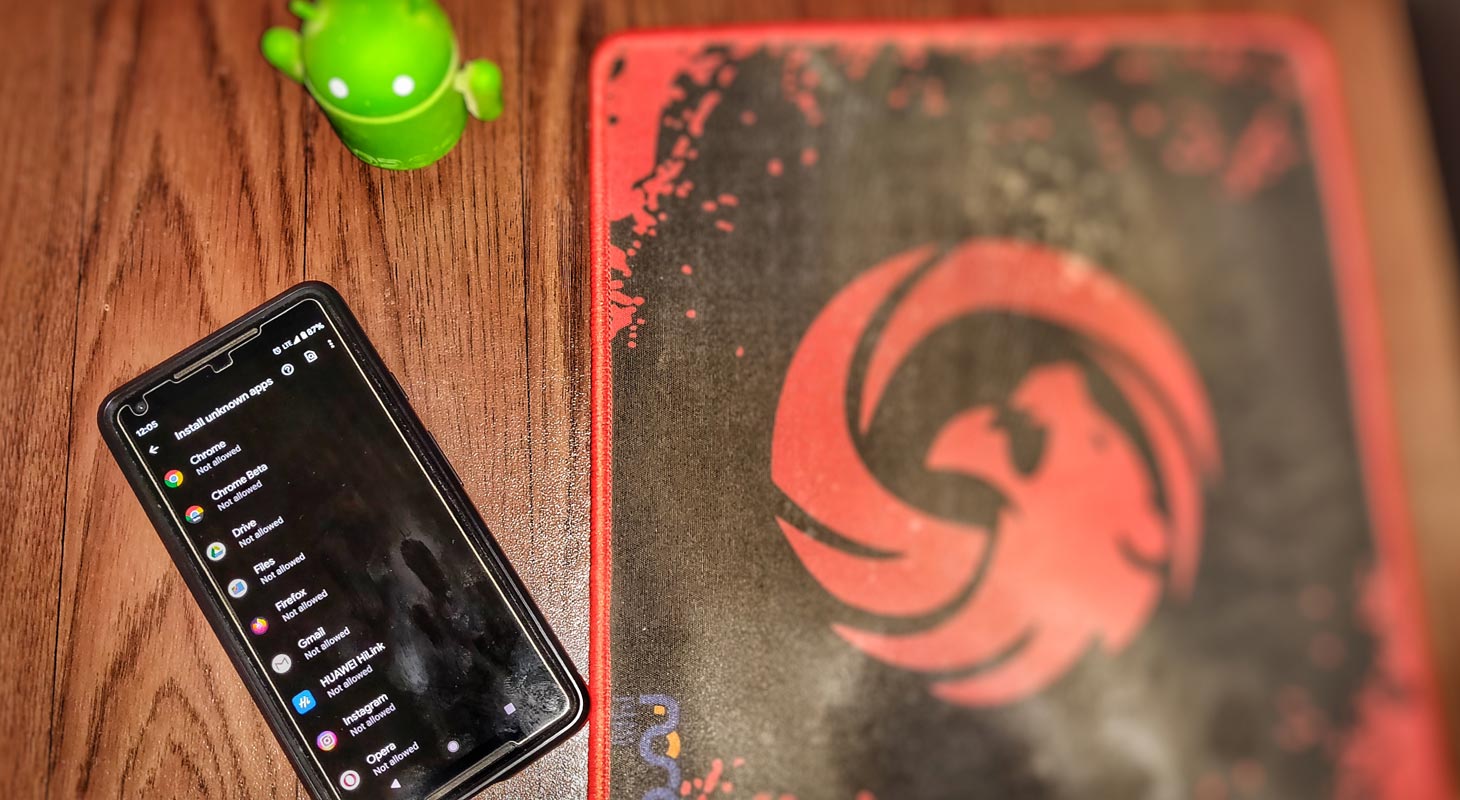
If your mobile is running older Android versions of the OS (5.0, 4.0, 3.0, and 2.0); all you need do is to tap on the checkbox beside the “Unknown Sources” options on the device settings menu, and you can be able to install any apk file on your Android device. But, on newer Android devices, the “Unknown Sources” option is no more; Google has taken it away, and now you have to play around with the settings menu to sideload APK files on Android mobiles.
What are “Unknown sources?”
Any app that is not installed from the Google Play Store on Android is flagged as an app from an “Unknown Source.” Because your mobile can’t verify who the Developer of the app is and where you got this app, it can’t check the trust of the app that you are going to install. Thus, when you download APK files from third-party app stores such as APKmirror or other similar sites, you must activate “Unknown sources” on your device before you can install the app.
How to activate “Unknown sources” on Android smartphones?
Google keeps adding security measures in every Android version. In old Android versions, the process is simple. You have to enable the option in Security settings. In new Android versions, they separated the permissions. Compared to every Android version, Android 16 has a vast set of security measures added by Google.
Old Android versions (4.0, Lollipop 5.0, Marshmallow 6.0, Nougat 7.0)
If your device is running Android version 7.0 or an earlier version, follow the steps below to activate “Unknown sources” on the device;
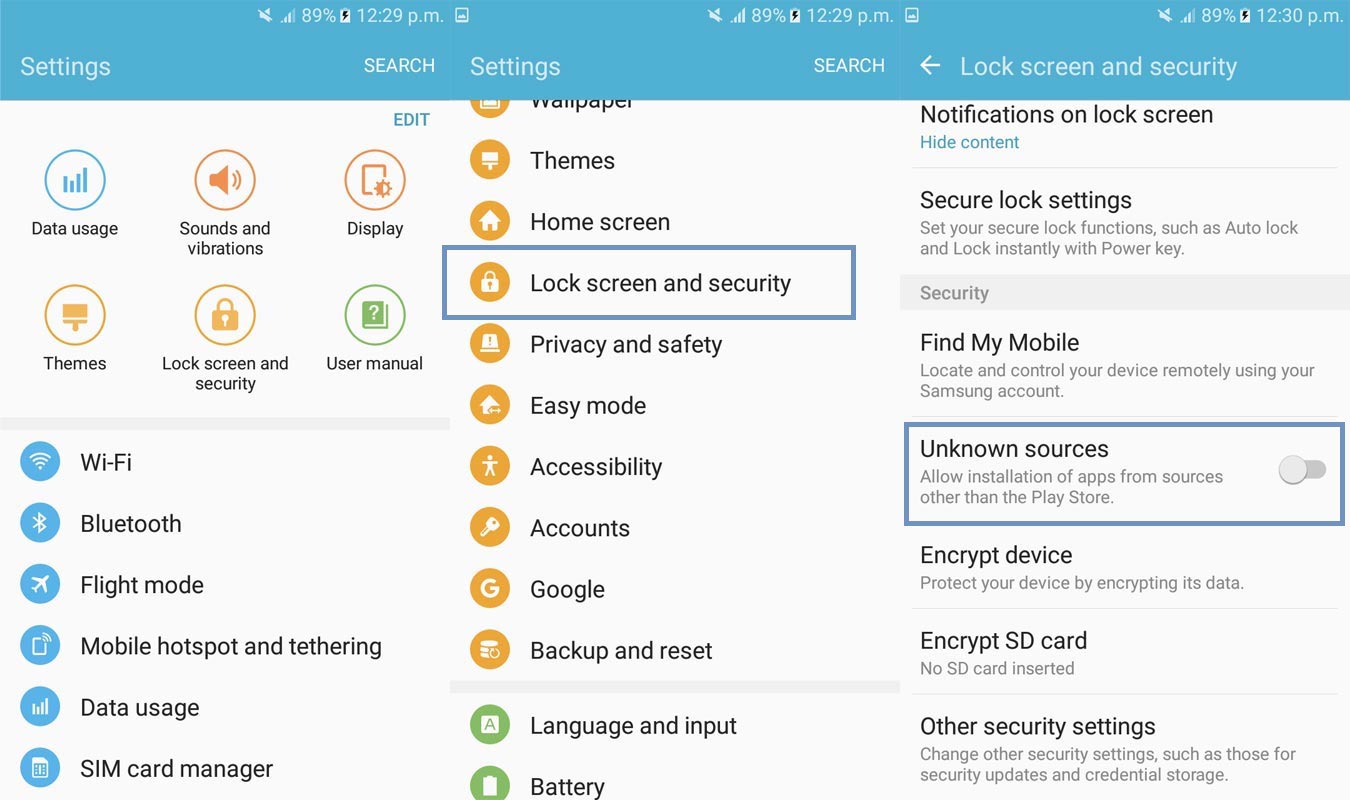
- Go to your device’s settings
- Scroll down and tap on Security
- Check the option “Unknown sources. “
- Tap “OK” on the prompt message.
That’s it! However, you can only see the “Unknown Sources” option on Android devices with version 7.0 or older versions.
If your device runs on Android version 8.0 (Oreo) or 9.0 (Nougat), then you should follow the steps below.
New Android versions (Android 16, 15, 14, 13, 12, 11, 10, Oreo, Pie)
Google has taken away the “Unknown Sources” option on new devices as part of its security measures to combat the installation of malware in the form of mobile apps on Android devices. Now, you will have to allow installation from the particular app you’re trying to use and install an APK file into your Android device.
In other words, if you’re installing an APK from the “Xender App,” you need to allow installation from “Xender.” In the same way, if you’re installing an APK file from your “File manager app,” you’ll also need to allow installation from your file manager app.
However, here’s how to allow different apps on your device to let you sideload APK files on new Android devices.
Steps
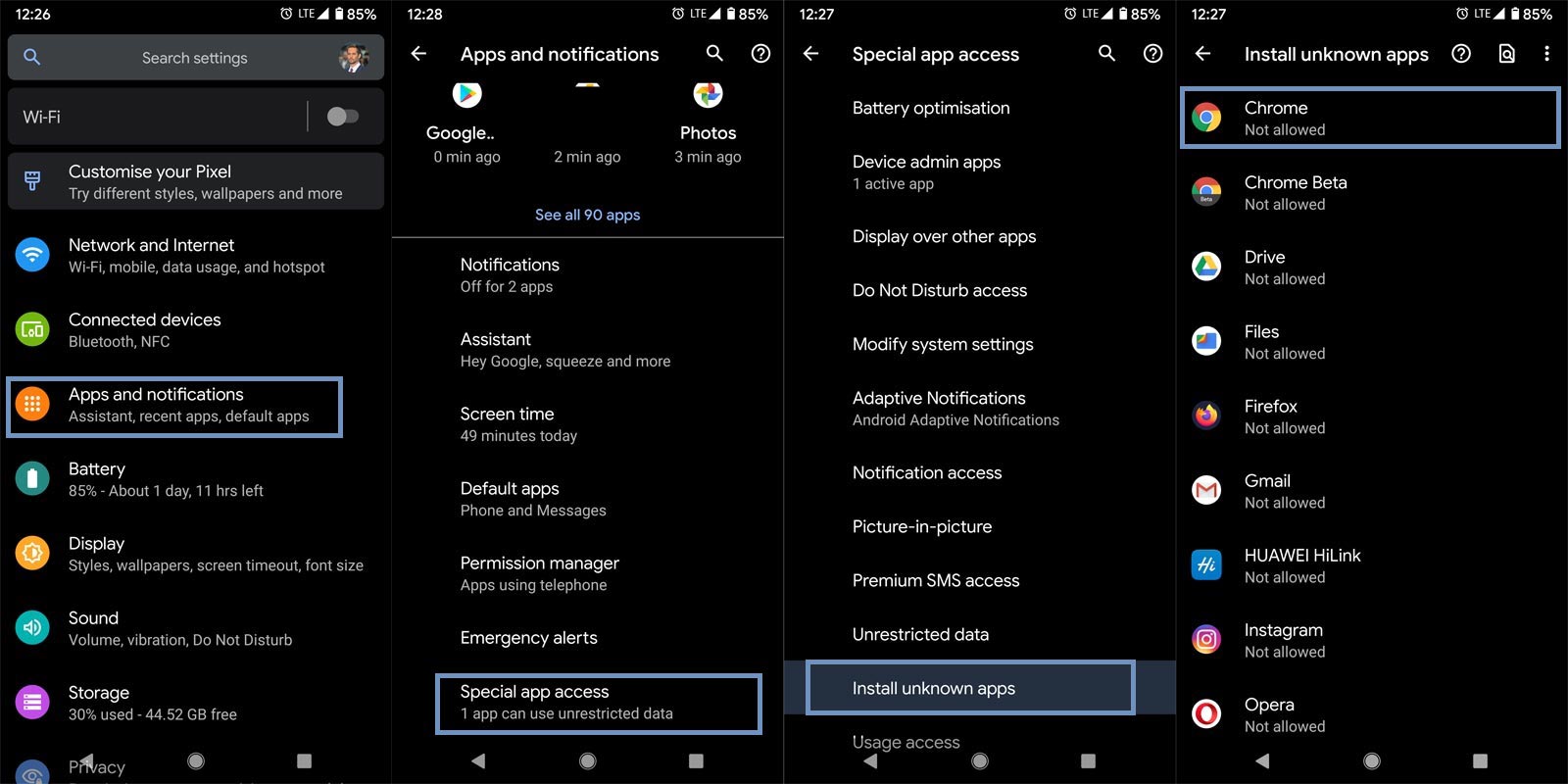
- Navigate to your device settings menu and select “Apps & Notifications.”
- Click on the “Advanced” row or click on the “three vertically arranged dots.”
This option varies by device; some people will see the “Advanced” option, while some will have to click on the dots at the top-right-edge of their screen
- Click on “Special App Access.”
- Select “Install Unknown Apps.”
- Now, tick the apps you wish to grant access to sideload APK files on your Android device.
Interestingly, you can revoke this permission at any time you wish by simply turning off the access (following the same steps above).
And this is it; following these steps, you can grant permissions to certain apps on your Android to install APK files.
Final Words
This is quite a good security measure from Google, but it doesn’t change the fact that one can still install suspicious apps unknowingly on Android mobiles. Also, some of the Play Store update issues don’t allow us to install and update the app properly. But don’t panic. Google Play Protect will scan the apps even if you install them from other sources.
Some of the Old Android version users are facing “Keep loading” problems in the Play Store. In those situations, you can install the app using these methods. I will not encourage those methods. But if there is no way, it can help you. Also, you should be more careful when installing from third-party sites. Whatsapp and other sites allow users to download the applications directly from their website if they can’t update the app using Play Store. Did you face any issues during the Play Store installation? Thus, did these methods resolve your issues? Comment below.

Selva Ganesh is a Computer Science Engineer, Android Developer, and Tech Enthusiast. As the Chief Editor of this blog, he brings over 10 years of experience in Android development and professional blogging. He has completed multiple courses under the Google News Initiative, enhancing his expertise in digital journalism and content accuracy. Selva also manages Android Infotech, a globally recognized platform known for its practical, solution-focused articles that help users resolve Android-related issues.





Leave a Reply