
How to Install the Google AI Desktop App on Windows – In the modern digital landscape, efficiency is paramount. While web browsers have served as our primary gateway to the internet for decades, the transition toward dedicated desktop applications has revolutionized how we interact with our most-used tools. If you are looking to streamline your workflow and access Google services directly from your Windows taskbar, you have come to the right place.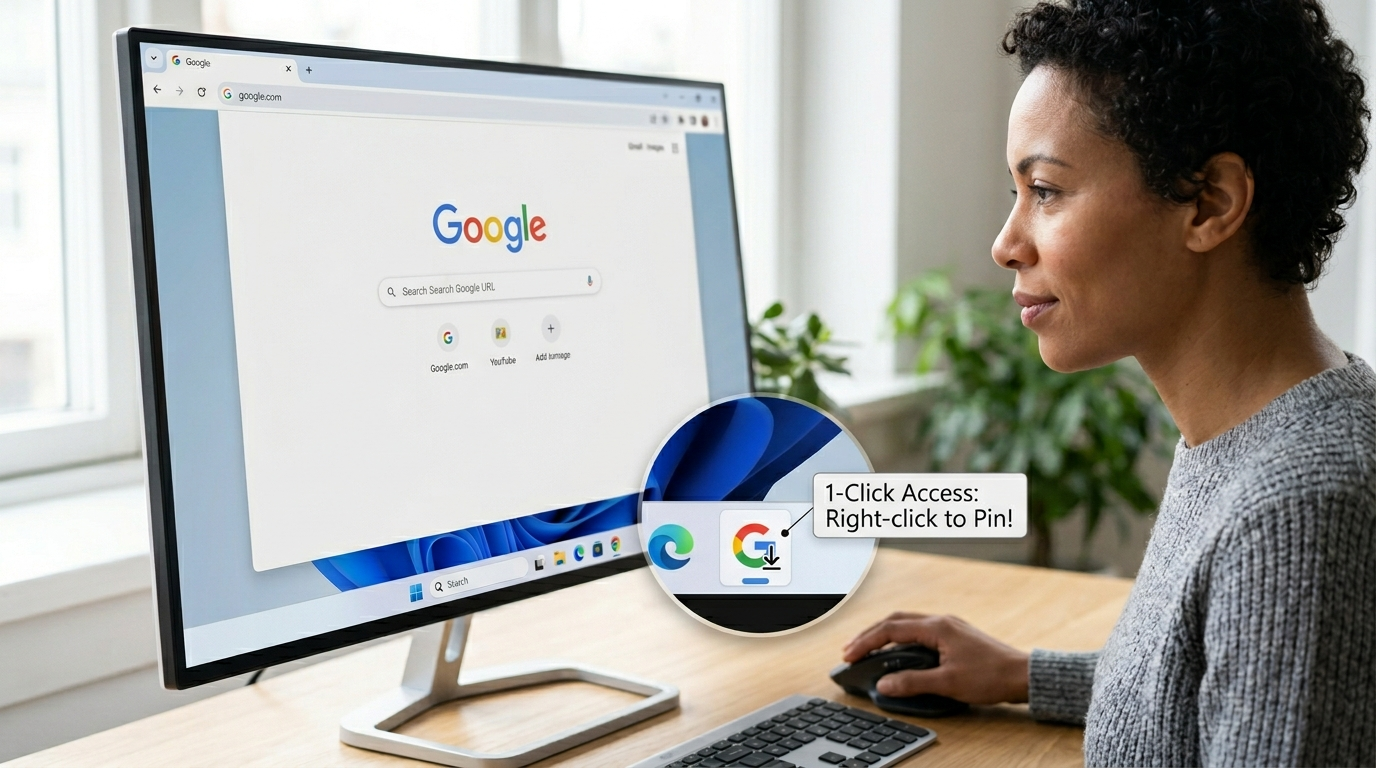
We have designed this comprehensive guide specifically for non-tech users who want a seamless, app-like experience without getting bogged down by complex technical jargon. Below, we provide step-by-step instructions for transforming your favorite Google services into high-performance Windows desktop applications.

Understanding the Benefits of Google AI Desktop Integration
Before we dive into the installation process, it is essential to understand why installing the Google app on your Windows device is a superior choice compared to simply bookmarking a tab. When you use a dedicated app interface, you eliminate the clutter of dozens of open browser tabs. This creates a focused environment where Google Search, Maps, or Drive functions as a standalone program.
By following our guide, you will enjoy:
-
Instant Access: Launch Google directly from your Windows Start Menu or Taskbar.
-
Cleaner Interface: Remove the address bar and browser extensions for a distraction-free experience.
-
System Integration: Use standard Windows shortcuts (like Alt+Tab) to switch between your Google app and other software effortlessly.
Step 1: Preparing Your Windows Environment
To ensure a smooth installation, you must use a compatible browser. While there are many options, Google Chrome and Microsoft Edge are the gold standards for creating desktop shortcuts that behave like native apps.
Make sure your Windows 10 or Windows 11 is up to date. A stable internet connection is required to download the necessary files and sync your Google Account settings.
Step 2: How to Install the Google Search App via Chrome
The most popular way to bring Google to your desktop is to use the “Install Site as App” feature. This technology, known as a Progressive Web App (PWA), allows a website to run in its own window, independent of the main browser.
-
Open Google Chrome: Start by launching the Chrome browser on your PC.
-
Navigate to Google: Type
www.google.cominto the address bar and press Enter. -
Access the Menu: Click on the three vertical dots located in the top-right corner of the window.
-
Select Save and Share: Hover your mouse over the “Save and Share” option (in older versions, this may be labeled as “More Tools”).
-
Click Install Page as App: A pop-up window will appear asking if you want to install the app.
-
Confirm Installation: Click the “Install” button.
Once you complete these steps, a new window will open that looks exactly like a dedicated Windows application. You will notice the absence of the URL bar at the top, providing more screen real estate for your search results.
Step 3: Pinning Google to Your Taskbar for One-Click Access
Now that you have successfully installed the app, make sure it is always within reach. Pinning the application to your taskbar ensures that you never have to search for it again.
-
Find the App: Look at your taskbar at the bottom of the screen. You should see the Google G icon active.
-
Right-Click the Icon: Use your mouse to right-click on the icon.
-
Select Pin to Taskbar to lock the icon in place. Even after you close the app, the icon will remain there for instant access the next time you need it.
Step 4: Installing Google Drive for Desktop
For many users, the “Google app” they truly need is Google Drive. This is a slightly different process as it involves a downloadable installation file that integrates directly with your Windows File Explorer.
-
Download the Installer: Visit the official Google Drive download page.
-
Run the Setup File: Once the download is complete, double-click the file (usually named
GoogleDriveSetup.exe). -
Follow the Prompts: The installation wizard will guide you. You do not need to change any advanced settings; the default options are perfect for non-tech users.
-
Sign In: A window will prompt you to sign in with your Google credentials. This links your cloud files to your computer.
Once installed, Google Drive will appear as a new disk drive (usually the G: drive) in your “This PC” folder. You can drag and drop files into this folder just like you would with a USB flash drive, and they will automatically sync to the cloud.
Step 5: Using Microsoft Edge to Install Google Apps
If you prefer using Microsoft Edge over Chrome, the process is equally simple and highly effective for Windows users.
-
Open Edge: Navigate to the Google website.
-
Open Settings: Click the three horizontal dots in the top-right corner.
-
Select Apps: Move your cursor to the “Apps” menu item.
-
Click Install this site as an app in Edge to transform the Google homepage into a Windows-native window.
One unique advantage of using Edge is that it lets you easily manage these apps through the edge://apps internal page, where you can create desktop shortcuts or set the app to auto-start when you turn on your computer.
Managing Your Google AI Desktop Shortcuts
As you become more comfortable with these steps, you might find yourself wanting to install other Google services, such as YouTube, Gmail, or Google Calendar. The process is identical for each. By creating a suite of Google desktop apps, you transform your PC into a productivity powerhouse.
How to Uninstall or Remove Apps
If you ever decide you want to return to a browser-only experience, removing these apps is easy:
-
Open the Windows Settings (the gear icon in your Start menu).
-
Go to Apps > Installed Apps.
-
Search for “Google.”
-
Click the three dots next to the app and select Uninstall.
Common Troubleshooting for Non-Tech Users
We understand that technology can occasionally be unpredictable. Here are a few common solutions if you encounter issues:
-
The “Install” option isn’t appearing: Ensure you are on the main Google homepage. Sometimes, if you are deep within a specific search result, the “Install” option may be hidden.
-
The app icon is blurry: This usually happens if Windows is scaling your display. Restarting your computer or unpinning and repinning the app usually fixes the resolution issue.
-
The app won’t open: Check your internet connection. Since these apps are cloud-based, they require an active connection to load your data.
Conclusion: A Faster Way to Google
By following this guide, you have successfully bypassed the traditional limitations of a web browser. You now have a clean, efficient, and professional way to access Google directly from your Windows desktop.
Whether you are using the Chrome PWA method or the Google Drive for Desktop installer, these tools are designed to make your digital life easier. We recommend starting with the Google Search App and gradually adding Gmail or Calendar as you see fit. Embrace the simplicity of a dedicated workspace and enjoy a faster, more organized Windows experience.

Selva Ganesh is a Computer Science Engineer, Android Developer, and Tech Enthusiast. As the Chief Editor of this blog, he brings over 10 years of experience in Android development and professional blogging. He has completed multiple courses under the Google News Initiative, enhancing his expertise in digital journalism and content accuracy. Selva also manages Android Infotech, a globally recognized platform known for its practical, solution-focused articles that help users resolve Android-related issues.




Leave a Reply