
How to Fully Move Your Primary Gmail Data to a Brand New Username – Migrating your digital life from one email address to another can feel like a daunting task. Over the years, our primary email accounts become repositories for critical correspondence, financial receipts, personal memories, and essential contacts. However, there are numerous reasons why moving your primary Gmail data to a brand new username becomes necessary. You might be transitioning from an unprofessional, youthfully named account to a polished, professional handle. You could be undergoing a legal name change, or perhaps you simply want a fresh start free from years of accumulated marketing spam.
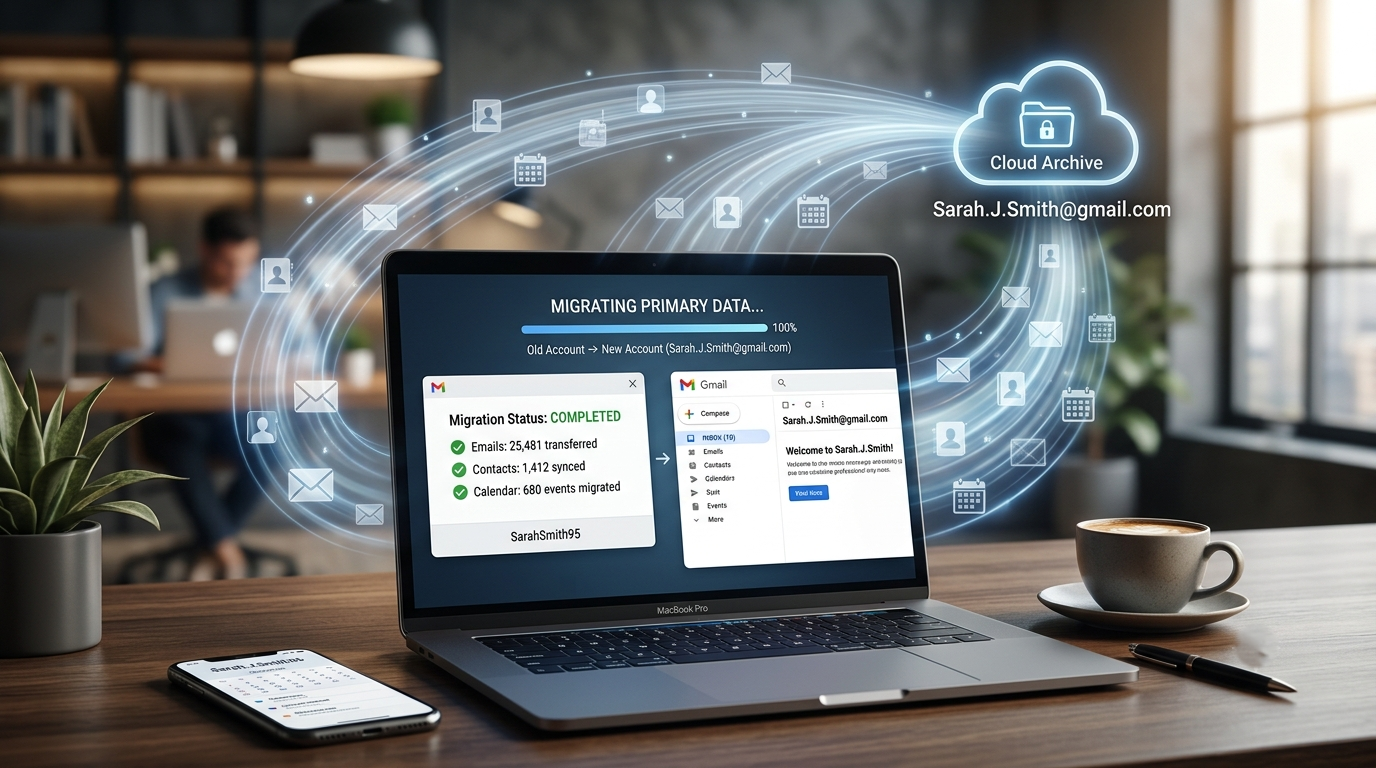

Whatever your motivation, the process does not have to be overwhelming or technically complex. Google provides built-in tools that allow for a seamless transition if you know which steps to take. This comprehensive guide is designed specifically for everyday users. We will bypass dense technical jargon and provide a clear, step-by-step roadmap to safely transfer your emails, contacts, and calendar events to your new Google identity without losing a single piece of important information.
Creating Your New Account
-
Navigate to the Google account creation page.
-
Select a clean, memorable username. If you are creating a professional account, standard conventions like [email protected] or [email protected] are highly recommended.
-
Complete the setup process, including adding your recovery phone number and an alternative email address for enhanced security.
Adjusting Settings in the Old Account
For your new account to pull messages from your old one, you must grant permission from within your original account’s settings.
-
Log into your old Gmail account.
-
Click the Gear icon in the top right corner and select See all settings.
-
Navigate to the tab labeled Forwarding and POP/IMAP.
-
Look for the section titled POP Download.
-
Select the option that says Enable POP for all mail (even mail that’s already been downloaded).
-
Scroll to the bottom of the page and click Save Changes.
Important Note on App Passwords: Google prioritizes high security. If you have 2-Step Verification enabled on your old account (which is highly recommended), standard passwords will not work during the transfer process. You may need to generate an App Password within your old account’s security settings to allow the new account access.
Step 2: Transferring Your Entire Email History
Now that the gateway is open, we will configure your new account to automatically pull your historical emails and continue importing new incoming messages for a transitional period.
Configuring the Import Tool
-
Log completely out of your old account and log into your new Gmail account.
-
Click the Gear icon and choose See all settings.
-
Select the Accounts and Import tab at the top.
-
Locate the section named Check mail from other accounts and click on Add a mail account.
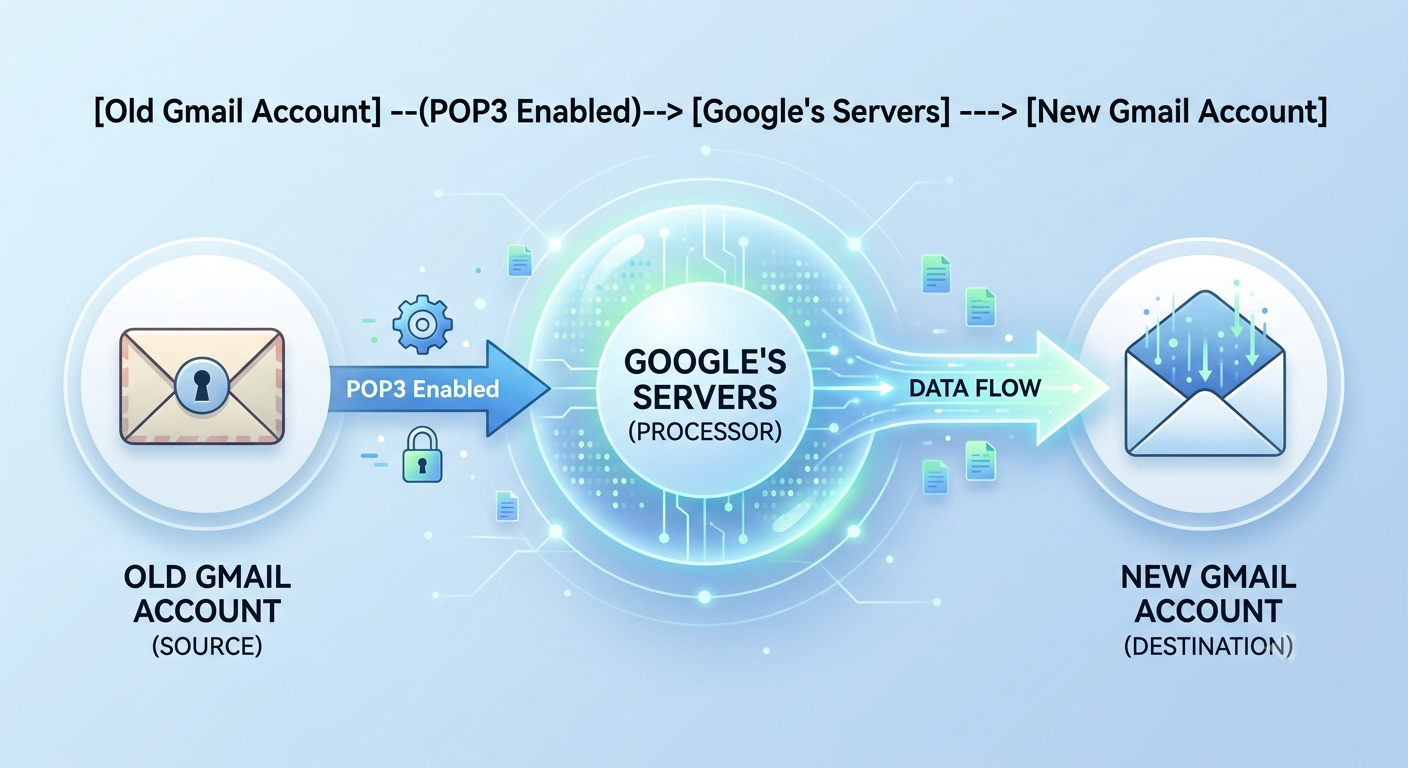
A small yellow pop-up window will appear. Follow these precise steps:
-
Type in your old Gmail email address and click Next.
-
Choose the option to Import emails from my other account (POP3) and click Next.
-
In the Username field, enter your full old email address.
-
In the Password field, enter your old account’s password (or the specific App Password you generated if you use 2-Step Verification).
-
Set the POP Server to pop.gmail.com and change the Port to 995.
-
Check the box that says Always use a secure connection (SSL) when retrieving mail.
-
Optional but Recommended: Check the box to Label incoming messages. This creates a distinct tag for your old emails so they do not immediately clutter your brand-new inbox.
-
Click Add Account.
Waiting for the Migration to Complete
Google will now begin copying your emails silently in the background. Depending on the size of your old mailbox—whether you have hundreds of messages or tens of thousands—this process can take anywhere from a few hours to several days. You do not need to leave your computer running or keep the browser open; Google handles the migration entirely on its cloud servers.
Step 3: Migrating Your Contacts and Address Book
Emails are only half the battle; ensuring you don’t lose touch with friends, family, and colleagues is equally vital. Moving your address book is a quick export and import process.
Exporting from the Old Account
-
Open a new browser tab and navigate to Google Contacts (contacts.google.com) while logged into your old account.
-
In the left-hand menu, click on the Export button.
-
Under the options, choose to export All contacts.
-
Select the format labeled Google CSV (Comma Separated Values).
-
Click Export and save the resulting file safely to your computer’s desktop or downloads folder.
Importing to the New Account
-
Switch over to your new Gmail account and open Google Contacts.
-
On the left-side menu, click Import.
-
Click Select file and locate the Google CSV file you just downloaded.
-
Click Import. Within seconds, your entire contact list will populate your new account.
Step 4: Moving Your Google Calendar Schedules
If you rely heavily on your calendar to track appointments, meetings, and birthdays, you can migrate these schedules seamlessly without manually recreating every single entry.
Exporting Your Calendars
-
Visit Google Calendar (calendar.google.com) using your old account.
-
Click the Gear icon at the top right and select Settings.
-
In the left sidebar, click on Import & export.
-
Click the Export button. This will download a zipped folder containing your calendar data to your local machine.
-
Locate the downloaded file and unzip (extract) it. You will see files ending in an .ics extension.
Importing to Your New Schedule
-
Open Google Calendar using your new account.
-
Navigate back to Settings via the Gear icon and select Import & export.
-
Click on Select file from your computer under the Import section.
-
Choose the unzipped .ics file from your desktop.
-
Click Import. All your past milestones and future commitments will instantly map onto your new calendar view.
Step 5: Handling Future Incoming Mail Gracefully
Even after successfully moving your data, contacts will inevitably continue sending messages to your old username out of habit. To ensure you never miss an important message, you must establish an automatic relay system.
Setting Up Automatic Email Forwarding
Instead of checking two separate accounts daily, you can instruct your old inbox to instantly pass any incoming mail over to your new address.
-
Log into your old Gmail account.
-
Open Settings via the Gear icon.
-
Select the Forwarding and POP/IMAP tab.
-
Click the Add a forwarding address button.
-
Type in your new Gmail address and hit Next, followed by Proceed.
-
A confirmation link will be sent to your new account to prevent unauthorized forwarding. Log into your new account, open the confirmation email, and click the verification link.
-
Return to the old account’s settings page, refresh the browser, and verify that the radio button for Forward a copy of incoming mail to… is explicitly selected.
-
Choose what happens to the original copy in your old inbox. We recommend selecting keep Gmail’s copy in the Inbox as a secondary backup.
-
Click Save Changes at the bottom of the page.
Step 6: Post-Migration Housekeeping and Digital Security
Now that your data is safely resting within your new username, a few crucial housekeeping steps will finalize your digital transition and safeguard your identity.
Updating Third-Party Subscriptions and Services
Your email address serves as the master key for various external platforms. Over the coming weeks, prioritize updating your profile email on critical accounts, including:
-
Banking and financial institutions
-
Utility providers and insurance portals
-
Streaming platforms and online shopping sites
-
Social media networks
Crafting a Transition Auto-Responder
To gently retrain your network to use your new address, activate a temporary out-of-office style reply on your old account.
-
In your old Gmail settings, stay on the General tab.
-
Scroll to the very bottom to find the Vacation responder section.
-
Turn the Vacation responder on.
-
Draft a polite, clear subject line like: Notice: My Email Address Has Changed.
-
In the body, write a brief note: “Hello, please note that I am transitioning away from this email address. Please update your address book to my new username: [yournewemail]@gmail.com. Future correspondence should be sent there. Thank you!”
-
Click Save Changes.
Keep this auto-responder active for at least three to six months. This timeframe gives your regular contacts ample opportunity to adjust their habits and updates your digital footprint with minimal disruption.

Selva Ganesh is a Computer Science Engineer, Android Developer, and Tech Enthusiast. As the Chief Editor of this blog, he brings over 10 years of experience in Android development and professional blogging. He has completed multiple courses under the Google News Initiative, enhancing his expertise in digital journalism and content accuracy. Selva also manages Android Infotech, a globally recognized platform known for its practical, solution-focused articles that help users resolve Android-related issues.





help ,s
I successfully moved my important Gmail data after reading this. Thank you for the guidance. Excellent walkthrough for anyone changing their primary Gmail account. Easy to follow.
Thanks for breaking everything down into simple steps. It made the migration process much less confusing. I successfully moved my important Gmail data after reading this. Thank you for the guidance.
I like how you covered the reasons for switching to a new email address. Very practical advice. Excellent walkthrough for anyone changing their primary Gmail account. Easy to follow.
Moving to a professional email has been on my list for months. This guide came at the perfect time. I successfully moved my important Gmail data after reading this. Thank you for the guidance.
Moving to a professional email has been on my list for months. This guide came at the perfect time. Your step-by-step instructions are clear and beginner friendly. Thanks for sharing.
I was worried about losing emails and contacts, but this guide gave me confidence. Appreciate the tips! Excellent walkthrough for anyone changing their primary Gmail account. Easy to follow.
I successfully moved my important Gmail data after reading this. Thank you for the guidance. This saved me a lot of time researching different migration methods. Nicely written.
Your step-by-step instructions are clear and beginner friendly. Thanks for sharing. This article answered the questions I had before creating a new Gmail username. Great explanation!
This saved me a lot of time researching different migration methods. Nicely written. I was worried about losing emails and contacts, but this guide gave me confidence. Appreciate the tips!
Your step-by-step instructions are clear and beginner friendly. Thanks for sharing. I successfully moved my important Gmail data after reading this. Thank you for the guidance.
Very helpful guide! I didn’t realize moving Gmail data could be this straightforward. Thanks for breaking everything down into simple steps. It made the migration process much less confusing.