
Android Keyboard Apps for Precise Cursor Control– Navigating through dense blocks of text on a touch screen remains one of the most persistent usability hurdles on modern smartphones. We have all experienced the intense frustration of trying to tap between two tiny characters to fix a single typo, only for the blue cursor bubble to jump three words to the left or select an entire paragraph by mistake. While touch gestures have made giant leaps over the past decade, nothing replaces the pixel-perfect precision of dedicated directional arrow keys.
Whether we are drafting lengthy corporate emails, editing spreadsheets, taking meeting notes, or writing code directly from an Android tablet, tapping small screen areas repeatedly disrupts our creative flow. To solve this fundamental UI limitation, our editorial team spent several weeks testing, configuring, and daily-driving the leading Android keyboard applications. We evaluated each option based on cursor responsiveness, layout adaptability, typing latency, and overall feature set.

Here is our exhaustive guide to the absolute best Android keyboards equipped with arrow keys to dramatically improve your mobile editing workflow.
Why Dedicated Arrow Keys Are Essential for Smartphone Editing
When typing on a physical desktop keyboard, we take the arrow keys for granted. Moving the cursor one space to the right or selecting three characters to the left happens in milliseconds without looking. On mobile touchscreens, however, operating systems rely primarily on hold-and-drag magnifying bubbles or spacebar trackpad gestures.
While spacebar swiping works reasonably well for quick horizontal shifts, it lacks the tactile consistency and multi-directional control needed for heavy editing. Dedicated directional arrows provide immediate advantages:
- Granular Character Positioning: Move the insertion point exactly one character at a time, eliminating guesswork.
- Zero Screen Occlusion: Your fingers remain on the keyboard interface at the bottom of the screen rather than blocking the text you are actively editing.
- Streamlined Text Selection: Combining arrow keys with dedicated shift or selection toggles allows for precise word-by-word highlighting without erratic touch selection boundaries.
- Enhanced Developer Productivity: For those of us running command-line scripts, modifying HTML, or editing code on the go, arrow keys are non-negotiable for navigating syntax structure quickly.
Detailed Analysis of the Top Android Keyboards with Arrow Keys
1. Microsoft SwiftKey
During our long-term testing, Microsoft SwiftKey consistently emerged as one of the most versatile and feature-packed input methods available for Android devices. Beyond its renowned adaptive neural engine that learns your unique vocabulary and phrase choices over time, SwiftKey offers native support for a persistent row of directional keys right at the bottom of the main layout.
How to Enable Arrow Keys in SwiftKey
By default, the arrow key row is hidden to conserve screen real estate. Enabling it takes less than ten seconds:
- Open the Microsoft SwiftKey application from your app drawer.
- Navigate to the Layout & Keys menu option.
- Toggle the Arrow keys to switch to the ON position.
- Open any text field; a clean four-key arrow toolbar will now sit permanently underneath your spacebar row.
Our Real-World Experience with SwiftKey
We found SwiftKey’s implementation to be exceptionally comfortable for long typing sessions. Because the arrows sit in an isolated row at the very bottom edge of the screen, we rarely triggered accidental keypresses while reaching for the spacebar. Furthermore, the app seamlessly integrates Microsoft Copilot AI, allowing us to rewrite sentences, generate formal replies, and change writing tones directly from the keyboard toolbar while keeping our navigational arrows readily accessible.
- Pros:
- Persistent directional keys are available directly on the primary typing screen.
- Outstanding next-word prediction and multilingual auto-correct engine.
- Deep customization, including key height, themes, and floating keyboard modes.
- Built-in Microsoft Copilot AI assistant for instant context-aware text generation.
- Cons:
- Adding the arrow key row increases the overall vertical footprint of the keyboard slightly.
Microsoft SwiftKey AI Keyboard
2. Gboard (The Google Keyboard)
As the default keyboard on millions of Android handsets, Gboard is celebrated for its sleek, Material You design language, rock-solid stability, and ultra-fast responsiveness. While Gboard does not place permanent arrow keys on its primary letter layout, it houses a sophisticated, full-screen Text Editing Pad that transforms editing into a high-speed command center.
How to Access Arrow Navigation in Gboard
- Tap any active text box to bring up Gboard.
- Tap the Grid / Quick Features icon (four squares or arrow menu) in the top-left corner of the keyboard strip.
- Select the Text editing tool.
- A dedicated pad with large, tactile directional arrows, a central control hub, and dedicated Cut, Copy, and Paste buttons will immediately replace the letter grid.
Our Real-World Experience with Gboard
During our document formatting tests, we grew to appreciate Gboard’s isolated text editing layout. When we needed to select entire sentences inside Google Docs or WordPress, tapping the Select toggle and holding down an arrow key let us highlight exact passages with absolute control. Because the directional buttons on this pad are twice the size of standard letters, missed taps are practically impossible. When editing is complete, one quick tap on the back arrow returns you instantly to standard typing.
- Pros:
- Massive directional pad buttons that completely prevent mistyping.
- Integrated dedicated action triggers for Select All, Copy, Cut, and Paste.
- Exceptional voice typing accuracy powered by Google on-device speech processing.
- Minimal system resource usage with smooth animation performance.
- Cons:
- Requires two quick taps to access the text editing interface rather than offering permanent primary-screen arrows.
3. Multilingual Keyboard
For power users who prioritize weightless performance and ultimate control over every pixel on screen, Multiling O Keyboard is an extraordinary hidden gem. Weighing in at under 1 MB download size, this ultra-lightweight application packs an astounding amount of layout modularity, key mapping capabilities, and directional navigation modes.
How to Use Arrow Keys in Multilingual O
- Open Multiling O Keyboard in any active app text box.
- Tap the Angle bracket / Tool icon located at the top-left section of the keys.
- Select the dedicated Editor / D-Pad icon.
- An expanded navigation screen featuring directional arrows, home/end page jumpers, and clipboard management tools will immediately appear.
Our Real-World Experience with Multilingual O
When testing on entry-level Android hardware and older devices, Multiling O performed with zero input lag. The app allows us to drag and resize the keyboard height dynamically, map custom gesture shortcuts to arrow functions, and even utilize an integrated AI virtual assistant for fast automated responses and text cleanup. It is undeniably designed for users who want complete control over their physical typing interface.
- Pros:
- Unmatched light footprint with negligible memory and CPU consumption.
- Deeply customizable key mappings, sizes, layouts, and gestures.
- Built-in editor mode equipped with comprehensive directional controls.
- Cons:
- Steeper setup learning curve compared to plug-and-play competitors.
- Visual styling looks utilitarian out of the box unless customized with themes.
4. AI.Type Keyboard
Another compelling option we thoroughly evaluated is AI. Type Keyboard. This application caters directly to users who perform heavy document formatting by offering a unique hybrid layout that includes both dedicated arrow controls and an innovative virtual trackpad.
Our Real-World Experience with AI.Type
When enabling the touchpad view in AI. Type, a smooth directional surface appears alongside physical arrow keys. Swiping across this trackpad lets you glide the cursor across sentences seamlessly, much like using a laptop mouse trackpad. When precise single-character steps are required, tapping the surrounding discrete arrow keys ensures absolute accuracy. It also includes convenient read-aloud text-to-speech tools to proofread written drafts audibly.
- Pros:
- Dual navigation through both directional arrow buttons and a virtual trackpad surface.
- Quick shortcut keys for jump-to-start and jump-to-end line navigation.
- Cons:
- The interface can feel cluttered due to the density of features.
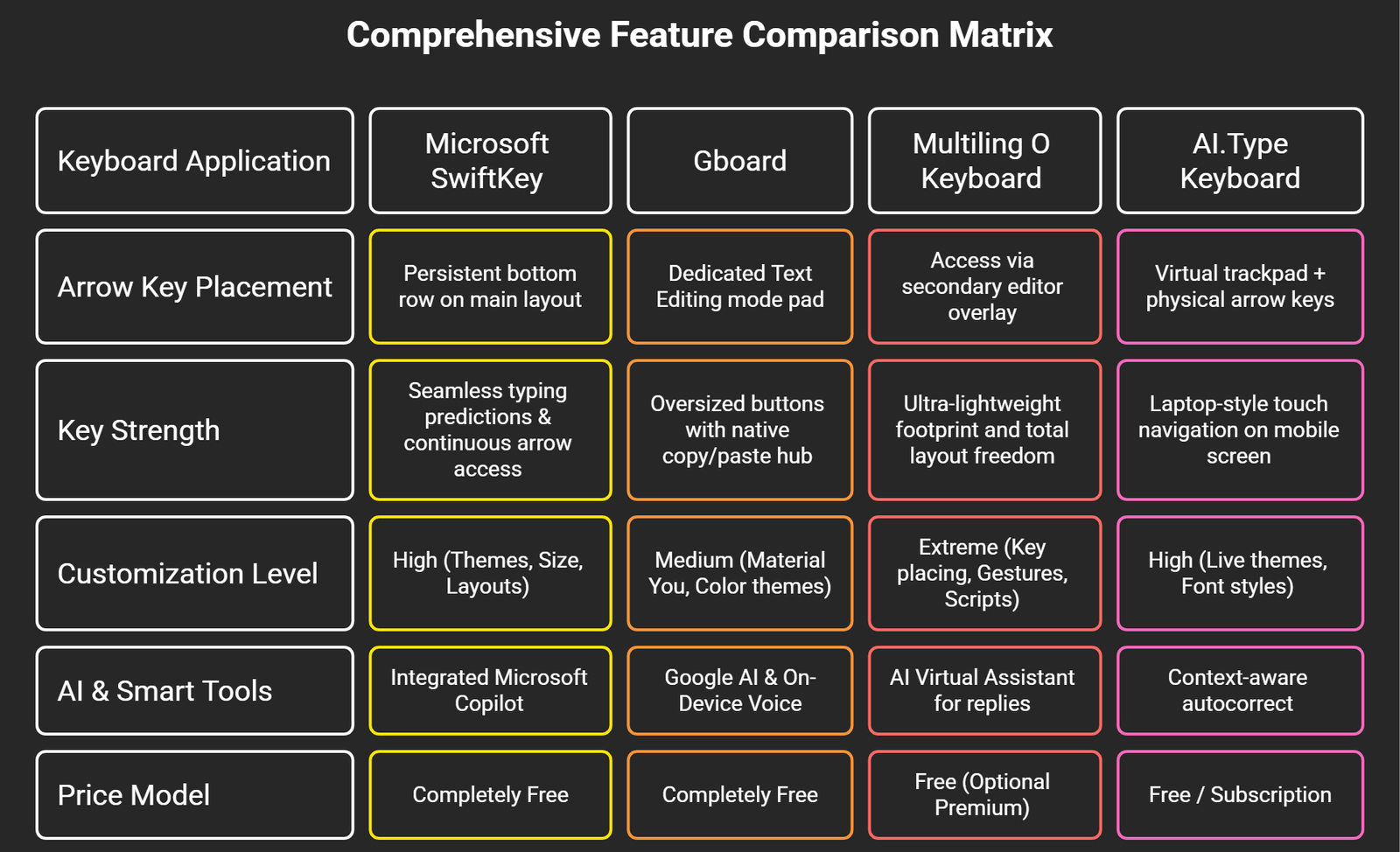
Comprehensive Feature Comparison Matrix
To help you decide which directional keyboard best aligns with your daily writing habits, we compiled our test findings into this side-by-side comparative table:
Step-By-Step Guide: How to Change Your Default Android Keyboard
Switching your active input engine on Android is simple and uniform across major device manufacturers, including Samsung Galaxy, Google Pixel, OnePlus, and Xiaomi models. Follow our step-by-step procedure:
- Download your preferred keyboard app from the Google Play Store.
- Open your device’s Settings application.
- Scroll down and select System (or General Management on Samsung Galaxy devices).
- Tap Languages & input, then select On-screen keyboard (or Keyboard list and default).
- Enable the newly installed keyboard by toggling its master switch ON.
- Tap the Default keyboard and choose your new app from the selection prompt.
- Open any messaging app or text field to verify that your arrow keys are properly configured.
Final Recommendation: Which Keyboard Should You Choose?
After extensive hands-on evaluations, our recommendations boil down to your specific editing requirements:
- Choose Microsoft SwiftKey if you want permanent, zero-click arrow keys sitting right on your main letter keyboard at all times without sacrificing top-tier predictive typing.
- Choose Gboard if you prefer a clean default interface and frequently edit long documents where massive arrow controls and dedicated Cut/Copy/Paste pads improve speed.
- Choose Multiling O Keyboard if you are operating on older hardware or demand absolute control over layout sizing, gesture triggers, and system resource optimization.
Frequently Asked Questions
1. Why don’t stock Android keyboards enable arrow keys by default?
Most default keyboard configurations prioritize maximum display area for key size and letter spacing. Because phone displays vary in size, manufacturers turn off arrow rows out of the box to prevent the keyboard from taking up half the screen.
2. Does adding arrow keys to Microsoft SwiftKey reduce letter key sizes?
Enabling arrow keys in Microsoft SwiftKey inserts a clean additional row at the very bottom of the interface. While this slightly elevates the total height of the keyboard, your letter key proportions remain comfortable and unchanged.
3. Can I use arrow keys to select text word-by-word on Android?
Yes. On apps like Gboard, opening the Text editing pad provides a dedicated Select button. Once toggled on, pressing any directional arrow will highlight text character-by-character or word-by-word with total accuracy.
4. Are arrow keys available for third-party tablet keyboards?
Absolutely. Keyboards with directional options like SwiftKey and Gboard adapt smoothly to larger tablet screen resolutions, making text editing on foldable phones and tablets feel closer to a full desktop laptop experience.
5. Do arrow key apps consume more battery life on Android?
No. Arrow key layouts are alternate visual input maps. They consume no additional background processing power or battery life compared to standard touchscreen input configurations.
6. Is it safe to use custom third-party keyboards with arrow keys?
As long as you download reputable, verified applications directly from the Google Play Store (such as Microsoft SwiftKey or Google Gboard), your typed data remains protected under strict security and privacy guidelines.
7. How do arrow keys compare to using the spacebar trackpad gesture?
While holding and sliding across the spacebar allows quick left-and-right scrolling, it lacks up-and-down line navigation and micro-character step precision. Dedicated arrow keys offer predictable single-step increments in all four directions.
8. Can I use keyboard shortcuts like Ctrl + C with Android arrow keys?
Keyboards equipped with dedicated editing panels (like Gboard or Multiling O) include one-tap buttons for Copy, Cut, and Paste directly beside the arrow pad, eliminating the need to press complex two-key hardware key combinations.
9. Which keyboard with arrow keys is best for coding on Android?
For developers writing code directly on Android devices, CodeBoard or Multilingual Keyboard are outstanding choices because they provide instant access to brackets, symbols, tab keys, and directional arrows without menu switching.
10. Can I quickly hide the arrow keys when I am not editing heavy text?
Yes. In apps like Gboard, the arrow pad is accessed on demand with a simple tap and dismissed just as easily. In SwiftKey, you can easily toggle the arrow row on or off in the layout settings menu whenever your workflow changes.

Selva Ganesh is a Computer Science Engineer, Android Developer, and Tech Enthusiast. As the Chief Editor of this blog, he brings over 10 years of experience in Android development and professional blogging. He has completed multiple courses under the Google News Initiative, enhancing his expertise in digital journalism and content accuracy. Selva also manages Android Infotech, a globally recognized platform known for its practical, solution-focused articles that help users resolve Android-related issues.




Leave a Reply