
Send Huge Files Directly Without Cloud Uploads or Software– We remember the days when moving a simple 20GB video edit between a workstation and a laptop meant rummaging through desk drawers for an external drive, waiting for slow disk writes, unplugging, replugging, and repeating the process in reverse. When physical flash drives were not around, cloud storage services forced us to upload massive archives to a remote data center miles away, only to download the exact same bits right back down across the very same office room. This traditional approach wastes internet bandwidth, creates privacy vulnerabilities on third-party cloud servers, and throttles transfer speeds to whatever arbitrary upload cap our internet service provider enforces.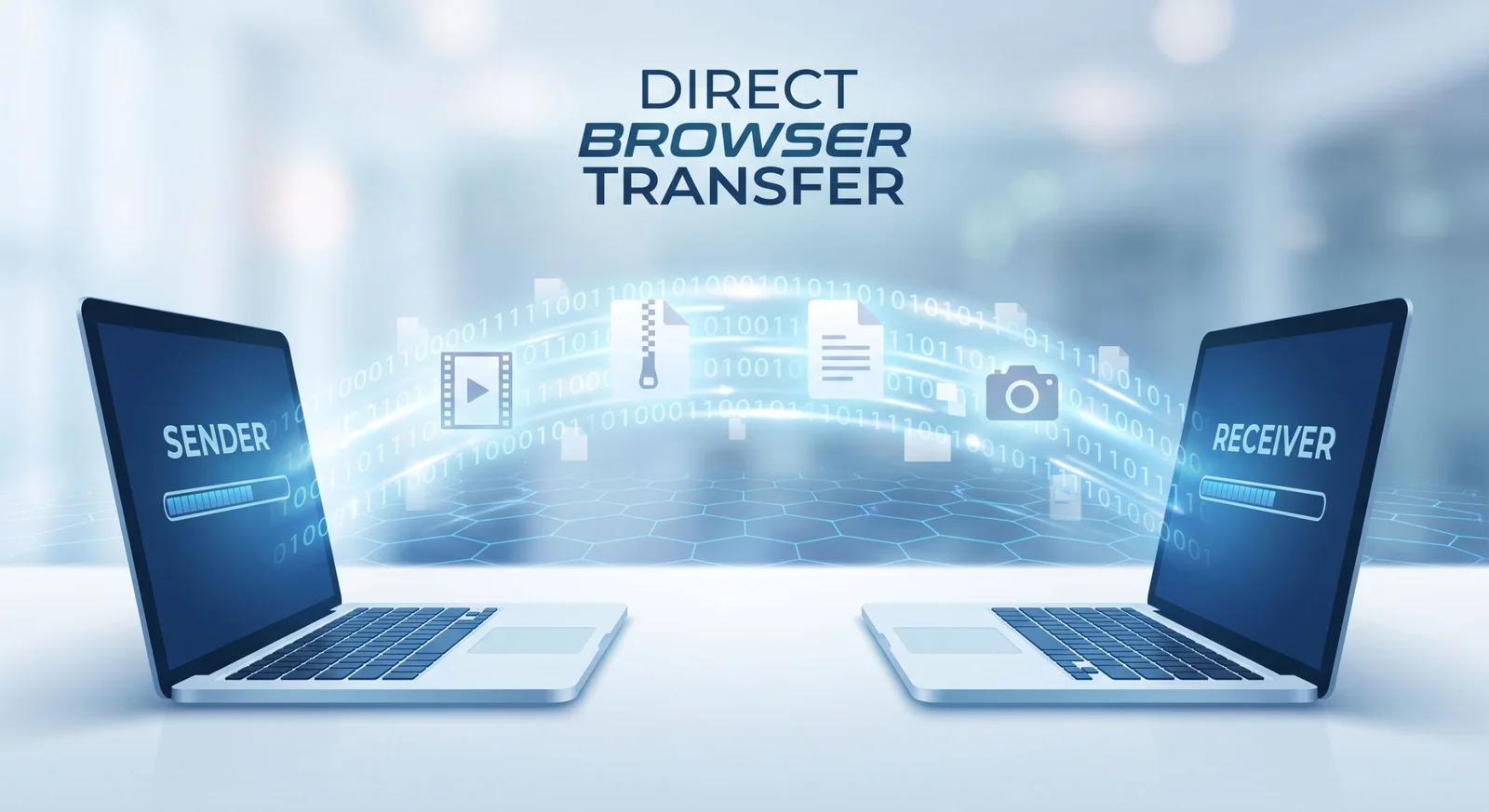
To eliminate these bottlenecks, we rely on direct browser-to-browser peer-to-peer file transfer. By establishing a private, encrypted data pipeline directly between two web browsers over the local area network, we achieve instant multi-gigabyte transfers without uploading a single byte to an external server, without creating accounts, and without installing native software packages.

Complete Step by Step Operating Procedure
Executing a high-speed transfer requires zero setup or administrative rights. We complete the entire workflow directly inside a modern web browser.
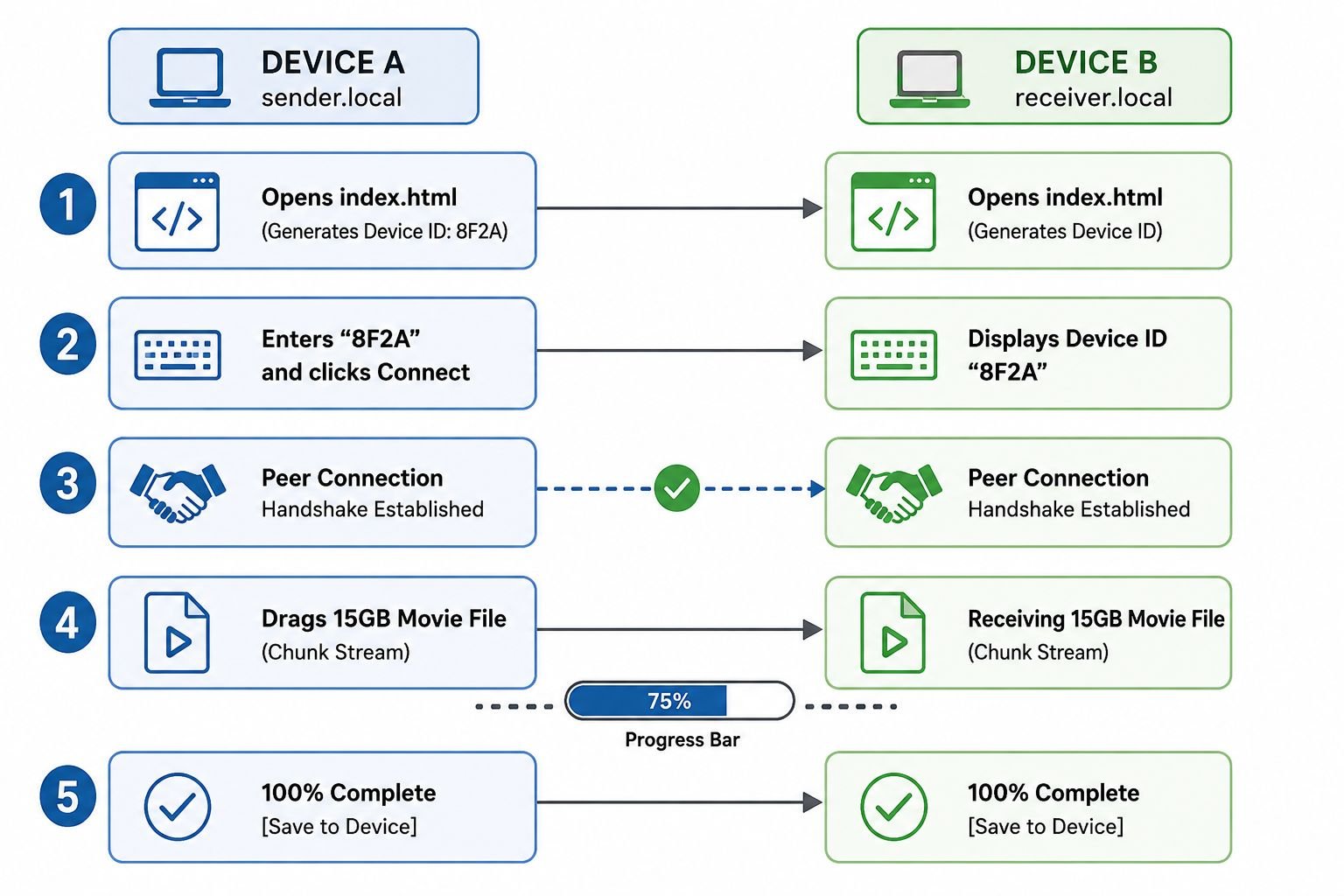
Step 1: Initialize the Application on Both Endpoints
Launch any modern web browser—such as Google Chrome, Mozilla Firefox, Apple Safari, or Microsoft Edge—on both the sending and receiving hardware. Open the single-page application (index.html) on both screens simultaneously. No extensions, background services, or account authorizations are required.
Step 2: Identify the Target Device Identifier
Upon launch, the application’s lightweight signaling client assigns an ephemeral, unique 4-character Device ID visible near the header of the page. Identify this short alphanumeric string on the hardware designated to receive the files.
Step 3: Pair the Devices via Direct Handshake
On the sending hardware, type the receiver’s 4-character code into the Connect to Target Device ID input field and select Connect. The signaling protocol coordinates the initial network handshake, switching the visual indicator from disconnected to an active peer status. Once paired, the signaling channel idles, and all subsequent communications proceed directly between the devices.
Step 4: Dispatch the Payload via Drag and Drop
Drag the target files or directories directly from the native desktop file manager into the active drop zone, or use the integrated file picker to choose the payload. The data stream begins instantly. Both endpoints display real-time dynamic progress bars, indicating the current transfer rate, total data transferred, remaining megabytes, and precise completion percentages.
Step 5: Save the Assembled Binary to Local Storage
When the progress meter hits 100%, the browser finalizes binary reassembly. A bright green Save to Device button activates on the receiving interface. Clicking this button triggers the browser’s native download pipeline, committing the incoming file directly to your chosen local directory.
Operational Best Practice: Keep the browser tabs active and visible in the foreground on both devices throughout the transmission cycle. Modern mobile and desktop operating systems automatically deprioritize or sleep background tabs to conserve battery, which can pause the WebRTC data pipe.
The Architecture of True Local WebRTC File Transfers
Modern web browsers are capable of far more than simply rendering static web pages; they operate as complete execution environments equipped with advanced networking application programming interfaces. At the core of our solution is the WebRTC data channel framework, an open standard enabling real-time, low-latency, bidirectional data exchange between connected clients.
When we initiate a transfer, the browser establishes a direct communication link using the SCTP protocol layered over DTLS and UDP. This peer connection bypasses intermediate storage platforms completely. The data packets travel through our local Wi-Fi router or Ethernet switch directly from the memory buffer of the sending device to the receiving device. Because our devices communicate over the local subnet, the transfer speed is bounded only by the physical throughput of our local network hardware, easily reaching hundreds of megabytes per second.
Universal Format Support and High-Efficiency Chunked Streaming
A primary challenge when managing massive data transfers inside a browser is memory management. Attempting to read a 40GB 4K .mkv video file directly into system random access memory as a single monolithic blob will instantly freeze the browser tab, trigger memory exhaustion errors, and crash the active session.
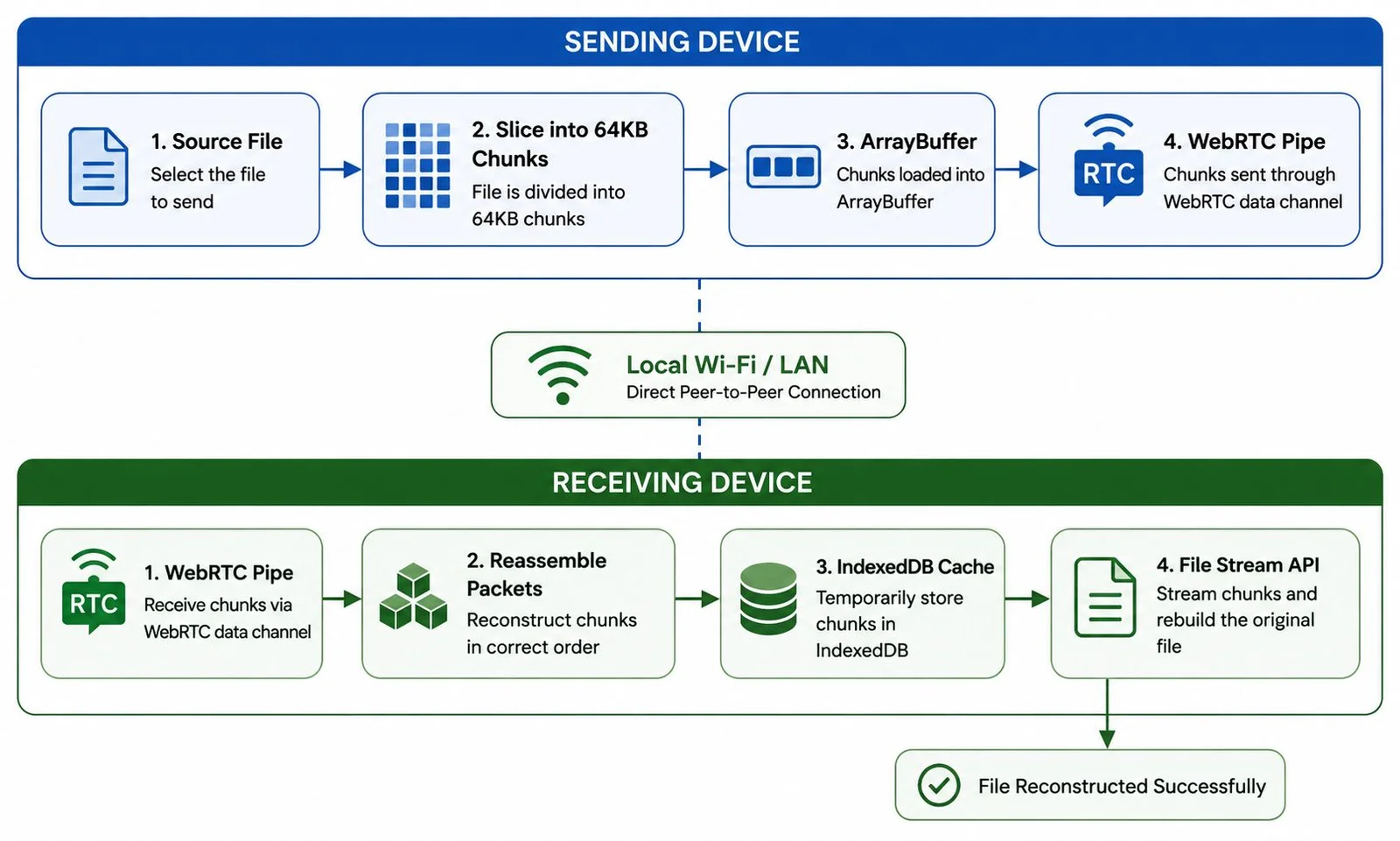
We address this limitation by implementing large file stream chunking:
-
Asynchronous Chunking: The application splits raw binary inputs into small, sequential ArrayBuffer chunks (typically 16KB to 64KB per slice).
-
Backpressure Handling: The transmission pipeline monitors the buffer queue of the WebRTC data channel. If the receiving device experiences write latency, the sending browser automatically throttles chunk dispatching until the queue drains.
-
Universal Container Compatibility: Because transfers happen at the raw binary layer, the system handles complex container extensions without degradation, including ProRes .mov, compressed .zip and .rar archives, master .iso disk images, RAW camera files, and multi-track .mp4 videos.
-
Zero Compression Artifacts: Data packets undergo zero transcoding or lossy compression during transit; the byte signature generated on the receiving drive matches the source file identically.
Enterprise-Grade Privacy and Zero-Installation Security
Standard file distribution workflows introduce significant security liabilities. Uploading proprietary project files, client media, legal records, or unreleased source code to hosted cloud buckets exposes that information to data breaches, unauthorized scrapers, and third-party scanning algorithms.
Our direct peer-to-peer approach guarantees absolute privacy through structural design:
-
Zero Centralized Persistence: The files never reside on any intermediate hard drive, staging server, or hosting cache. When the browser tab closes, the transfer memory vanishes completely.
-
Hardware-Enforced Encryption: All data streams passing through the WebSockets and WebRTC channels are encrypted end-to-end via Datagram Transport Layer Security (DTLS) and Secure Real-Time Transport Protocol (SRTP) using industry-standard AES cryptography.
-
Air-Gapped Friendly: When operated over an isolated local network, the data packets never touch the external internet, preventing man-in-the-middle packet interception from outside the local subnet.
-
No Account Fingerprinting: Because the platform requires no login credentials, cookies, or email addresses, metadata collection is structurally impossible.
Frequently Asked Questions
Does this file transfer method consume my internet data plan?
No. When both devices connect through the same local Wi-Fi router or wired Ethernet switch, the transfer communicates over the local area network (LAN). The data packets travel straight between devices, consuming zero external internet bandwidth.
Is there a maximum file size limit for peer-to-peer transfers?
There is no hard software limit. Because the application streams data in asynchronous memory chunks rather than buffering entire files at once, we regularly transfer files exceeding 50GB, including full uncompressed disk images and raw video masters.
Do I need to install any browser plugins or desktop software?
No. The system utilizes native browser technologies including the HTML5 Drag and Drop API, WebRTC, and Web Streams. It runs out-of-the-box on standard desktop and mobile browsers without requiring plugins or native client installations.
Can I transfer files between different operating systems?
Yes. The transfer protocol is completely platform-agnostic. You can seamlessly stream files between Windows, macOS, Linux, Android, and iOS devices as long as both machines run a WebRTC-compliant web browser.
What happens if a device goes to sleep during an active transfer?
If an operating system sleeps or suspends the browser tab, the active network socket will pause or terminate. We recommend disabling sleep timers on laptops and keeping the browser tab in the foreground on mobile screens until the progress meter reads 100%.
Is my transfer secure from other users connected to the same Wi-Fi?
Yes. All traffic routed through WebRTC data channels is encrypted by default with DTLS encryption, preventing other devices on the same wireless router from snooping on or intercepting the raw payload.
Why does the receiver need to click a Save to Device button at the end?
For security reasons, web browsers do not permit web pages to write files directly to a user’s hard drive without explicit user interaction. Clicking the button satisfies the browser’s safety check to save the completed file to your local disk.
Does this work if the two devices are on different Wi-Fi networks?
Yes. If both devices are on separate networks, the application can route through standard STUN/TURN traversal servers to negotiate a peer-to-peer connection across the internet, though transfer speeds will then depend on your ISP’s upload and download limits.
Can I send multiple files simultaneously?
Yes. You can select multiple files or batch archives at once. The streaming engine will sequentially process and pipe each item across the open connection without requiring you to re-pair the devices.
What should I do if the connection fails to establish?
Verify that both devices are connected to the same subnet, refresh the webpage on both ends to generate a fresh pair of Device IDs, and ensure that restrictive enterprise firewall rules are not blocking internal UDP traffic.

Selva Ganesh is a Computer Science Engineer, Android Developer, and Tech Enthusiast. As the Chief Editor of this blog, he brings over 10 years of experience in Android development and professional blogging. He has completed multiple courses under the Google News Initiative, enhancing his expertise in digital journalism and content accuracy. Selva also manages Android Infotech, a globally recognized platform known for its practical, solution-focused articles that help users resolve Android-related issues.




The evolution from physical drive shuffling to smart direct transfers has streamlined media production immensely. It is incredible to finally move heavy files without jumping through cloud hoops.
Data privacy and rapid transfer speeds are two sides of the same essential coin. Direct file sharing delivers on both fronts without compromise.
ISP upload throttles have punished creative professionals trying to send large deliverables for years. Bypassing cloud upload requirements solves this structural handicap.
External drives were prone to failing right when you needed them most for project handoffs. Modern direct transfer solutions offer a much safer and faster alternative.
It makes zero sense to blast local data up to a remote data center just to pull it right back down. Direct routing keeps local networks operating at peak logical sense.
Efficiency is everything when deadlines are looming and rendering takes up half the day. Moving files directly without cloud bloat is a massive workflow win.
Watching a progress bar stall halfway through a massive cloud upload is a universally painful experience. Direct transfers remove those fragile connection dependencies.
Security-conscious teams will love any tool that eliminates third-party cloud intermediaries. Direct sharing keeps data governance entirely in the right hands.
The days of physical media shuffling tested the patience of every workstation operator. Direct transfer tools represent a massive leap forward in usability.
Cloud storage fees and bandwidth bottlenecks are hidden taxes on modern digital creators. Cutting them out with direct transfers is a brilliant optimization.
Hardware limitations and slow USB speeds used to dictate our entire afternoon schedule. Streamlining direct transfers brings much-needed agility to creative studios.