
Monitoring internet connection velocity in real time is a critical requirement for power users, developers, and everyday smartphone consumers who need to diagnose connectivity bottlenecks instantly. For years, the Android operating system lacked a unified, native approach to displaying live data throughput directly within the system interface. Samsung Electronics, despite offering one of the most feature-rich custom software skins in the industry, historically omitted a built-in toggle for this metric in its standard settings menu. Users were forced to compromise device security and system resources by relying on ad-supported third-party utilities from the Google Play Store or executing complex root procedures.
We have observed a significant shift in this paradigm with the rollout of modern software iterations. Samsung has officially integrated a dedicated real-time network speed indicator directly into the system status bar. This capability eliminates the need for external background services, reducing battery drain and optimizing volatile memory consumption. This comprehensive guide outlines the precise technical prerequisites, software dependencies, and step-by-step configuration workflows required to deploy the native network speed tracker on compatible Samsung Galaxy smartphones and tablets.
Software Evolution and Architecture Requirements
The implementation of a native data throughput monitor requires deep integration with the system framework. In previous versions of the software architecture, the system interface lacked the necessary hooks to display dynamic network socket statistics without custom modifications. The deployment of the Android 17-based One UI 9 operating system framework resolves this limitation by introducing modular interface controls managed through proprietary system customization suites.
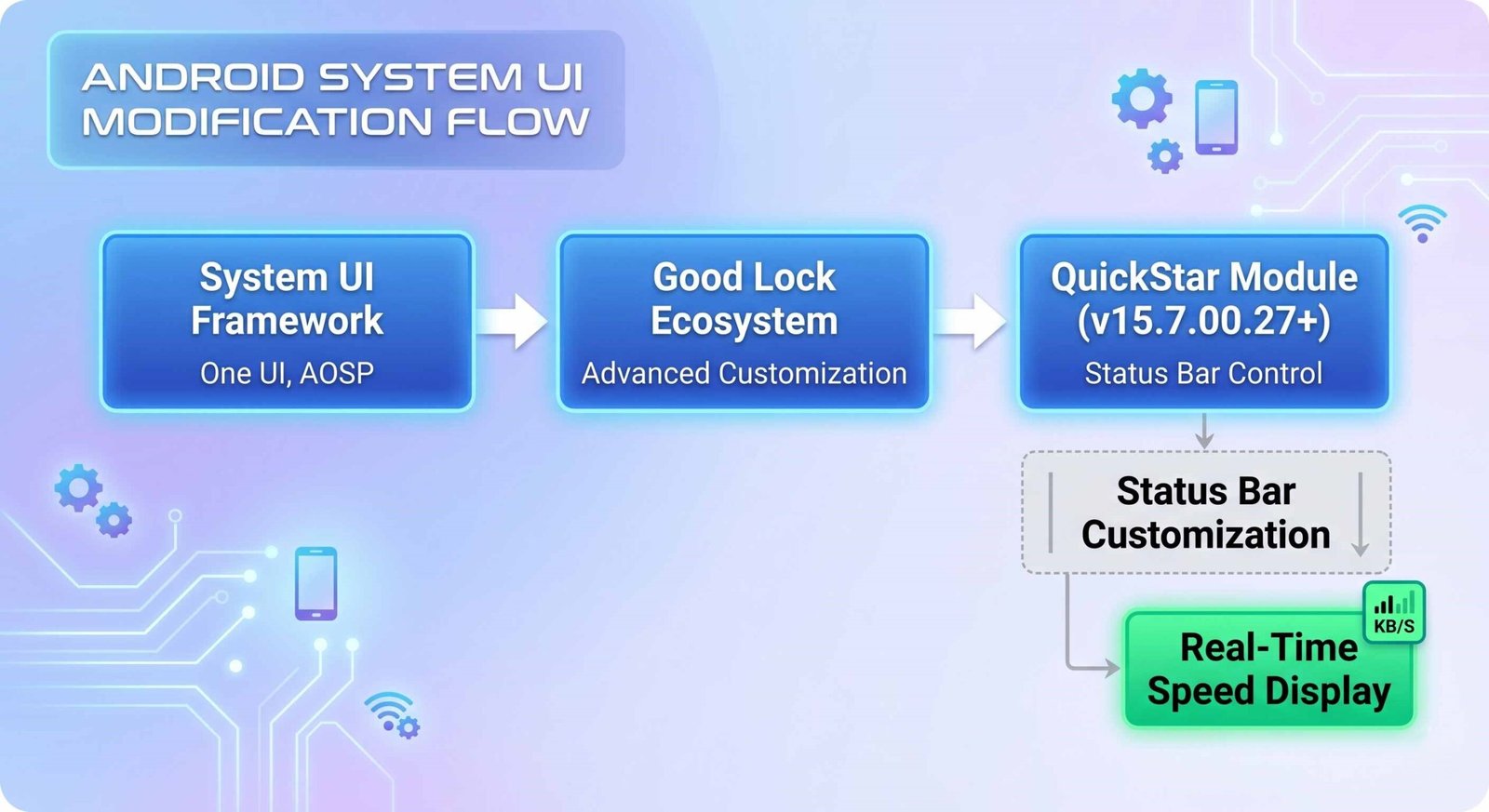
Currently, the native execution of the network speed indicator relies heavily on the Good Lock ecosystem, specifically the QuickStar module. This configuration strategy allows advanced users to modify interface components without altering the core system partition. The deployment map indicates that the feature is accessible on flagship hardware running early builds of the new software generation.
Hardware compatibility remains structured around premium tiers during the initial rollout phases. Devices within the flagship category operating on the initial beta phases of the software release in participating regions can leverage this framework immediately. Devices running older versions of the user interface do not possess the native code modifications required to display these metrics without external application layers.
Technical Prerequisites and Installation Guide
Before attempting to activate the real-time data monitor, we must verify that the underlying software layers meet the precise version dependencies required by the system. Failure to update the necessary components will result in missing configuration toggles within the user interface.
Step 1: Verification of the Operating System Tier
To confirm your device possesses the core architecture required for this feature, navigate through the primary configuration directory:
- Open the primary Settings application from the app drawer.
- Scroll to the bottom of the interface and select About phone.
- Access the Software information subdirectory.
- Verify that the One UI version displays the required generational baseline and that the underlying platform matches the modern system architecture.
Step 2: Acquisition of the Customization Suite
The Good Lock platform acts as the bridge for advanced user interface modifications. To install the baseline application environment:
- Launch the official Galaxy Store or the Google Play Store on the target device.
- Execute a search query for the official Good Lock utility published by Samsung Electronics.
- Download and initialize the application on the local storage partition.
Step 3: Upgrading the Interface Module
The specific sub-component responsible for status bar manipulation is the QuickStar utility. This component must be updated to version 15.7.00.27 or higher to expose the network velocity variables.
- Launch the primary Good Lock interface.
- Locate the QuickStar plugin within the module listing.
- If an update path is available, trigger the installation process via the official store link embedded within the manager.
In scenarios where geographic limitations or carrier restrictions delay the distribution of the required software update through official channels, advanced administrators may look toward manual package installation via application package files (APKs). While manual sideloading bypasses regional staging queues, it introduces potential stability risks if the package signature does not align perfectly with the target operating system build. We recommend sourcing verified packages only from trusted repository archives if pursuing this alternative deployment method.
Operational Workflow to Activate the Velocity Indicator
Once the underlying application modules are fully updated and aligned with the system framework, the physical activation process involves navigating a specific hierarchy of configuration menus within the advanced customization environment.
1. Initialize the Customization Manager: Launch Good Lock.
Open the primary Good Lock application layout from your home screen or application launcher drawer to access the plugin matrix.
2. Access the Status Bar Controller: Open QuickStar Module.
Locate and tap on the QuickStar module within the interface list. If prompted, grant the necessary system-level configuration permissions required for the utility to overlay elements onto the native system shell.
3. Engage the Primary Master Toggle: Enable QuickStar Framework.
Slide the primary master switch at the uppermost section of the interface to the On position. This action initializes the custom interface layer over the stock status bar configuration.
4. Navigate Component Visibility Options: Open Icon Visibility Directory.
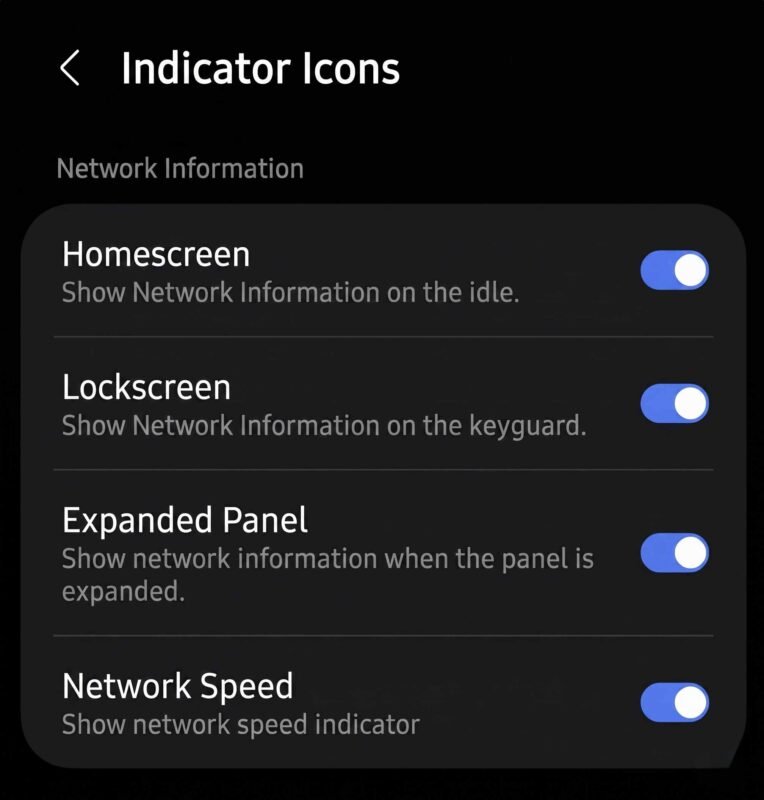
Select the sub-menu labeled Visibility of indicator icons. This directory governs every individual system graphic displayed across the upper display perimeter, including wireless fidelity status, cellular signal strength, and battery metrics.
5. Commit the Network Monitor Activation: Toggle Network Speed Option.
Locate the specific configuration entry titled Network Speed. Toggle the adjacent switch to the active position to command the system framework to begin parsing live data socket throughput.
Following the execution of this technical sequence, the interface engine instantly renders the dynamic data throughput calculations. The real-time internet speed metrics will display continuously within the top-right corner of the status bar, positioning itself alongside existing telemetry icons like signal strength profiles and power management indicators.
Diagnostic Verification and Troubleshooting Framework
The inclusion of real-time monitoring tools introduces additional variables into the system rendering pipeline. In certain deployment scenarios, users may experience anomalies where the numerical data velocity value fluctuates abnormally, freezes, or fails to render entirely following a system reboot sequence.
Resolving Module Instability
If the indicator disappears unexpectedly from the status bar, the underlying background service managed by the customization suite may have been terminated by the native power optimization engine. To prevent the system from aggressively managing the lifecycle of the monitoring plugin:
- Open the primary device Settings menu.
- Navigate to the Apps management section.
- Select the Good Lock and QuickStar applications independently.
- Access the Battery configuration sub-panel.
- Shift the optimization profile from optimized or restricted to Unrestricted. This action prevents the background execution framework from terminating the telemetry process during periods of extended device dormancy.
Addressing Data Discrepancies
The real-time speed values displayed by the native status bar tool represent raw network socket throughput measured at the device interface layer. This value may diverge from figures produced by web-based speed assessment utilities due to structural differences in measurement techniques:
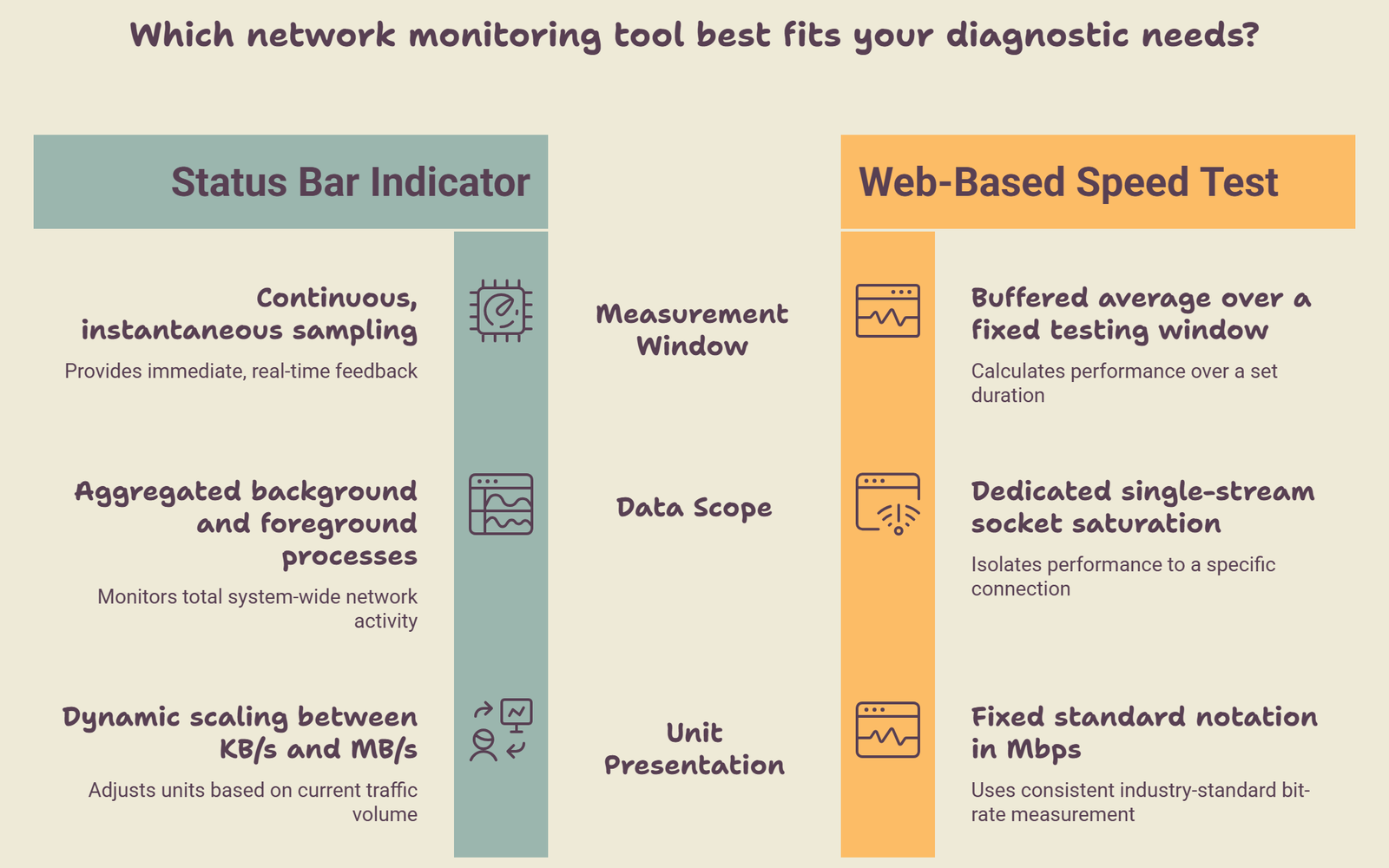
Understanding these functional operational metrics prevents confusion when comparing system-level diagnostics with external application testing results.
Frequently Asked Questions
Can the network speed indicator be deployed on One UI 6 or One UI 7 variants?
No, the native implementation code governing this specific status bar modification is strictly dependent on system libraries introduced in the modern Android 17-based One UI 9 framework architecture. Older software platforms do not contain the requisite interface hooks.
Does enabling the live data throughput tracker impact battery endurance?
The native integration via system modules minimizes resource expenditure. Because it directly samples hardware network interface statistics already logged by the kernel, it consumes significantly less power than third-party application solutions running continuous background service loops.
Why does the speed measurement unit change automatically between KB/s and MB/s?
The interface software is designed to optimize the status bar screen space. The system dynamically scales the unit display based on real-time packet volume, utilizing Kilobytes per second for low-bandwidth tasks and automatically elevating to Megabytes per second during heavy download streams.
Will the network speed indicator function when connected to a Virtual Private Network?
Yes, the indicator reads total packet throughput at the physical network interface layer. It will continue to display active data transfer velocities regardless of whether the traffic is routed through an encrypted tunnel protocol.
Can the spatial position of the speed indicator be moved to the left side of the screen?
The default layout engine anchors the network speed typography to the top-right corner of the status bar. Advanced layout modifications within other sections of the customization suite may allow for icon repositioning, but standard behavior keeps it aligned with primary system telemetry.
Does this implementation require an active data plan or internet connection to display the icon?
The option remains visible within the configuration menus without an active internet connection. However, the numerical value will read zero until active data packets begin moving across either a cellular or wireless network adapter.
Is it safe to manually download the QuickStar module from external web repositories?
Manual installation via sideloading carries inherent security risks. If official store portals do not display the required version, ensure that any external package acquisition utilizes a cryptographically verified signature matching official corporate development certificates to avoid code injection vulnerabilities.
Will the speed monitor track internal local area network transfer speeds?
Yes, the system measures total network socket activity. If you are casting media or transferring files across a local network storage array via wireless connectivity, the indicator will display the operational transfer rate of that local transaction.
Does the network speed display account for both upload and download traffic simultaneously?
The system metric aggregates the total real-time data bandwidth moving through the network interface card, combining both incoming download streams and outgoing upload telemetry into a unified numerical presentation.
How can I completely remove the speed indicator if I no longer require real-time tracking?
To revert to the stock configuration state, navigate back through Good Lock → QuickStar → Visibility of indicator icons, and toggle the switch adjacent to Network Speed to the off position. The status bar will instantaneously re-align itself to the standard factory icon layout.

Selva Ganesh is a Computer Science Engineer, Android Developer, and Tech Enthusiast. As the Chief Editor of this blog, he brings over 10 years of experience in Android development and professional blogging. He has completed multiple courses under the Google News Initiative, enhancing his expertise in digital journalism and content accuracy. Selva also manages Android Infotech, a globally recognized platform known for its practical, solution-focused articles that help users resolve Android-related issues.





Leave a Reply