
How to Use Gemini Go on Low RAM Android Phones Without Lag – Budget Android phones handle daily tasks well when we keep them uncluttered, and Gemini Go brings helpful AI tools to lower-memory devices without demanding expensive hardware. Replacing Assistant Go on eligible Android Go phones with 2GB of RAM or more, this streamlined experience lets you talk out loud, point your camera at forms or study notes, and create quick images. Because budget phones have tight working space for active apps, slowdowns usually happen when too many things run at once or storage fills up.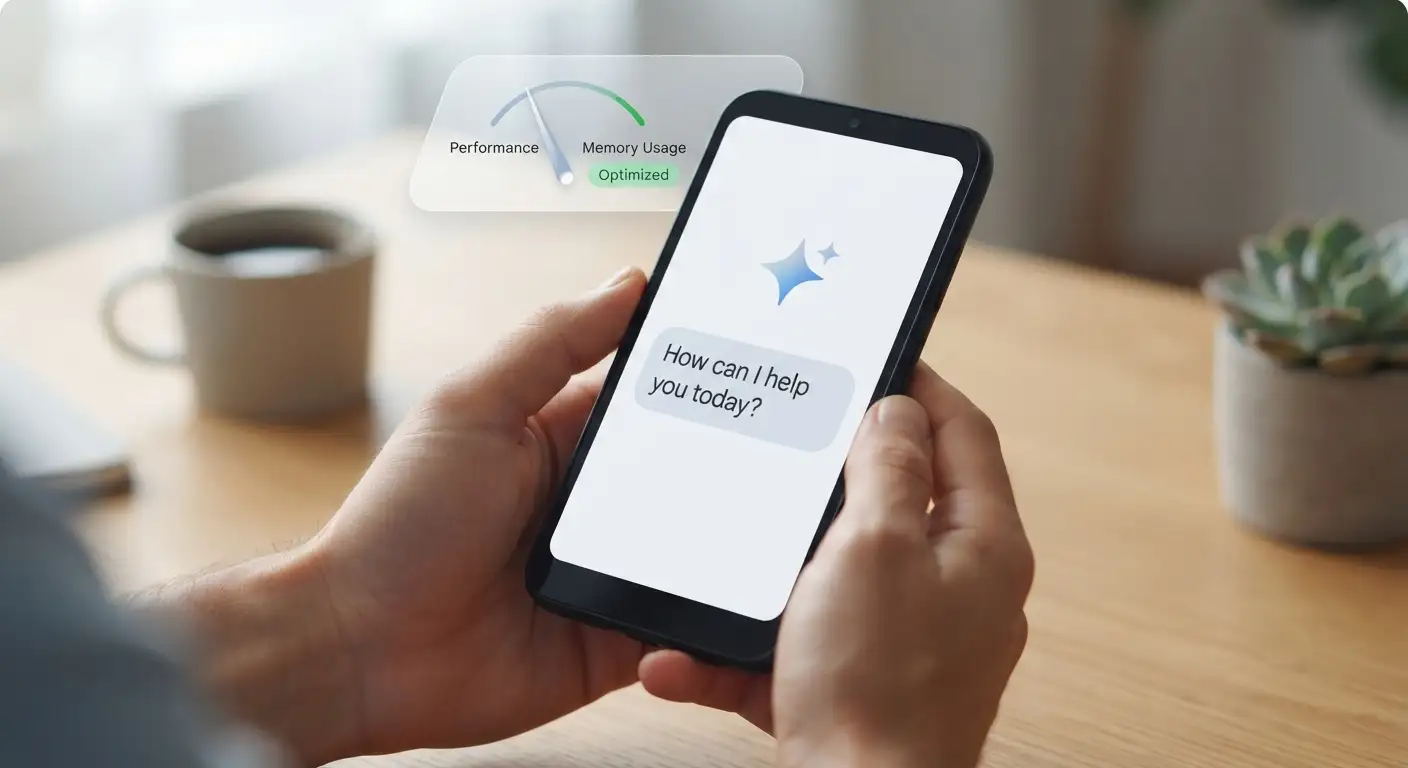
What Gemini Go Is and Why It Fits Budget Phones
Gemini Go is a lighter version of Google’s Gemini assistant designed for lower-memory Android Go devices. Rather than forcing heavy tools onto entry-level phones, Google rebuilt the app experience so everyday features run smoothly on hardware with less memory and tighter storage.

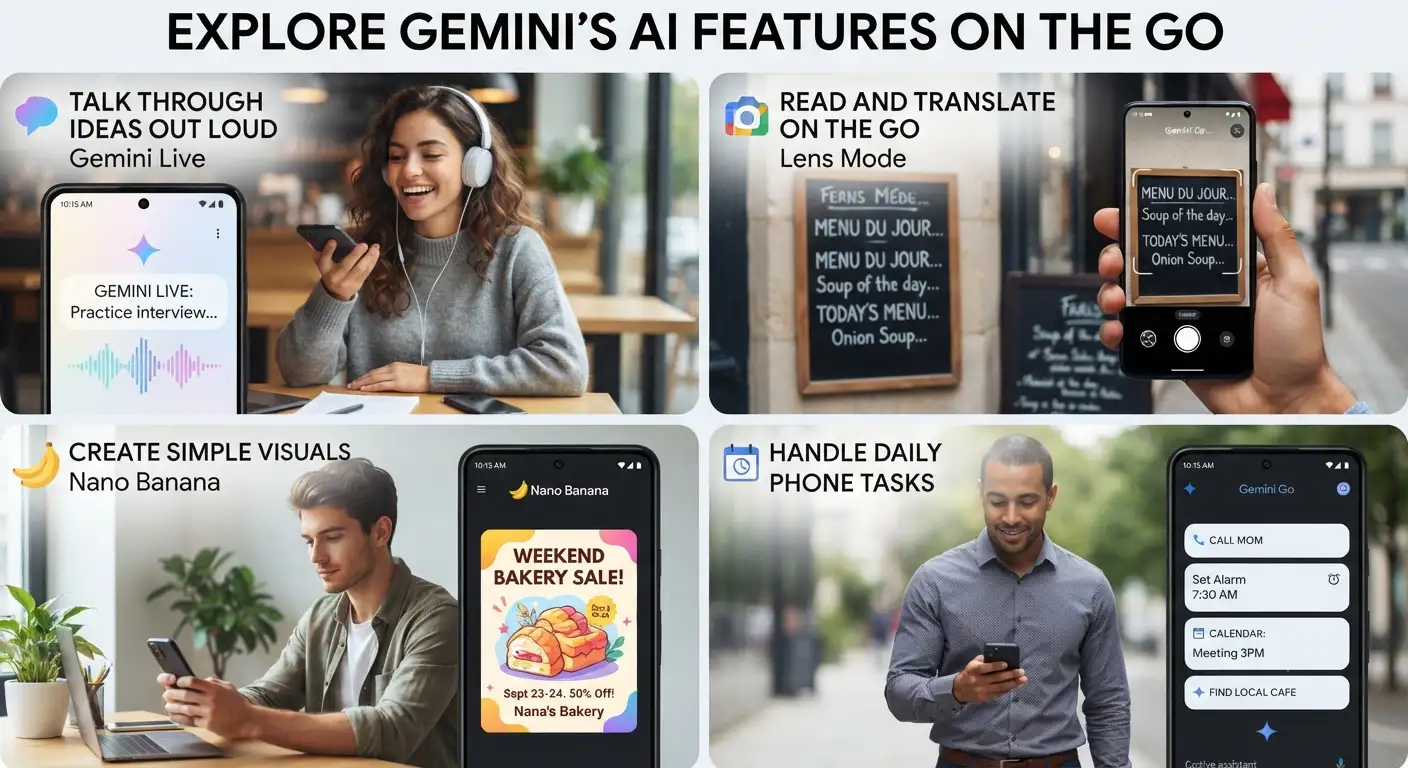
In practice, we noticed that budget phones perform best when apps stay focused on one task at a time. Gemini Go supports that approach by giving you practical tools—like Gemini Live for spoken conversations in more than 45 languages, camera help for reading or translating notes and forms, and image creation with Nano Banana—while keeping the phone experience lean.
Getting Started Without Slowdowns
Setting up Gemini Go takes only a few minutes, and starting with a clean phone makes a noticeable difference right away.
-
Check your phone and account: Confirm that your Android Go phone has at least 2GB of RAM and sign in with an eligible personal Google Account, or a work or school account that includes Gemini Apps access.
-
Update the Google Search app: On Android Go devices, Gemini works through the Google Search app or via the Gemini app where available. Open Google Play, search for Google or Google Search, and tap Update if a newer version is waiting.
-
Launch conversations cleanly: Touch and hold the Home button, or press and hold the Power button on supported phones, to open Gemini Go. Some upcoming partner phones, including devices from Transsion, also come with Gemini preloaded.
Once you open Gemini Go, close heavy background apps first so your phone has plenty of breathing room for voice responses, camera scans, or image creation.
Everyday Ways to Use Gemini Go
You do not need long typed prompts to get value from Gemini Go. Here are simple ways to use it every day:
Practical Habits That Keep Gemini Go Lag Free
The important point here is that lag on a budget phone rarely comes from a single button press. It usually builds up quietly in the background.
-
Keep free storage space open: Low-memory phones also tend to have modest storage, and image or file tasks need temporary space to finish smoothly. Clear old downloads, duplicate photos, and unused apps before starting big tasks.
-
Avoid stacking heavy tasks together: Do not keep video streaming, large file downloads, and several open apps running while using voice chat or generating images.
-
Use clear, focused requests: Short, direct spoken or typed requests help you get clear answers faster without turning a quick check-in into a long, cluttered session.
-
Mind your connection quality: Features that rely on internet responses—such as live voice, camera translation, and image generation—feel much snappier on a steady Wi-Fi or strong mobile signal than on a weak, dropping connection.
-
Restart when the phone feels sluggish: A quick restart clears temporary clutter that accumulates over days of heavy use and often restores smooth performance immediately.
Common Mistakes to Avoid
Many people blame a new feature for slowdowns when simple setup habits are causing the friction.
-
Running an outdated app: Skipping updates in Google Play can leave you on an older build that misses smoothness improvements.
-
Using an account without access: If you sign in with a work, school, or supervised account that lacks Gemini access or has restrictions enabled—such as through Google Family Link—the experience may not appear as expected.
-
Ignoring storage warnings: Pushing a budget phone right up to full storage slows down the entire system, not just Gemini Go.
What to Check If Gemini Go Feels Slow or Missing
If Gemini Go is not showing up or feels delayed on your phone, work through a few quick checks before giving up:
-
Confirm rollout availability: Gemini Go is rolling out gradually across eligible Android Go devices with 2GB of RAM or more, so it may not appear on every phone on the exact same day.
-
Check your shortcut and app version: Make sure the Google Search app is updated in Google Play and test touching and holding the Home button or pressing and holding the Power button on supported devices.
-
Free up space and retry: Close extra apps, free up storage space, connect to a more reliable network, and try your request again.
Frequently Asked Questions
1. What is Gemini Go?
Gemini Go is a streamlined version of Google’s Gemini assistant built for lower-memory Android Go phones, replacing Assistant Go with conversational help, voice chat, camera assistance, and image creation.
2. Which phones can run Gemini Go?
It is designed for eligible Android Go devices that have 2GB of RAM or more.
3. How do I check if my phone has the latest version?
Open Google Play, search for Google or Google Search, and tap Update if an update is available.
4. How do I start chatting with Gemini Go?
You can start by touching and holding the Home button, or pressing and holding the Power button on supported phones.
5. Can I talk to Gemini Go instead of typing?
Yes, Gemini Live lets you have spoken conversations in more than 45 languages without typing long messages.
6. Can Gemini Go help with things I see around me?
Yes, you can point your camera at notes or forms to learn or translate text, and you can also upload photos or documents into chats for extra context.
7. Can I create images on a low-memory phone with Gemini Go?
Yes, Gemini Go includes image creation with Nano Banana, which works well for simple visuals like a weekend bakery sale flyer.
8. Why does my budget phone lag when I use new features?
Lag usually happens when storage is nearly full, too many apps stay open in the background, or the internet connection drops mid-request.
9. What if Gemini Go is not on my phone yet?
Because Gemini Go is rolling out gradually, your device may simply be waiting for the update, or you may need to update the Google Search app in Google Play.
10. Can a child or work account use Gemini Go?
Access depends on account eligibility; work or school accounts need Gemini Apps access included in their plan or license, and parents managing accounts with Google Family Link can turn off Gemini Apps access for eligible younger users.

Selva Ganesh is a Computer Science Engineer, Android Developer, and Tech Enthusiast. As the Chief Editor of this blog, he brings over 10 years of experience in Android development and professional blogging. He has completed multiple courses under the Google News Initiative, enhancing his expertise in digital journalism and content accuracy. Selva also manages Android Infotech, a globally recognized platform known for its practical, solution-focused articles that help users resolve Android-related issues.



Leave a Reply