
10 Things You Can Do with the Built-In Gemini in Google Chrome – The modern web is vast, fast-paced, and filled with overwhelming amounts of information. Everyday browsing tasks—such as reading long reports, shopping across multiple retail sites, or managing daily schedules—can quickly become time-consuming. To address these daily digital challenges, Google has integrated its advanced artificial intelligence assistant, Gemini, directly into the Google Chrome web browser.
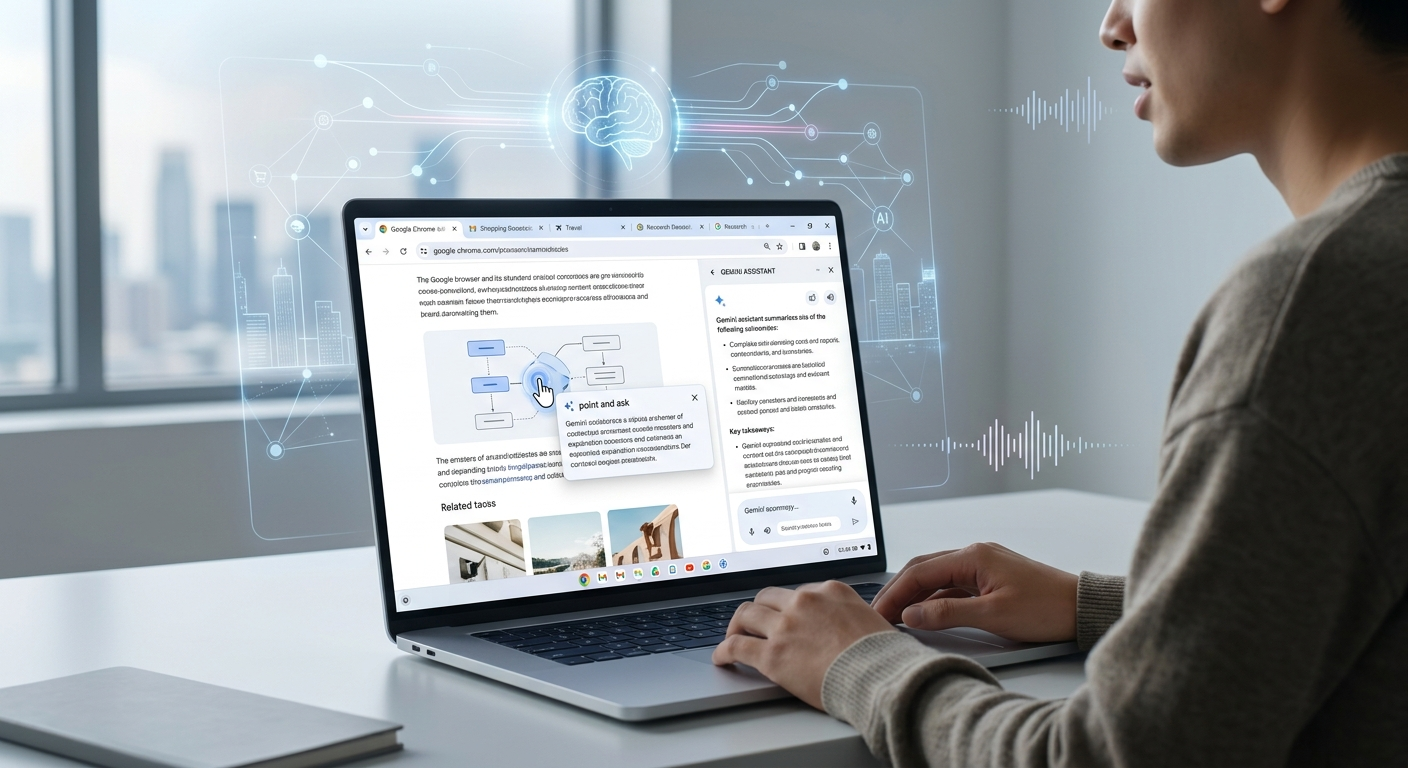

By bringing AI capabilities straight to your browser window, Gemini in Chrome acts as a smart, versatile digital assistant designed to streamline your daily online activities. Whether you are a casual internet user, a student researching complex topics, or a busy professional, leveraging these capabilities can save hours of manual effort. Below, we examine ten practical and transformational features that you can start using inside Google Chrome today.
1. Summarize Long Web Pages and Online Videos Instantly
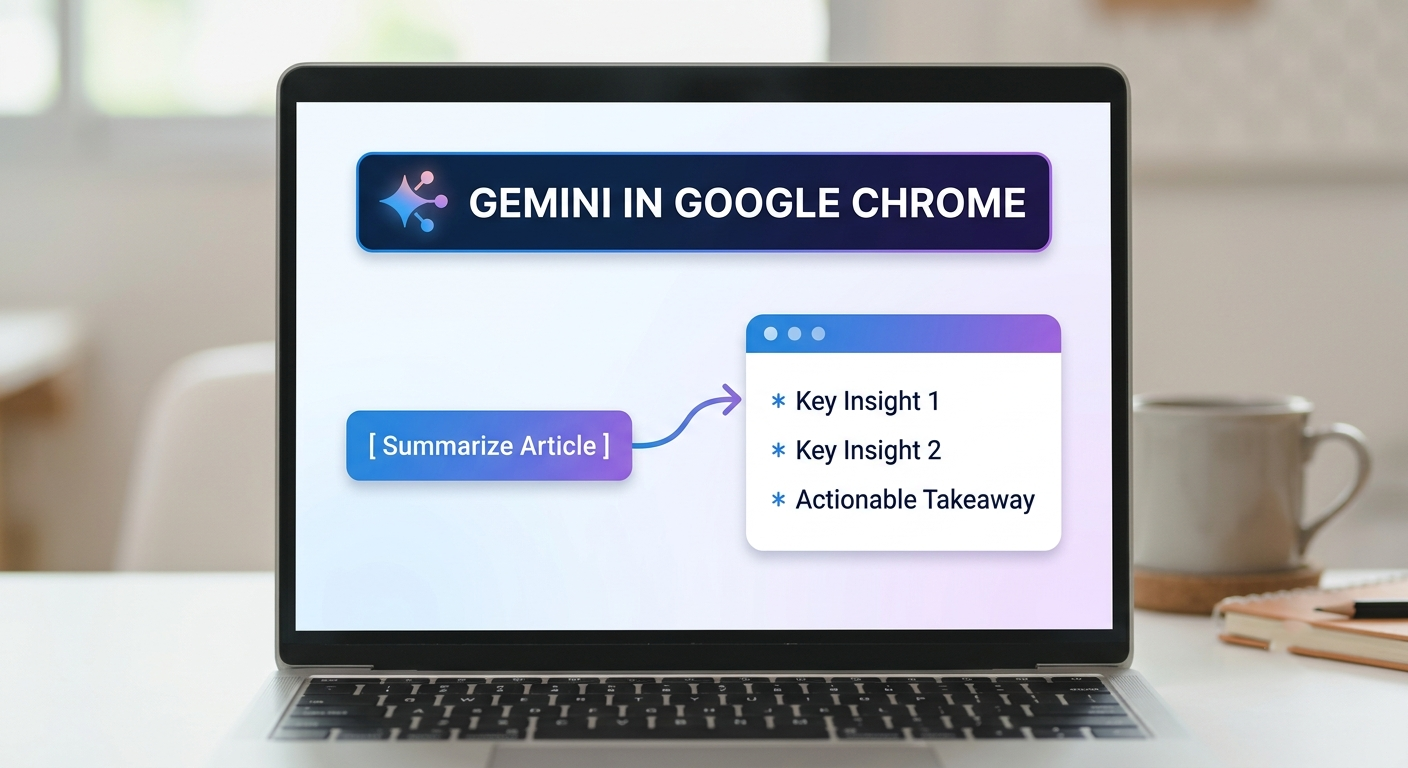
Reading through long news articles, multi-page research documents, or technical guides often requires significant time and attention. Similarly, watching a thirty-minute video tutorial to retrieve a single answer can slow down your workflow. With built-in Gemini in Chrome, you can generate accurate summaries and key takeaways with a single click.
How Content Summarization Helps You
-
Instant Key Takeaways: Request a concise bullet-point summary of any article or blog post currently open in your browser tab.
-
YouTube Video Highlights: Instead of watching an entire video, Gemini can scan the transcript of a YouTube video and outline the core discussion points immediately.
-
Time Savings: Skim complex market reports, lengthy privacy policies, or extended news pieces in seconds rather than minutes.
By letting Gemini handle initial content processing, we can quickly grasp the fundamental ideas of any webpage before deciding whether to read the text in full detail.
2. Compare Products and Services Across Multiple Open Tabs
Online shopping and research often result in dozens of open browser tabs. Comparing specifications, pricing, warranties, or amenities across different websites usually requires flipping back and forth between tabs and taking manual notes.
Gemini in Google Chrome introduces Multi-Tab Analysis, allowing the AI assistant to read information across up to ten open tabs simultaneously.
Practical Comparison Use Cases
-
E-Commerce Shopping: Compare product specifications, shipping costs, customer ratings, and prices across different retail platforms.
-
Travel Planning: Compare hotel amenities, check-in policies, room rates, and location benefits side-by-side.
-
Research and Education: Evaluate contrasting viewpoints, statistics, or sources from multiple academic articles or news outlets.
We simply ask Gemini to compile a comparative table based on our active tabs, transforming scattered tabs into structured, actionable comparisons instantly.
3. Automate Multi-Step Web Actions with Auto Browse
Navigating complex websites often involves tedious, repetitive steps: entering search criteria, clicking through multiple confirmation screens, filling out long web forms, or adding various items to a shopping cart.
Through Auto Browse, Gemini can perform multi-step web tasks on your behalf while keeping you fully in control of sensitive actions like final payments and security confirmations.
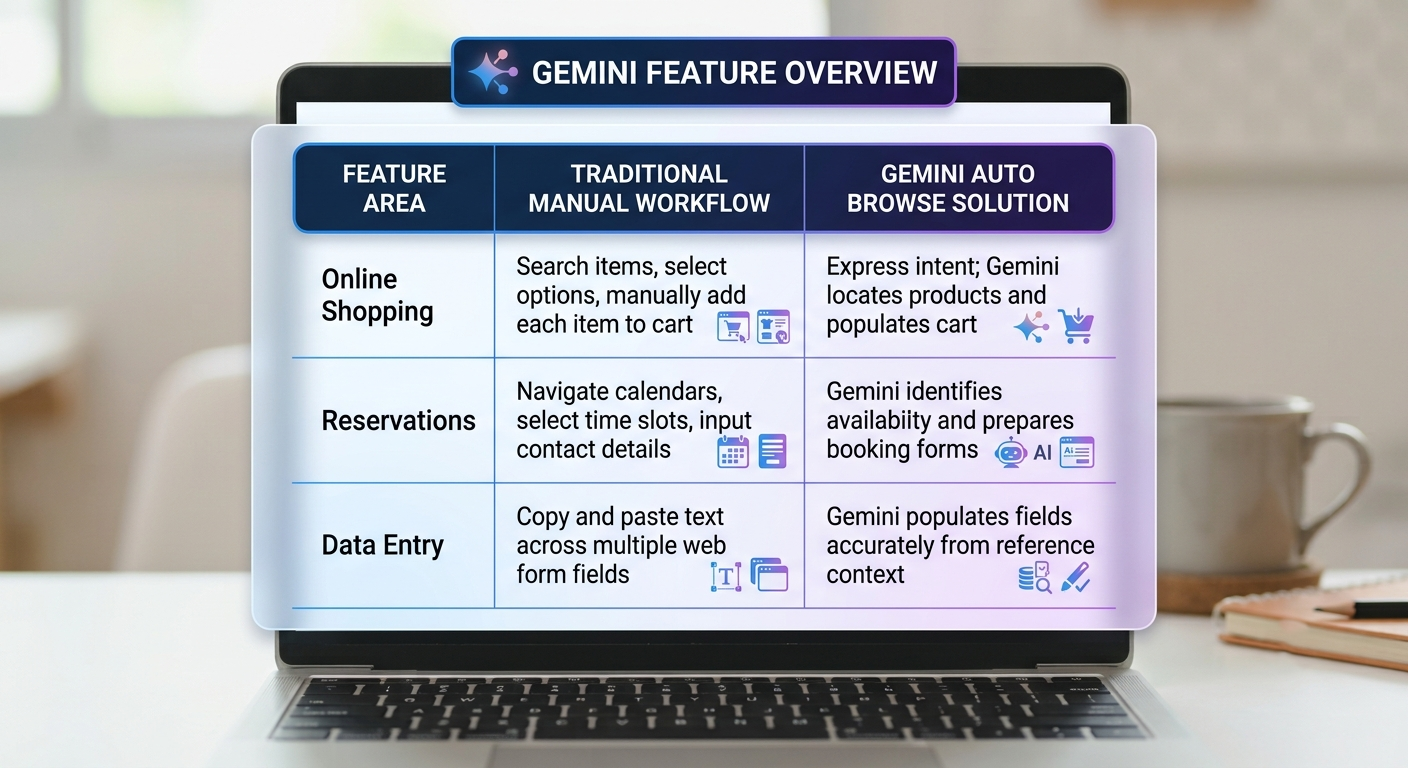
This intelligent automation eliminates unnecessary friction, allowing us to focus on high-level decision-making while Gemini handles routine navigation.
4. Ask Targeted Questions About Selected Content (“Point and Ask”)
When reading complex articles or specialized material, you might encounter unfamiliar terms, complicated data tables, or specific images that require immediate clarification. Rather than copying text into a separate search tab, Gemini allows for precise Point and Ask inquiries directly on the webpage.
How “Point and Ask” Simplifies Learning
-
Highlight Any Text or Image: Use your cursor to select specific sentences, paragraphs, financial figures, or visual elements on the screen.
-
Prompt the Assistant: Ask focused questions like “What does this term mean in plain language?” or “Explain the formula shown in this table.”
-
Receive Immediate Context: Gemini provides clear explanations tailored specifically to the highlighted content without disturbing your current reading place.
This pinpoint accuracy ensures that non-technical readers can navigate technical jargon or unfamiliar concepts comfortably and quickly.
5. Generate and Edit Visual Content Directly Inside Your Browser
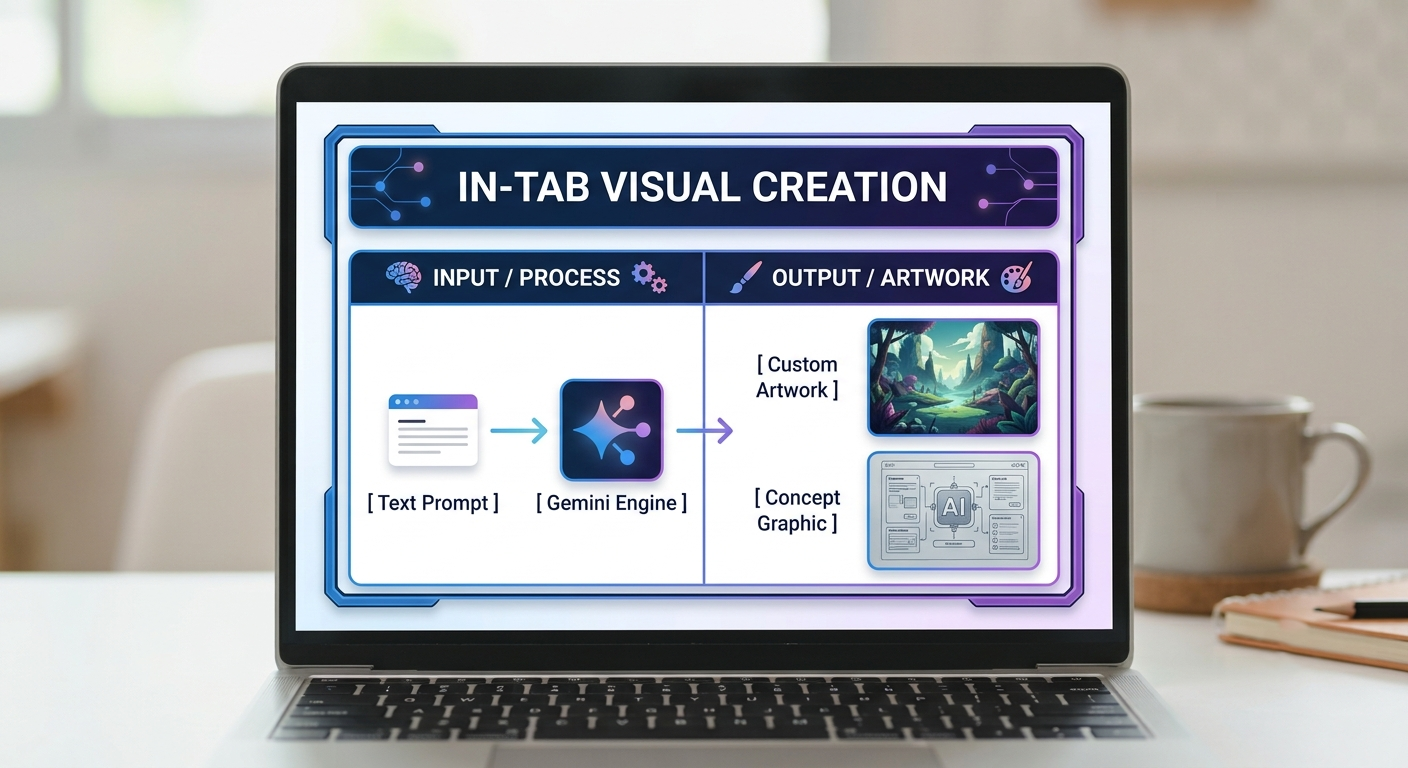
Visual content plays a major role in modern communication, presentation design, and creative brainstorming. Traditionally, creating or editing images required opening separate graphics software. Built-in Gemini in Chrome includes powerful image generation capabilities—powered by advanced models like Nano Banana—right inside your open tab.
Key Capabilities for Image Generation
-
Instant Concept Art: Describe any scene, icon, or visual concept in plain English to generate original images immediately.
-
Visual Transformation: Request adjustments to existing image layouts, style modifications, or background enhancements.
-
Content Prototyping: Ideal for creators, marketing teams, or educators who need custom graphics for blogs, social media posts, or presentation slides without leaving their workspace.
6. Create Reusable Shortcuts with Saved “Skills”
If you frequently perform the same prompts—such as translating foreign text, proofreading business emails, or analyzing job descriptions against a resume—typing those detailed instructions repeatedly is inefficient.
Gemini in Chrome introduces Skills, a feature that allows you to save and trigger customized, reusable prompt shortcuts using a simple / command.
Popular Practical “Skills” Examples
-
/simplify: Rewrites dense, legal, or highly technical paragraphs into clear, conversational English suitable for general readers.
-
/resume-check: Compares highlighted job posting requirements against your saved background experience to identify matching qualifications.
-
/translate-explain: Translates foreign language text while explaining cultural nuances or idiomatic expressions.
By creating personal Skills, we eliminate repetitive typing and ensure consistent, high-quality results across all our routine tasks.
7. Brainstorm Naturally Using Gemini Live Voice Conversations
Typing commands into a box is not always the fastest way to explore complex ideas or prepare for important events. With Gemini Live, users can engage in real-time, hands-free voice interactions with the built-in assistant while reading through web pages.
Effective Uses for Gemini Live
-
Interactive Brainstorming: Talk through creative project ideas, event planning concepts, or writing outlines out loud while reviewing research online.
-
Interview Practice: Conduct interactive mock interviews where Gemini asks relevant questions based on a job description open on your screen.
-
Complex Learning: Discuss challenging topics naturally—asking follow-up questions or seeking clarification mid-conversation as if speaking with a personal tutor.
This conversational approach makes research far more intuitive, natural, and fluid than traditional text searching.
8. Work Seamlessly Across Google Workspace and Connected Apps
Switching between various applications and tabs to locate information disrupts focus and wastes valuable time. Gemini in Chrome integrates deeply with Google Workspace apps, linking your browser activity with your essential productivity tools.
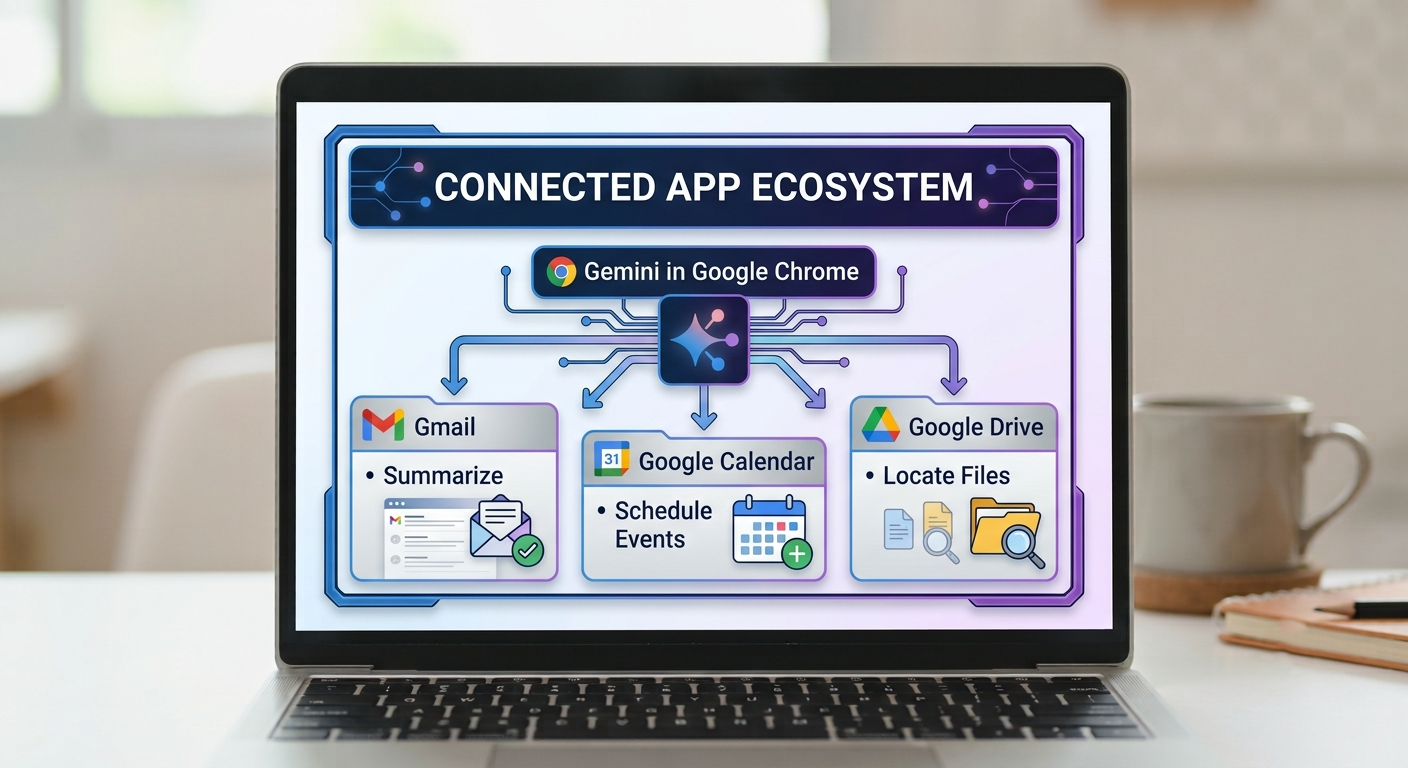
Integrated Cross-App Workflow Examples
-
Gmail Management: Summarize long email threads or draft reply options directly from your active browser side-panel.
-
Calendar Scheduling: Extract event dates, meeting details, or deadlines from a webpage and add them directly to Google Calendar.
-
Task Organization: Turn highlighted web content into actionable items inside Google Tasks.
-
Drive File Lookup: Retrieve relevant reference documents stored in Google Drive without opening new windows.
This connected ecosystem keeps all your daily communication, scheduling, and file management centered in one convenient location.
9. Customize Web Content to Fit Your Personal Needs
Not every webpage is formatted for every reader’s preferred reading style, dietary preference, or knowledge level. Gemini in Chrome allows you to adapt and modify live web page content dynamically.
Content Modification Possibilities
-
Dietary Adjustments: Adjust online recipes instantly to suit specific requirements, such as converting a standard baking recipe into a gluten-free or vegan version.
-
Reading Level Adaptation: Request that complex scientific papers, financial updates, or historical overviews be rephrased to match specific reading preferences or age groups.
-
Interactive Study Guides: Convert educational articles into practice quizzes, flashcards, or bulleted study sheets directly on the page.
Rather than accepting fixed layouts and formats, we can tailor the web to meet our exact learning and lifestyle needs.
10. Search Your Browsing History with Natural AI Queries
Finding a specific webpage you visited weeks ago can be frustrating, especially if you cannot recall the exact name of the website or the precise keywords used in the title. Standard history searches often fail if you don’t remember exact phrases.
With AI Mode History Search, Gemini understands natural, conversational queries about your browsing history, saved bookmarks, and open tabs.
Comparing Search Methods
-
Traditional History Search: Requires exact matching terms like “kitchen remodel contractor Austin TX”.
-
Gemini AI Mode Search: Understands context-based requests such as “Find that blue velvet sofa I was looking at last Tuesday” or “Where was that article about home gardening techniques?”
This semantic search ability ensures you never lose track of valuable research, bookmarked links, or past online discoveries.
Conclusion: Transforming Everyday Web Browsing
The integration of Gemini into Google Chrome represents a major leap forward in how we interact with the internet. By combining content summarization, cross-tab analysis, task automation, and natural voice interaction, Gemini transforms the traditional web browser from a passive viewing tool into an active, intelligent productivity partner.
By implementing these ten features, everyday web users can drastically reduce time spent on repetitive digital chores, navigate complex information effortlessly, and enjoy a far more personalized, efficient internet experience. Whether for personal management, education, or professional productivity, exploring these built-in tools inside Google Chrome is an easy and powerful way to elevate your digital workflow.

Selva Ganesh is a Computer Science Engineer, Android Developer, and Tech Enthusiast. As the Chief Editor of this blog, he brings over 10 years of experience in Android development and professional blogging. He has completed multiple courses under the Google News Initiative, enhancing his expertise in digital journalism and content accuracy. Selva also manages Android Infotech, a globally recognized platform known for its practical, solution-focused articles that help users resolve Android-related issues.





This guide explains every feature in simple language. Perfect for first-time users.
I discovered new Chrome features today thanks to this post. Looking forward to more tutorials.
The formatting makes the article pleasant to read on both desktop and mobile.
I appreciate that you covered multiple use cases instead of only one feature. Great content.
I’ve already used two of these suggestions today. They genuinely improve productivity.
I followed the instructions without any issues. Everything worked exactly as described.
This is one of the clearest Chrome AI tutorials I’ve read recently. Great job.
The content is concise without missing important details. Easy to finish in one sitting.
I especially liked the writing and research tips. They’ll be useful for my work.
Excellent breakdown of Chrome’s built-in Gemini features. I never knew summarizing webpages could be this quick.
Bookmarking this article for future reference. There are several tips I’ll keep using.