
Clear Your Amazon Search History- We have all experienced that sudden moment of panic when sharing a screen with a partner or opening the Amazon mobile app near a family member during holiday shopping. You search for a surprise gift, a confidential personal product, or browse high-end items out of curiosity, only to discover that Amazon continuously displays those exact items on your homepage. The Amazon recommendation algorithm works tirelessly to catalog every single keypress, click, and product view across your account. While this automated tracking creates a personalized shopping experience, it often undermines personal privacy and spoils surprises.
Through our extensive testing and daily account management, we discovered that maintaining a clean online footprint on Amazon requires understanding two separate tracking layers. Removing an item from your screen is not always a one-step process, because Amazon tracks search queries differently from how it tracks viewed product pages. By taking control of your Amazon privacy settings, you regain complete authority over what appears on your dashboard, eliminate awkward product recommendations, and keep your upcoming gift purchases entirely secret.

Understanding Amazon Search History vs Browsing History
To manage your digital footprint effectively, we must first distinguish between Amazon search history and browsing history. Many users mistakenly assume that clearing one automatically wipes the other, leading to lingering privacy leaks on their account dashboards.
- Amazon Search History: This consists of the exact text strings, product categories, brand names, and search terms that you type into the search bar at the top of the Amazon website or mobile application. Amazon saves these keywords to power its auto-suggest dropdown menu when you begin typing future queries.
- Amazon Browsing History: This represents the specific product detail pages, listing descriptions, customer reviews, and media content that you actively tap or click to open. This dataset directly trains the personalized product recommendation engine, dictating what appears under sections like Recently Viewed, Keep Shopping For, and Inspired by Your Shopping Trends.
When we analyze how Amazon tracks user interaction, we see that typing a search phrase logs an entry in your search history, whereas clicking a result from those search listings logs an entry in your browsing history. Erasing both components ensures complete account privacy.
How to Clear Amazon Search History on Desktop Web Browsers
Managing your search queries on a desktop computer provides the fastest way to scrub text records from your profile. When we perform searches on a desktop browser, Amazon links those query strings directly to your active browser cookies and user session.
Deleting Specific Search Terms
- Navigate to the official Amazon homepage and ensure you are logged into your primary account.
- Click directly inside the main search bar located at the top of the webpage.
- Observe the dropdown list that instantly populates beneath the search bar. This menu displays your recent search queries, with a small grey X icon on the far right of each line item.
- Locate the specific term you wish to erase from your record.
- Click the X icon immediately adjacent to that query. The term will instantly disappear from your active search history.
How to Clear Amazon Browsing History on Desktop Web Browsers
Clearing the actual products you have viewed on desktop requires navigating to the dedicated account browsing portal. We recommend performing this cleanup regularly if you share an Amazon Prime account with family members or household partners.
Removing Individual Products from View
- Open your browser, navigate to Amazon, and log in.
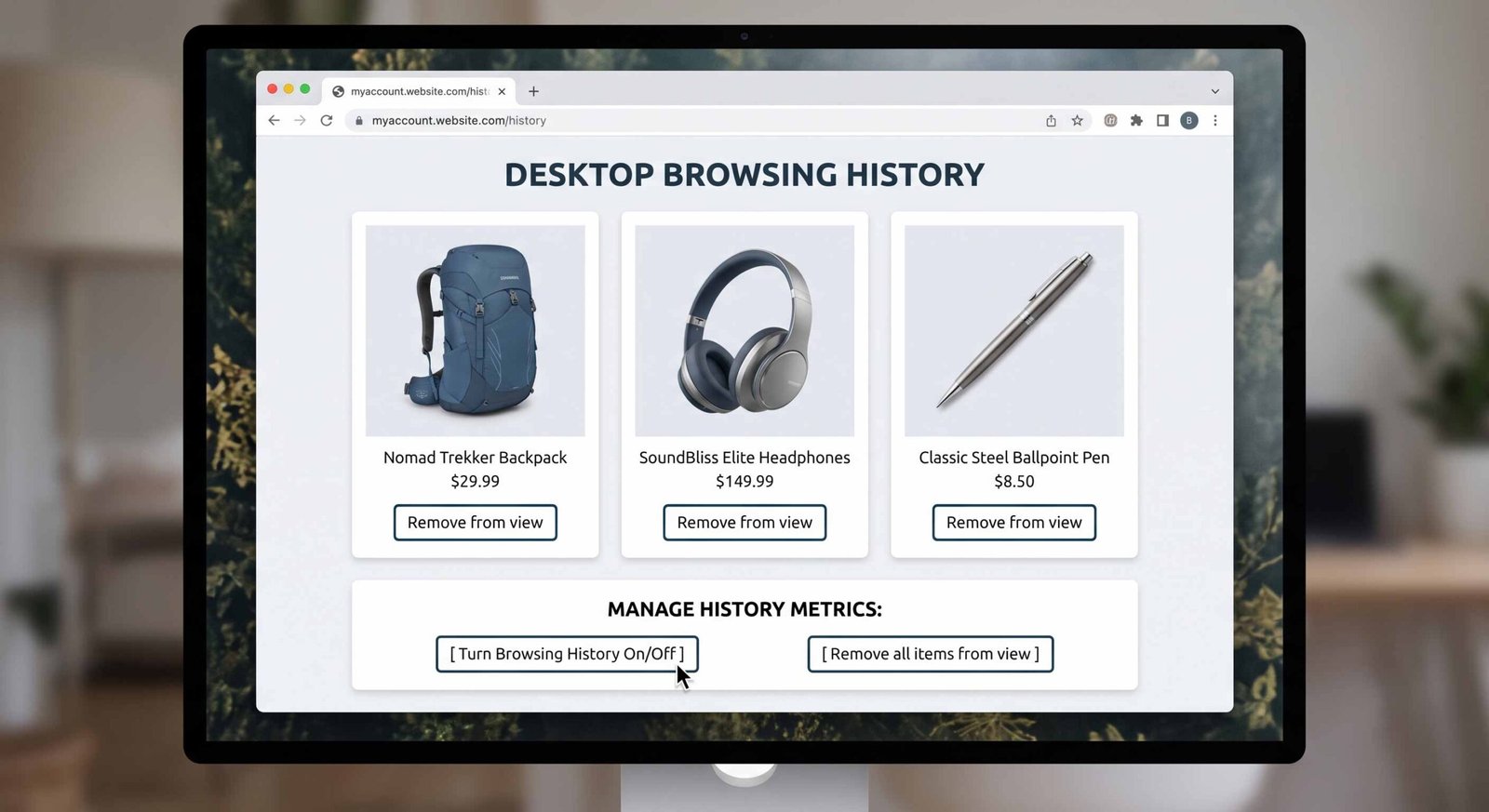
- Look at the top navigation ribbon, right under the main search bar, and click on Browsing History. Alternatively, hover over Account & Lists in the top-right corner, then click Your Browsing History.
- You will see a chronological grid containing every product page you have visited recently.
- To delete a specific product, click the Remove from view button situated directly underneath the thumbnail image of that individual item.
- The system will remove the product card instantly from your historical activity grid.
Clearing All Browsing Items simultaneously
If you wish to wipe your entire viewing catalog in a single action, follow these administrative steps:
- Access the Browsing History page on your desktop browser.
- Locate and click the Manage history dropdown button in the upper-right corner of the screen.
- Click the orange Remove all items from view button.
- Confirm your decision when prompted. This action purges your entire recorded product viewing history across all connected desktop browsers.
Disabling Amazon Browsing History Tracking Entirely
To stop Amazon from continuously recording your product views in the future, we recommend turning off the tracking function permanently:
- Return to the Manage history menu on your desktop browser.
- Locate the toggle switch labeled Turn Browsing History on/off.
- Click the toggle switch to set it to the Off position.
- Once disabled, Amazon will pause tracking all future product page visits, ensuring your dashboard remains static and private.
How to Clear Amazon Search History on the Mobile App
Shopping on smartphones via the Amazon Shopping App for iOS and Android is convenient, but mobile devices often prominently display search suggestions. We tested the mobile clearing process across both major operating systems to outline the exact steps required.
Scrubbing Mobile Search Phrases
- Launch the Amazon Shopping App on your mobile device.
- Tap directly inside the search input box located at the top of the home screen.
- A pop-up overlay will display a vertical list of your recent searches, identified by a clock icon next to each keyword.
- Locate the unwanted search phrase, then tap the small X icon on the right edge of that row.
- Repeat this process for any additional search terms you want to delete immediately from your mobile device.
How to Clear Amazon Browsing History on the Mobile App
The mobile application hides browsing management slightly deeper inside your personal account dashboard. Follow our systematic guide to access and clean your mobile viewing footprint.
Deleting Individual Viewed Items on Mobile
- Open the Amazon Shopping App.
- Tap the Profile icon (a human silhouette) in the bottom navigation menu bar.
- Scroll down to the personal shortcuts section and select Browsing History.
- Browse through your vertically stacked grid of recently viewed items.
- Tap the Remove from view button displayed directly underneath any product you want to hide from your account.
Clearing Complete Mobile Browsing Records
- Open the Browsing History screen in the mobile application.
- Tap the small downward arrow or the Manage button located near the top right section of the screen to expand the settings panel.
- Tap Remove all items from view.
- Confirm the prompt to wipe your entire mobile viewing log clean.
How to Remove the Keep Shopping For Section on the Mobile App
One of the most persistent features on the Amazon app home screen is the Keep Shopping For module. Even after clearing your browsing history, this dynamic widget can continue to showcase product categories you previously browsed. We found a dedicated method to remove these sticky recommendations.
Step-by-step Guide to Editing Home Screen Widgets
- Open the Amazon Shopping App and ensure you are on the main dashboard or user profile tab.
- Locate the module explicitly titled Keep shopping for.
- Look at the top right corner of that specific section block and tap the Edit button.
- An overlay menu will open, displaying circular category thumbnails or product cards from your active shopping memory.
- Tap the X icon or the Remove button on any product category you wish to delete permanently.
- Once you dismiss the item, Amazon immediately purges that entire category from your home screen widget feeds.
Additional Privacy Strategies for Amazon Shoppers
While purging your search log and product history fixes short-term privacy concerns, our research highlights three additional strategies every user should implement for total account privacy.
Archiving Private Amazon Orders
Deleting your browsing history hides what you viewed, but it does not hide what you actually purchased. If you buy a surprise gift on a shared account, the purchase remains visible in your main order log. To hide physical purchases:
- Log in to Amazon on a desktop browser.
- Click on Returns & Orders in the top right corner.
- Find the specific purchase item you wish to hide.
- Click the Archive order located near the bottom of the order details card.
- Confirm the archive request. This moves the purchase out of your standard Order History view and stores it inside an Archived Orders folder accessible only through specific account settings.
Creating Household Profiles
If multiple family members use a single Prime subscription, we strongly recommend creating an Amazon Household. This feature lets two adults, up to four teens, and up to four children share Prime benefits while keeping their personal search histories, product recommendations, browsing logs, and order records completely isolated from each other.
Frequently Asked Questions
Does clearing my Amazon search history delete my order history?
No. Clearing your search or browsing history only removes records of what you searched for and viewed on the platform. Your actual order history remains completely intact inside your account settings for accounting and tracking purposes.
Why do I still see recommendations for items I removed from my history?
Amazon generates recommendations using multiple data sources, including your wish lists, saved shopping carts, past order history, and product reviews. To eliminate persistent recommendations, you must also clear related items from your saved lists and update your recommendation preferences.
Will clearing history on my computer automatically clear it in the app on my phone?
Yes. As long as both your desktop browser and your mobile application are signed in to the same Amazon account, clearing your browsing history or removing items from view automatically synchronizes across all connected devices.
Can I retrieve or recover my deleted Amazon search history?
No. Once you click Remove from view or select Remove all items from view, Amazon permanently deletes those specific activity records from your primary profile interface, and they cannot be restored.
What is the difference between archiving an order and deleting browsing history?
Deleting your browsing history removes product pages you looked at without purchasing. Archiving an order hides an item you actually bought from your main order history page, so it is not immediately visible to anyone browsing your past deliveries.
Does turning off browsing history stop Amazon from tracking my searches?
Turning off browsing history stops Amazon from saving the product detail pages you visit. However, it does not completely stop the search bar from caching recent text queries unless you manually clear search terms from the search bar overlay.
Why does the Keep Shopping For section keep reappearing on my phone?
The Keep Shopping For widget automatically updates whenever you view new product categories while signed in. To keep it empty, you must turn off your Browsing History entirely or regularly tap the Edit button on the widget to dismiss categories.
Can Amazon customer support restore my cleared browsing history?
No. Customer service representatives do not have access to a backup tool to restore cleared search terms or purged product-viewing records to your account interface.
Is Amazon search history visible to other members of an Amazon Household?
No. Individual profiles within an official Amazon Household maintain completely separate search, browsing, and recommendation histories, provided each member logs in with their own personal login credentials.
Does using Incognito mode on my web browser stop Amazon from saving my history?
If you are logged into your Amazon account while using Incognito mode or private browsing, Amazon will still record your searches and product views directly to your account. To browse without saving history, you must use Incognito mode without logging in to your account.

Selva Ganesh is a Computer Science Engineer, Android Developer, and Tech Enthusiast. As the Chief Editor of this blog, he brings over 10 years of experience in Android development and professional blogging. He has completed multiple courses under the Google News Initiative, enhancing his expertise in digital journalism and content accuracy. Selva also manages Android Infotech, a globally recognized platform known for its practical, solution-focused articles that help users resolve Android-related issues.




Leave a Reply