
The new Instagram Quiet Mode allows users to schedule a period during the day when they will not receive notifications. Once the planned quiet time ends, all notices from that period will be delivered in a single report. The main focus of any Social platform is to increase the time on the app. That’s why companies like Snapchat introduced Streaks which forces people to use the app at least once daily. When they do, They will automatically surf some feed and spend some time. But, Well Wish teams are not entirely happy with those apps. To get full blame, Apps introduce a few optimizations to reduce the heavy spending time on that platform. Instagram already limited Feeds and has begun to show that it’s for the day or no more feeds. Now, they introduced Quiet Mode to control the distraction from the app while you do some essential things.

Instagram Quiet Mode
Instagram, one of the most popular social media platforms, has recently introduced a new feature called “Quiet Mode.” This feature allows users to control the notifications they receive, silence certain types of Notifications, or schedule times when they do not want to receive any messages.
How to Enable Instagram Quiet Mode?
The Quiet Mode feature can be accessed through the settings menu on the Instagram app. Once inside, users can turn on the quality, allowing them to select specific types of notifications to silence or schedule times when they do not want to receive any information. For example, users can mute notifications for direct messages during work hours or silence all notifications during bedtime.

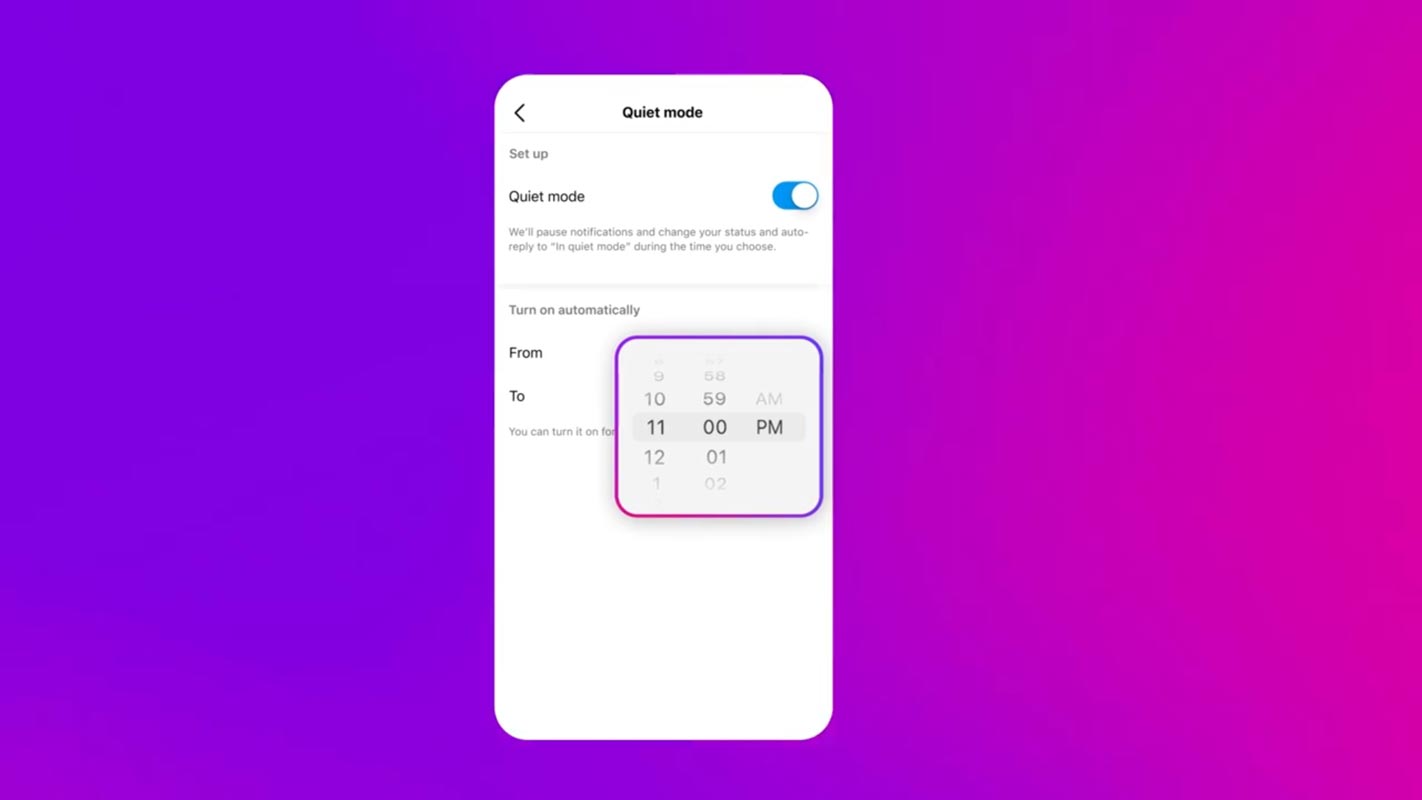
- Update your Instagram to the current latest version using Play Store or App Store.
- Open Settings in your Instagram App.
- Go to Settings. Choose Notifications.
- Enable Quiet Mode—setup From and to timings. Currently, there are no Dates and Week optimizations. In the Future, the app may get updates. But Usually, only time works the perfect way.
Reasons for the Introduction of Quiet Mode
One of the main reasons Instagram decided to introduce the Quiet Mode feature is to help users manage their time on the platform more effectively. With the constant flow of notifications, it can be easy to get caught up in the endless scroll and lose track of time. Quiet Mode allows users to take a step back and focus on other things without the constant distraction of notifications.
Additionally, Instagram has added other features to help users control their experience on the platform, such as muting accounts and filtering out offensive comments. These features give users more control over what they see on the platform and make it a safer space.
Instagram’s Quiet Mode feature is just one of many steps the company takes to improve the user experience. It’s a significant update for anyone looking to take a break from the constant flow of notifications and focus on other things. By giving users more control over their messages, they can better manage their time on the platform and have a more enjoyable experience.
Availability
The feature is available only in the US, UK, Ireland, Canada, Australia, and New Zealand. Instagram plans to expand the part to more countries in the Future.
Wrap Up
Instagram’s new Quiet Mode feature is a welcome addition to the platform. It allows users to control the notifications and schedule times when they do not want to receive any messages. This feature benefits users who want to manage their time on the platform more effectively and have a more enjoyable experience. Instagram’s other features, like muting accounts and filtering out offensive comments, make the app a safer space for everyone.

Selva Ganesh is a Computer Science Engineer, Android Developer, and Tech Enthusiast. As the Chief Editor of this blog, he brings over 10 years of experience in Android development and professional blogging. He has completed multiple courses under the Google News Initiative, enhancing his expertise in digital journalism and content accuracy. Selva also manages Android Infotech, a globally recognized platform known for its practical, solution-focused articles that help users resolve Android-related issues.




Leave a Reply