
Have you ever encountered an old photo that’s faded, blurry vacation memories, or low-quality images that don’t pop the way they should? You’re not alone. Thanks to the latest advancements in AI, restoring or enhancing images is no longer a task reserved for professional designers or expensive software. With the help of ChatGPT’s image tools, especially those available in the Pro or Plus Plan, you can now fix destroyed or low-quality images in just a few clicks. This comprehensive, step-by-step guide will walk you through exactly how to do that—no technical background is needed.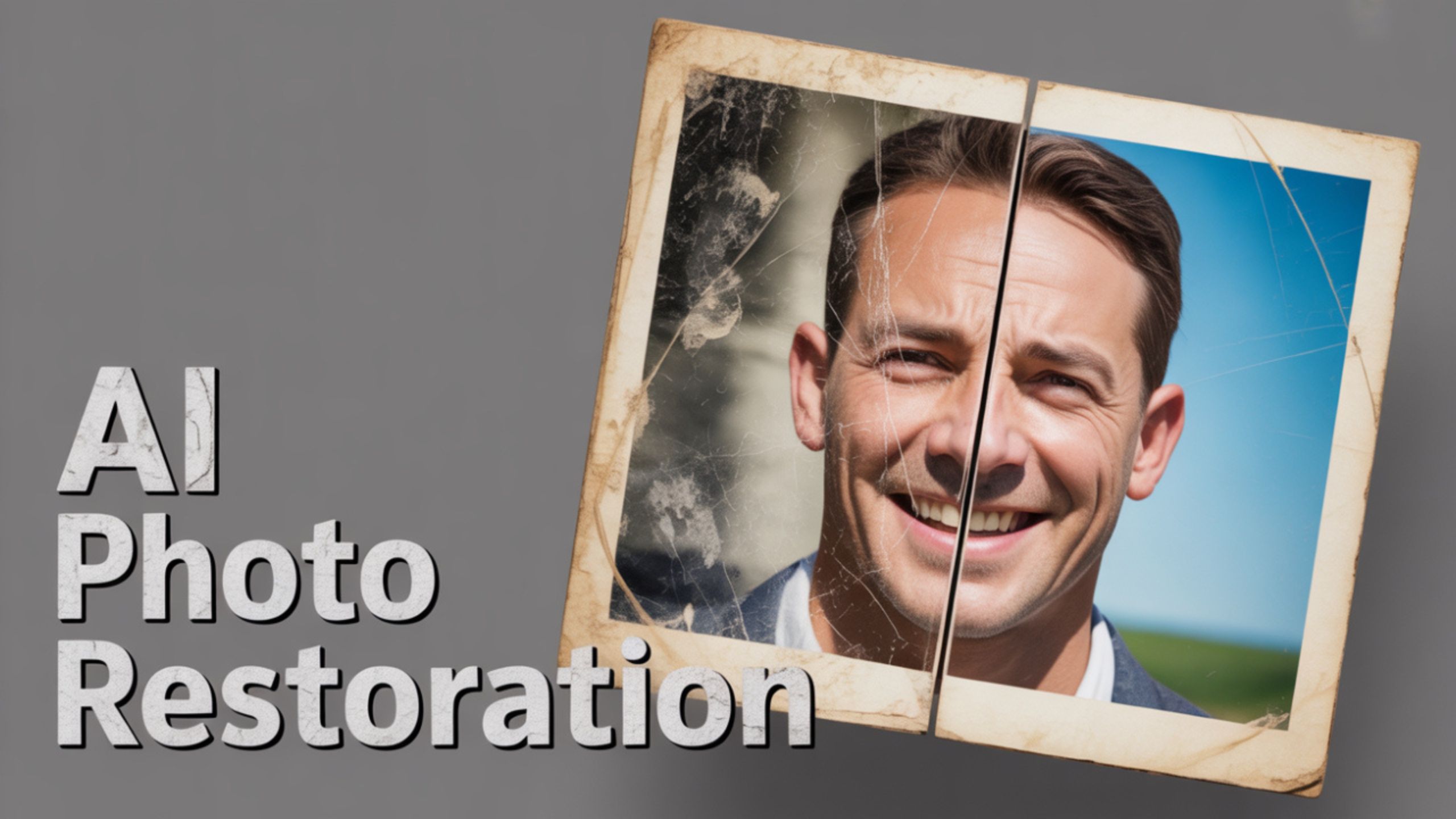
✅ Why Restore or Enhance Low-Quality Images?
Images capture moments we can’t always recreate. But over time, they fade, pixelate, or get damaged. Enhancing these visuals isn’t just about aesthetics—it’s about preserving memories, improving professional quality, and sharing high-impact visuals across social media, portfolios, or presentations.

Here are some key reasons to fix low-quality or damaged images:
- Preserve old memories: Think family albums and vintage photos.
- Improve professional visuals: For designers, marketers, photographers, and e-commerce sellers.
- Fix social media uploads: Grainy selfies or pictures with poor lighting.
- Create consistent branding: Ensure image clarity across websites and marketing materials.
What is ChatGPT’s Image Tool, and Why Use It?
ChatGPT’s image tool (available with GPT-4 in the Plus or Pro plan) isn’t just about interpreting images. It also allows users to upload pictures and enhance them using AI-powered prompts. Unlike traditional software like Photoshop, ChatGPT handles complex tasks automatically, such as deblurring, improving resolution, fixing artifacts, and restoring colors.
Benefits include:
- No design expertise is required.
- Rapid processing—results in seconds.
- Natural, conversational interface.
- Custom image instructions.
- Perfect for beginners and pros alike.
Tools You Need to Get Started
Before diving in, make sure you have access to the correct version of ChatGPT:
- Plan Required: ChatGPT Plus or Pro
- Model: GPT-4 with vision/image input capabilities
- Platform: ChatGPT in a web browser or app (ensure you have image upload access)
That’s it. You don’t need to download extra software or worry about plugins.
Step-by-Step: How to Fix Damaged or Low-Quality Images Using ChatGPT AI
Ready to restore your image? Follow these easy steps:
1. Open ChatGPT (Pro or Plus Plan Required)
Start by logging into your ChatGPT Plus or Pro account. If you’re using a free account, upgrade first to gain access to GPT-4 with image tools.
Tip: Look for the option to select GPT-4 and confirm it supports image input. If not, switch to the correct version.
2. Upload the Damaged or Low-Quality Image
Click the image upload button (paperclip or image icon), and choose the image you want to fix. This could be:
- A faded photo
- A screenshot with text that’s hard to read
- A pixelated or compressed file
- Or even a blurry group selfie
✅ Ensure your image is under 20MB for smooth upload.
3. Enter the Prompt to Fix the Image
Once the image is uploaded, you must type a simple yet powerful prompt. Here’s the standard one to begin with:
“Fix and refine the image.”
But you can go a step further and include custom instructions like:
- “Restore faded colors.”
- “Remove blur and sharpen details.”
- “Enhance resolution and remove noise.”
- “Fix overexposed lighting.”
- “Repair scratches and damage.”
The more specific your prompt, the better the output.
4. Let ChatGPT Work Its Magic
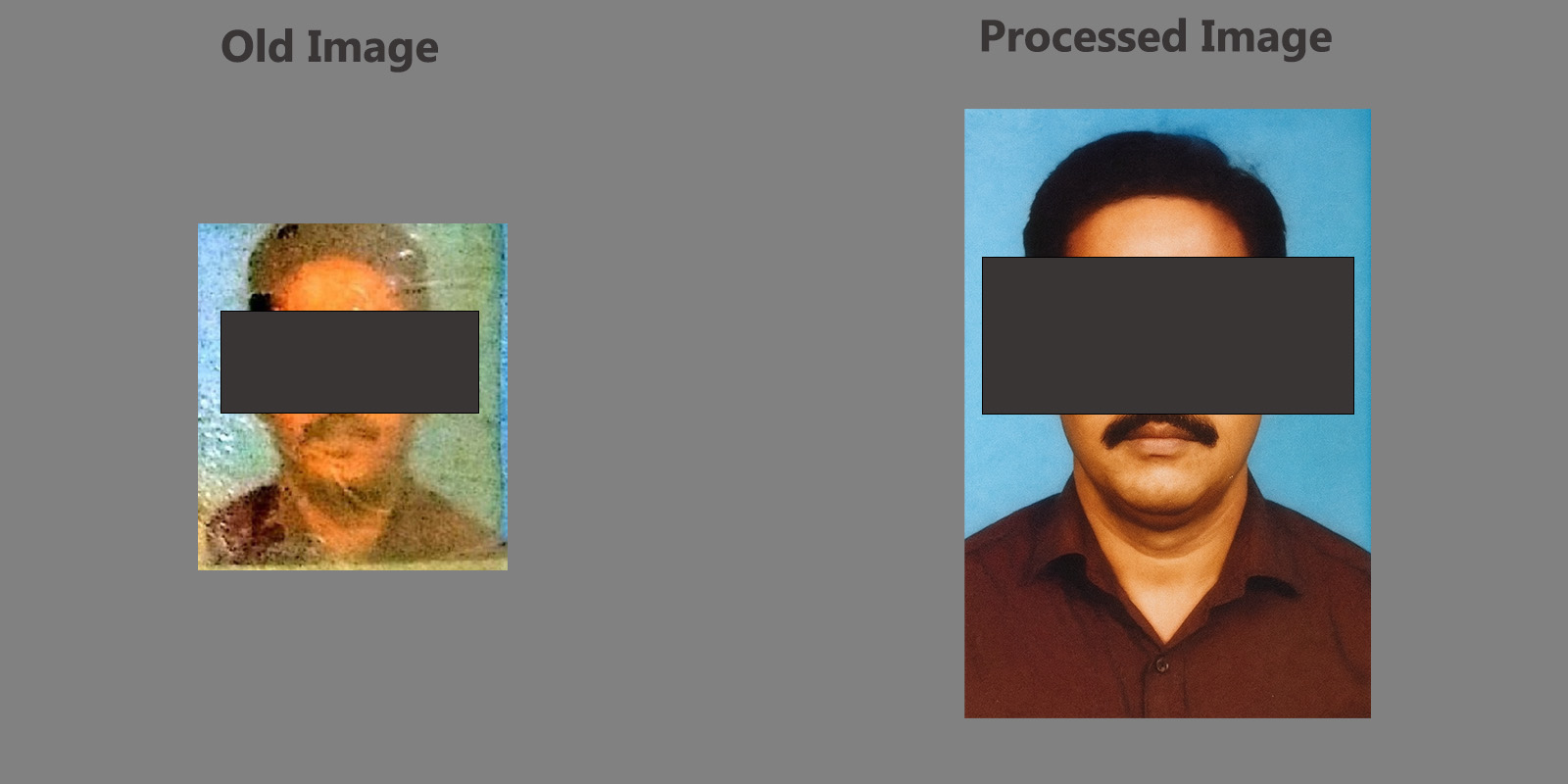
Now, sit back and let the AI process the image. ChatGPT will display a refined, enhanced version of your image within a few seconds.
Behind the scenes, the AI tool applies:
- Super-resolution techniques
- Image inpainting to fill in missing or damaged areas
- Color correction algorithms
- Edge and detail sharpening
- Noise reduction filters
All this is done without requiring you to adjust sliders or masks manually.
5. Preview and Download the Final Image
Once the AI generates the enhanced image:
- Right-click on it
- Choose “Save image as…”
- Select your destination folder and download your improved image
You can now use this image in presentations, websites, or print projects!
Examples of Prompts You Can Use
Here are a few real-world image prompt examples you can use depending on your goal:
GoalSample Prompt
Fix blur: “Sharpen and fix motion blur.”
Repair scratches: “Remove scratches and restore surface.”
Brighten photo “Enhance brightness and contrast naturally.”
Increase clarity: Improve clarity and definition, reduce pixelation.on”
Colorize black & white “Colorize this vintage black-and-white image realistically”
You can even ask for multiple adjustments in one:
“Sharpen image, restore color, and remove background blur.”
Use Cases Across Industries
Whether you’re a hobbyist, entrepreneur, or working professional, the use cases are vast:
Photographers
Fix RAW shots, adjust lighting, and sharpen portraits.
eCommerce Sellers
Enhance product images for better conversion on Amazon, Etsy, or Shopify.
Journalists & Historians
Restore archival photos for digital publication.
Families
Fix family albums, old scanned photos, and baby pictures.
Web Designers
Ensure images meet web resolution standards and maintain clarity.
Social Media Creators
Fix that one blurry TikTok thumbnail or Instagram post with low lighting.
Things to Keep in Mind
While ChatGPT’s image capabilities are robust, keep the following in mind for the best results:
- It’s not meant for ultra-high-resolution printing (yet).
- Multiple iterations might be needed for significantly damaged images.
- Always save a backup of your original image.
- If the results aren’t satisfying the first time, rephrase your prompt slightly or add more details.
Common Mistakes to Avoid
Here are some pitfalls to watch out for:
❌ Uploading images beyond size limits
❌ Using vague prompts like “fix image” with no extra context
❌ Expecting Photoshop-level fine-tuning (ChatGPT’s AI is automatic, not manual)
❌ Assuming it supports animated GIFs (stick to still images for now)
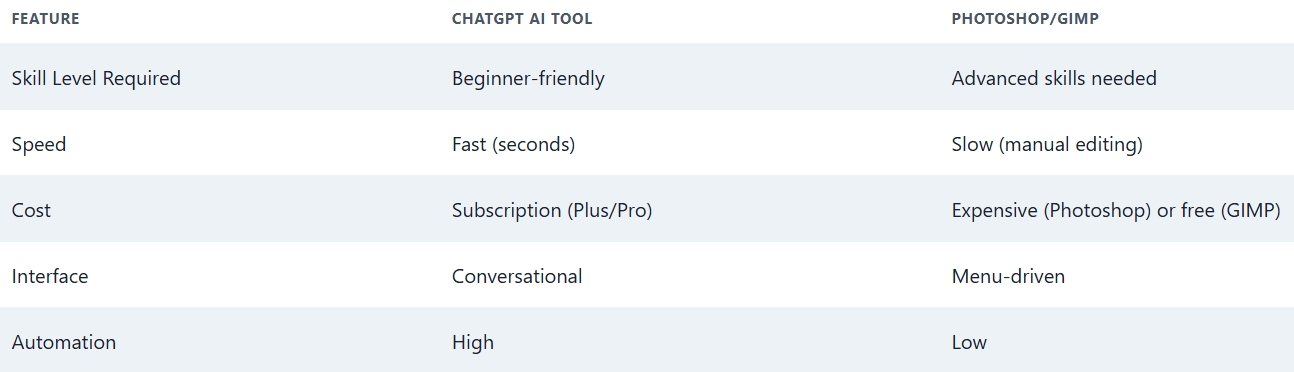
Comparison: ChatGPT vs Traditional Tools
Bonus Tip: Chain Prompts for Better Results
You can stack your prompts for iterative image improvements. For example:
- Upload image → Prompt: “Fix blur and sharpen edges”
- After the first result → Prompt: “Now improve lighting and remove background artifacts.”
- Final pass → Prompt: “Add color enhancement and increase contrast.”
This technique helps in progressively perfecting the image!
Wrap Up: Fixing Images Has Never Been Easier
Gone are the days when you needed Photoshop wizardry to fix a photo. ChatGPT’s AI image tools make it incredibly easy to repair, enhance, and restore even the most damaged or low-quality visuals. Whether it’s a cherished memory, a product listing, or a professional portfolio piece, you can now bring it to life with a few simple prompts.
So dig into your digital photo archive, upload that blurry image, and let AI do the heavy lifting. With the power of ChatGPT and a well-crafted prompt, you’re just seconds away from picture-perfect results.
Want to try it now? Open ChatGPT, upload your image, and type:
“Fix and refine image”
Let the transformation begin!

Selva Ganesh is a Computer Science Engineer, Android Developer, and Tech Enthusiast. As the Chief Editor of this blog, he brings over 10 years of experience in Android development and professional blogging. He has completed multiple courses under the Google News Initiative, enhancing his expertise in digital journalism and content accuracy. Selva also manages Android Infotech, a globally recognized platform known for its practical, solution-focused articles that help users resolve Android-related issues.




I’ve started restoring my travel albums with this. Great tool!
Every step was clearly explained—makes it so easy.
Worked even better than some paid tools I’ve tried.
Loved the detailed walkthrough—made it super easy for a beginner like me.
This guide really helped me bring life back to some old family photos!
I had no idea ChatGPT could be used for fixing images. Awesome!
I fixed an old wedding photo. My parents are thrilled.
I fixed a blurry picture of my dog from years ago. Almost cried!
Exactly what I needed. Well-written and useful.
I enhanced some childhood albums. Looks like new!
Finally, something that works for people who aren’t Photoshop experts.
This is a game-changer for bloggers like me. No more bad images!
Tried this method today, and it worked flawlessly. Thanks for the steps.
AI is truly changing how we handle old photos. This article proves it.
Was skeptical at first, but the results blew me away.
Didn’t think AI could do this so well. Thanks for the tips!
My scanned childhood pictures have never looked this good. Thank you!
Never thought I’d enjoy editing pictures, but here we are.
Photos from my grandparents’ era are clearer now.
My vacation pics from 2010 finally look clear again. Appreciate the guide!