
Turn On Google Messages Protection to Block Scams-Fraudulent text messages have become one of the most common ways for scammers to trick people out of money and personal information. These fake texts often look like official bank alerts, delivery notifications, or urgent requests from family members. To combat these evolving tactics, Google introduced an Enhanced Protection feature in the Google Messages app on Android.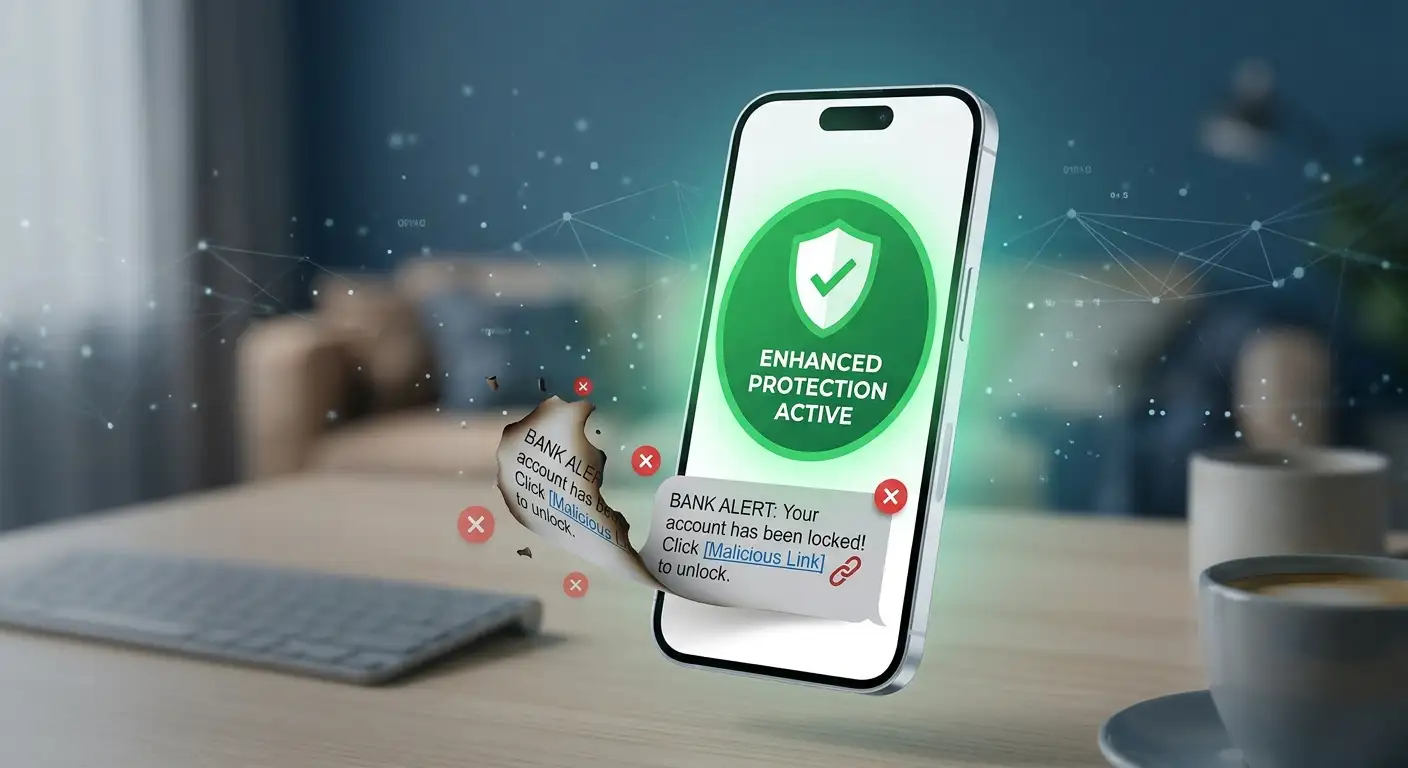
This upgraded security layer goes beyond basic spam filtering to detect suspicious behavior, analyze dangerous web links, and stop text scams before they cause harm. Fortunately, turning on this setting takes less than a minute and requires no technical expertise.

What Is Google Messages Enhanced Protection?
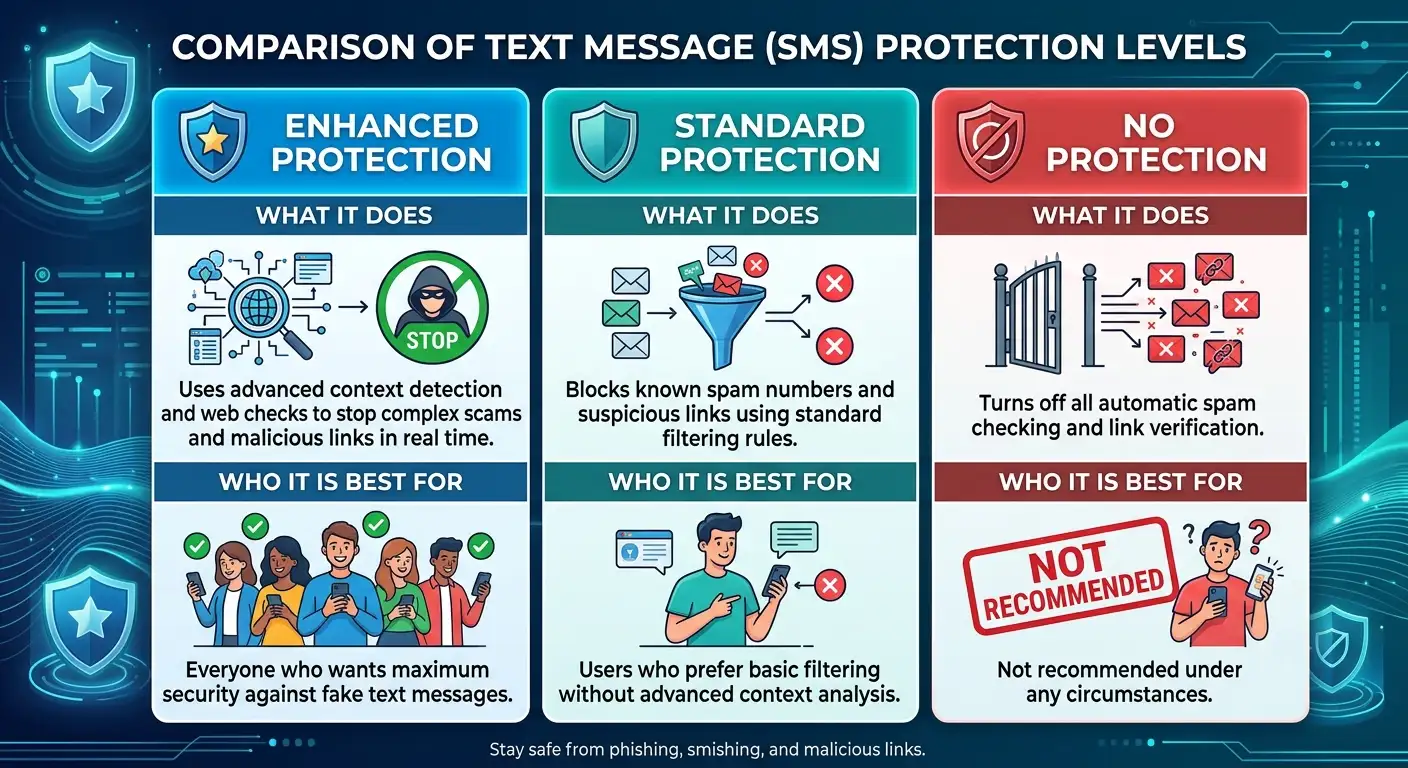
Google Messages has long included Standard Protection, which filters out obvious junk texts and known spam numbers. Enhanced Protection adds a smarter, more proactive layer of security specifically designed to catch complex text scams.
Instead of relying solely on a list of reported phone numbers, this feature analyzes context. When an unknown sender messages you, the system examines the text structure to determine whether the sender might be attempting a scam. It also checks any web links included in texts to ensure they lead to legitimate websites before you open them.
The entire process focuses on privacy. Analysis happens securely using privacy focused processing on your device and encrypted cloud protection, ensuring your private conversations remain private while keeping scams out of your inbox.
Why Text Scams Are Getting Harder to Spot
Traditional spam messages were usually easy to recognize due to poor spelling, random capital letters, or obvious fake claims. Modern text scams, often called smishing, are much more sophisticated.
Scammers regularly use techniques that make their texts look completely convincing:
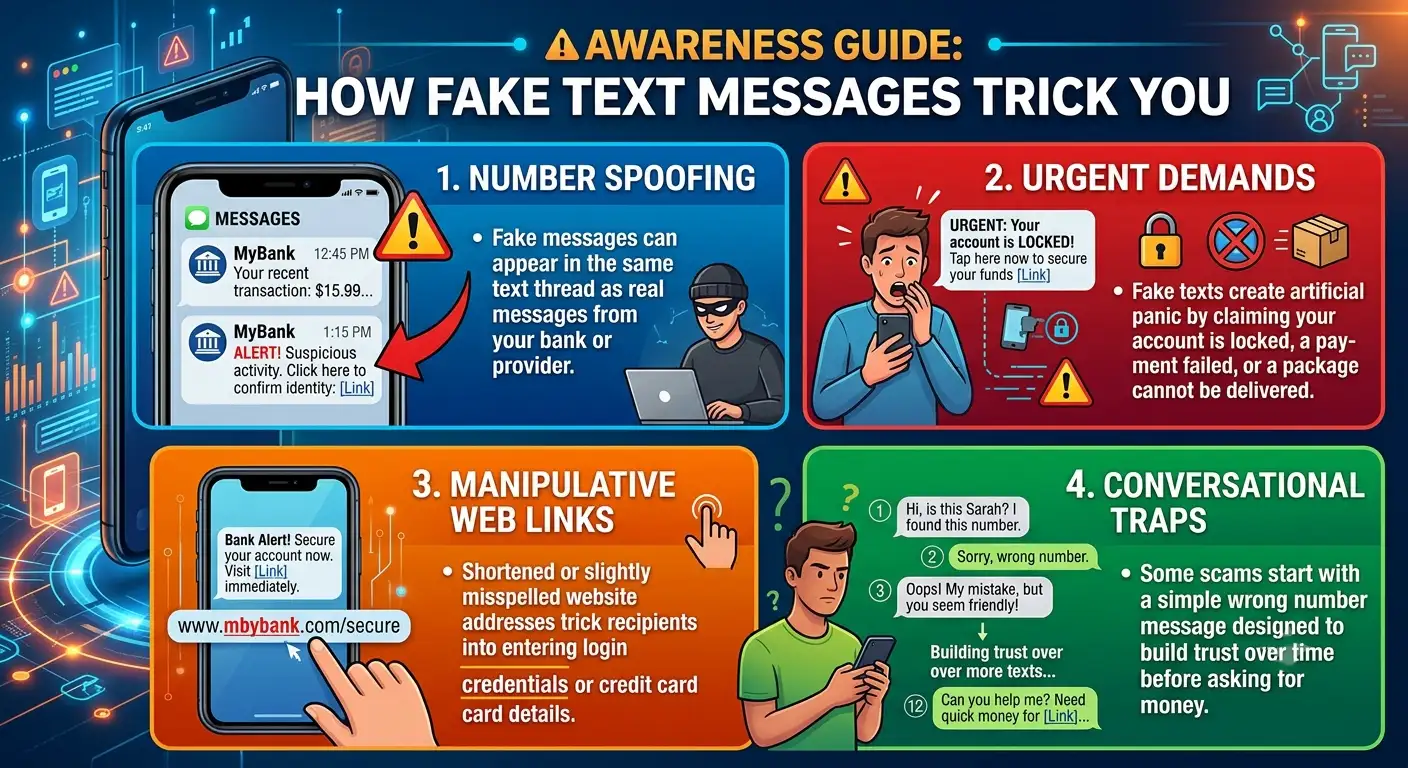
Because these messages look natural, standard spam filters can occasionally miss them. Enhanced Protection provides the additional scanning power needed to identify these tactics.
Step by Step Guide: How to Turn On Enhanced Protection
Enabling this feature in Google Messages is straightforward. Follow these steps on your Android device:
Step 1: Open Google Messages
Locate and open the Google Messages app on your home screen or app drawer. Make sure you are using the official Google messaging app, which is pre-installed on most modern Android devices.
Step 2: Access App Settings
Tap your Profile Picture or account initials located in the top right corner of the search bar at the top of your screen. A pop-up menu will appear. From this menu, tap Messages settings.
Step 3: Open Protection & Safety
Scroll down the settings list and tap on Protection & safety. This menu controls all security features related to incoming texts and links.
Step 4: Choose Enhanced Protection
Inside the protection settings, you will see security tier choices. Select Enhanced protection.
Once selected, your app immediately begins using advanced context analysis and real time web checks for incoming texts from unknown numbers.
Understanding the Security Levels in Google Messages
Google Messages offers three distinct protection levels. Understanding how they differ helps you choose the right setup for your needs:
Key Features That Keep You Safe
Enhanced Protection combines several security tools to defend your device against text fraud:
Real-Time Scam Detection
When you receive a message from a sender who is not saved in your contacts, the app evaluates the context of the conversation. If a message fits patterns typical of impersonation or financial fraud, Google Messages alerts you before you reply.
Advanced Link Verification
Scammers almost always include a web link to direct you to a fake website. Enhanced Protection checks incoming web addresses against safety database signals before you tap them, warning you if a link is dangerous or deceptive.
Redesigned Safety Warnings
If a text seems suspicious, the app displays prominent warning banners. These warnings give you extra time to pause, review the sender, and confirm whether the message is genuine before taking any action.
How Privacy Is Handled
A common concern when enabling security features is whether private conversations are being monitored. Google designed Enhanced Protection with privacy protection at its core.
Most spam and scam checks take place directly on your phone using on-device processing. When encrypted checks are necessary to identify complex scams, data is handled within isolated, secure digital environments.
Google does not store your name or permanently link message contents to your personal profile. Furthermore, regular personal texts sent between users with rich communication features enabled remain end-to-end encrypted, meaning no one outside the chat can read the message content.
Simple Habits to Avoid Text Scams
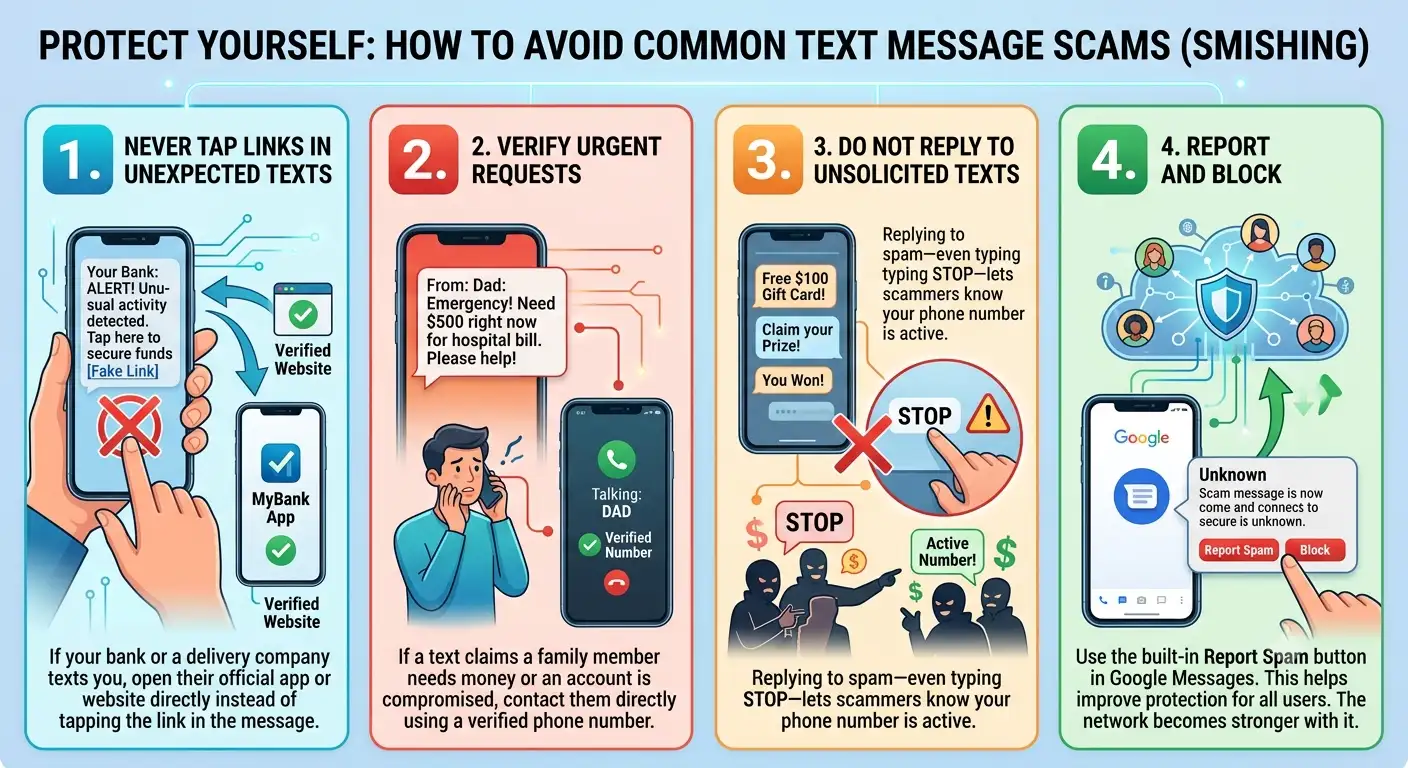
While turning on Enhanced Protection adds a strong technical defense, maintaining good security habits ensures complete protection:
Frequently Asked Questions
1. Is Google Messages Enhanced Protection free to use?
Yes, Enhanced Protection is a free built-in security feature available in the official Google Messages app on supported Android devices.
2. Does Enhanced Protection read all my personal text messages?
No, personal messages are not read by humans. Most security checks happen on your device, and encrypted protection runs inside secure computing environments without attaching data to your personal account.
3. Will turning on Enhanced Protection slow down my phone?
No, the background safety checks are lightweight and designed to run efficiently without impacting phone performance or battery life.
4. What should I do if a scam message still gets through?
If a scam text reaches your inbox, do not tap any links. Tap the options menu in the top right of the text thread and select Block & report spam.
5. Can Enhanced Protection block legitimate texts from my contacts?
Enhanced Protection focuses its advanced checks primarily on unknown senders. Messages from people saved in your contact list pass through normally.
6. Why do I not see the Enhanced Protection option in my settings?
Make sure your Google Messages app is updated to the latest version via the Google Play Store. Features roll out gradually across different regions and Android device models.
7. Does this feature work when my phone is offline?
Basic on-device spam detection works without an internet connection. However, real-time link checks and advanced cloud detection require active mobile data or Wi-Fi.
8. What is the difference between Standard and Enhanced Protection?
Standard Protection filters known spam numbers using basic detection rules. Enhanced Protection adds advanced context analysis and real-time safety checks for web links.
9. Will Enhanced Protection stop spam phone calls as well?
No, this feature specifically protects the Google Messages app. To block spam phone calls, enable spam call protection inside your phone’s default Phone app settings.
10. Do I need to turn this setting on again after updating my phone?
No, once you select Enhanced Protection in your settings, your choice remains active even after app or system updates.

Selva Ganesh is a Computer Science Engineer, Android Developer, and Tech Enthusiast. As the Chief Editor of this blog, he brings over 10 years of experience in Android development and professional blogging. He has completed multiple courses under the Google News Initiative, enhancing his expertise in digital journalism and content accuracy. Selva also manages Android Infotech, a globally recognized platform known for its practical, solution-focused articles that help users resolve Android-related issues.




Leave a Reply