
We all know the frustration of a sluggish smartphone. Over time, even the most capable Android devices can begin to lag, stutter, and struggle with basic multitasking. While many tech blogs immediately suggest purchasing a newer model or paying for premium optimization software, we have discovered a highly effective method to increase Android mobile speed up to 50 percent for free.
By utilizing advanced, built-in system configurations and leveraging underutilized storage blocks, we can breathe new life into older hardware. We do not need to root the device, nor do we need to risk voiding the manufacturer’s warranty. Through strategic virtual memory management and background process regulation, any user can achieve a dramatically smoother user interface.

The Reality of Android RAM Bottlenecks
Android operating systems rely heavily on Random Access Memory (RAM) to keep applications running smoothly in the background. When we open multiple resource-intensive applications—such as high-definition mobile games, social media feeds, and web browsers—the system RAM fills up rapidly. Once physical memory capacity is breached, the Android OS begins aggressively closing background tasks. This results in jarring reloads, app crashes, and noticeable micro-stutters.
To combat this hardware limitation, we can turn to virtual memory management. In computing, when physical RAM is exhausted, systems use a portion of the permanent storage drive as an extension of memory. On Android, this concept is implemented through a specialized environment known as swap space. By configuring this correctly, we can drastically reduce the pressure on physical memory chips.
Step 1: Expand RAM Capacity with Swap No Root
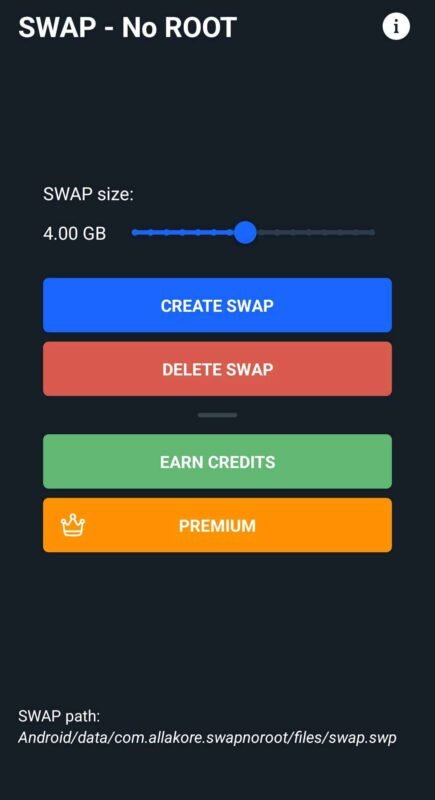
The absolute most effective way to eliminate memory bottlenecks without spending money is to create a dedicated swap file. We achieve this by deploying an application called Swap – No Root, which is readily available on the Google Play Store. This utility allows us to allocate a portion of the internal storage drive to act as auxiliary operational memory.
How Virtual Swap Memory Works
When the physical memory of the smartphone fills up, the Android operating system looks for inactive data blocks. Instead of terminating the application entirely, the system compresses these inactive blocks and moves them into the designated swap file located on the internal flash storage. When we reopen that specific app, the data is instantly pulled back into the primary memory.
Step-by-Step Swap Configuration
- Download and Install: Navigate to the official Google Play Store, search for Swap – No Root, and install the utility.
- Launch and Grant Permissions: Open the application. It operates entirely within the user space, meaning no root access or bootloader unlocking is required.
- Allocate Swap Size: Locate the size configuration field. To achieve optimal performance gains, we must input exactly 4096 MB (which equates to 4GB of Swap Memory).
- Create the File: Tap on the “Create Swap” button. The application will take a few moments to generate the secure, high-speed swap file within the hidden directory of the internal storage.
Important Storage Note: Because we are dedicating 4GB of internal storage to function as virtual memory, ensure that your device has at least 8GB to 10GB of free local storage space before initiating this process. Solid-state storage requires breathing room to maintain peak read and write velocities.
Step 2: Optimize Android Developer Settings
Once the virtual memory pool is established, the next crucial phase involves modifying how the Android kernel manages background activities. By default, Android allows dozens of hidden processes to run concurrently. These processes drain processing cycles from the Central Processing Unit (CPU) and eat up battery life. We can halt this unnecessary drain by accessing hidden system configurations.
Unlocking the Developer Options Menu
Because these settings are powerful, Google hides them from standard users to prevent accidental misconfiguration. We can safely reveal them using the following sequence:
- Open the primary Settings application on the Android device.
- Scroll down to the bottom and select About Phone or System Info.
- Locate the entry labeled Build Number.
- Tap on the Build Number sequentially seven times. A toast notification will appear stating, “You are now a developer!”
Regulating Background Processing Thresholds
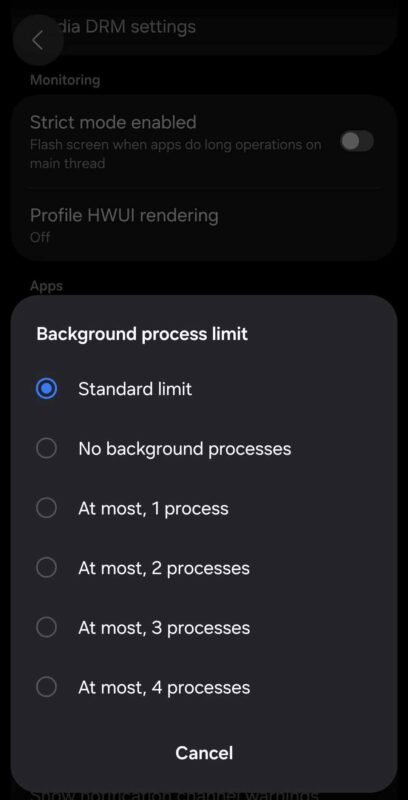
With the hidden menu now active, we return to the main settings page and select the newly revealed Developer Options submenu. Scroll down through the advanced options until reaching the Apps category.
- Locate the setting titled Background process limit.
- By default, this is configured to “Standard limit,” which allows virtually unrestricted background operations.
- Tap the option and change the threshold to At most 2 processes.
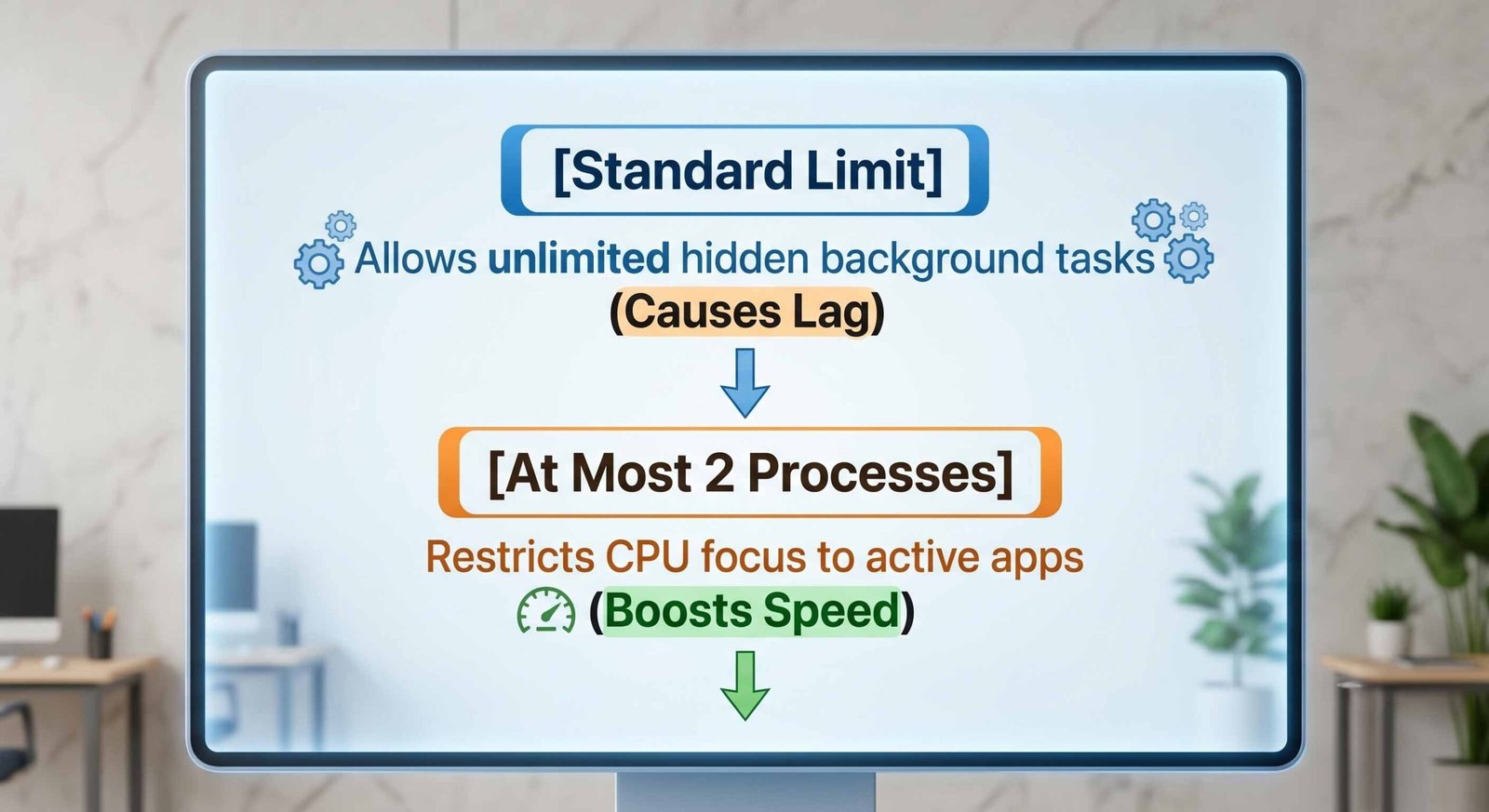
By enforcing this strict rule, we command the Android system to focus its computational power exclusively on the application actively displayed on the screen, plus a maximum of two underlying tasks. This eliminates background micro-stutters and maximizes frame rates across the entire user interface.
Why This Specific Dual Combination Works So Well
Many optimization guides recommend doing only one of these steps, but the true 50 percent speed increase happens when these two specific techniques are executed together. They form a complementary technical loop.
When we limit the system to at most 2 processes, we prevent rogue applications from hogging CPU cycles. Concurrently, the 4GB of swap memory ensures that the two allowed background processes, alongside core system UI elements, never run out of memory space. The smartphone ceases to choke on data management because the hardware boundaries have been fundamentally optimized.
Additional Maintenance Tips for Peak Android Performance
While the swap file and developer configurations do the heavy lifting, maintaining this newfound velocity requires a baseline level of device hygiene. We recommend practicing these quick habits to ensure the performance gains remain permanent.
Clear System Cache Partitions Regularly
Over months of use, applications accumulate millions of temporary files known as cache. While cache is designed to speed up load times, a bloated, corrupted cache system slows down file indexing. Utilize the built-in storage cleaner inside the phone’s settings once every two weeks to sweep away unnecessary residual data.
Uninstall Unused Carrier Bloatware
Many smartphones come pre-installed with applications selected by cellular service providers. These applications frequently run invisible sync loops that drain battery power and processing power. Navigate to your apps manager and disable or uninstall any application that has not been opened in the last thirty days.
Frequently Asked Questions
Will allocating 4GB of swap memory damage my internal storage drive?
No. Modern smartphone internal storage drives utilize highly durable flash chips designed to handle millions of read and write cycles. Allocating a 4GB swap space will not noticeably degrade the lifespan of your hardware.
Do I need to recreate the swap file every time I reboot my phone?
No. Once the Swap – No Root application creates the file in your internal directory, it remains persistent. The Android system will automatically recognize and utilize the virtual memory space every time the device powers on.
Will restricting background tasks prevent me from receiving notifications?
Important real-time notifications like WhatsApp messages, emails, and text alerts rely on high-priority push servers integrated directly into Google Play Services. Restricting the background process limit will not block these critical incoming alerts.
What happens if I change the background process limit back to the standard setting?
The device will revert to its original factory behavior. If you notice that your favorite multitasking routines require more active apps, you can return to the developer menu at any time and adjust the setting.
Does this speed optimization trick require internet access to function?
Internet access is only required initially to download the Swap – No Root tool from the Google Play Store. The actual optimization, file generation, and system tweaks run completely offline inside your local device.
Can I allocate more than 4GB of swap memory if I have a lot of free space?
While you can theoretically create larger files, 4GB of Swap Memory represents the sweet spot for performance optimization on Android devices. Allocating more space yields diminishing returns and consumes storage that could be better used for photos and media.
Will these performance tweaks drain my phone’s battery faster?
Quite the opposite. By limiting background processes to a maximum of two, the CPU does not have to work as hard or ramp up its clock speeds as frequently. This reduction in unnecessary processing loops often results in improved battery longevity.
Is it safe to leave Developer Options turned on indefinitely?
Yes. Leaving the developer options menu enabled is completely safe. As long as you do not alter unknown settings outside of the Background process limit, your phone will operate securely and smoothly.
Why doesn’t Android enable these settings by default out of the box?
Manufacturers build smartphones to appeal to the widest possible audience, setting configurations to accommodate extreme multitaskers who want dozens of apps frozen in place. Our method prioritizes raw speed, responsiveness, and fluid interface animations.
Does this optimization process work on tablets as well as smartphones?
Yes. Any device running the Android operating system—including tablets, streaming boxes, and media players—can utilize this same method to unlock significant speed improvements.

Selva Ganesh is a Computer Science Engineer, Android Developer, and Tech Enthusiast. As the Chief Editor of this blog, he brings over 10 years of experience in Android development and professional blogging. He has completed multiple courses under the Google News Initiative, enhancing his expertise in digital journalism and content accuracy. Selva also manages Android Infotech, a globally recognized platform known for its practical, solution-focused articles that help users resolve Android-related issues.





Leave a Reply