
In today’s smartphone landscape, personalization reigns supreme. Samsung recognizes this demand, allowing users to create individualized profiles on their upper mid-range and premium mobile devices like the Samsung Galaxy A series and S series. This functionality empowers users to tailor their device experience to their preferences by configuring personalized settings within distinct profiles. Yet, navigating the setup process can pose challenges, particularly for those unfamiliar with it. In this comprehensive guide, we’ll lead you through the step-by-step process of establishing user profiles on your Samsung mobile device, ensuring that you can seamlessly unlock the full potential of customization and convenience that these profiles offer.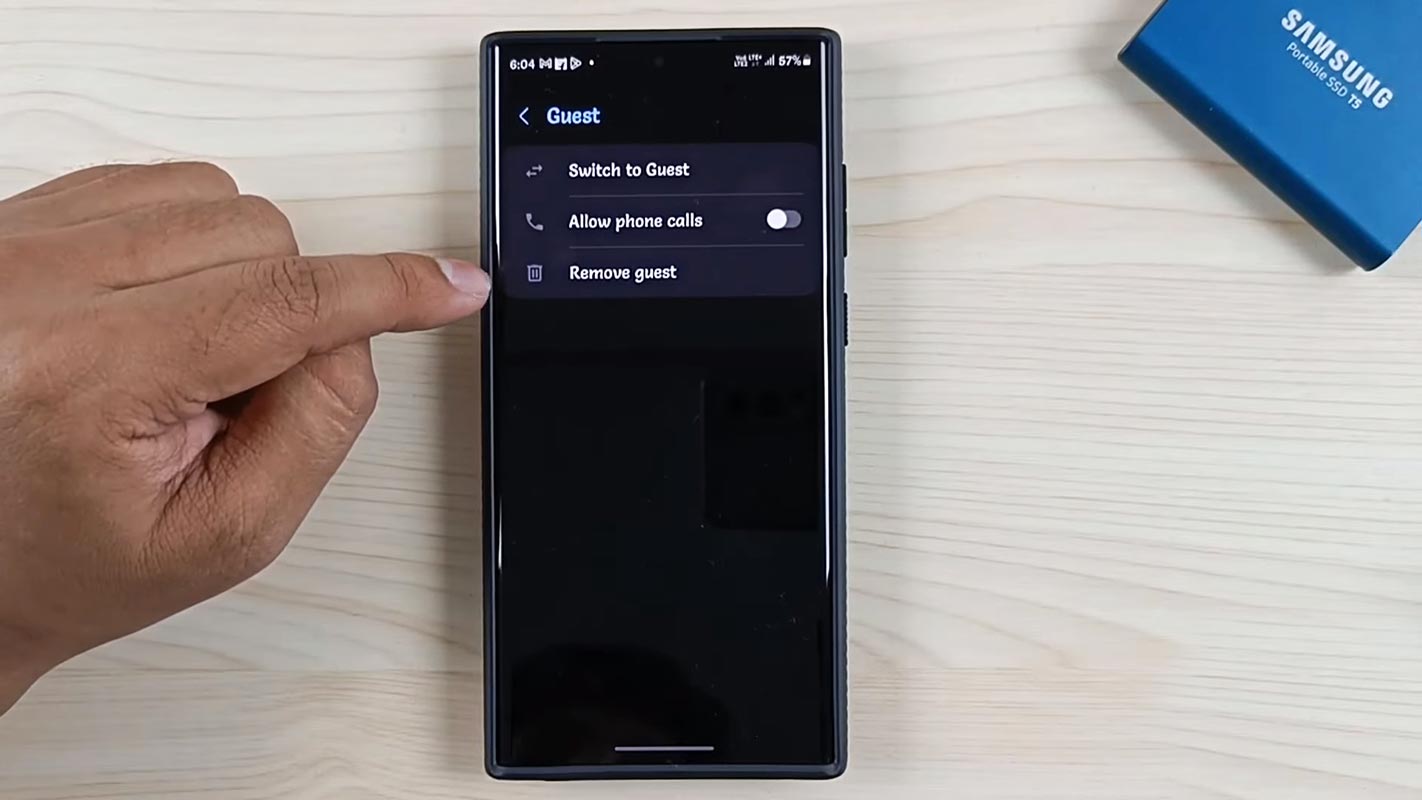
Add Multiple Users in Samsung Galaxy Mobiles
Accessing User Settings
To begin, you’ll need to access the user settings on your Samsung device. Here’s how:

- Navigate to Settings: From the Home screen, tap the Apps icon and select Settings.
- Accounts and Backup: Scroll until you find the “Accounts and Backup” option under the Settings tab.
- Adding a New User: To add a new user profile, tap “Users->Add User,” then select “User” and follow the on-screen prompts to set up the new profile.
Alternative Method: Using ADB
If you can’t find the Users option in your settings, you can use the following method:
Requirements
Before you proceed, make sure you have the following:
- ADB files installed on your PC or use ladb available on the Play Store.
Getting Started
Follow these steps to set up user profiles using ADB:
- Setup ADB: Install ADB files on your PC by following the instructions.
- Use ADB Commands:
- Connect your Samsung device to your PC via USB.
- Open a command prompt window on your PC.
- Enter the following commands:
- adb devices (to check device connectivity)
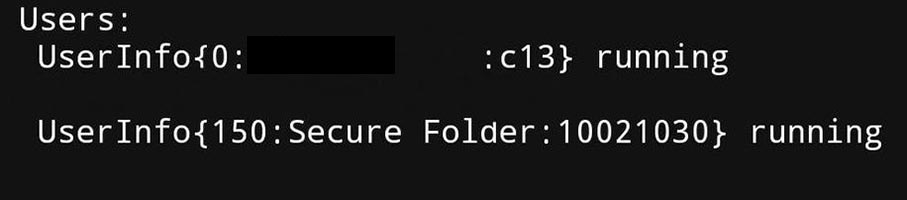
- adb shell pm list users (to list existing users)
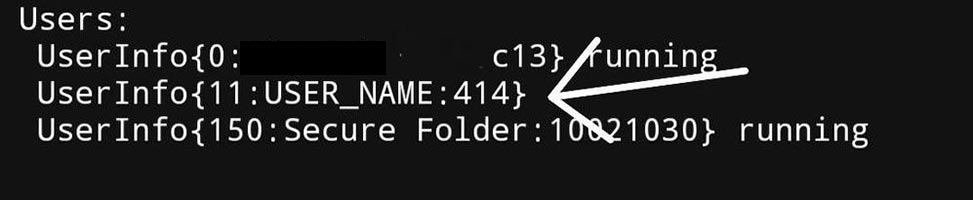
- adb shell pm create-user –guest Name (replace “Name” with the desired guest profile name)
- adb shell pm list users (to verify the new user has been added)
- adb shell am switch-user [UserID] (replace [UserID] with the ID of the new user)
Limitations and Issues
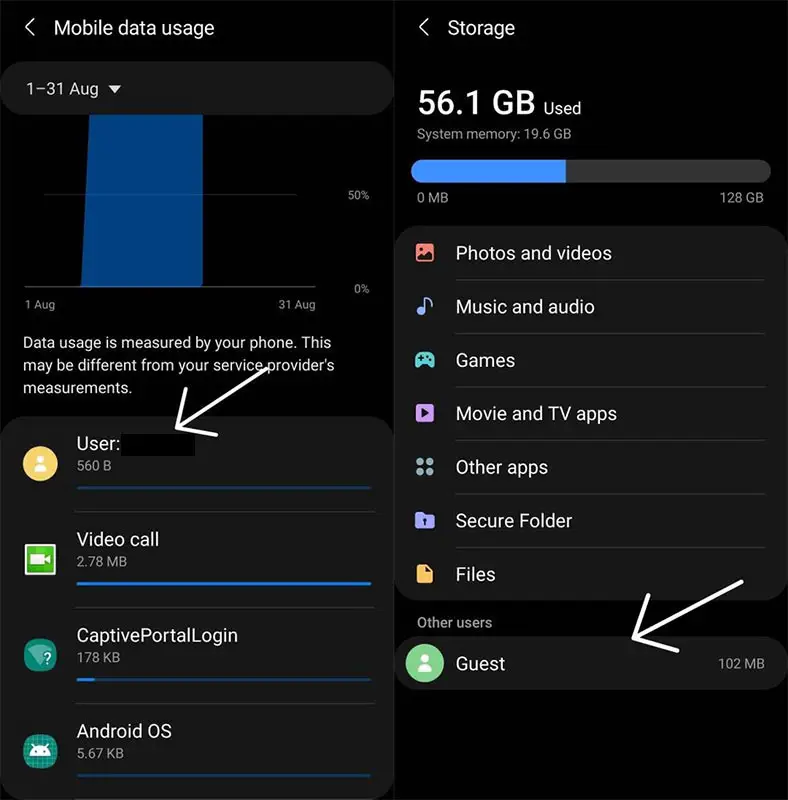
Compare with Official Users Settings. This ADB method Has its restrictions. While setting up user profiles can enhance your device’s usability, it’s essential to be aware of some limitations and issues:
- Limited to One Profile: Samsung devices typically allow only one additional user profile, usually the Guest profile.
- Temporary Guest Profile: The Guest profile is meant to be temporary and may have limited functionality.
- Storage Limitations: Guest profiles may have limited storage capacity, affecting app installations and usage.
- Restricted Permissions: Some features, such as installing apps outside the Play Store or accessing certain system settings, may be restricted in guest profiles.
- No Default User Switching: Switching back to the default user may require a device restart.
FAQs
Can I create multiple user profiles on my Samsung device?
No, Samsung devices typically allow only one additional user profile, usually the Guest profile.
Can I customize the settings for each user profile?
Yes, you can customize settings independently for each user profile, including wallpaper, app preferences, and more.
How do I switch between user profiles?
To switch between user profiles, go to Settings > Users and select the desired profile. Alternatively, use the ADB command adb shell am switch-user [UserID].
Can I delete a user profile once it’s created?
Yes, you can delete user profiles from the Users Settings menu on your Samsung device.
Are user profiles available on all Samsung mobiles?
User profiles are typically available only on Samsung mobiles in the upper mid-range and high-end range, such as the Galaxy A series and S series.
Wrap Up
Setting up user profiles on your Samsung device boosts privacy and expands customization possibilities. Whether dividing device access among family members or creating a temporary guest profile, understanding how to establish user profiles proves invaluable. By adhering to the steps in this guide, you can effortlessly generate and oversee user profiles on your Samsung mobile device.
This capability offers many advantages, from safeguarding personal data to tailoring device settings to individual preferences. Users can enjoy a personalized experience on the same device with user profiles, ensuring a seamless transition between users while maintaining privacy and security. So, whether configuring work settings, play, or sharing, mastering the art of setting up user profiles empowers you to optimize your Samsung device’s functionality to suit your lifestyle and preferences.

Selva Ganesh is a Computer Science Engineer, Android Developer, and Tech Enthusiast. As the Chief Editor of this blog, he brings over 10 years of experience in Android development and professional blogging. He has completed multiple courses under the Google News Initiative, enhancing his expertise in digital journalism and content accuracy. Selva also manages Android Infotech, a globally recognized platform known for its practical, solution-focused articles that help users resolve Android-related issues.




Setting up user profiles has drastically improved my phone organization. Thanks for sharing such a practical and well-structured tutorial.
Samsung continues to impress with deep software features on their devices. This guide made setting up my custom profiles completely effortless.
I needed a reliable way to manage multiple users on my phone. Your article delivered the exact step-by-step solution I was looking for.
Personalization is definitely reigning supreme in today’s mobile landscape. Your breakdown of the setup process was exceptionally clear.
I love how easy it is to switch between profiles on my Samsung device now. Thank you for providing such a well-written walkthrough.
Device profiles are an essential feature for modern power users. Your guide makes it extremely easy for anyone to take advantage of them.
The clarity of this tutorial is top-notch. I followed every step and now my Samsung phone is tailored precisely to my preferences.
Customizing individual profiles has made sharing my device hassle-free. Thanks for putting together such a comprehensive and useful guide.
I never knew my Galaxy A phone could handle distinct user profiles so well. Your article explained the setup steps wonderfully.
Personalization features like user profiles add massive value to modern phones. Your tutorial helped me set mine up in no time flat.
Setting up a separate profile for my sibling was surprisingly easy. Thank you for writing such a clear and helpful instruction manual.
It is impressive how much control Samsung gives users over their devices. Excellent guide on navigating the profile creation process.
I always get lost in deep settings menus on my phone. Your step-by-step directions made configuring user profiles remarkably simple.
Smartphone customization is one of my favorite topics to read about. Your walkthrough made setting up my Galaxy device an enjoyable task.
Keeping work and personal environments separate on one phone is a lifesaver. Great article explaining the Samsung profile setup in detail!
The profile setup process was much easier than I initially anticipated. Your guide provided the perfect roadmap to get everything working.
I am obsessed with customizing my phone, so this feature is right up my alley. Thank you for showing us how to unlock its full potential.
Samsung phones offer unmatched versatility in the Android ecosystem. Your guide helped me configure my multiple profiles without any hiccups.
Being able to tailor my device preferences per profile is fantastic. Thanks for providing such a thorough and well-explained tutorial.
I set up a secondary profile for traveling, and it works wonderfully. Excellent instructions that got straight to the point!