
We aim to demystify the process of utilizing Samsung Multi Control on any PC, regardless of whether it’s a Samsung Galaxy Book. This unique functionality allows you to connect your Samsung Galaxy Book to a Galaxy phone seamlessly, allowing you to navigate and control both devices effortlessly using a Bluetooth mouse and keyboard. Beyond the intuitive control, the feature also streamlines data transfer between your phone and tablet, ensuring a smooth and efficient exchange of information. So, suppose you’ve been curious about expanding the capabilities of your non-Galaxy Book PC. In that case, this step-by-step walkthrough will empower you to unlock the potential of Samsung Multi Control.
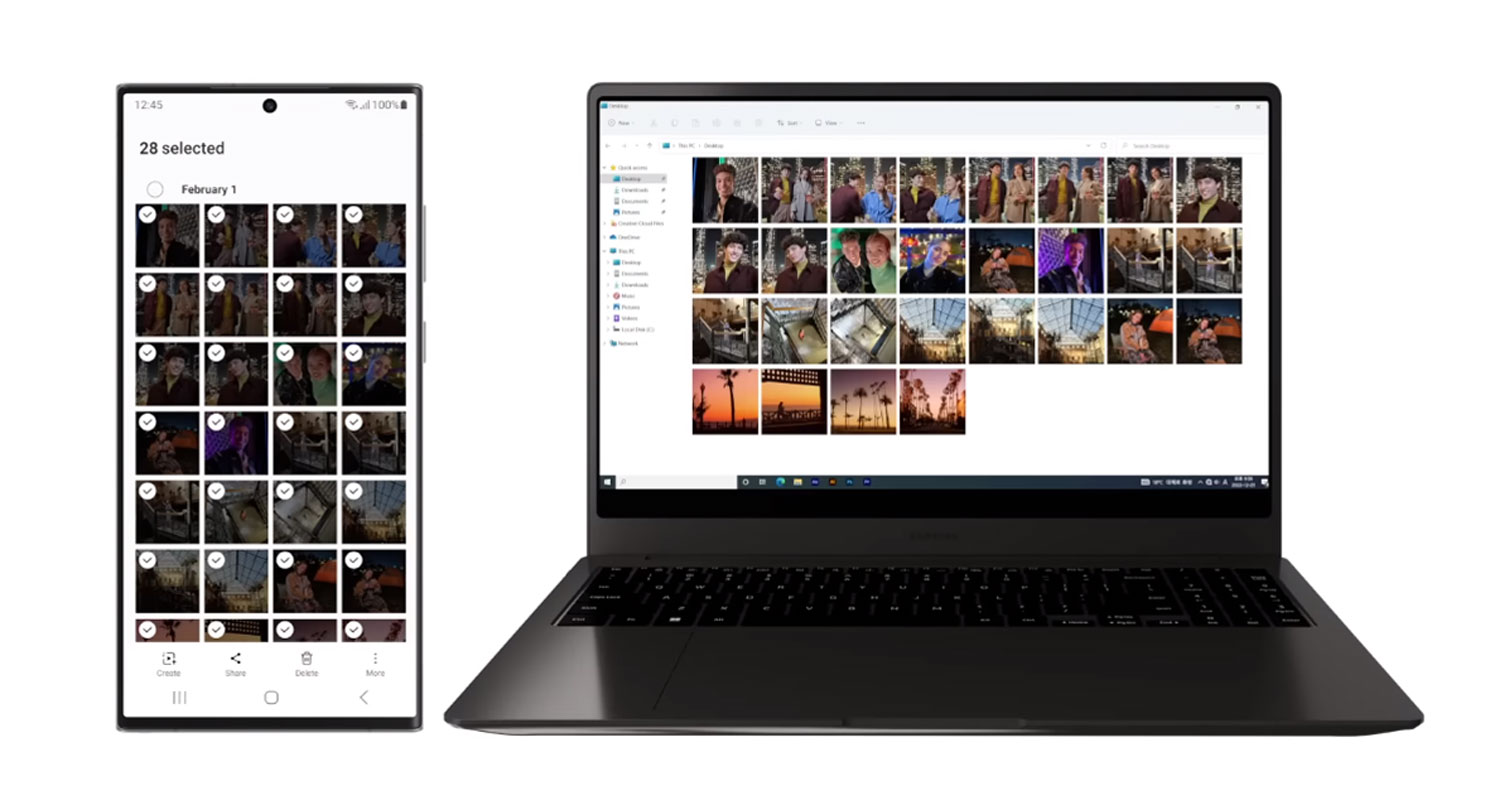

Bridging the Gap
Despite the popularity of Samsung laptops, many users prefer non-Samsung PCs. Unfortunately, Samsung doesn’t make the Multi Control feature available on these devices, but fear not! We’re here to bridge that gap and empower non-Galaxy Book users to experience Samsung Multi Control on their PCs.
Step-by-Step Guide
- Start downloading and installing the most recent “Samsung System Support Service” version from the Microsoft Update Catalog.
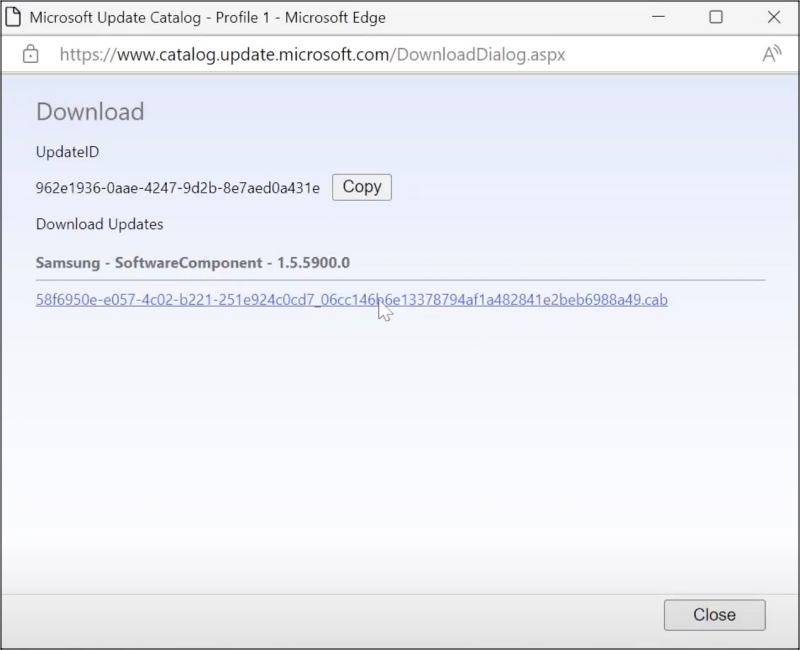
- After downloading, extract the “Samsung System Support Service” to c:\SamSysSupSvc\.
- Establish a Bluetooth connection between your Samsung device and your PC.
- Launch “Device Manager,” expand “Other Devices,” right-click on “SamSysSupSvc” (or “CONTINUITY_MSG_SPP”), and select “Update Drivers.”
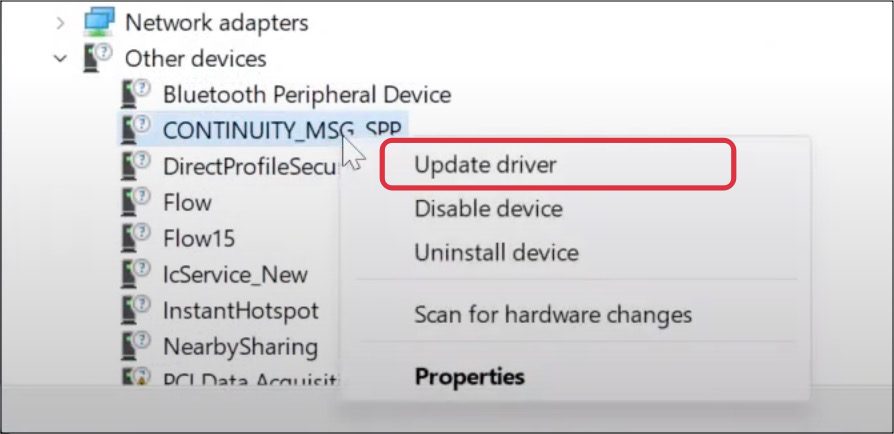
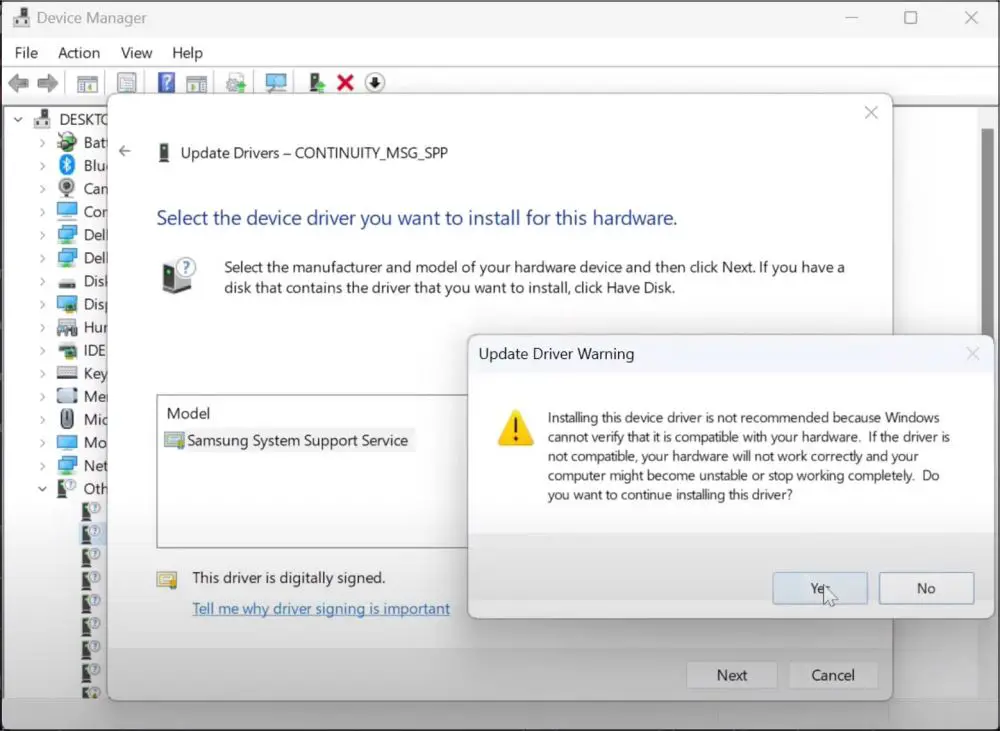
- Select “Browse my Computer for Drivers” > “Let me pick from a list…” > “Show All Devices” > “Next” > “Have Disk.” Browse to the extracted driver folder in c:\SamSysSupSvc\ and select the driver file.
- The drivers will be shown as “Samsung System Support Service.” Click “OK” > “Next” > “Yes” and wait for the installation to complete.
- Launch Microsoft Store, go to your Library, and check if “Samsung Settings” and “Samsung Cloud Sync” are present. If not, install them.
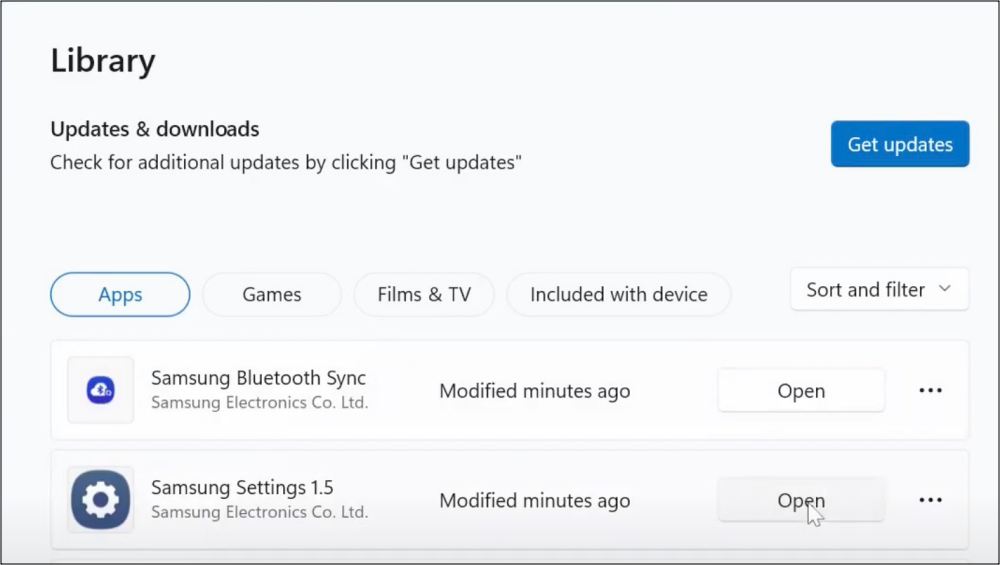
- Launch “Samsung Settings” from the Microsoft Store > Library. If it shows “Multi Control,” the setup is successful.
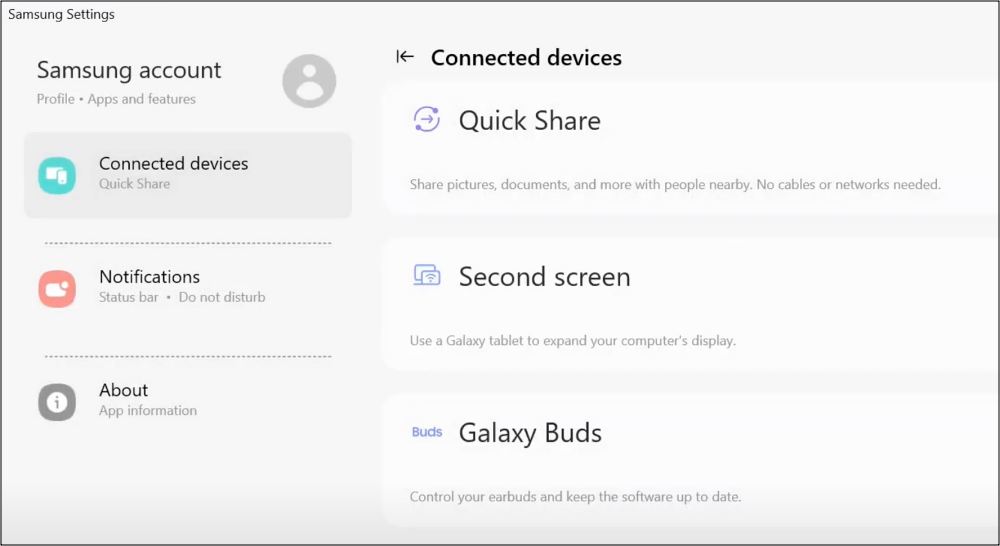
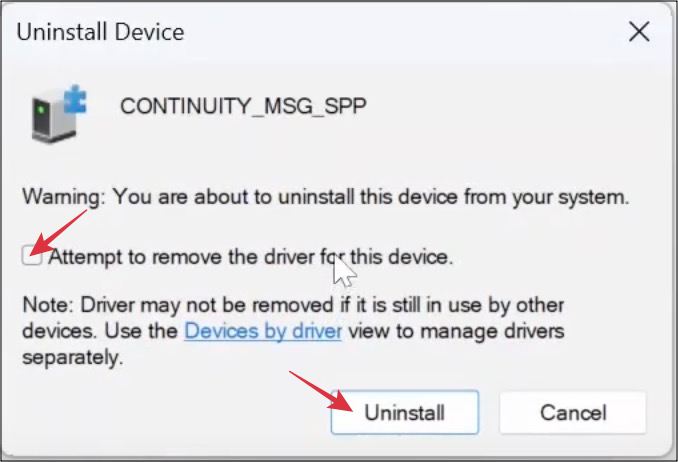
- If it shows “Connected Devices,” “Notifications,” and “About,” uninstall the “Samsung System Support Service” device driver from Device Manager.
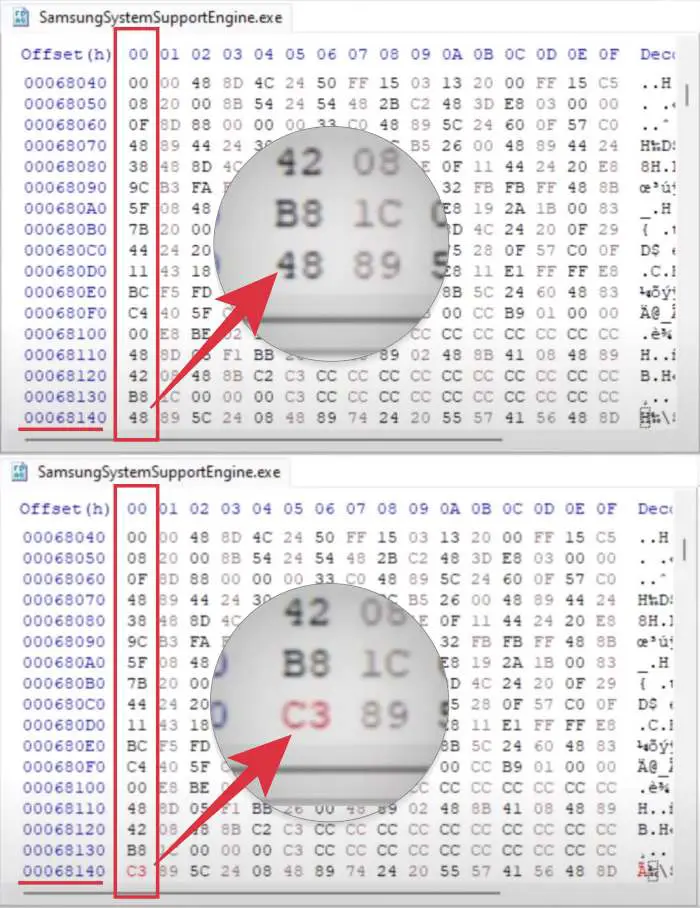
- Install a hex editor software like HxD, open c:\SamSysSupSvc\SamsungSystemSupportEngine.exe, and replace the value at offset 68140 with C3. Save and exit.
- Launch Command Prompt as an admin and execute sc create SamSysSupSvc binPath=c:\SamSysSupSvc\Samsun.
- Restart your PC and relaunch “Samsung Settings.”
- Go to “Connected Devices” and enable the toggle next to “Multi Control.” You’ll receive a prompt to install the Samsung Account app; proceed by clicking on “Install.”
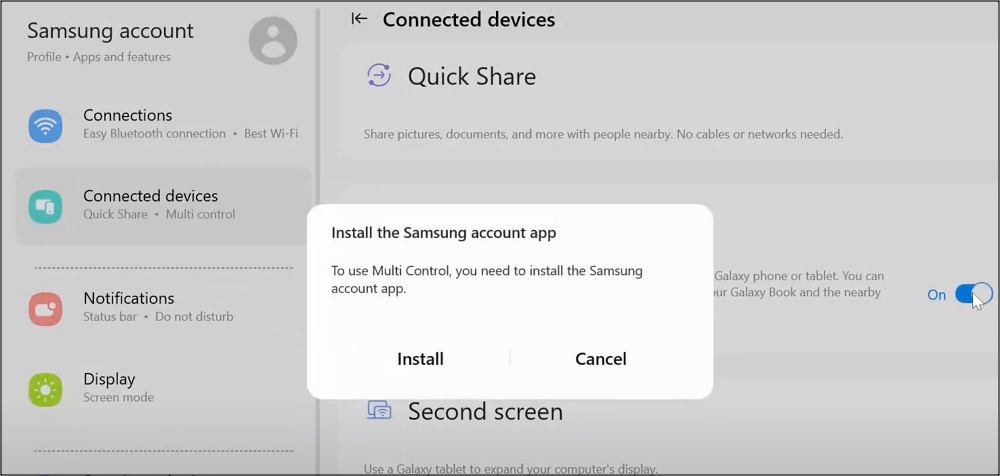
- Install the Samsung Community Service and enable the toggle next to “Multi Control.” Sign in when prompted.
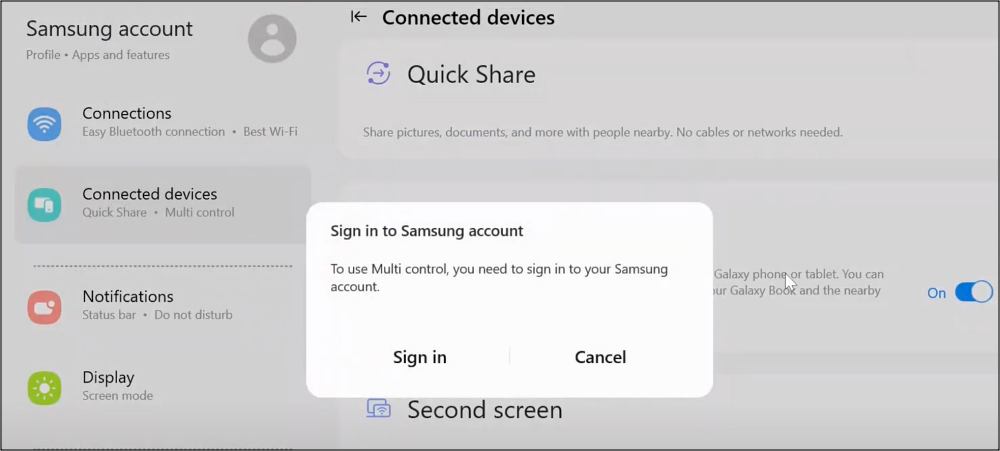
- Your device will now be displayed under “Connected Devices.” Congratulations! You’ve successfully set up Samsung Multi Control on your non-Galaxy Book PC.
FAQs
Is Samsung Multi Control compatible with all Samsung devices?
Yes, it is compatible with all Samsung Galaxy Books and Galaxy phones.
Can I use any Bluetooth mouse and keyboard for Multi Control?
Yes, as long as they are compatible with your PC and Samsung devices.
Do I need to reinstall the drivers after updating my Samsung device?
The drivers usually remain intact, but checking for updates is advisable.
Can I revert the changes made with the hex editor if needed?
You can revert the changes by reinstalling the original Samsung System Support Service driver.
Is Multi Control available for non-Samsung laptops?
No, this guide caters explicitly to enabling Multi Control on non-Galaxy Book PCs.
Wrap Up
In conclusion, this guide is a gateway for non-Samsung PC users to delve into the realm of Samsung Multi Control, breaking down barriers and providing access to a feature typically reserved for Samsung Galaxy Book users. With the step-by-step instructions, you can now seamlessly connect your Samsung Galaxy Book to your Galaxy phone, transforming your user experience. Integrating a Bluetooth mouse and keyboard further enhances your control, offering a more intuitive and efficient means of navigating and managing both devices.
This newfound connectivity elevates your control over the devices and facilitates a smoother and more integrated data transfer process between your Samsung Galaxy Book and Galaxy phone. Embrace the potential of Samsung Multi Control on your non-Samsung PC and redefine how you interact with your devices.

Selva Ganesh is a Computer Science Engineer, Android Developer, and Tech Enthusiast. As the Chief Editor of this blog, he brings over 10 years of experience in Android development and professional blogging. He has completed multiple courses under the Google News Initiative, enhancing his expertise in digital journalism and content accuracy. Selva also manages Android Infotech, a globally recognized platform known for its practical, solution-focused articles that help users resolve Android-related issues.




Leave a Reply