
Even if we have plenty of methods to share the files between PC and mobile, When transferring one or two files, we use WhatsApp Web to share the data between PC and Mobile. For this purpose, we use our friend’s contacts to share the data. It is wise to use this method When you are in public PC. Instead of connecting and syncing all your mobile data, you can share only one file. Most of us use some contacts to store funny memes and essential files. When the data is sensitive, you can’t share them with your friends or other contacts. In those situations, the following method will help you. When you can send the WhatsApp messages to yourself, you don’t have to worry about your privacy.
Some of us use Memo notes to save the WhatsApp messages. Hereafter, you don’t need third-party apps to store your messages. By using this method, you can also access those messages in WhatsApp web.

How to Send WhatsApp messages to Yourself (To My Number/Myself) on Android Mobiles and iOS?
There are a lot of methods to send WhatsApp messages to yourself. I will explain the widespread and natural ways. I am using those methods for taking print out with the help of WhatsApp Web in Internet Cafe. It will be beneficial when you don’t have the Pendrive to copy your documents. Also, you can log out the WhatsApp web on your mobile. So, you don’t need to bother about somebody reading your messages. When you want to move WhatsApp messages from one mobile to another, consider using different processes.
Method 1: Using your saved Contact
This method is straightforward compared with all other ways. You can use your number to send and receive the messages. Yes, you don’t need to create groups, or to use third-party sites to send boomerang messages. Follow the steps below to send the messages from and to your number. When you want to download and store the WhatsApp status in one place, you can save them here.
Steps
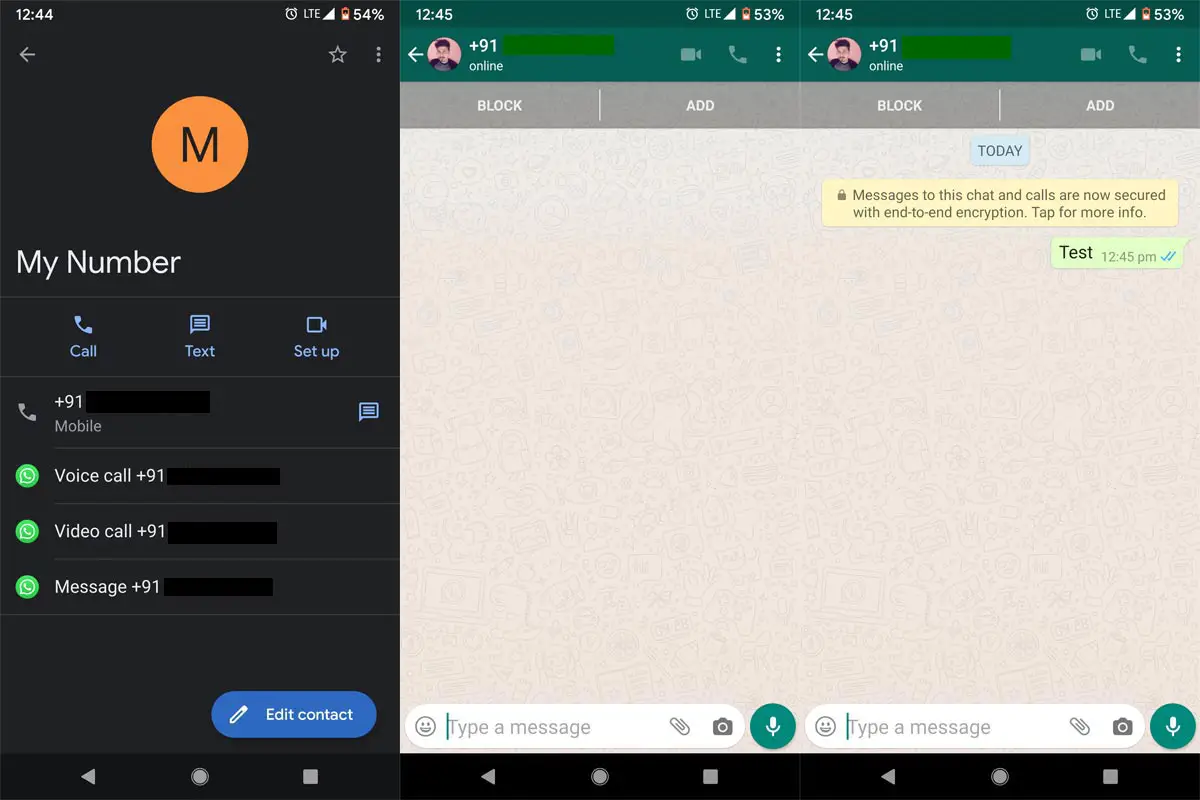
- Save your phone number (own) as My number or another name.
- Now you can see your saved contact in your contacts or phone app. But, you can’t find this contact in your WhatsApp because the number is linked with your own WhatsApp.
- But, there is a way to send the messages. Go to your contacts and search for “My Number.” After getting the contact, tap on the profile to get the linked profiles.
- You can see the options like the message to “+91..” with the WhatsApp icon. Tap the option and send the test message. You have to set up this setting one time. After that, you can access your contact from the WhatsApp chats. You can only send the messages. It is like a message storage box.
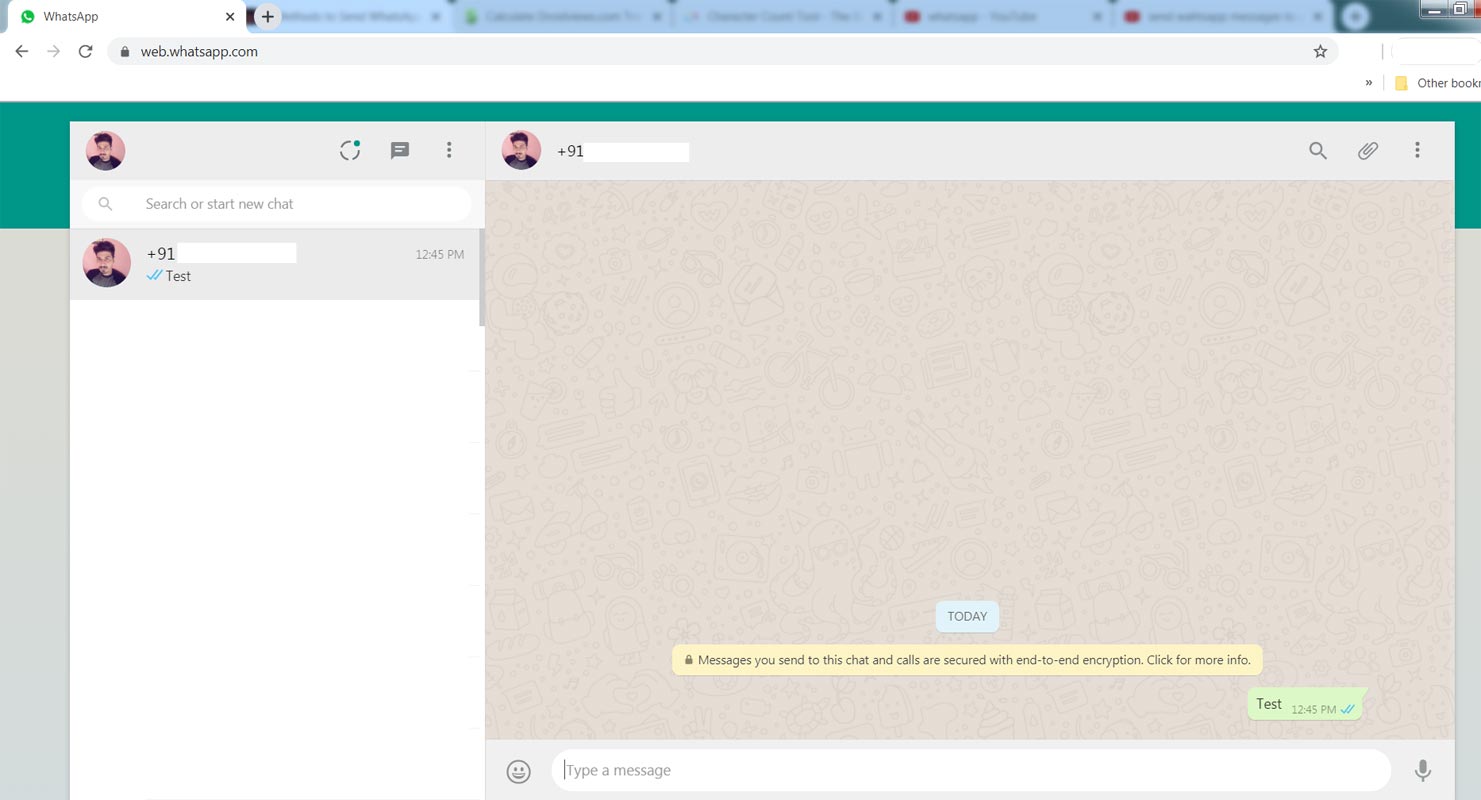
- You can also use this contact on the WhatsApp web to send the data between PC and mobile.
Method 2: Creating Private WhatsApp group
You know how to create a group in WhatsApp. The same way we create a group but only for us. Yes, It is like a private island where we store the messages, pictures, and videos in the group. We have to add one contact initially. Later we can remove that contact and make the group only for us. You can’t use blocked contact numbers in the group.
Steps
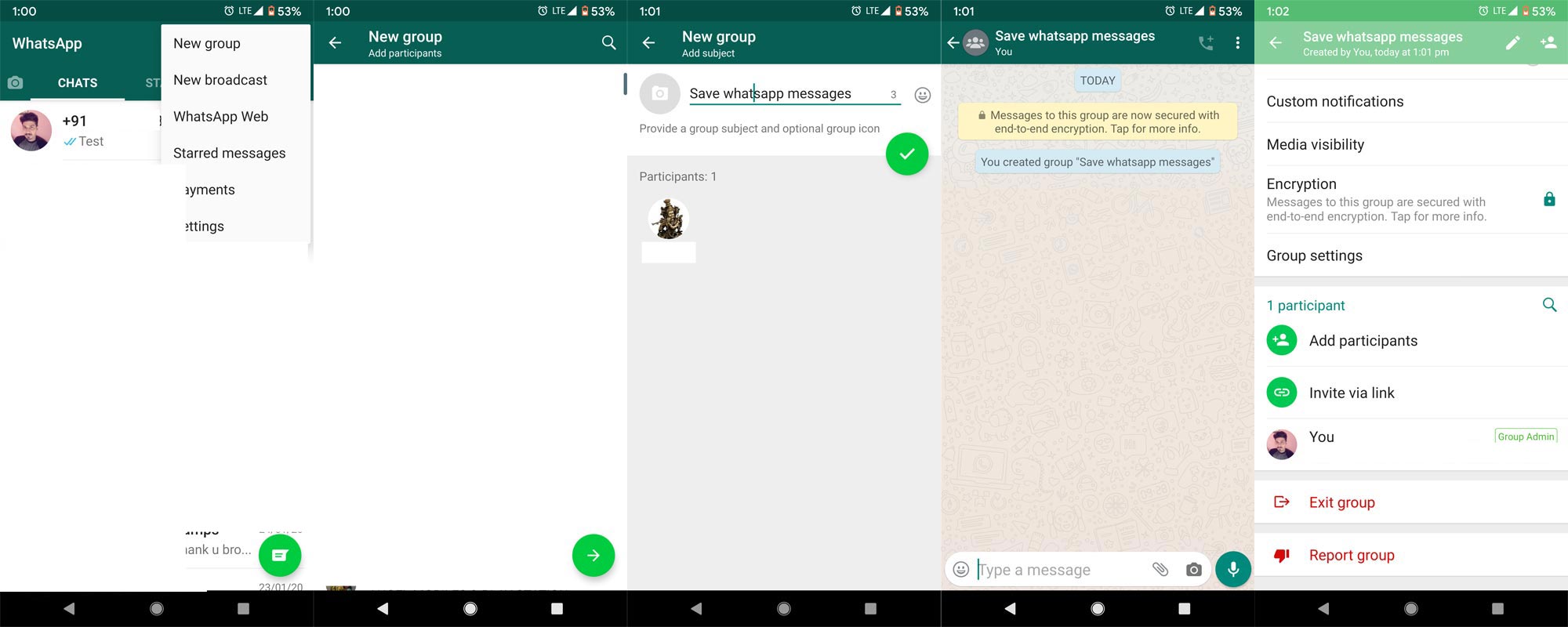
- Open WhatsApp in your Android or iPhone.
- Tap on the “three-dot” icon to get the options menu — Select the New group.
- Search for the contacts and add one of your friend contacts. If your friend is restricted the group invite, It will Ask “Invite the contact to the group?”. Select “No.” Now, you are the only person in the newly created group.
- If your friend allows Public group invitations, It will automatically add the contact in your group. To remove the contact, tap on the group name, scroll down, and tap on your friend’s contact and remove it. Now you can store your messages.
Method 3: Using WhatsApp API to send messages to ourself
Yes, WhatsApp has a separate API call to send the messages to our number from a link. Using this facility, we can send messages to our number. We have to modify the API link to do this. Follow the steps below.
Steps
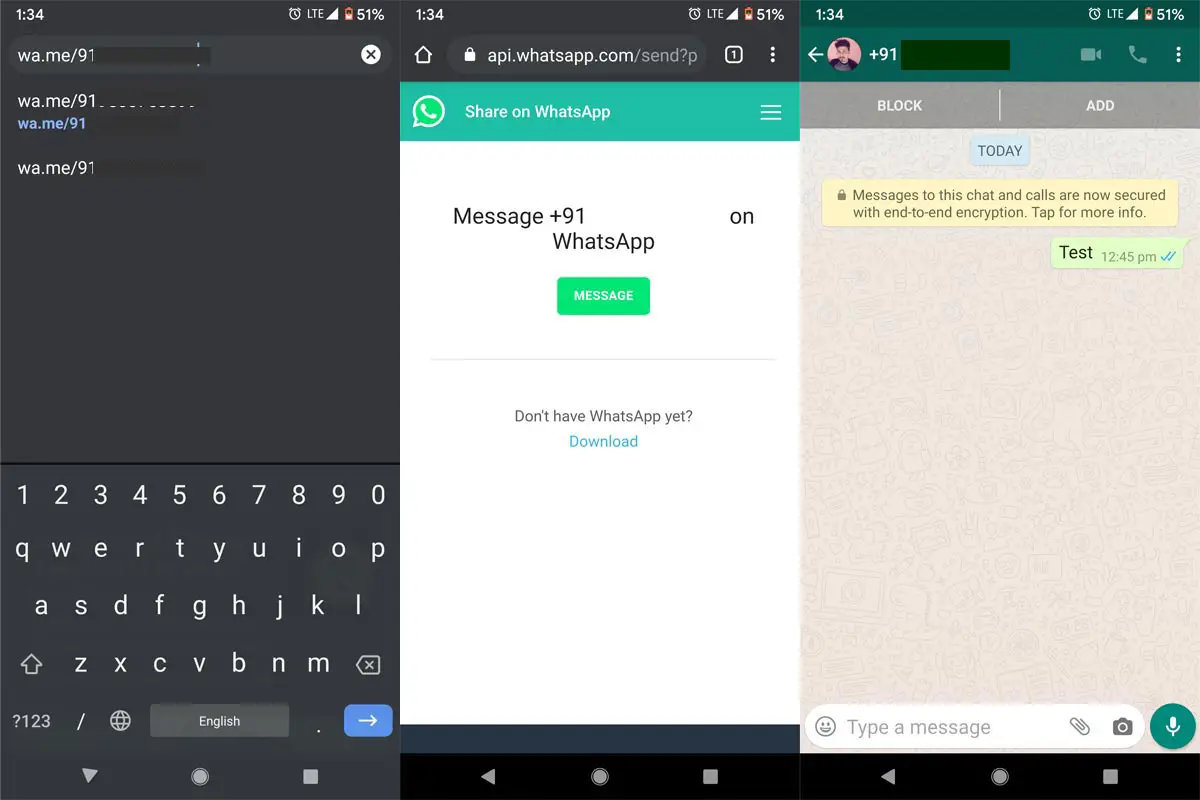
- Open wa.me/your phone number in your mobile browser. Your mobile should have WhatsApp installed.
- The phone number should not contain any special characters but only with prefix country code. Example for India- https://wa.me/910000000000. Here “91” is country code. “0..” are phone numbers.
- After entering the number hit enter, It will ask you to send the message to a particular phone number. Select “Message.” It will open the WhatsApp with your current typed number. Now you can send messages, including media files.
Method 4: Using a Third-Party App called “Click to chat” (Android Phones)
I know we do all these methods to maintain the privacy of our messages. How can a third-party app maintain that privacy? This app works on the WhatsApp API call. Also, this app doesn’t require any additional permissions. The app size is only KBs. So, you don’t have to worry about your data. This app also can be used to send WhatsApp messages to the numbers which are not in our contact list.
Steps
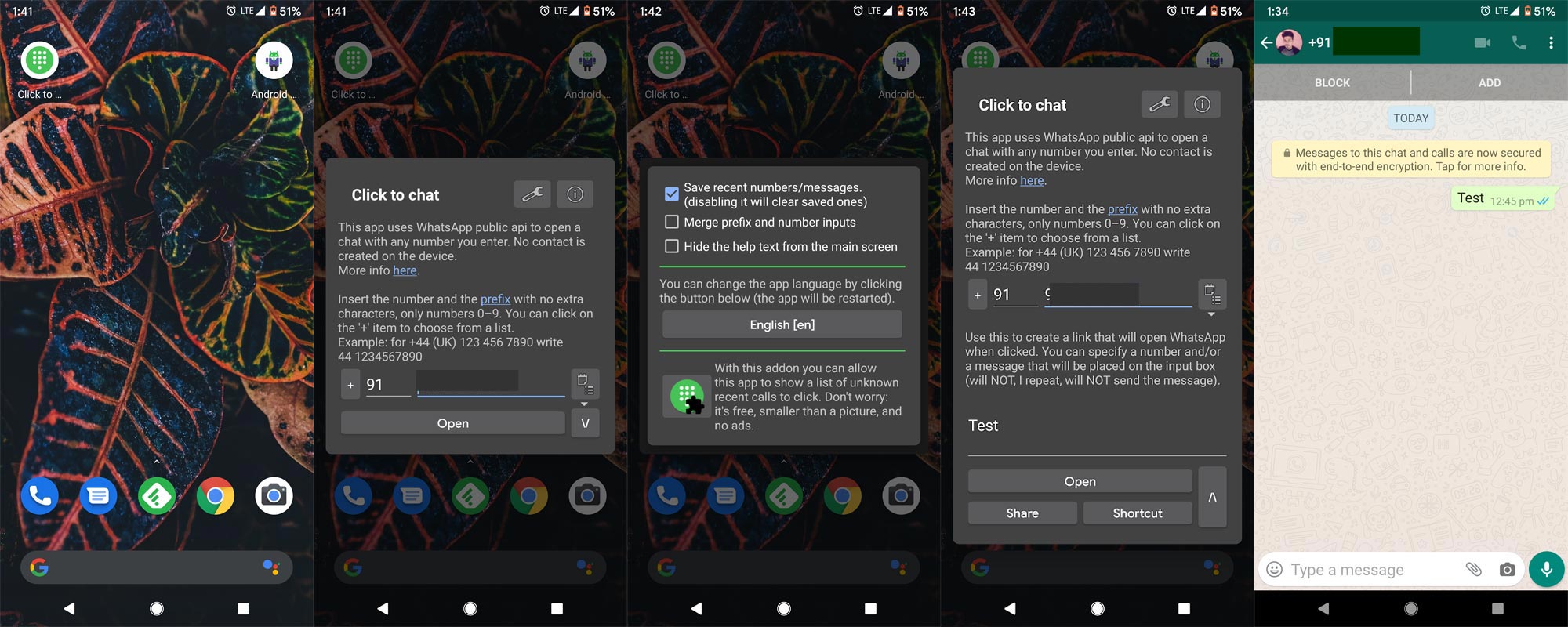
- Download and Install Click to chat from Play Store. This app works as a shortcut. So, add this app shortcut to your Home screen.
- Open the app and add your phone number. Select the expand icon on the right side to open the message box. If you don’t need the message box, you can add the number and open the WhatsApp.
- It will create a chat with a typed message. Like the above methods, It is a one-time setup; after this, you can send messages to your self.
Where this Send to me, messages will be useful?
If you didn’t use some alternative methods, you might wonder, Where and when people are using this kind of technique. I will explain some scenarios to make sense of this method in real-time. I will give only a few scenes. But, It will provide you with an overall idea about how you can use these methods.
- Internet Cafe– You are in a situation to take a print out of your ID copy. You contacted nearby Internet Cafe, Where there is no card reader, USB cable are available. In that situation, you can easily send the documents to your number and can take a print out using WhatsApp Web.
- Saving our Favourite Memes and Messages– You can access all the pictures and videos in your mobile Gallery. But, you can’t see emoji messages in the Gallery. So, you can save them in your private message.
- Preview Messages– When you send pictures or video from another app, You can preview the messages before sending to someone. Example- You are creating roses with the emoji; after typing using third-party sites, When you send the message, due to alignment, it may break the creation, and the receiver doesn’t know what creation you are sending. They will, though, you send the only a bunch of emojis. So, If we preview the messages, we can align them correctly.
Wrap Up
Significant problems have small solutions. When we want to transfer data between PC and mobile, We install PC suites, Sync third-party apps. But, When we want to move one or two files to our PC, you can use this method to send the WhatsApp message to yourself and transfer the data using the WhatsApp web. I hope these methods will help you to reduce your works. All these four methods are work within Whatsapp. So, you don’t have to worry about the WhatsApp ban issues. You can also use the same techniques when your mobile supports RCS messaging. When you feel your different ways that are efficient than our list, comment below. It will help other users also.

Selva Ganesh is a Computer Science Engineer, Android Developer, and Tech Enthusiast. As the Chief Editor of this blog, he brings over 10 years of experience in Android development and professional blogging. He has completed multiple courses under the Google News Initiative, enhancing his expertise in digital journalism and content accuracy. Selva also manages Android Infotech, a globally recognized platform known for its practical, solution-focused articles that help users resolve Android-related issues.




Leave a Reply