
SIM Switch in Google Messages– Managing two phone numbers on a single device has become a staple for global professionals, remote workers, and anyone balancing personal lives with corporate obligations. However, a major point of friction has developed within the Android ecosystem, specifically for those utilizing the Google Messages platform. For months, a massive wave of user backlash followed a controversial interface redesign that removed the immediate, single-tap SIM card toggle from the text input field.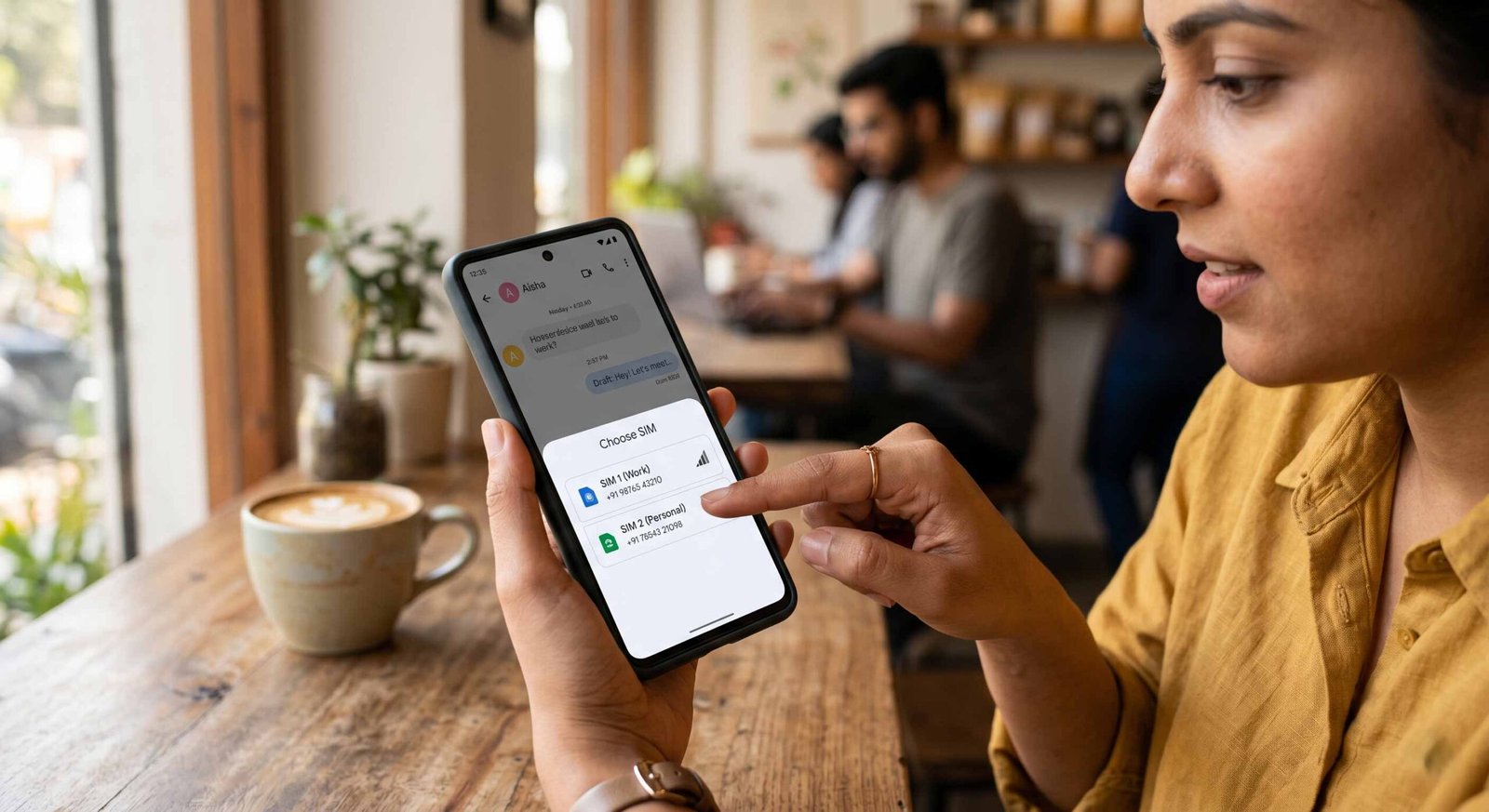
We understand the frustration of having a seamless workflow disrupted by design changes. Fortunately, recent updates to the application have systematically targeted this problem. In this guide, we break down exactly how to navigate SIM switch in Google Messages, covering both the current stable interface and the streamlined floating context menu shortcut rolling out across global channels.

The Evolution of Dual-SIM Management in Google Messages
To successfully configure your multi-line messaging layout, it is helpful to track how the application processes dual-SIM cards. Previously, the platform displayed a visible card icon directly in the message composition box. Users could tap this icon to flip immediately between SIM 1 and SIM 2 before hitting send.
When developers overhauled the user interface, they unified the text box to clean up screen space, which inadvertently buried the SIM selector behind multiple deep menus. For active users, a single-tap selection suddenly became a multi-step operation. Recognizing the massive impact on productivity, recent developments have introduced a middle-ground solution that brings back quick access without cluttering the main conversation screen.
How to Switch SIM Cards in the Current Stable Version
If your device runs the standard retail release of the app, the toggle remains tied directly to the individual contact profile. This architecture means the messaging system establishes a specific, designated line for each continuous text thread.
To adjust your active transmitting line in the stable build, follow these specific steps:
- Open the Conversation: Launch the application and select the specific text thread where you need to change your primary number.
- Access Conversation Details: Tap the three vertical dots located in the top-right corner of the interface to reveal the secondary dropdown options. Select Details from this menu. On specific device configurations, you can also tap the contact’s profile picture or name directly at the top of the interface.
- Locate the SIM Selection Menu: Within the details pane, find the configuration field labeled “Send with” or “Switch SIM.” This section explicitly displays the carrier line currently bound to the conversation.
- Select the Preferred Number: Tap the option to open the selection window. A pop-up menu will display your available physical SIM cards and active eSIM profiles. Select the correct carrier number.
- Return to the Chat Screen: Press the hardware back button or the upper-left navigation arrow once. The conversation view will refresh, binding all subsequent text inputs to your newly assigned number.
Using the New Floating Context Menu Shortcut
For those running the latest application builds, a highly requested quality-of-life upgrade reduces menu navigation. This update implements an interactive floating context menu directly inside your active typing workspace.
1. Trigger the Active Input Box
Tap directly inside the empty text composition field at the bottom of your conversation window. This action simultaneously opens your virtual keyboard and triggers a secondary, horizontal options bar floating immediately above the text line.
2. Deploy the Context Shortcut
Locate the new “Switch SIM” button. Tap this button to bypass manual settings navigation immediately. The application will instantly jump directly to the target SIM picker overlay page.
3. Commit the Choice
Tap your preferred carrier line from the configuration overlay. Once selected, perform a single back-press gesture. The system immediately drops you back into your open chat workspace, ready to transmit without having to navigate the menu.
Tracking Active Lines via the New Carrier Indicator
A major risk of older interface layouts was accidentally sending messages to the wrong number, as there was no visual confirmation on the main screen. To prevent these costly billing and privacy errors, recent builds add an explicit carrier name indicator right inside the empty input bar.
Instead of reading a generic “Text message” or “RCS message” placeholder, the text field now displays your active line’s carrier name, such as “Verizon Wireless” or “T-Mobile”. This update gives you immediate, glanceable validation of your active transmitting profile before you type a single letter.
How to Join the Beta Program for Early Access
If the floating menu shortcut isn’t available on your device yet, it means the update hasn’t reached your local stable release channel. You can manually bypass this delay by enrolling your device in the official testing ecosystem via the app marketplace.
- Launch the Storefront: Open the Google Play Store on your Android hardware.
- Locate the Application: Use the primary search bar to look up Google Messages and open its official store listing page.
- Find the Testing Section: Scroll completely past the application descriptions, developer contact info, and user reviews until you locate the dedicated module titled “Join the beta.”
- Confirm Your Enrollment: Tap the blue Join link. A validation pop-up will appear, warning you that test builds can occasionally introduce systemic bugs. Confirm your selection.
- Apply the Update, then wait a few minutes for the marketplace servers to register your account profile. Once processed, the standard app page will display an available Update prompt. Download and install this build to unlock the latest dual-SIM features.
Advanced Troubleshooting for Multi-Line Configurations
In complex dual-carrier arrays, underlying operating system bugs can sometimes cause erratic behavior. If your switching menus fail to display or freeze mid-selection, use these steps to resolve the underlying systemic errors.
Clear System Cache and Application Storage
Corrupted temporary cache files often prevent user interface components from rendering correctly. Long-press the application icon on your home screen and select the App Info icon. Navigate directly into Storage & Cache, tap Clear Cache, and force-close the app before relaunching.
Verify System-Level SIM Provisioning
If the app completely fails to recognize an active card slot, the error usually stems from the primary hardware settings. Open your core Android System Settings, select Network & Internet, and enter SIMs. Ensure both numbers are fully toggled to an active status and verify that your mobile operating system has assigned proper, distinct text messaging privileges to both connection lines.
Frequently Asked Questions
Can I set a permanent default SIM card for all text conversations?
Yes. Within your primary Android system settings under Network & Internet, you can designate a master line for all SMS traffic. However, Google Messages allows you to override this global setting on an individual, per-contact basis using the conversation details menu.
Does changing the active SIM line disrupt existing RCS chat threads?
Rich Communication Services (RCS) are tied explicitly to a verified phone number registration. If you change lines in a conversation where RCS is active, the application will automatically evaluate if the second line also has active RCS services. If it does not, the system safely falls back to standard SMS/MMS transmission protocols.
Why does the floating “Switch SIM” option not appear on my device?
This feature rolls out in stages. If your app is fully updated to the latest stable version and the option is still missing, the utility is likely still locked behind a server-side flag or limited to active beta tester builds in your region.
Will clearing the application storage delete my dual-SIM text history?
No. Clearing your app cache and data removes temporary UI configuration files and resets custom local settings, but your underlying database of text messages remains fully intact on your device storage.
Can I use two different carriers simultaneously for international roaming?
Yes. The platform natively handles mixed network conditions, allowing you to seamlessly run an international roaming profile alongside a local domestic eSIM while toggling between them on the fly.
How do I identify which line received an incoming text message?
When viewing an active chat thread, look closely at the small timestamp metadata printed beneath individual received message bubbles. The system displays a clear visual label indicating whether the text was delivered to your primary or secondary line.
Can I assign custom display names to my carrier lines inside the app?
The application dynamically mirrors the specific labels assigned within your Android system settings. To change these names, go to your phone’s main SIM settings menu and edit the profile names there; the messaging app will update automatically.
Does switching lines affect my automated text backup configurations?
No. Integrated system backups handle your entire message storage database as a single file, safely retaining both lines’ message histories regardless of how often you switch between them.
What happens if I receive a text on my second line while typing on my first?
The application processes incoming traffic on both lines simultaneously. A notification banner will appear normally, and the message will automatically pop up in that contact’s specific thread without disrupting your active chat.
Is it possible to completely turn off a single number in the application?
To fully hide a line, you must turn it off at the system hardware level. Navigate to your phone’s main SIM network settings and toggle off the specific line you want to deactivate.

Selva Ganesh is a Computer Science Engineer, Android Developer, and Tech Enthusiast. As the Chief Editor of this blog, he brings over 10 years of experience in Android development and professional blogging. He has completed multiple courses under the Google News Initiative, enhancing his expertise in digital journalism and content accuracy. Selva also manages Android Infotech, a globally recognized platform known for its practical, solution-focused articles that help users resolve Android-related issues.




Thanks for pointing out the updated interface. I was searching for this information.
This guide finally explains the SIM switch feature clearly. The screenshots and steps made it easy to follow.
Simple instructions and clear screenshots make a big difference. Thanks for sharing.
The instructions are beginner-friendly. Even non-technical users can follow them.
I was frustrated after the redesign. This guide helped me find the option quickly.
I appreciate the troubleshooting tips included here. They were helpful.
I use separate numbers for work and personal messages. This article was relevant to my needs.
The article highlights a common issue many Android users face. Thanks for sharing the solution.
Very timely article considering the recent app updates. It cleared up my confusion.
The updated steps worked perfectly on my device. Thanks for keeping the article current.
This solved an issue I had for weeks. Glad I came across this post.