
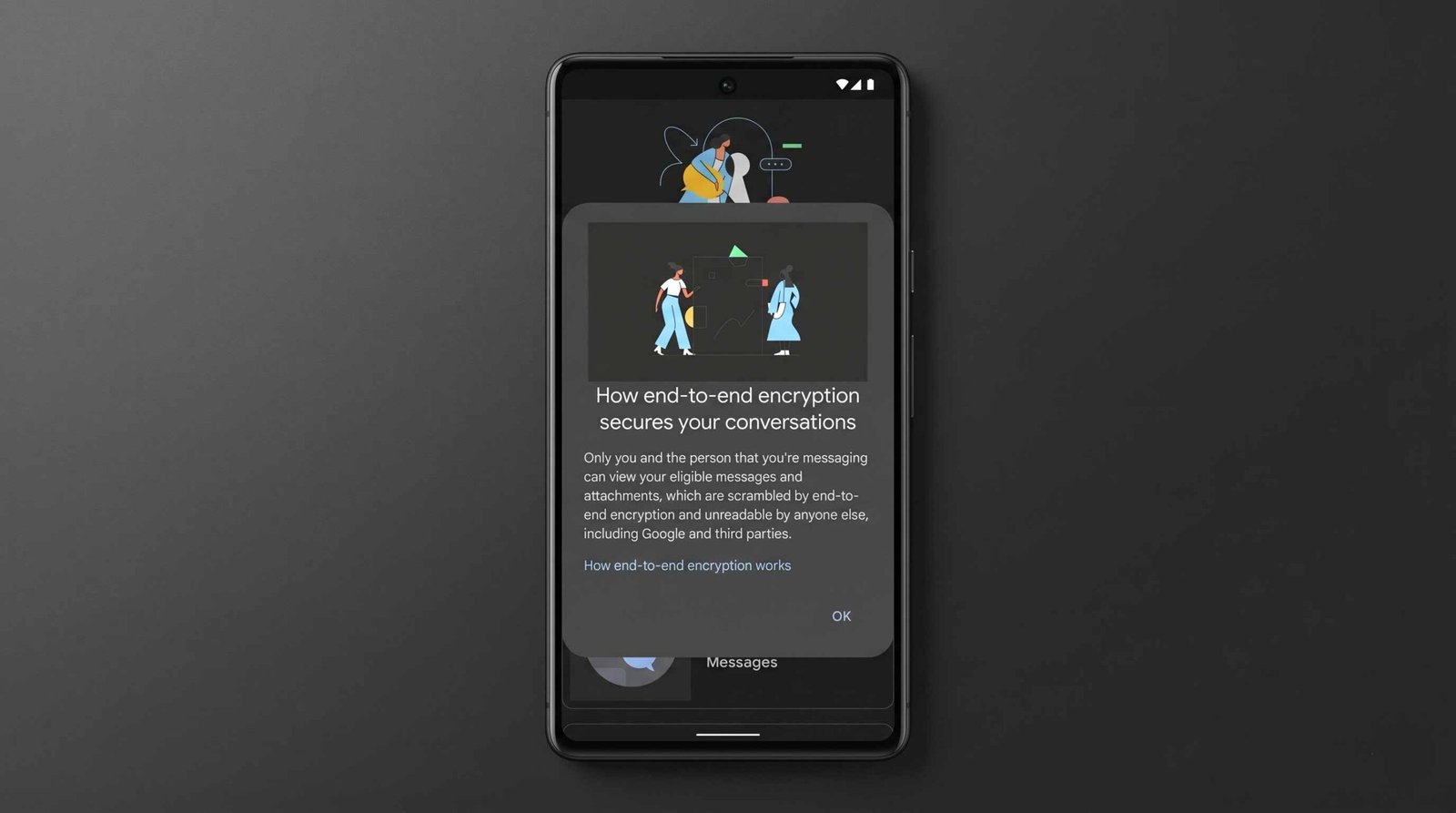
End-to-End Encryption in Google RCS– For years, the digital divide between Android and iPhone users was marked by a significant security gap. While iMessage offered robust protection for Apple users and Google Messages provided similar safeguards for Android enthusiasts, the bridge between them—the green bubble—remained a sanctuary for outdated, unencrypted SMS technology. Today, we are witnessing a monumental shift in mobile communication. With the launch of iOS 26.5 and the latest updates to Google Messages, end-to-end encryption (E2EE) is finally arriving for RCS (Rich Communication Services) across both platforms.
The Evolution of Secure Cross-Platform Messaging
We have long advocated for a messaging standard that doesn’t force users to compromise on privacy based on their choice of hardware. The transition from SMS and MMS to RCS was the first step, providing features like high-resolution media sharing, typing indicators, and read receipts. However, the “gold standard” of security—end-to-end encryption—was the missing piece for cross-platform threads.
Through a collaborative, cross-industry effort led by Google, Apple, and the GSMA, the RCS Universal Profile has been updated to include interoperable encryption. This means that when we send a message from an Android device to an iPhone, the data is scrambled the moment it leaves our device and only unscrambled when it reaches the recipient. Not even the mobile carriers or the platform providers can intercept or read the content of these messages.
Requirements for Enabling RCS Encryption on Android
To ensure this new layer of security shields your conversations, we must first ensure our hardware and software are ready. On the Android side, the process is streamlined but requires specific versions of the communication stack.
- Update Google Messages: Navigate to the Google Play Store and ensure you are running the most recent version of Google Messages. The encryption features are baked into the latest build (Version 20260511 or later).
- Carrier Services: If your device utilizes Carrier Services, this app must also be updated. It acts as the backbone for RCS connectivity on many networks.
- Android Version: While RCS works on older versions, the most seamless Key Verifier features often require Android 10 or higher.
- Enable RCS Chats: Within the Google Messages settings, navigate to RCS Chats and ensure the toggle is set to “On.” You should see a status indicating that your “Status: Connected.”
Setting Up RCS Encryption on iPhone with iOS 26.5
The inclusion of RCS encryption on the iPhone is a relatively new development that arrived with the iOS 26.5 beta. For those of us using Apple devices, the steps are slightly different but equally vital for maintaining data privacy.
- Install iOS 26.5: Go to Settings > General > Software Update. You must be running at least iOS 26.5 to support the encrypted RCS standard.
- Carrier Support: Ensure your mobile carrier supports RCS for iPhone. Most major global carriers have already transitioned to the RCS Universal Profile to facilitate this rollout.
- Activate RCS: In your iPhone settings, go to Apps > Messages and scroll down to the RCS Messaging toggle. Ensure it is enabled. Once active, your messages to Android users will transition from SMS (Green) to RCS (also Green, but with enhanced features).
How to Verify Your Messages are Encrypted
We believe that transparency is the bedrock of digital trust. You shouldn’t have to guess whether your data is protected. Both Google and Apple have implemented visual cues to signal that end-to-end encryption is active.
In Google Messages, look for the lock icon next to the send button or beneath the message timestamps. This lock indicates that the RCS Universal Profile 3.0 (or higher) is actively encrypting the session. On the iPhone, within the Messages app, a banner at the top of the chat or a specific indicator in the “Details” section will confirm: “RCS | Encrypted.”
If you do not see the lock icon, it typically means one of the participants in the chat is on an older software version or is using a carrier that has not yet updated its RCS infrastructure.
The Technical Framework: Why This Matters
The shift to end-to-end encryption isn’t just about a new icon; it’s about a fundamental change in how packets of data move across the web. Traditional SMS is like a postcard; anyone handling it can read the text. Encrypted RCS is like a high-security vault that only the sender and receiver have the keys to open.
This implementation uses the Signal Protocol—the same technology that powers WhatsApp and Signal—to manage cryptographic keys. By integrating this into the default messaging apps of the world’s two largest mobile operating systems, we are effectively making private communication the global default.
Troubleshooting Common RCS Encryption Issues
Even with the best technology, we sometimes encounter hurdles. If you find that encryption is not working, consider these common fixes:
- Clear Cache: On Android, clearing the cache for Google Messages and Carrier Services can often force a re-handshake with the RCS servers.
- Re-register Number: Occasionally, turning RCS off, waiting thirty seconds, and turning it back on helps the system recognize the encryption capabilities of your contact.
- Beta Programs: During this initial rollout, being part of the Google Messages Beta or the Apple Beta Software Program may be necessary to access the latest security protocols.
Frequently Asked Questions
1. Is RCS encryption automatic?
Yes, for users on Android and iOS 26.5, end-to-end encryption is enabled by default for all RCS conversations once the apps are updated.
2. Can I see the lock icon on group chats?
Absolutely. As long as every member of the group is using a compatible version of Google Messages or iOS Messages with RCS enabled, the group chat will be end-to-end encrypted.
3. Does this work for SMS messages?
No. SMS is an old technology that does not support encryption. If the bubble is light green and says “SMS,” your message is not encrypted.
4. What happens if I switch from Android to iPhone?
You should turn off RCS in your Android settings before switching to ensure your messages are correctly routed to your new iPhone via iMessage or RCS.
5. Do I need a specific data plan for encrypted RCS?
No, but you do need an active data connection (Wi-Fi or cellular data) as RCS operates over the internet rather than traditional cellular voice channels.
6. Will my old messages become encrypted?
Encryption applies to new messages sent after the feature is enabled. It cannot retroactively encrypt SMS history stored on your device.
7. Is it as secure as WhatsApp?
Yes, the RCS encryption standard uses similar cryptographic protocols to those found in WhatsApp and Signal, providing industry-standard security.
8. Why is my send button missing the lock icon?
This usually means your contact hasn’t updated their phone yet or their carrier doesn’t support the latest RCS encryption standard.
9. Can Google or Apple read my encrypted RCS?
No. With end-to-end encryption, the keys are stored on the devices. Neither Google, Apple, nor your carrier can access the content.
10. What is iOS 26.5?
It is the latest major update to the iPhone operating system that introduces interoperable RCS encryption for seamless security with Android users.

Selva Ganesh is a Computer Science Engineer, Android Developer, and Tech Enthusiast. As the Chief Editor of this blog, he brings over 10 years of experience in Android development and professional blogging. He has completed multiple courses under the Google News Initiative, enhancing his expertise in digital journalism and content accuracy. Selva also manages Android Infotech, a globally recognized platform known for its practical, solution-focused articles that help users resolve Android-related issues.





Simple and practical explanation.
Useful update for Instagram changes this year.
Touch and hold a clip to pin it. Unpinned clips will be deleted after 1 hour.
Good explanation with easy steps.
Simple and practical explanation.
The process was smoother than I expected.
Simple and practical explanation.
Thanks, this solved my issue quickly.
This saved me a lot of time, thanks for sharing.
Very useful walkthrough, I was searching for this exact method.
Nice post, learned something new today.
Thanks, this solved my issue quickly.