
How to Watch Apple TV Shows with Sign Language Support – Apple has introduced a dedicated Sign Language interpretation feature to the Apple TV app. This built-in accessibility option displays an on-screen human sign language interpreter alongside supported movies and series, making entertainment more inclusive and enjoyable for Deaf and hard of hearing audiences.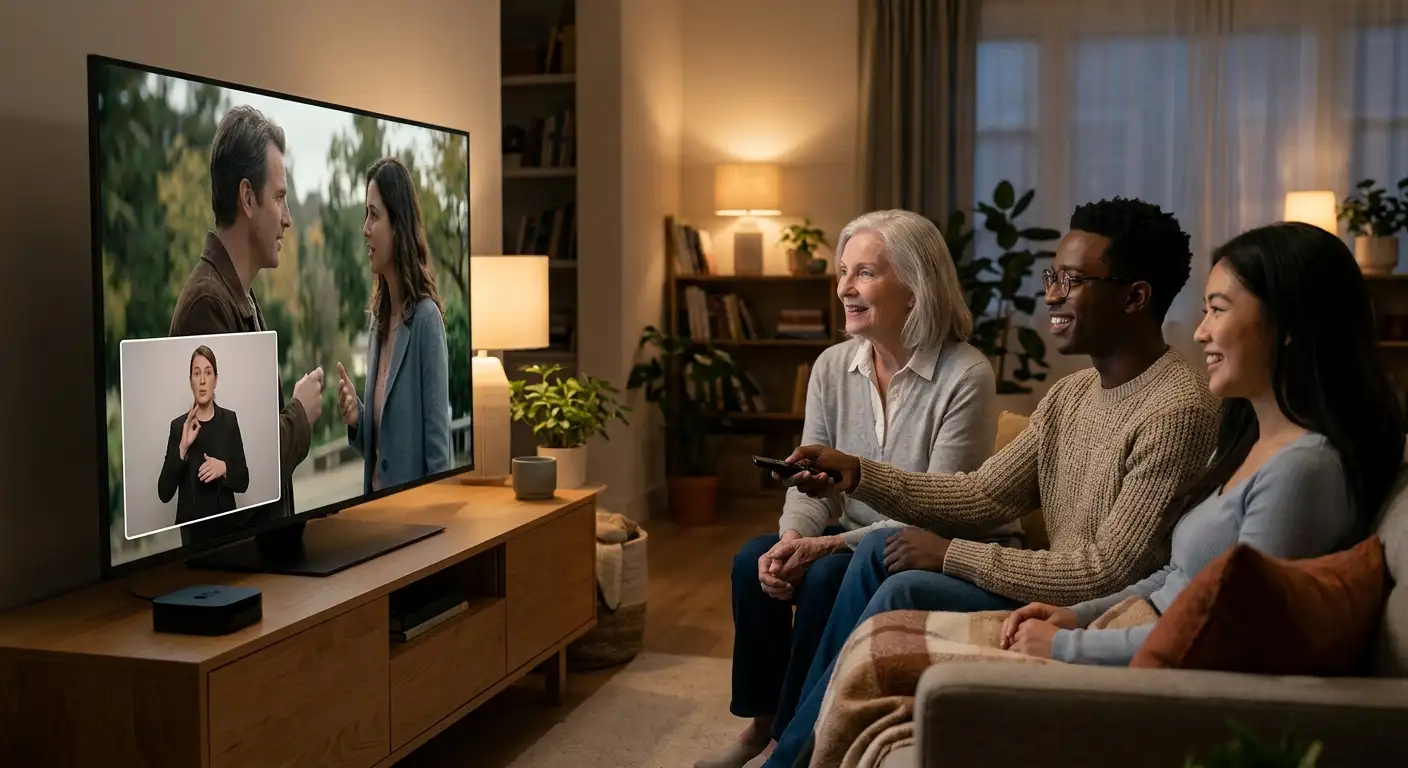
Whether you are looking to turn on American Sign Language (ASL) or British Sign Language (BSL) for yourself, a family member, or a friend, setting up the feature is quick and simple. Here is a complete, beginner-friendly guide on how the feature works, how to enable it across your devices, and how to find supported content.

What Is Apple TV Sign Language Interpretation?
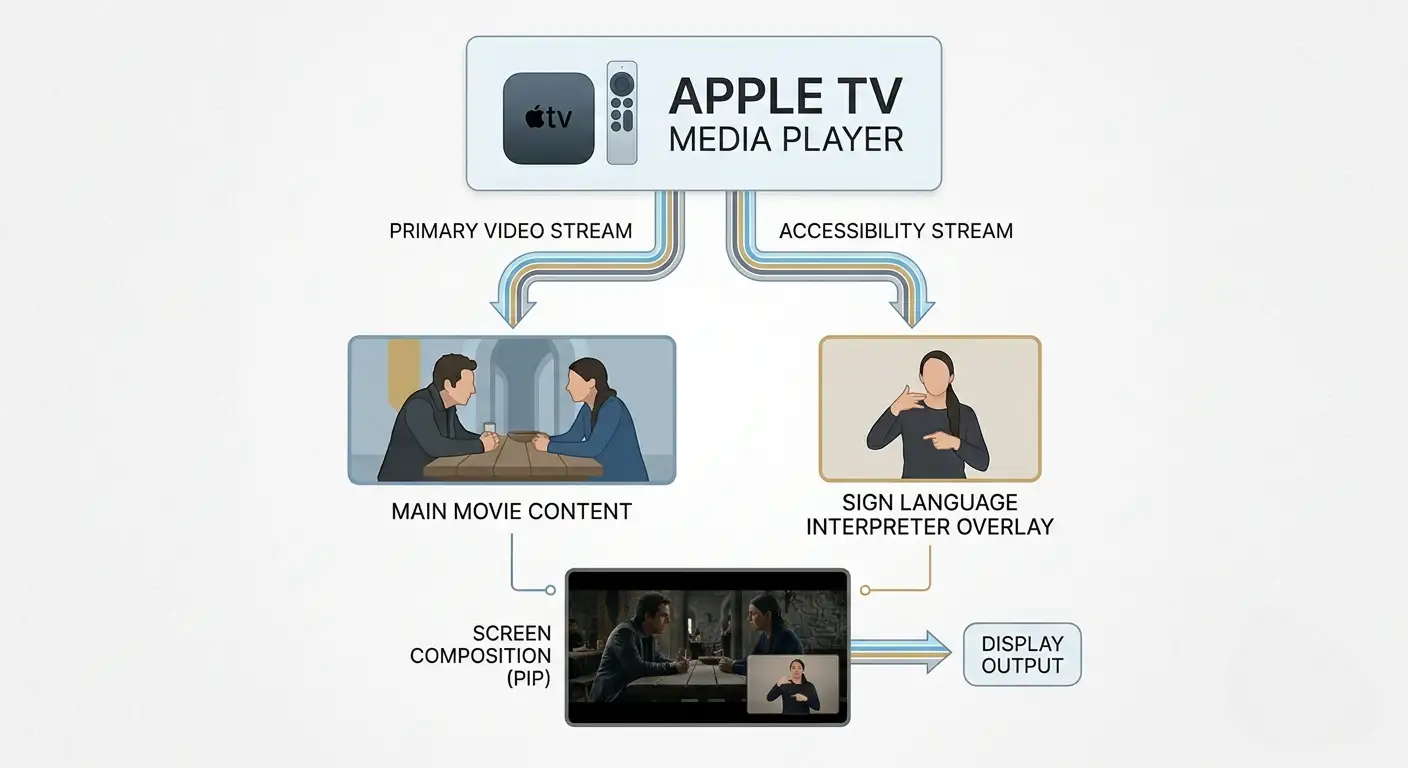
The Sign Language interpretation feature on Apple TV adds an on-screen video stream of a fluent signer who interprets the dialogues, sound cues, and emotional nuance of a movie or show in real time.
Unlike traditional closed captions, which convert spoken words into written text on screen, sign language provides a native visual format. For many Deaf individuals, sign language is their primary or native language. Having a human interpreter on screen allows viewers to experience the story’s emotion, timing, and tone without relying solely on reading text.
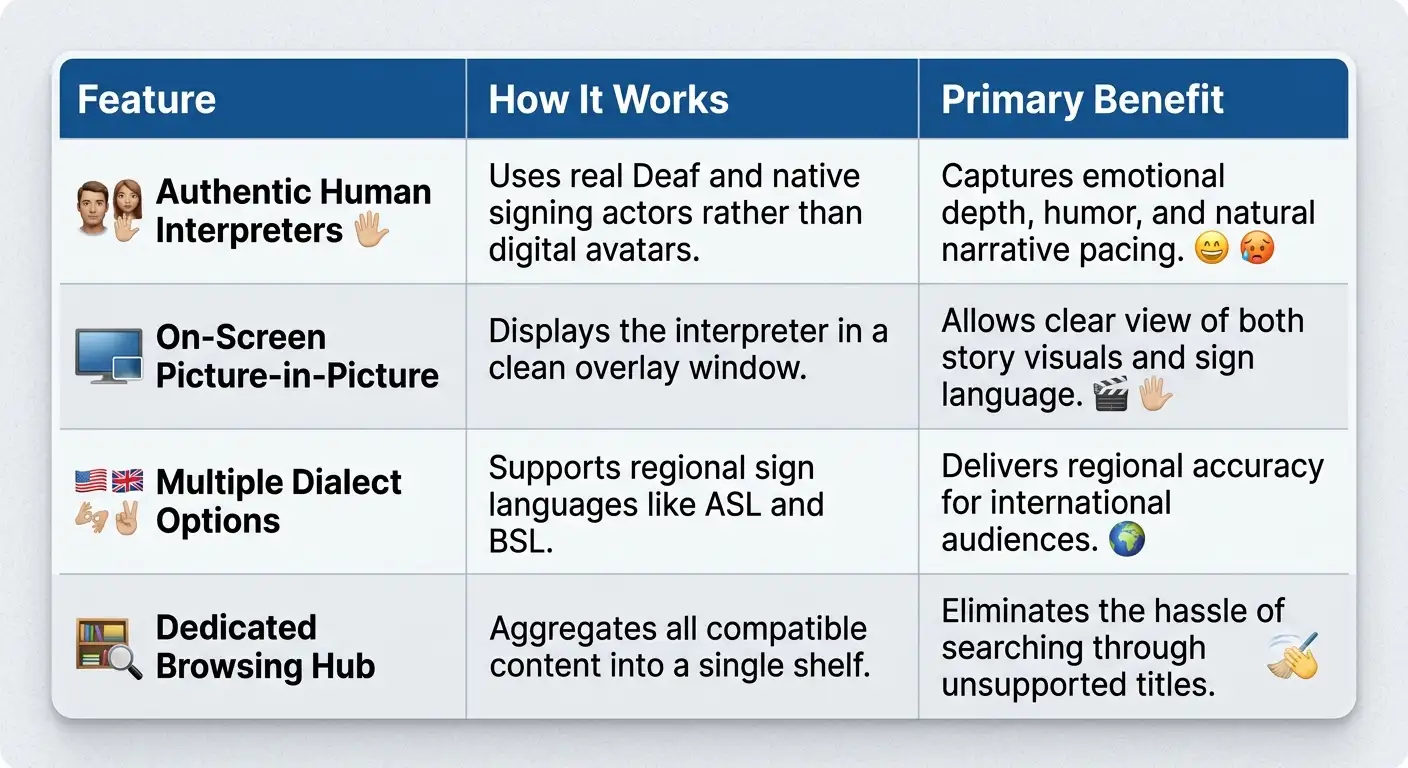
Apple developed these interpretation tracks in direct collaboration with Deaf community members and native signers. Instead of using computer generated computer avatars or artificial intelligence, real human actors perform the interpretations to maintain artistic quality and cultural authenticity.
Supported Devices and Requirements
Before setting up sign language interpretation, ensure your devices meet the minimum software requirements.
-
Apple TV 4K / Apple TV HD: Running tvOS 18.2 or later.
-
iPhone: Running iOS 18.2 or later.
-
iPad: Running iPadOS 18.2 or later.
-
Mac: Running macOS Sequoia 15.2 or later.
-
Apple TV App Subscription: Active access to Apple TV+ or supported Apple TV app channels.
How to Turn On Sign Language Support (Step-by-Step)
By default, sign language controls are turned off to keep the video playback screen clean. You only need to turn on the main setting once on your device.
Step 1: Enable the Feature in Device Settings
-
Open the Settings app on your iPhone, iPad, Mac, or Apple TV device.
-
Scroll down and select TV (or Apple TV App).
-
Locate the Accessibility section within the app settings.
-
Select Sign Language and toggle the switch to On.
-
Choose your preferred primary language dialect, such as American Sign Language (ASL) or British Sign Language (BSL).
Step 2: Turn On Sign Language During Playback
Once enabled in Settings, controlling the interpreter while watching a movie or show takes just a couple of taps or clicks.
-
Open the Apple TV app and play a show or movie that supports sign language.
-
Pause the video or tap the screen to bring up the playback controls.
-
Look for the Sign Language icon (a stylized hand icon) in the playback menu alongside audio and subtitle options.
-
Tap or click the Sign Language icon to display the interpreter box on your screen.
-
Tap it again at any point during playback to hide the interpreter window.
How to Find Shows and Movies with Sign Language?
Apple makes it simple to discover titles with sign language support through dedicated collections and search terms.
Using the Dedicated Content Hub
Apple TV features a dedicated content hub titled “Movies & Shows with American Sign Language”. You can find this collection directly on the Apple TV app home screen or under the Search tab. This hub gathers all supported movies and series in one single destination.
Using Search Queries
You can search directly using simple, natural phrases. Open the Search tab in the Apple TV app or use Siri voice search and type or say:
-
“Shows with ASL”
-
“Movies with Sign Language”
-
“ASL titles”
Looking for On Screen Badges
When browsing individual movie or series detail pages, look for a distinct Sign Language icon next to the age rating, duration, and resolution badges (such as 4K or CC). If you see this icon, sign language interpretation is available for that title.
Key Features and Viewing Benefits
Common Questions and Troubleshooting Tips
-
The Sign Language Icon Isn’t Showing Up: First, verify that the show or movie actually supports sign language. Second, check that you have turned on the Sign Language option in your main device settings under Settings > TV.
-
Updating Your Device: If you cannot see the Sign Language option in system settings, confirm that your iPhone, iPad, Mac, or Apple TV is updated to the latest software version.
-
Adjusting Screen Placement: On larger screens or computers, you can select the sign language window to adjust its position so that it does not obscure key visual elements of the film.
Frequently Asked Questions
1. Is Apple TV Sign Language support completely free?
Yes, the sign language interpretation feature is a built-in accessibility option available at no extra charge for supported titles on the Apple TV app.
2. Which sign languages are supported on Apple TV?
Apple TV supports major sign languages, including American Sign Language (ASL) and British Sign Language (BSL), with additional regional options expanding over time.
3. Does every show on Apple TV have sign language interpretation?
Not every title has sign language interpretation immediately. Apple is rolling out interpretation tracks across popular Apple Original movies and series and continuously expanding the lineup.
4. Are the sign language interpreters generated by AI?
No, Apple works exclusively with professional Deaf actors and native signers to ensure authentic emotional delivery and accurate translations.
5. Can I use sign language interpretation and closed captions at the same time?
Yes, you can enable both on-screen sign language interpretation and traditional text closed captions simultaneously.
6. Which devices support Apple TV sign language interpretation?
The feature is supported on Apple TV 4K, Apple TV HD, iPhone, iPad, and Mac running the latest operating system updates.
7. How do I quickly find movies with sign language?
You can navigate to the “Movies & Shows with American Sign Language” collection in the Apple TV app or search directly using queries like “with ASL”.
8. Can I turn off the sign language interpreter if I no longer need it?
Yes, you can toggle the interpreter window on or off at any time during playback by tapping the Sign Language icon in the player controls.
9. Does sign language interpretation work on smart TVs with the Apple TV app?
Yes, supported third-party smart TVs and streaming devices running updated versions of the Apple TV app support the sign language playback toggle.
10. How is sign language interpretation different from closed captions?
Closed captions display written text of spoken audio, whereas sign language interpretation features a visual human signer communicating in a distinct language with its own grammar and emotional expressions.

Selva Ganesh is a Computer Science Engineer, Android Developer, and Tech Enthusiast. As the Chief Editor of this blog, he brings over 10 years of experience in Android development and professional blogging. He has completed multiple courses under the Google News Initiative, enhancing his expertise in digital journalism and content accuracy. Selva also manages Android Infotech, a globally recognized platform known for its practical, solution-focused articles that help users resolve Android-related issues.




Leave a Reply