
How to Use WhatsApp New Dual Camera Mode on Android – WhatsApp is rolling out a dual camera mode on Android that lets you take photos and record videos using both your front and back cameras at the same time. Instead of choosing between showing what is happening around you or capturing your own face, you can now record both perspectives in a single frame.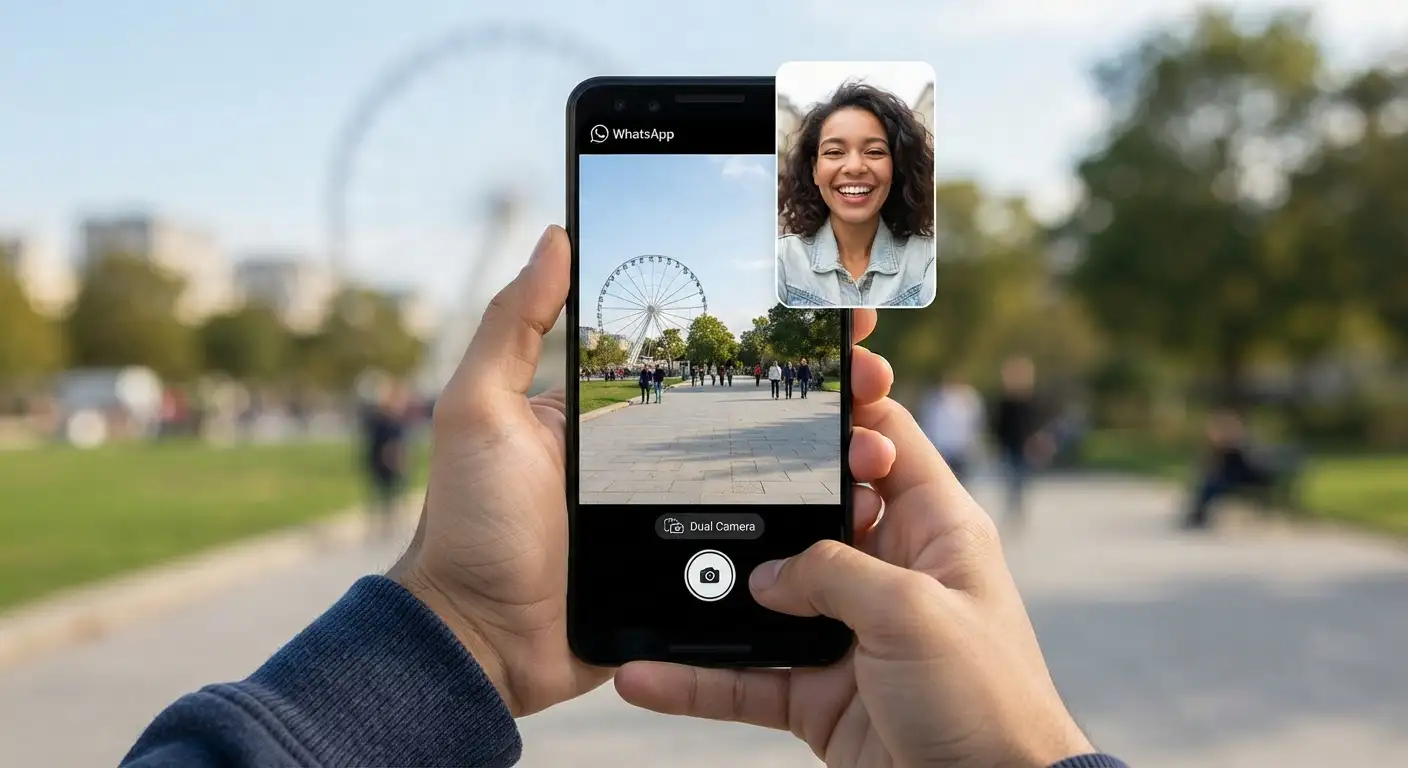
We put together this straightforward, plain-English guide to help anyone—even those who do not consider themselves tech-savvy—understand how this feature works, how to turn it on, and how to share dual-view moments with friends and family.

What Is WhatsApp Dual Camera Mode?
Normally, when you open the camera inside WhatsApp, you see through either the back lens (the one on the rear of your phone) or the front selfie lens. If you want to show both, you have to take two separate pictures or stitch videos together using another app.
With dual camera mode, WhatsApp opens both lenses simultaneously. One camera fills your entire phone screen as the main background, while the other appears inside a smaller floating box on top of it. When you press the shutter or record button, WhatsApp combines both views into one unified photo or video clip.
Who Can Use It Right Now?
Before looking for the button on your phone, it helps to know how WhatsApp releases new tools:
-
Current Availability: The feature is currently rolling out to a limited group of WhatsApp beta testers on Android (specifically starting with beta version 2.26.46.9 on the Google Play Store).
-
Gradual Rollout: Even if you are part of the Android beta testing program and have the latest update installed, WhatsApp enables new features in waves. Your account might get it today, while a friend’s phone might get it next week.
-
Public Release: WhatsApp has not yet announced an exact date for when every regular Android or iPhone user will receive the update.
If you do not see the option on your phone yet, there is nothing wrong with your device. Simply keep your WhatsApp app updated through the Google Play Store so the feature appears automatically once it reaches your account.
Step by Step: How to Use Dual Camera Mode on Android
Once the feature arrives on your account, using it takes only a few taps. You do not need to dig into complicated phone menus or download extra software.
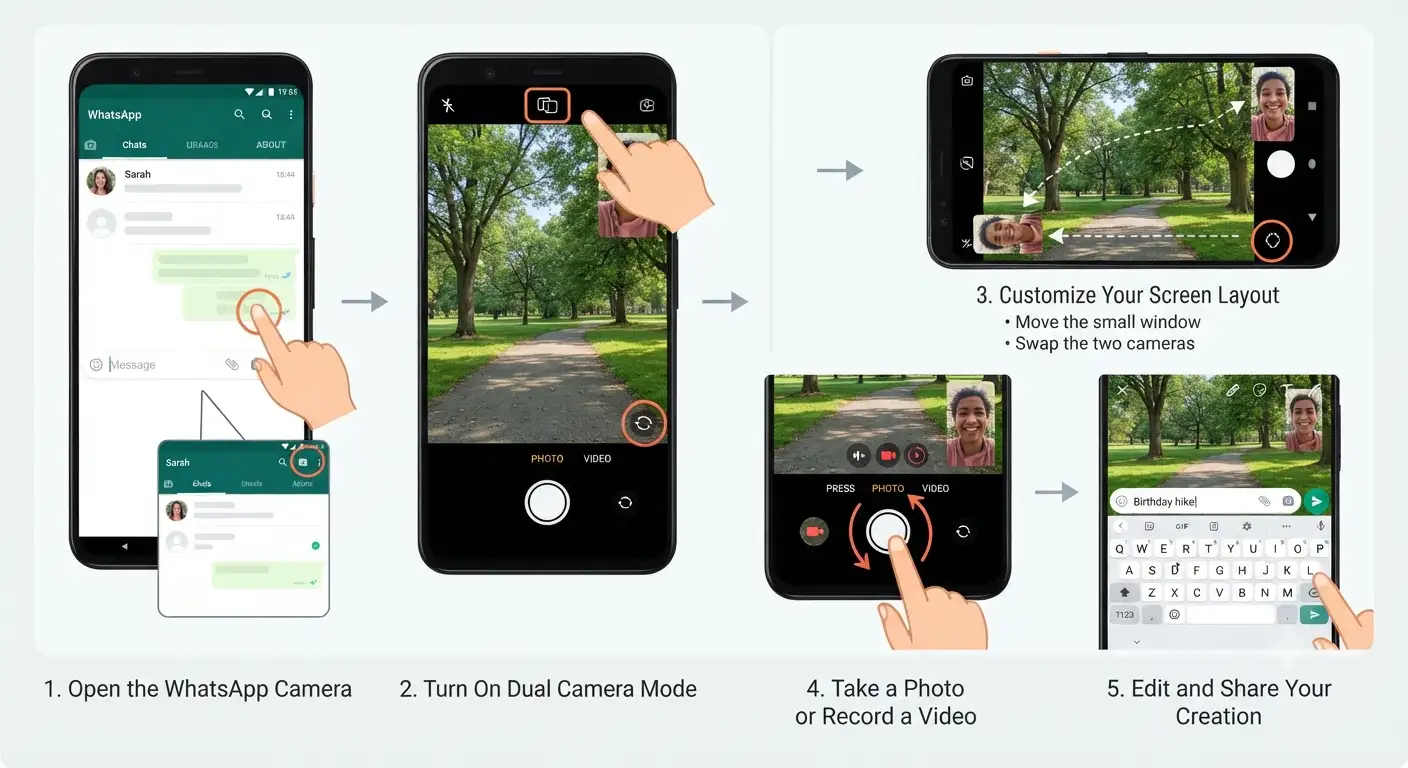
1. Open the WhatsApp Camera
Open WhatsApp on your Android phone. You can launch the camera from anywhere you normally share pictures:
-
Tap the camera icon at the top of your main Chats screen.
-
Open an individual chat or a group conversation and tap the camera icon inside the message bar.
-
Go to the Updates tab and tap Add status to open the status camera.
2. Turn On Dual Camera Mode
Look near the top of your camera screen. You will notice a new dual camera button alongside your usual camera controls.
Tap this button once. Immediately, your screen will split into two views:
-
The back camera fills the main screen so you can show your surroundings.
-
The front selfie camera appears inside a small rectangular window in the top right corner so people can see your face.
3. Customize Your Screen Layout
One of the nicest touches in WhatsApp’s design is that you are not stuck with the default layout. You can adjust how both cameras appear before you shoot:
-
Move the small window: Press your finger on the small floating camera box and drag it anywhere on the screen. If your face is covering up something important in the background—like a birthday cake or a scenic view—just slide the small box into a different corner.
-
Swap the two cameras: Tap the rotate button on your screen to flip the views. Doing this puts your selfie camera on the full screen and shrinks the back camera into the smaller floating frame.
4. Take a Photo or Record a Video
Dual camera mode works for both still pictures and moving videos:
-
For a photo: Frame your shot and tap the large circular capture button once. WhatsApp saves both views together as a single picture.
-
For a video: Press and hold the capture button (or switch to Video mode and tap record). Both cameras record at the exact same time, merging everything into one smooth video clip.
5. Edit and Share Your Creation
After you capture your photo or video, WhatsApp takes you to its standard preview screen. From here, you can:
-
Type a caption at the bottom to explain what is happening.
-
Use the drawing editor at the top to add stickers, text, or doodles.
-
Tap the send button to share it immediately to personal chats, group chats, channels, or your WhatsApp Status.
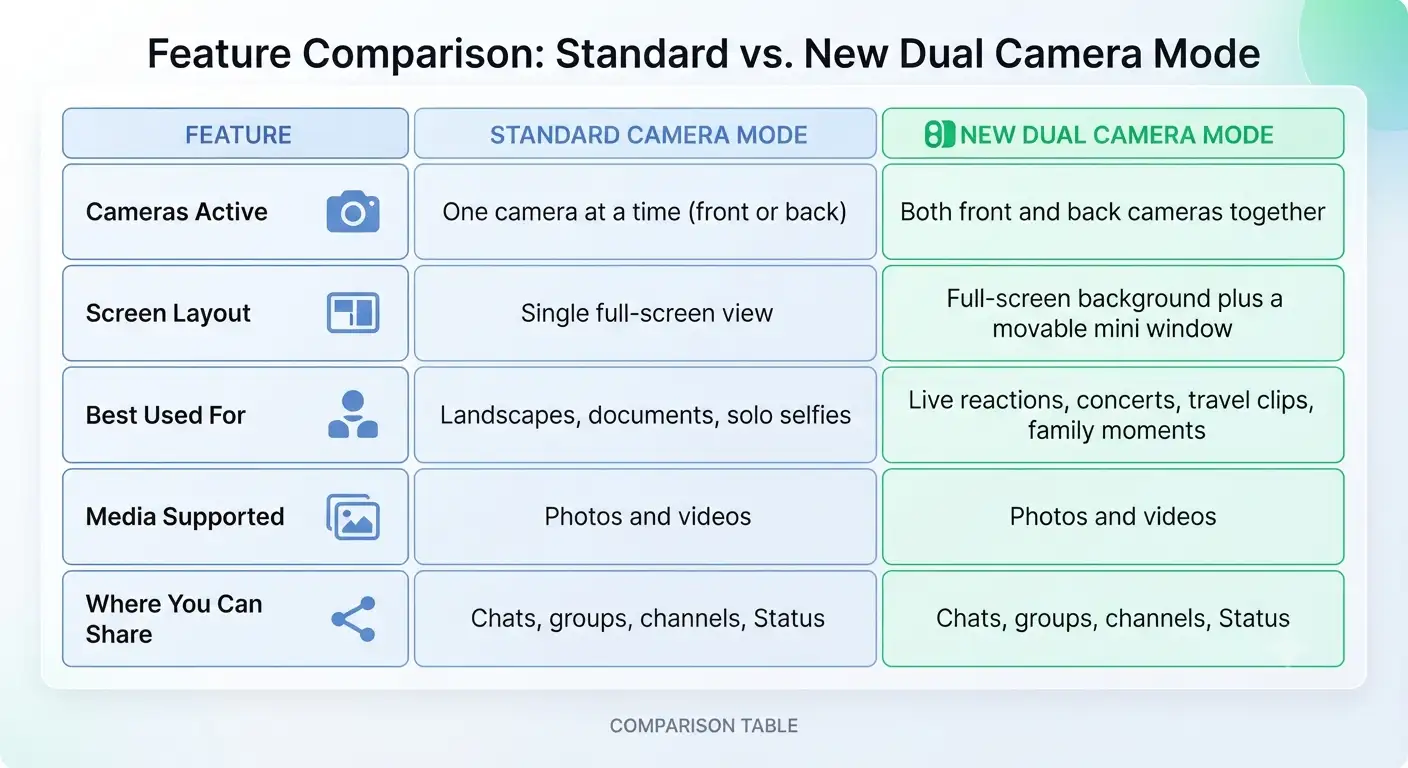
Single Camera vs. Dual Camera Mode: Quick Comparison
If you are wondering when to stick with the classic camera and when to switch to dual mode, this quick breakdown makes the difference clear:
Practical Ways Everyday Users Can Enjoy This Feature
You do not need to be a social media influencer to get value out of dual camera mode. In daily life, we often miss out on half the memory because the person holding the phone is always hidden behind the lens. Here are a few simple ways anyone can use it:
-
Grandparents and Family Milestones: Record a child blowing out birthday candles or taking their first steps while capturing your own smile at the exact same moment.
-
Vacations and Sightseeing: Show off a famous landmark, beach, or mountain view on the big screen while keeping yourself in the corner so friends know you are really there.
-
Concerts and Sports Events: Capture the stage or the winning goal through the main lens while recording your genuine excitement in the selfie frame.
-
Unboxing and Gift Reactions: Film a gift you just received on the main screen while showing your reaction as you open it.
Tips for Getting the Best Dual Camera Results
Because your phone is running two cameras at once, a few simple habits will make your photos and videos look noticeably better:
-
Check both lenses before shooting: Wipe both the front screen near your selfie lens and the back camera glass with a soft cloth so neither frame looks blurry.
-
Watch your lighting: Try to stand where light falls evenly on your face, especially if you are filming outdoors with bright sunlight behind you.
-
Position the mini box thoughtfully: Before hitting record, glance at the corners of your screen and drag the small preview box to an empty area where it will not block faces or key action.
Troubleshooting: Why Don’t I See Dual Camera Mode?
If you opened WhatsApp and cannot find the new dual camera button, check these common reasons:
-
You are using the regular version of WhatsApp: Right now, the tool is only being tested inside the WhatsApp Beta app on Android. Regular users will need to wait for the official public update.
-
Your app needs an update: Open the Google Play Store, search for WhatsApp, and tap Update if an update is waiting.
-
The rollout has not reached your account yet: WhatsApp activates beta features on the server side in stages. Even on version 2.26.46.9, it may take several days or weeks to appear on every tester’s phone.
Frequently Asked Questions
1. What does WhatsApp dual camera mode do?
It lets you take photos and record videos using your phone’s front and back cameras at the exact same time, combining both views into one single image or video clip.
2. Is WhatsApp dual camera mode available to everyone right now?
No. Currently, WhatsApp is rolling it out gradually to select Android beta testers on the Google Play Store. A wider public release date has not been announced yet.
3. Can I record videos with dual camera mode, or only take photos?
You can do both. Dual camera mode supports still photos as well as full video recordings with both cameras running simultaneously.
4. Can I move the small selfie box on the screen?
Yes. You can touch and drag the smaller rectangular camera window to any spot on your screen so it does not cover important details in your background.
5. How do I switch which camera is on the full screen?
Tap the rotate button on the camera screen. This instantly swaps the views, placing your front selfie camera on the full screen and moving the back camera into the smaller floating frame.
6. Where can I share photos and videos made with dual camera mode?
You can share them anywhere you normally send media on WhatsApp, including one-on-one chats, group chats, channels, and WhatsApp Status updates.
7. Can I add text or stickers to dual camera photos before sending?
Yes. Once you capture your photo or video, you can add a caption or use WhatsApp’s built-in drawing editor to add text, stickers, and doodles before hitting send.
8. Do I need to download a separate camera app to use this feature?
No. Dual camera mode is built directly into WhatsApp’s own camera screen, so no third-party apps are needed.
9. Is WhatsApp dual camera mode available on iPhone?
Not at this time. The feature has only been spotted rolling out in testing for WhatsApp on Android, and there is no official word yet on when it might arrive on iOS.
10. What should I do if I updated WhatsApp beta but still do not see the feature?
Wait a little while and check again later. WhatsApp enables new beta features gradually across accounts, so it can take a few weeks after updating for the button to appear on your device.

Selva Ganesh is a Computer Science Engineer, Android Developer, and Tech Enthusiast. As the Chief Editor of this blog, he brings over 10 years of experience in Android development and professional blogging. He has completed multiple courses under the Google News Initiative, enhancing his expertise in digital journalism and content accuracy. Selva also manages Android Infotech, a globally recognized platform known for its practical, solution-focused articles that help users resolve Android-related issues.




Leave a Reply