
It is always best to know basic troubleshooting works in any of our regular usable things. When you drive your car, and it breaks, you can fix it yourself if you know basic things. Smartphones have become normal among users. If you can remember, finding Smartphones are difficult in the old days. Now, It is hard to find basic mobile users. Whenever we deal with software-related devices, They may freeze or not responds according to our tasks. So, It is important to know some basic Troubleshoot modes and steps on your mobile. Here we listed all Xiaomi Redmi Note 8 2021 modes and respective boot keys. We also mentioned SAR Value for your reference.
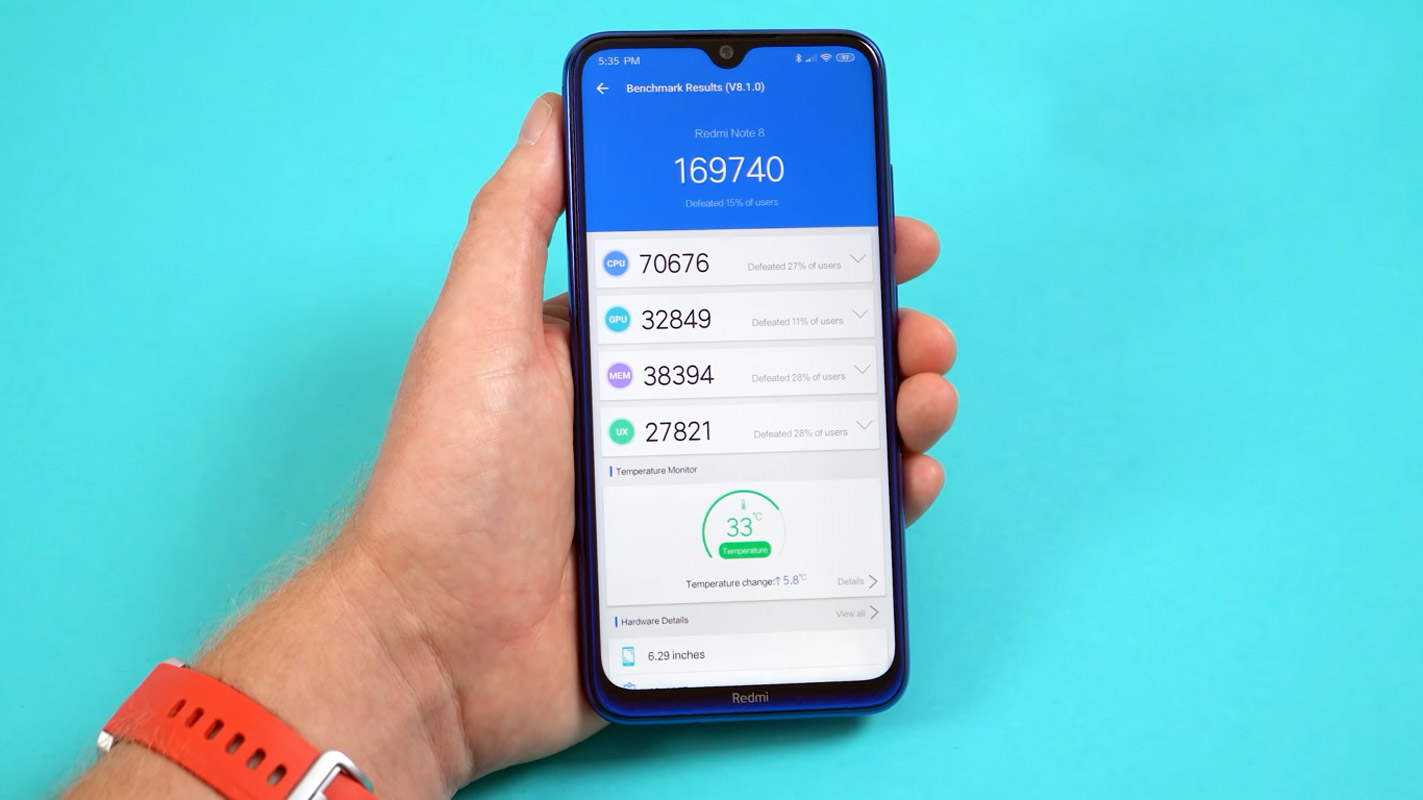
Xiaomi Redmi Note 8 2021 Modes
When you stick with the normal usage in your Android mobiles, mobile manufacturers’ optimized UI and options are enough. But When you want to reach the limit of your Android mobile, You need to deal with the developer options and optimizations. To Perform Developer related options like Firmware flash or Rooting, We have to put our mobiles in a certain mode. Based on the requirement, the models may vary. Booting into different modes needs different key combination presses or commands. The key combinations and ADB commands help us to boot into certain modes and perform other actions. So, here we are listing how you can boot into different modes on your mobile.

Boot into Fastboot/Bootloader Mode
Fastboot mode is used to flash the files into your mobile. You can flash any firmware or root files on your mobile. Mostly in Fastboot mode, we use Xiaomi Flashtool or ADB Commands for flashing the file. You can also use this mode to unlock your Bootloader.
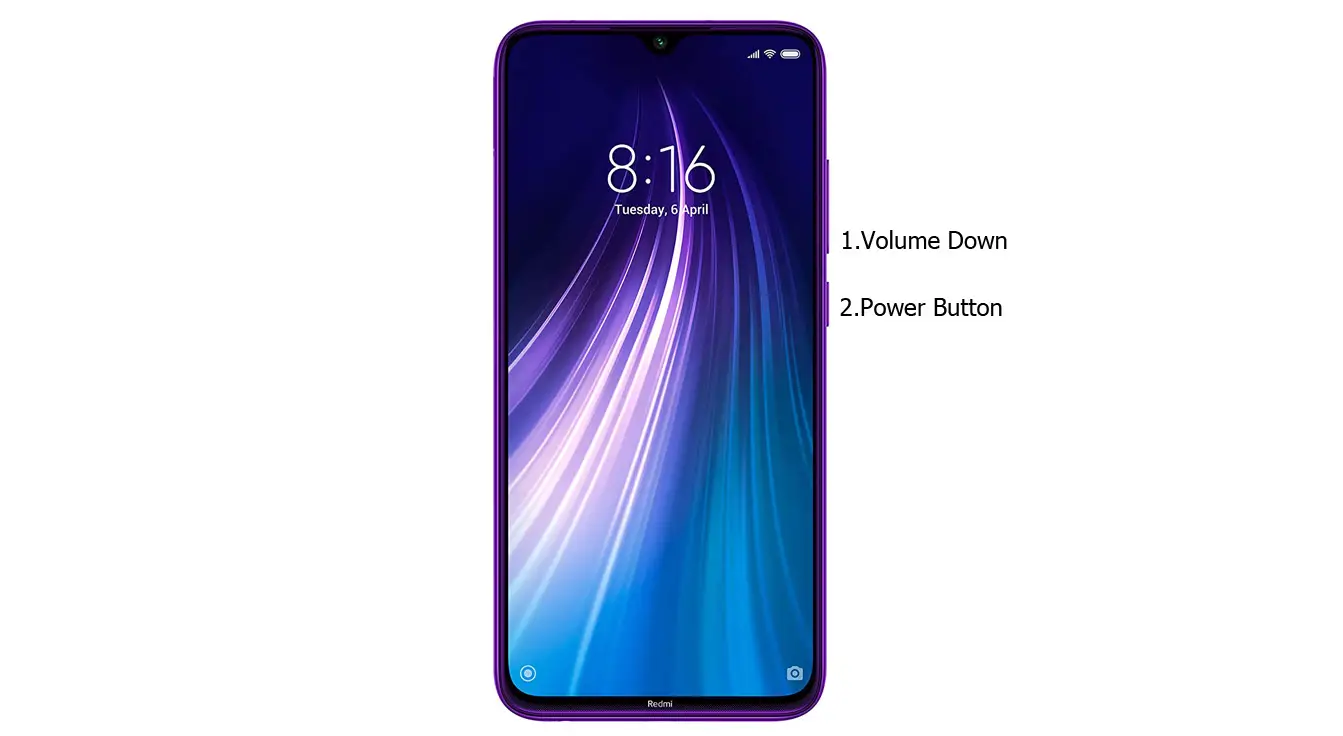
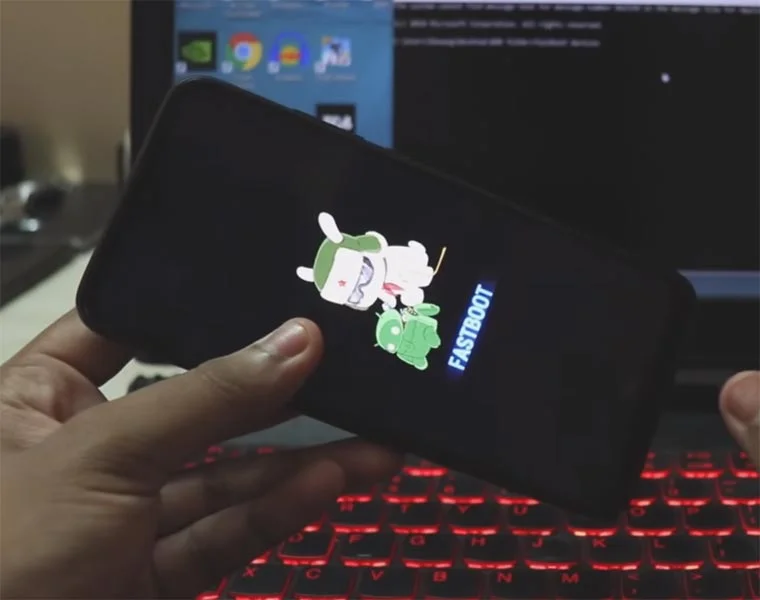
- Switch off your Xiaomi Redmi Note 8 2021 Mobile. Enter into Fastboot mode->Volume Down+Power Button and Connect Your Mobile To PC via USB Cable; after Xiaomi Logo Appear, Release all keys.
Unlock Xiaomi Redmi Note 8 2021 Bootloader using ADB and Fastboot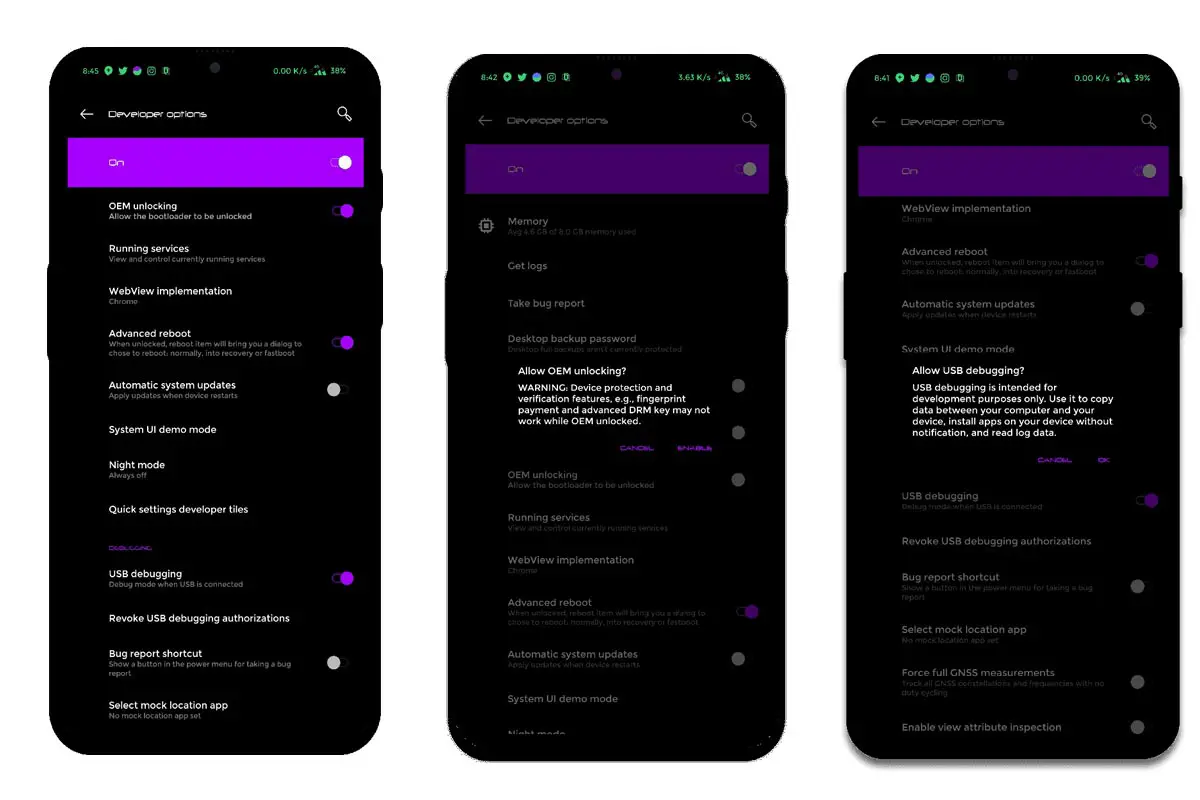
-
Enable USB Debugging Mode and OEM Unlock on your mobile. To do this, go to settings >>> about >>> Tap on the “Build Number” 7-10 times consistently to enable “Developer Options,” then go to the “Developer Options” and enable USB Debugging Mode, OEM Unlock. There is no complicated process in Xiaomi Redmi Note 8 2021.
-
Also, download the ADB drivers. Install it on your PC.
- Go to the official Mi Bootloader Unlock website and log in with your Mi Account.
- Enter your Mobile details like phone number, IMEI, reason. You will get the confirmation code on your mobile. Enter the confirmation code on the Mi website and request for unlocking. You will receive a confirmation mail after the approval in 2-10 Days.
-
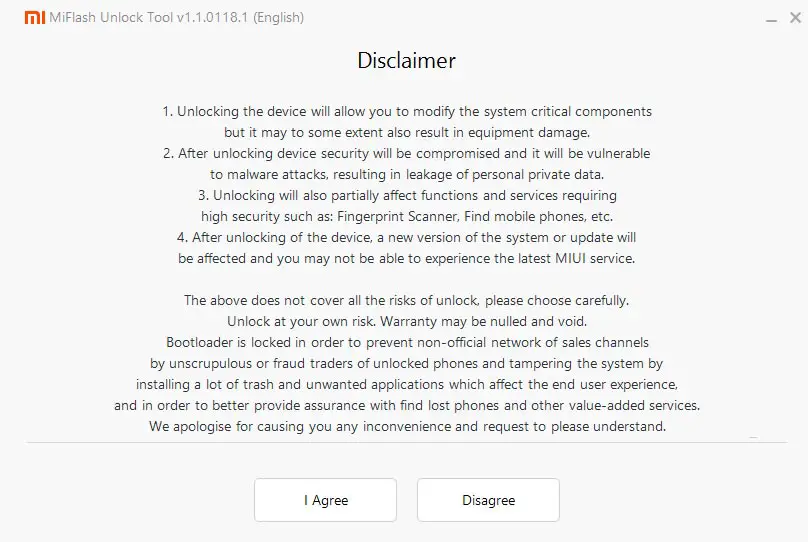
Install the Mi Flash Tool in the received mail. Log in with your Same Mi Account, which is used to get the software.
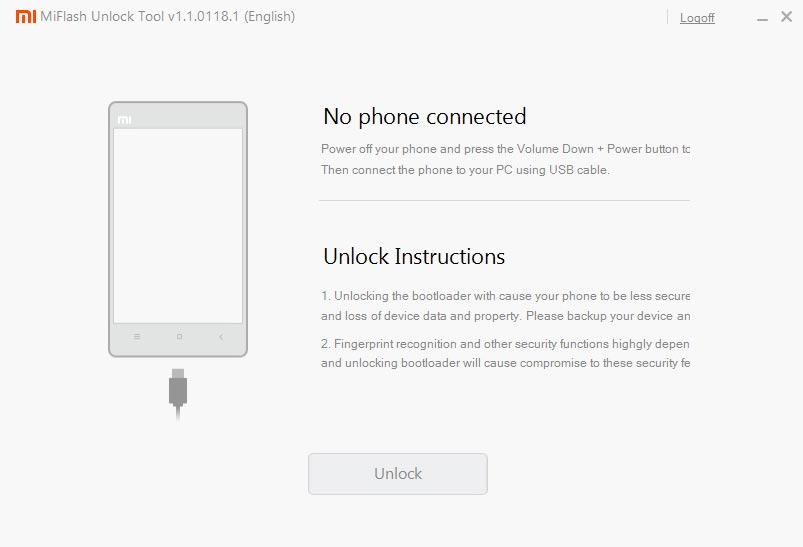
- Switch off your device. Connect your mobile to the PC. Then, enter into Fastboot mode. To do this; Press and hold down the Volume Down + Power buttons simultaneously for some time. It will boot your mobile into Fastboot mode.
-
After you successfully boot into Fastboot mode, Select Unlock. It will take 2-3 minutes to finish the process. After the successful process completion, Reboot your mobile.
-
Check again to enable “Developer Options,” then go to the “Developer Options” and enable USB Debugging Mode, OEM Unlock. Sometimes they disabled themselves after the boot.
Flash Xiaomi Redmi Note 8 2021 Firmware using Xiaomi Flash Tool
- Download the Xiaomi Flash tool.
- Extract the files from the Zip.
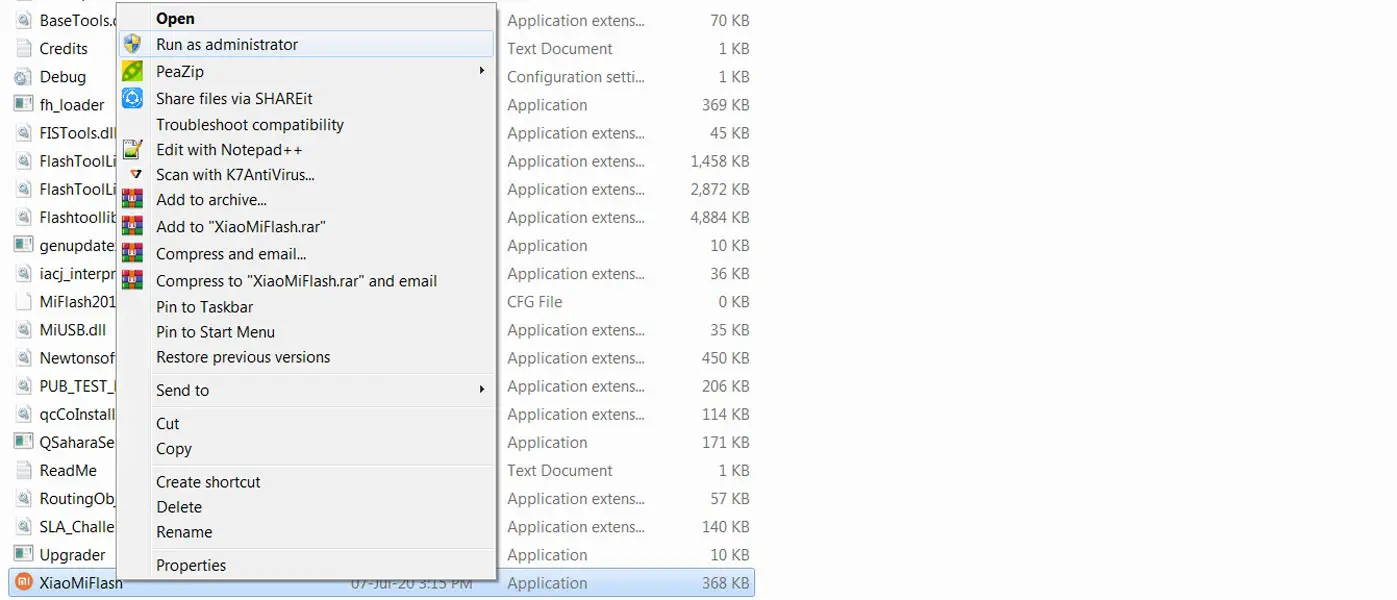
- After the extraction, Right-click on the “XiaoMiFlash” software on your PC and choose “Run as Administrator.”
- We use Administrator Because the USB driver should have General access To get access everywhere without any folder restrictions. If you already installed the ADB drivers, you may know these kinds of issues.
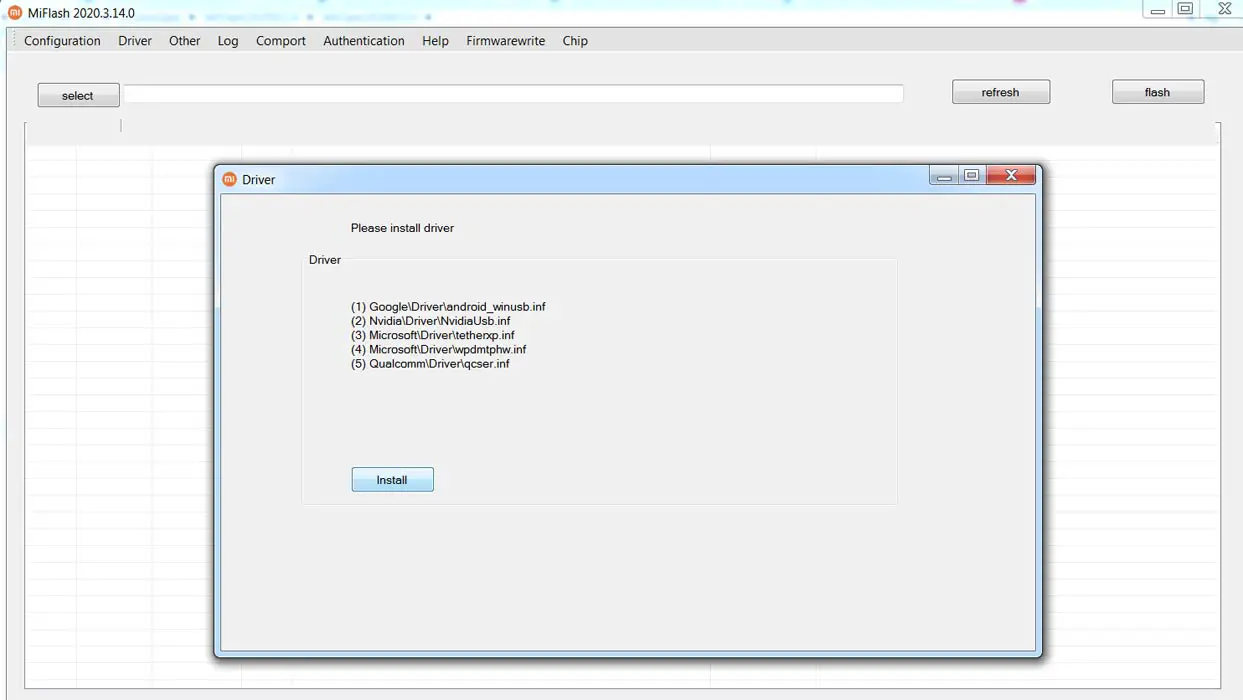
- Navigate to “Driver” and Install all the necessary Driver files.
- Download the necessary firmware for your mobile and copy it to your PC.
- Switch off your device. Then, enter into Fastboot mode. To do this, press and hold down the Volume Down + Power buttons simultaneously for some time.
-
Press the Volume Up button to continue when you see the warning message.
-
Now, connect the Xiaomi Redmi Note 8 2021 mobile to the USB cable computer.
- Select “Refresh” in the app; you will get the device ID in the list.
- When you didn’t get the device, Repeat the above steps.
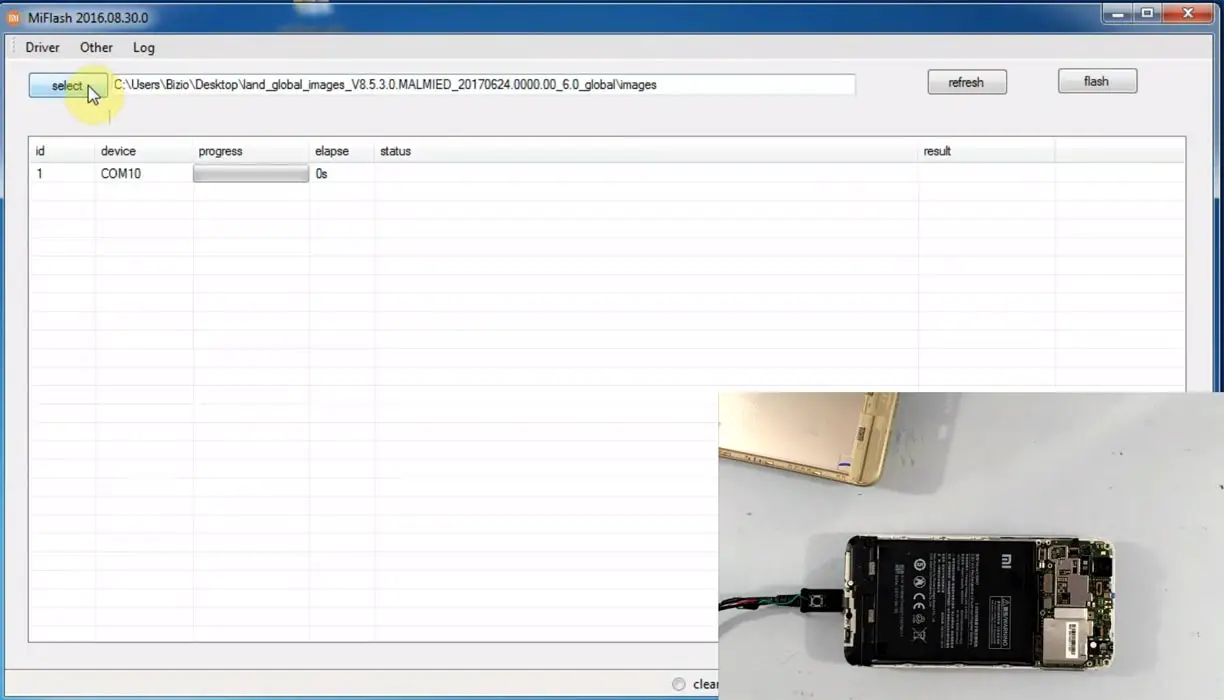
- After getting your mobile ID, Choose firmware using the “select” tab.
- Choose “save user data” in the bottom dot options.
- Now select “Flash.” The software will flash the firmware to your mobile.
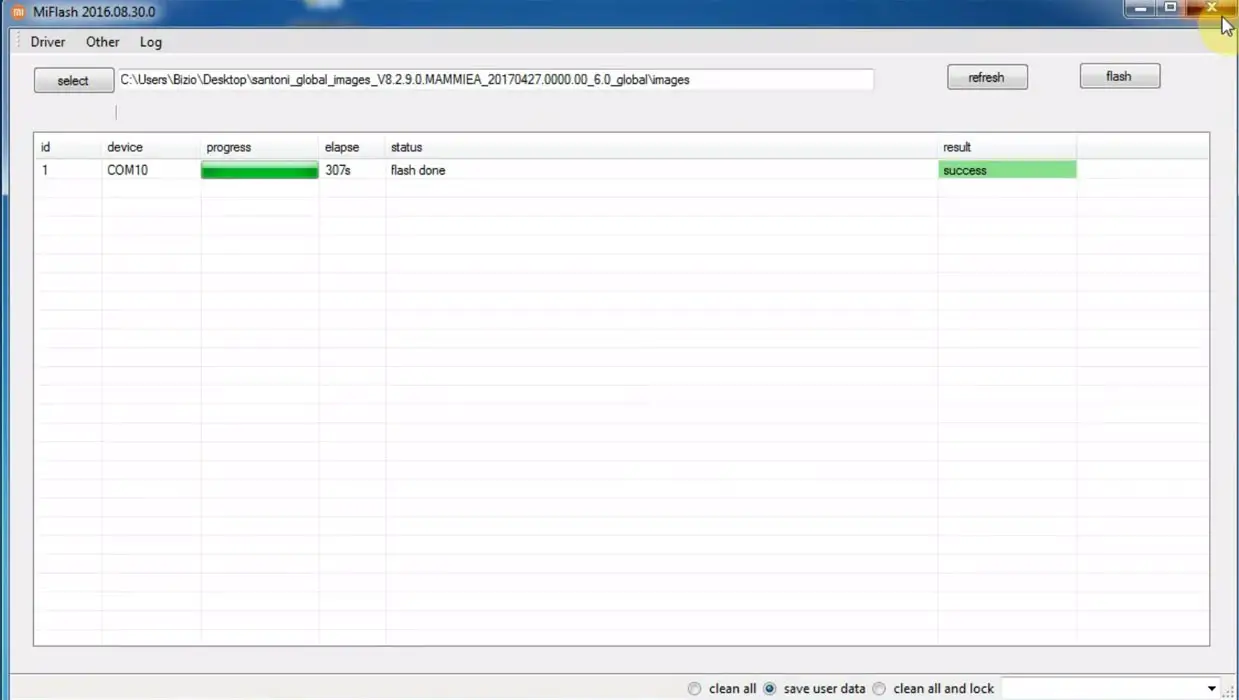
- You will get the “Success” message once the flash firmware is done.
- After the process is complete, you must press the Volume Up+ Power button to exit Fastboot mode.
Flash Files using ADB and Fastboot
- Download the ADB drivers. Install it on your PC.
- Switch off your device. Then, enter into Fastboot mode. To do this, press and hold down the Volume Down + Power buttons simultaneously for some time.
-
Press the Volume Up button to continue when you see the warning message.
-
Now, connect the Xiaomi Redmi Note 8 2021 mobile to the computer via USB cable.
-
Launch the fastboot on your computer. Open a Command prompt on your PC and type the below command.
- fastboot devices
- It should display the connected devices. If you didn’t get the device, restart the command prompt and Disconnect and Connect your Xiaomi Redmi Note 8 2021. If you are detected, type the below commands one by one and hit Enter.
- You should execute the commands after every successful response. Here we take recovery files as an example.
- fastboot flash recovery recovery.img
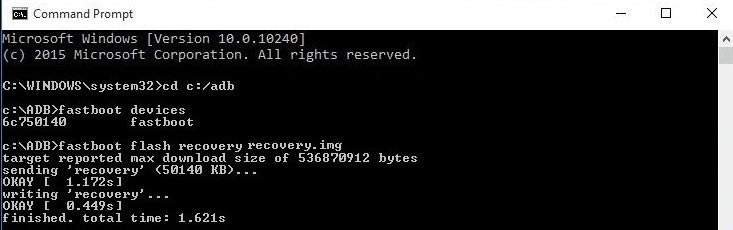
- After the process is complete, Press the Volume Down+ Power button to exit Fastboot mode.
Enter into Recovery Mode
Recovery mode is used to deal with current OS actions. You can wipe user data or fix basic issues with the recovery. Most of the time, you have Stock recovery on your mobile. When you have root access, then you may have a custom recovery like TWRP. This method will not affect your User data unless you wipe it. You have to press Volume Up+ Power Button on your mobile for 7-10 Seconds to boot into recovery mode. After that, it will boot you into the recovery mode or directly boot into System OS. The response may vary depending on the mobile manufacturers. If you received a Recovery mode menu, use the Volume keys to navigate and the Power button to confirm the selection.
Stock Recovery
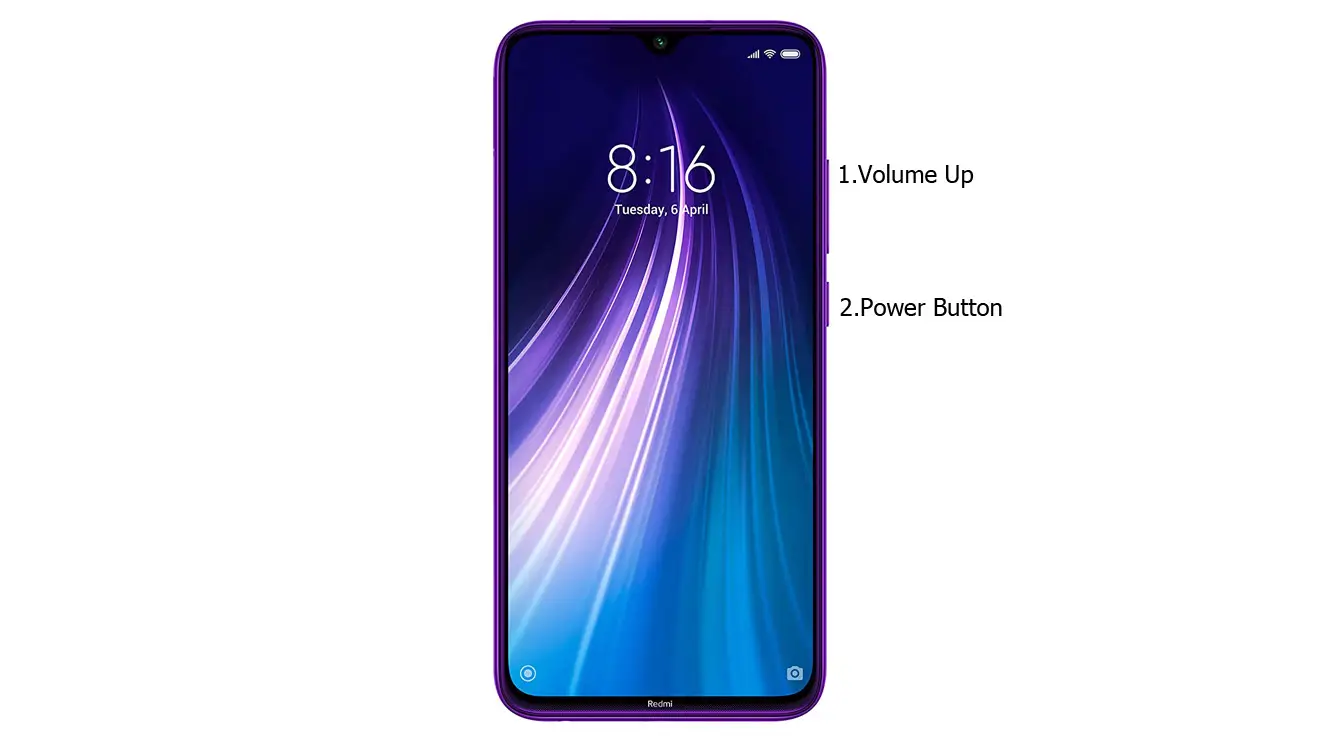
- Switch off your device. Then, enter into Recovery mode. To do this, press and hold down the Volume Up+ Power buttons simultaneously for some time.
-
Press the Volume Down button to continue when you see the warning message.
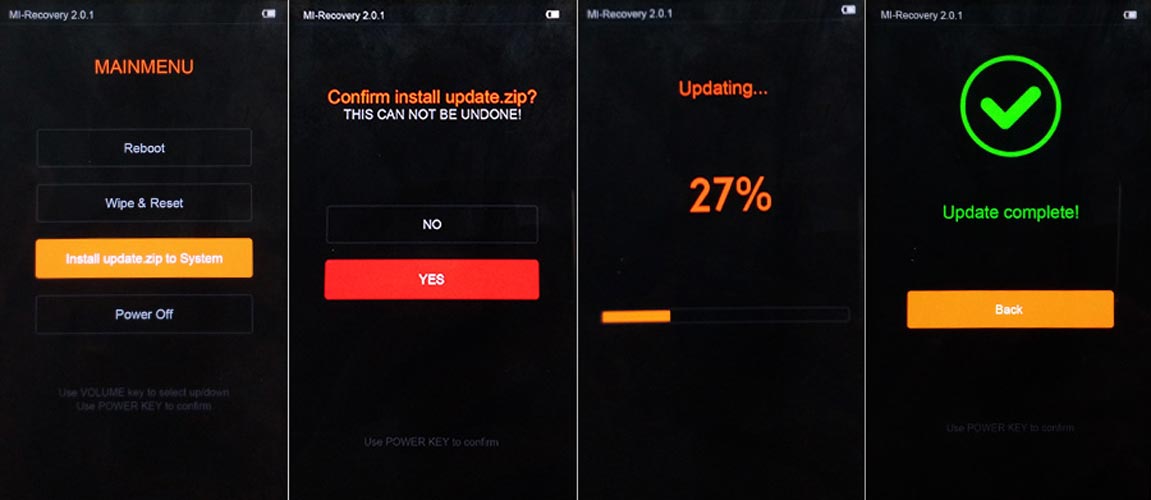
- If you want to install any file, Select “Install update.zip to the system.” select the storage where you downloaded your firmware file.
- Wait for the process to complete. Don’t interrupt your mobile during the process.
TWRP Recovery
When you use Rooted mobiles, you either use Stock Recovery or TWRP custom recovery. If you have Stock Recovery, you can use the above process. When you install TWRP on your mobile, follow the steps below.
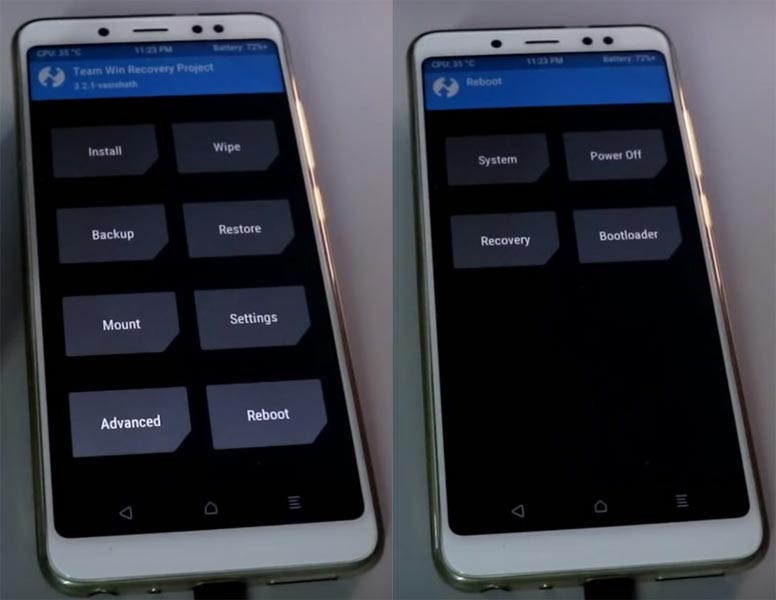
- The Volume Up+ Volume Down+ Power Button Keycombinations will boot your mobile into TWRP Recovery mode.
- On the Home screen, you can find the option “Boot.” Select the item; you will receive further options as System, Power Off, Recovery, and Bootloader. Select “System.” Your mobile will boot into Normal OS.
Boot Xiaomi Redmi Note 8 2021 into Safe Mode
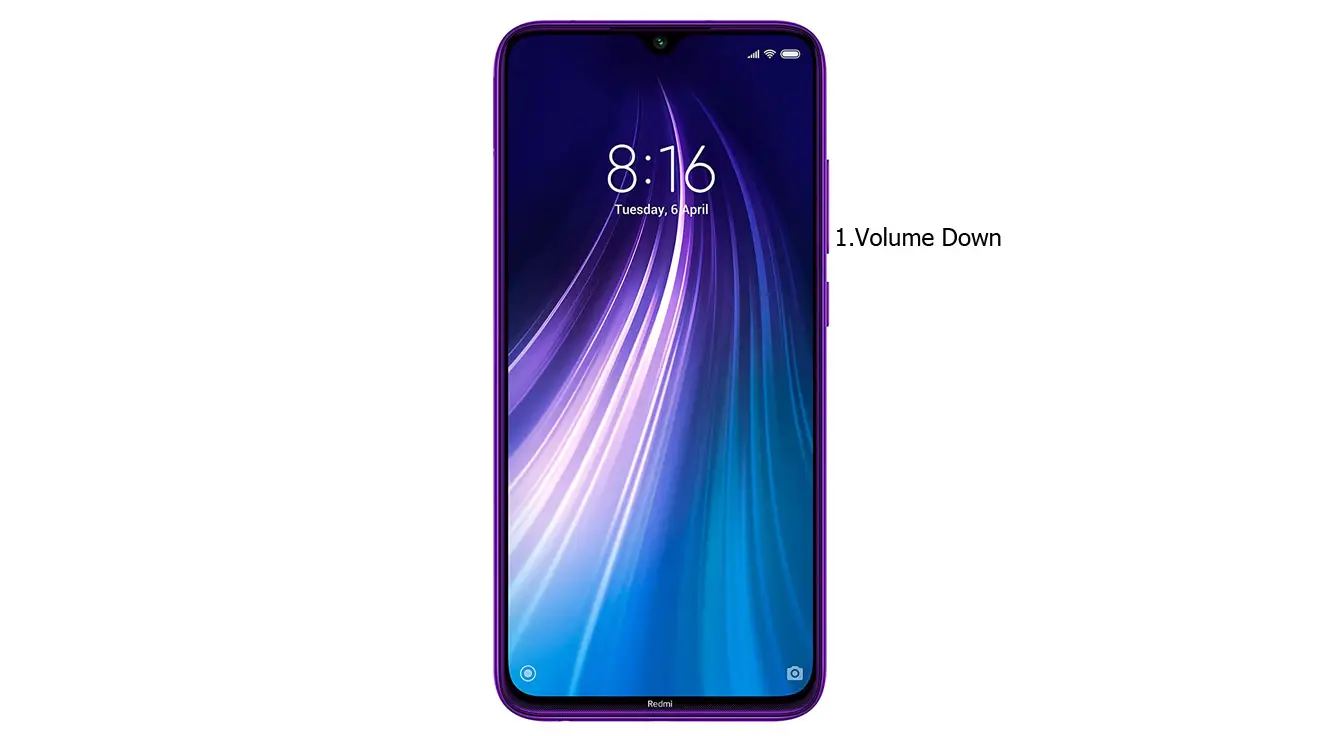
Try to boot into Safe Mode by pressing Volume Down for 10-15 seconds. Your mobile will boot into Safe mode. Try to Un-Install the recently installed app before the OTA process. Also, check the compatibility in Play Store. When you install apps other than Play Store, Un-Install them and try to boot again. Sometimes third-party apps may trigger the new version, and it may cause the stuck-in boot logo. In Safe Mode, most of the third-party apps will be disabled by default.
Wipe Cache Data Partition
When you perform, restart using recovery, and you can’t boot into OS again. In this situation, We have another choice of the fix by Wipe cache partition. It is also will not affect user data. It will wipe only cache data. You have to press Volume Up+ Power Button on your mobile for 7-10 Seconds. After that, it will boot you into the recovery mode or directly boot into System OS. The response may vary depending on the mobile manufacturers. If you received a Recovery mode menu, use the Volume keys to navigate and the Power button to confirm the selection. Remember, you should wipe only the cache partition, Not the Wipe Data/Factory Reset.
Stock Recovery Method
- Switch off your device. Then, enter into Recovery mode. To do this, press and hold down the Volume Up+ Power buttons simultaneously for some time.
-
Press the Volume Down button to continue when you see the warning message.
- If you want to install any file, Select “Install update.zip to the system.” select the storage where you downloaded your firmware file.
- Wait for the process to complete. Don’t interrupt your mobile during the process.
TWRP Recovery method
When you use Rooted mobiles, you either use Stock Recovery or TWRP custom recovery. If you have Stock Recovery, you can use the above process. When you install TWRP on your mobile, follow the steps below.
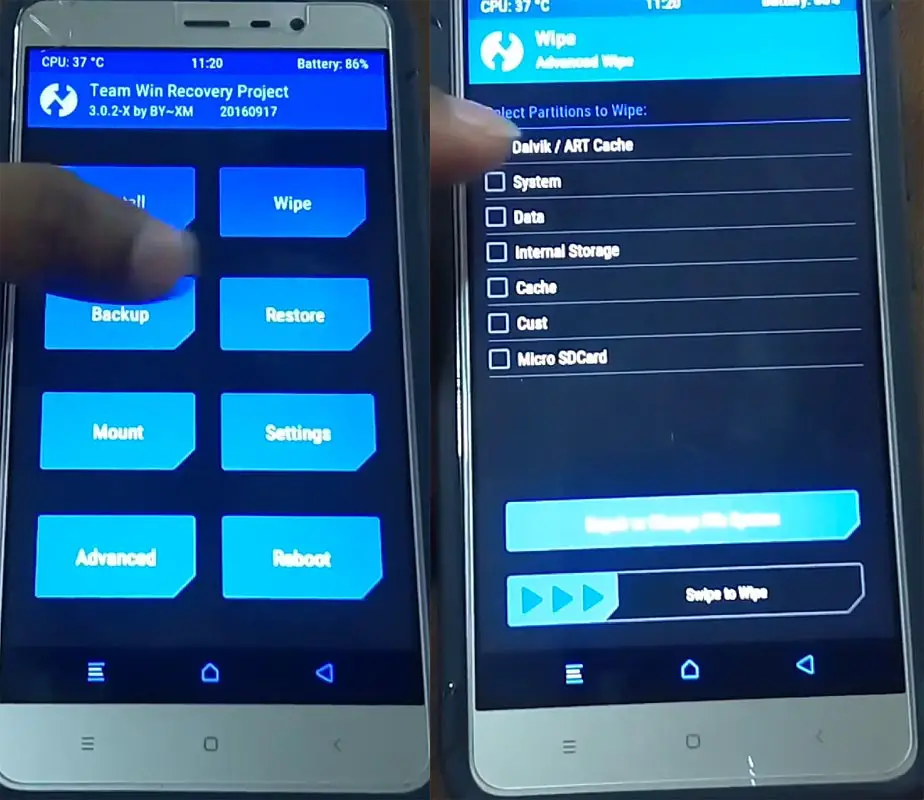
- The Keycombinations will boot your mobile into TWRP Recovery mode.
- On the Home screen, you can find the option “Wipe.” Select the wipe option; you will receive further details. Select “Cache.” Don’t select the System. It will wipe your OS. After selecting other choices, swipe to erase the data. When the process completes, return to home and boot into OS.
Reset Your Xiaomi Redmi Note 8 2021 Mobile
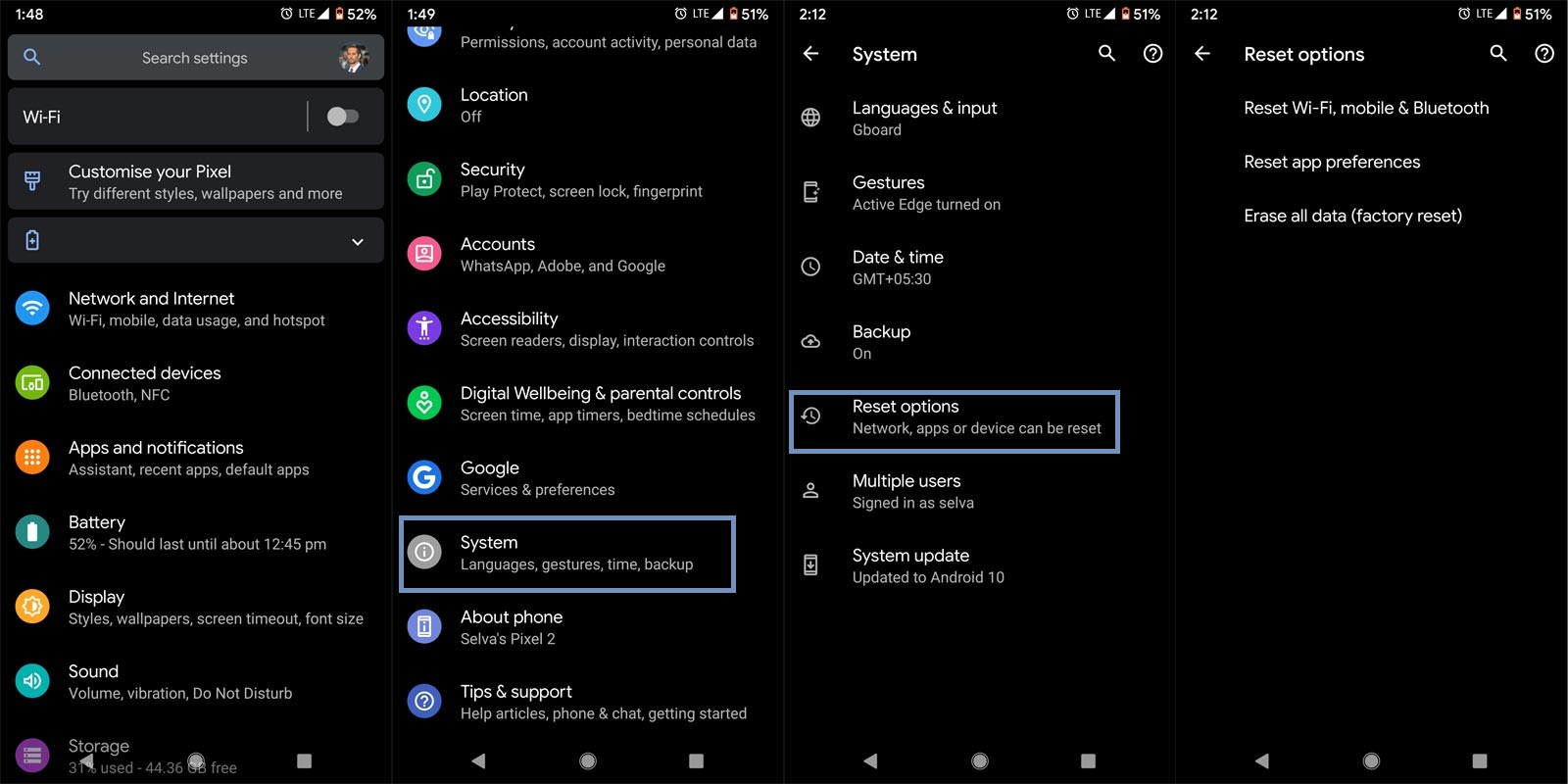
If you follow all the methods and still face issues, you can Rest your mobile. Take complete backup on your mobile. You can do a soft reset or hard reset. To Rest your mobile, Go to settings> System>Reset Options> Reset app preferences/ Factory Reset.
- Soft Reset/App Preference Reset– This option will remove all the custom settings we made and return to the default settings. It will not delete user data.
- Hard Reset/Factory Reset– It will remove all user data. Your mobile OS will become new, like when you purchased it. You have to set up everything from the beginning.
You can also use your mobile recovery to reset when you can’t boot into your Mobile OS.
Stock Recovery method
- Switch off your device. To do this- Press and hold down the Volume Up + Power buttons simultaneously for some time. Then, enter into the Stock Recovery mode. It will boot your mobile into Recovery mode.
- If you don’t use Rooted mobiles, you have Stock Recovery, which your official mobile manufacturer provides most of the time. If you have stock recovery, you have the direct option as “Wipe Data/Factory Reset.” Navigate to this option and confirm it using the power key button. Remember, It will delete your entire mobile data. So, Backup first before the process.
TWRP Recovery method
When you use Rooted mobiles, you either use Stock Recovery or TWRP custom recovery. If you have Stock Recovery, you can use the above process. When you install TWRP on your mobile, follow the steps below.
- The Keycombinations will boot your mobile into TWRP Recovery mode.
- On the Home screen, you can find the option “Wipe.” Select the wipe option; you will receive further details. Select “Dalvik, Data, and Internal Storage.” Don’t select the System. It will wipe your OS. After selecting other choices, swipe to erase the data. When the process completes, return to home and boot into OS.
Xiaomi Redmi Note 8 2021 SAR Value
In the world of mobile, SAR Value is used to measure a cell phone’s radiation broadcasting capabilities. Thus, one can ensure that their mobile device does not exceed the maximum limits set for the mobile user’s safety, making SAR important. For example, Xiaomi Redmi Note 8 2021 SAR Value is Head: 0.191 W/kg/ Body: 1.034 W/kg
Wrap Up
The boot mode key combinations may look simple Because it varies depending on the mobile models. Therefore, knowing your key combinations is necessary. Even if you are a regular user, You have to go through some basic troubleshooting issues in your mobile, like stuck on the boot logo or freeze issues. It is necessary to learn about your Xiaomi Redmi Note 8 2021 modes and boot key combinations to deal with that troubleshooting. We hope the different boot modes will help you deal with your needs when you face any issues during the process; comment below.

Selva Ganesh is a Computer Science Engineer, Android Developer, and Tech Enthusiast. As the Chief Editor of this blog, he brings over 10 years of experience in Android development and professional blogging. He has completed multiple courses under the Google News Initiative, enhancing his expertise in digital journalism and content accuracy. Selva also manages Android Infotech, a globally recognized platform known for its practical, solution-focused articles that help users resolve Android-related issues.





Leave a Reply