
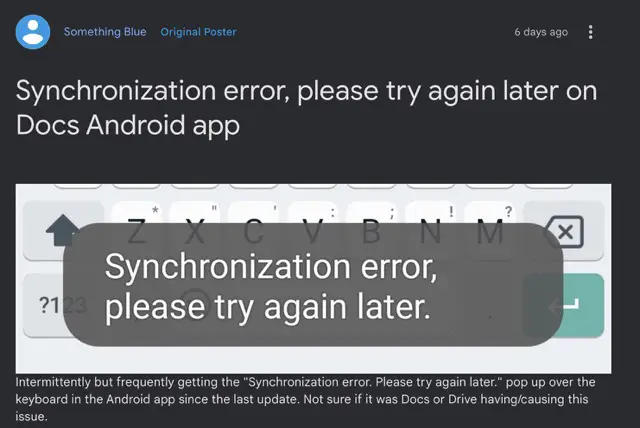
In the fast-paced digital age, Google Docs and Google Drive have revolutionized how we collaborate and store our files. However, even the most reliable of services can sometimes hit a snag. As of late, these essential tools have encountered a hiccup in the form of a persistent synchronization error on Android devices. This issue has frustrated many users with an error message even when the apps run in the background. But fear not, for there is a solution at hand. This article will explore the reasons behind the Google Docs & Drive Synchronization error and provide a step-by-step guide to resolving it.
The Annoying Google Docs & Drive Synchronization Error on Android
Imagine working on an important document or trying to access your critical files on the go, only to be interrupted by a nagging synchronization error. This is the predicament that many Android users are currently facing. Despite the mistake not directly impacting the functionality of files or online syncing, it is inconvenient as it occupies a portion of the screen regularly. Interestingly, this problem appears device-agnostic, affecting users across various Android devices. Most notably, Samsung device users are prominently affected, although some Pixel users have also reported encountering this issue.

The Temporary Respite
While encountering this synchronization error can be frustrating, there is a light at the end of the tunnel. A workaround has been identified that can provide a temporary solution to this vexing problem. The workaround involves deleting the Google Drive app data. It’s important to note that taking this action will not impact any files that have been securely synced and stored in the cloud. However, it’s worth mentioning that this solution offers only temporary relief, as the bug might resurface once the app data is repopulated from the server. Nevertheless, a quick solution is better than enduring the constant annoyance of the error message.
The Fix in Action
If you’re ready to bid farewell to the synchronization error, here’s how you can do it:
- Head over to your device’s settings.
- Navigate to the “Apps & Notifications” section.
- Select “See All Apps” to view the list of all installed applications.
- Scroll down and locate the Google Drive app.
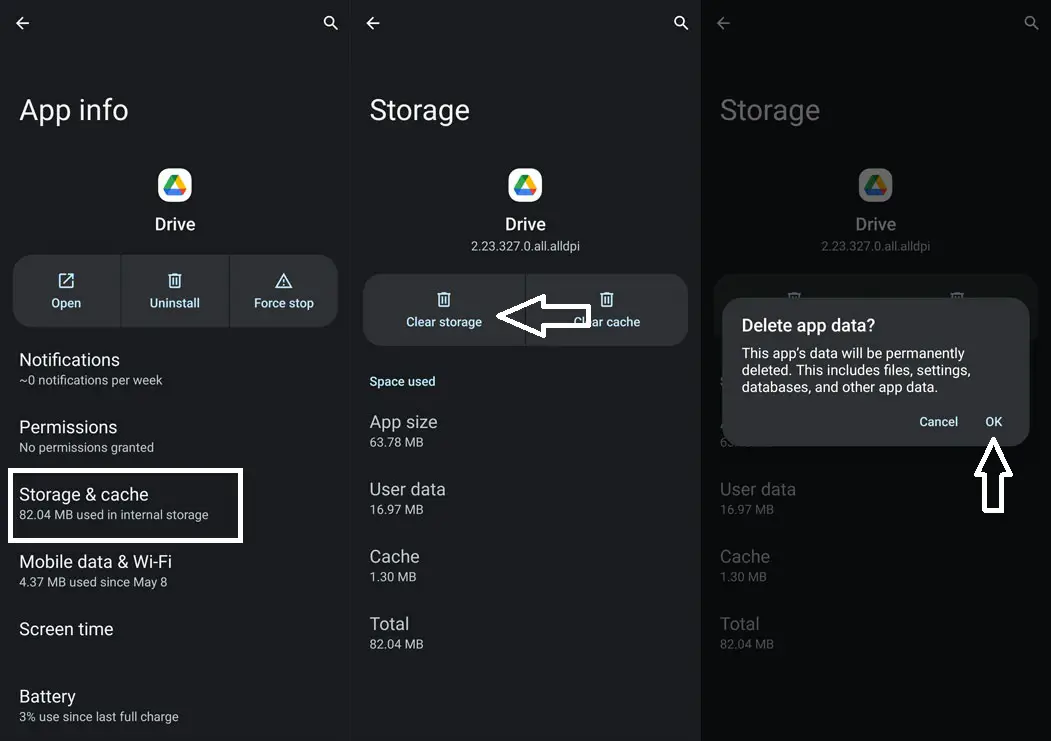
- Tap on the app to access its details and then select the “Storage” section.
- Look for the “Clear Storage” option and tap on it.
- A confirmation prompt will appear; tap “Delete” to proceed.
- Following these steps, you should eliminate your Android device’s Google Docs & Drive Synchronization error.
FAQs
Is this synchronization error exclusive to specific Android devices?
While it affects Samsung devices prominently, some Pixel users have also reported encountering the issue.
Will deleting app data erase my synced files?
Deleting app data will not impact files synced and stored in the cloud.
Is the workaround a permanent fix?
No, the workaround provides temporary relief, as the error might reappear when the app data is repopulated.
Are there any other solutions to this error?
Currently, deleting app data is the most effective workaround reported by users.
Can I expect Google to release an official fix?
While there’s no official confirmation, Google is likely aware of the issue and may address it in future updates.
Wrap Up
In the rapidly evolving digital realm, even the most impeccably designed services can sometimes be subject to unexpected glitches, as exemplified by the occurrence of the Google Docs & Drive Synchronization error on Android devices. Though seemingly impossible, this frustrating error can be alleviated by adhering to the prescribed course of action. By diligently following the provided steps, you can effectively counter the persistence of this annoying issue, finding relief from its recurrent disruptions. It’s crucial to acknowledge that technology’s demands are multifaceted, yet with a dose of patient troubleshooting, you can swiftly restore the harmonious flow of your work, ensuring the seamless accessibility and utilization of your essential files, irrespective of your location or circumstance.

Selva Ganesh is a Computer Science Engineer, Android Developer, and Tech Enthusiast. As the Chief Editor of this blog, he brings over 10 years of experience in Android development and professional blogging. He has completed multiple courses under the Google News Initiative, enhancing his expertise in digital journalism and content accuracy. Selva also manages Android Infotech, a globally recognized platform known for its practical, solution-focused articles that help users resolve Android-related issues.




Leave a Reply