
How to Add Digital IDs to Google Wallet – Carrying physical plastic cards, driver’s licenses, and passports everywhere is quickly becoming a thing of the past. With modern technology, we can now securely store official digital IDs, state-issued driver’s licenses, and ID passes right on our Android smartphones using Google Wallet.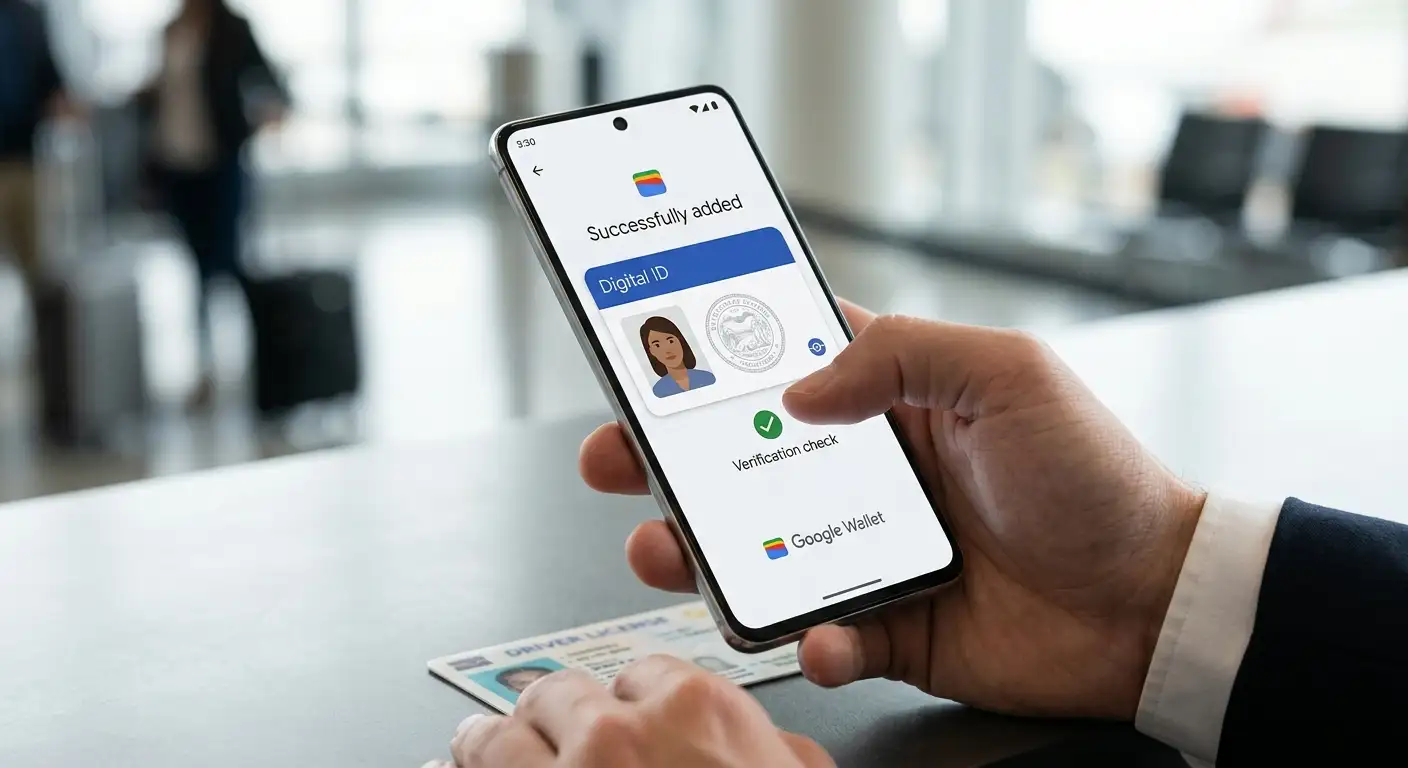
Whether we want to speed through airport security lines, quickly verify our age, or simply carry fewer physical items in our pockets, setting up a digital ID is fast, secure, and straightforward. We have put together this step-by-step guide to help everyone—including complete non-tech beginners—add and use their digital IDs safely.

What Is a Digital ID in Google Wallet?
A digital ID in Google Wallet is an official or verified electronic version of our identity documents stored directly on an Android device. Depending on where we live and what document we use, this can take the form of:
-
A State Driver’s License or State ID: Issued directly by participating state government agencies.
-
An ID Pass (Using a Passport): A digital credential created by scanning an official passport and its internal security chip, heavily used for TSA airport checkpoints.
-
Student or Campus IDs: Digital credentials provided by participating universities and schools.
We enjoy enhanced privacy with digital credentials because we control what information is shared. For instance, when proving our age at a store, we can share our age status without revealing our full home address or birth date.
What Do You Need Before Getting Started?
Before we begin the setup process, we must ensure our smartphone and documents meet a few simple requirements. We do not need any technical expertise, but we do need to check off the following basic prerequisites:
-
An Android Phone: Our device must run Android version 9.0 or higher.
-
NFC Turned On: Near Field Communication (NFC) is the built-in wireless chip that allows our phone to talk to contactless card readers.
-
Screen Lock Enabled: For protection, our phone must have a PIN, pattern, password, or fingerprint lock turned on.
-
A Personal Google Account: Digital IDs can only be linked to individual personal Gmail accounts, not work or school administrative accounts.
-
Your Physical Document: Have your state ID card, driver’s license, or official physical passport sitting in front of you in a well-lit room.
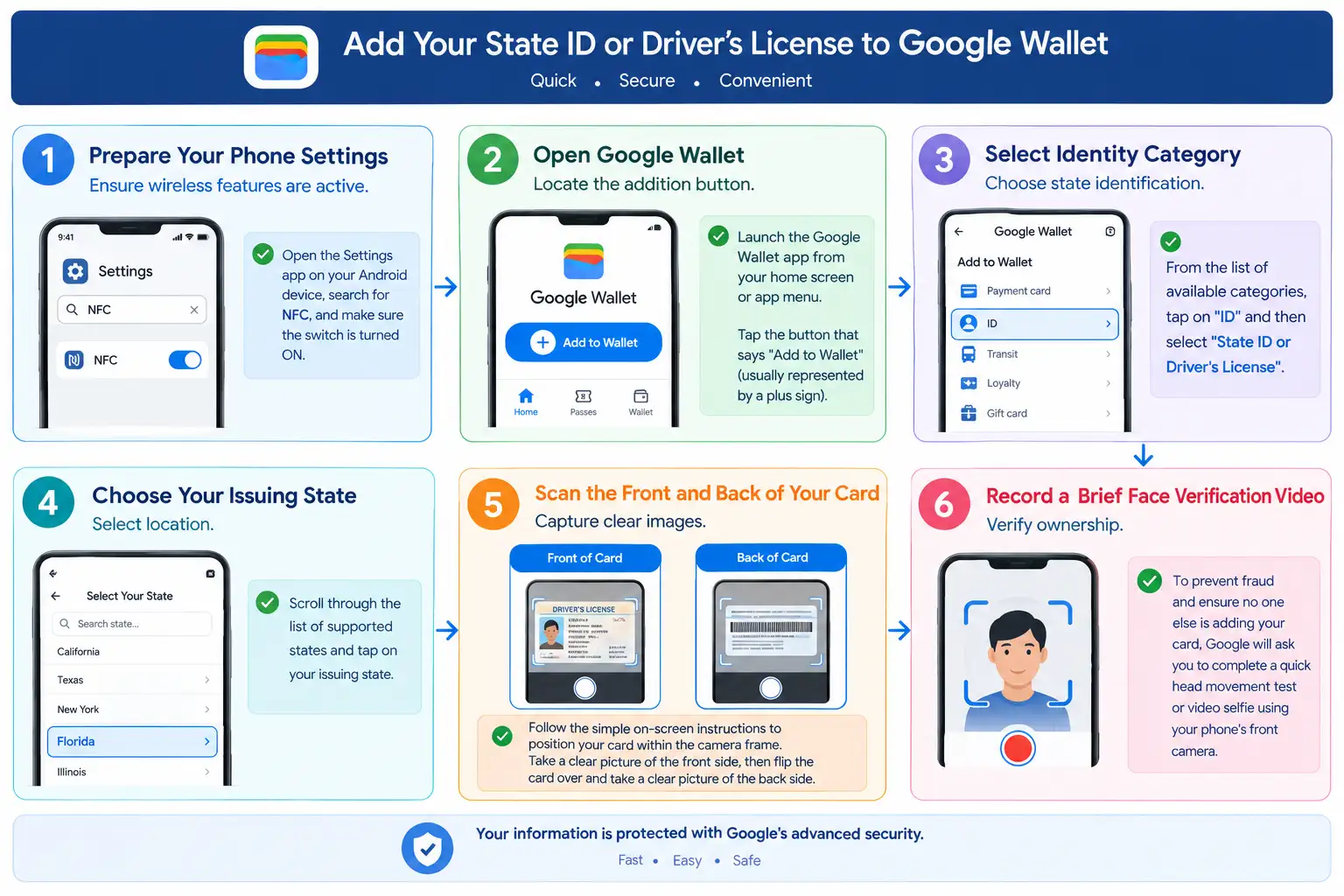
Method 1: How to Add a State Driver’s License or State ID
If we live in a supported state, we can digitize our physical driver’s license or state ID card directly into Google Wallet.
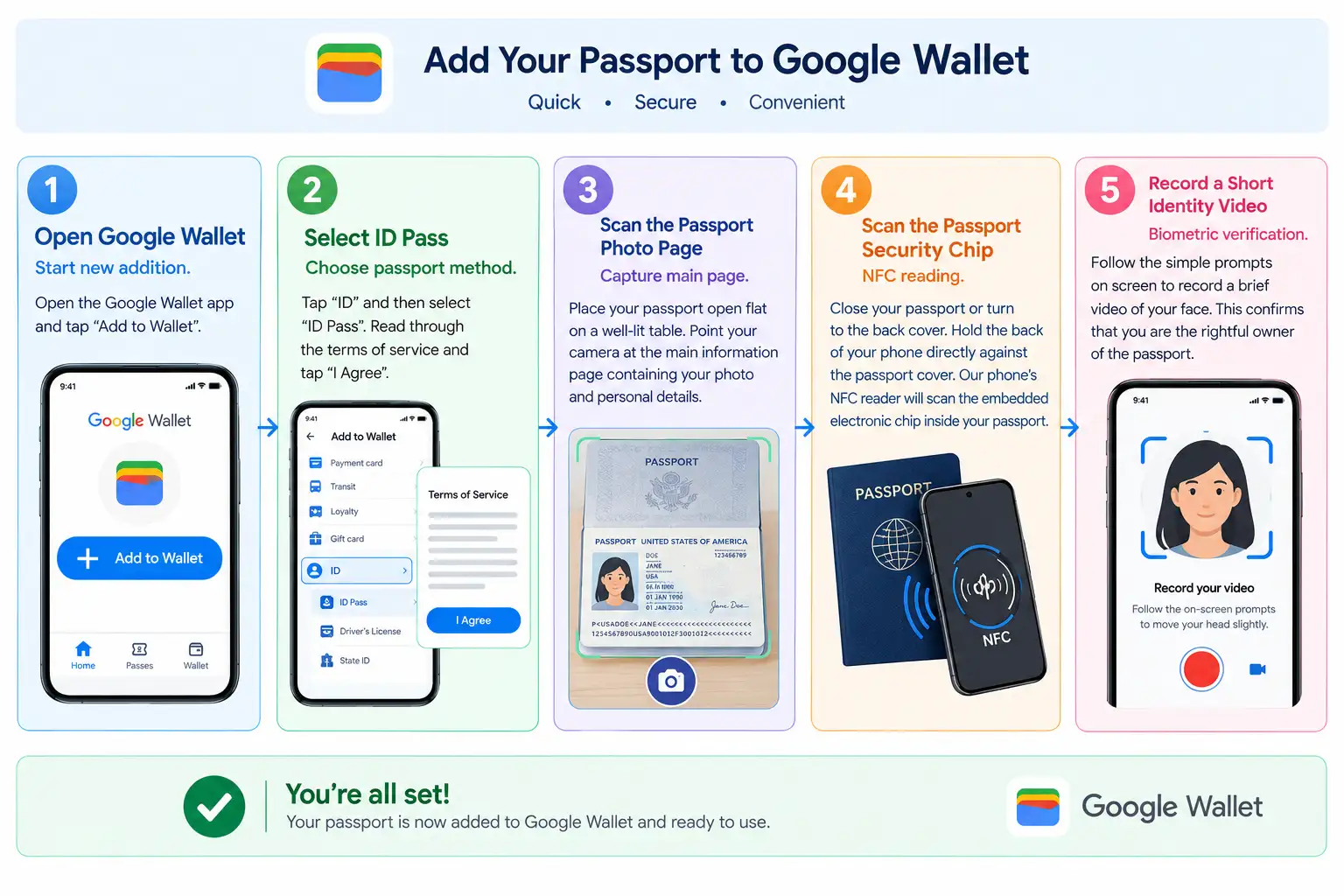
Method 2: How to Create an ID Pass Using Your Passport
An ID Pass is a convenient digital credential that pulls information from an official passport. It is widely accepted across major airport security checkpoints for domestic travel.
How to Present Your Digital ID in Real Life
Once we have successfully added our credential, using it is seamless and intuitive. We do not even need to open any complex submenus.
Presenting via Terminal (Contactless Readers)
-
Unlock Your Phone: Use your fingerprint, face unlock, or PIN to unlock your device.
-
Hold Near Reader: Hold the back of your phone near the identity scanner or NFC terminal for a few seconds.
-
Review Shared Data: Your screen will show exactly what information the reader is requesting (e.g., name, photo, or age verification).
-
Authenticate & Share: Confirm the request using your fingerprint or passcode. A blue check mark will appear on your screen once the information is successfully sent.
Presenting via QR Code Scan
-
Open Google Wallet and tap on your saved ID Pass or Driver’s License.
-
Display the generated QR Code on your screen to the authorized person or scanner.
-
Tap Share after approving the requested information on your display.
How Google Wallet Keeps Your Information Secure
Security is the most crucial part of storing personal identity documents digitally. We want to reassure non-technical users that digital IDs offer privacy protections that physical cards cannot match:
-
Encrypted Storage: Our personal identification details are encrypted directly inside our phone’s isolated hardware security layer.
-
Biometric Authentication Required: No one can access or display our digital ID without our biometric approval (fingerprint/face unlock) or secret PIN.
-
Granular Consent: We can always review the exact pieces of data requested before giving permission to share.
-
Remote Erasure: If our phone ever gets lost or stolen, we can instantly delete all digital IDs remotely using Google’s Find My Device tool.
Important Rules to Keep in Mind
While digital identity technology is expanding rapidly, we must keep a few practical rules in mind:
-
Always Carry Your Physical Document: Digital IDs are widely accepted at participating airports and businesses, but they are not yet universally recognized everywhere. We recommend always carrying your physical card as a backup.
-
One Device Limit: An ID pass or passport credential can generally only be registered to one phone at a time. If we get a new phone, we must remove the card from our old device before setting it up on the new one.
Frequently Asked Questions (FAQ)
What is the minimum Android version required for digital IDs in Google Wallet?
Your smartphone must run on Android 9.0 (Pie) or a newer operating system version, and it must have NFC hardware functionality enabled.
Can I use my digital ID at all airports in the United States?
Not all airports support digital ID scanners yet. While acceptance at TSA security checkpoints is rapidly expanding, we strongly recommend carrying your physical driver’s license or passport as a mandatory backup when traveling.
What happens if my phone battery dies while I need to present my ID?
If your phone powers off completely due to a dead battery, the NFC chip cannot perform authentication, and the screen cannot render a QR code. In such scenarios, you must present your physical driver’s license or passport.
Is my personal address shared when I verify my age with a digital ID?
No. When using Google Wallet at an authorized identity reader, the terminal requests only specific required details (such as whether you are over 18 or 21). You will see a prompt on your phone screen allowing you to review and explicitly consent to sharing only that specific information.
Can I add my digital ID to multiple Android devices simultaneously?
In most jurisdictions, strict government security regulations restrict a digital driver’s license or passport ID Pass to a single active smartphone at a time. If you switch to a new phone, you must remove the credential from the old device before setting it up on the new one.

Selva Ganesh is a Computer Science Engineer, Android Developer, and Tech Enthusiast. As the Chief Editor of this blog, he brings over 10 years of experience in Android development and professional blogging. He has completed multiple courses under the Google News Initiative, enhancing his expertise in digital journalism and content accuracy. Selva also manages Android Infotech, a globally recognized platform known for its practical, solution-focused articles that help users resolve Android-related issues.




Leave a Reply