
Crop Multiple Sections of an Image & Merge Tool– In our early digital workflow, we regularly encountered a persistent operational bottleneck: traditional photo editing software treated extraction and compilation as isolated, friction-heavy processes. When handling dense technical diagrams, sprawling architecture blueprints, multi-page data sheets, or batches of high-resolution product photography, we spent far too much time opening individual files, manually snipping fragments into separate layers, aligning canvas boundaries, and exporting fragmented assets.
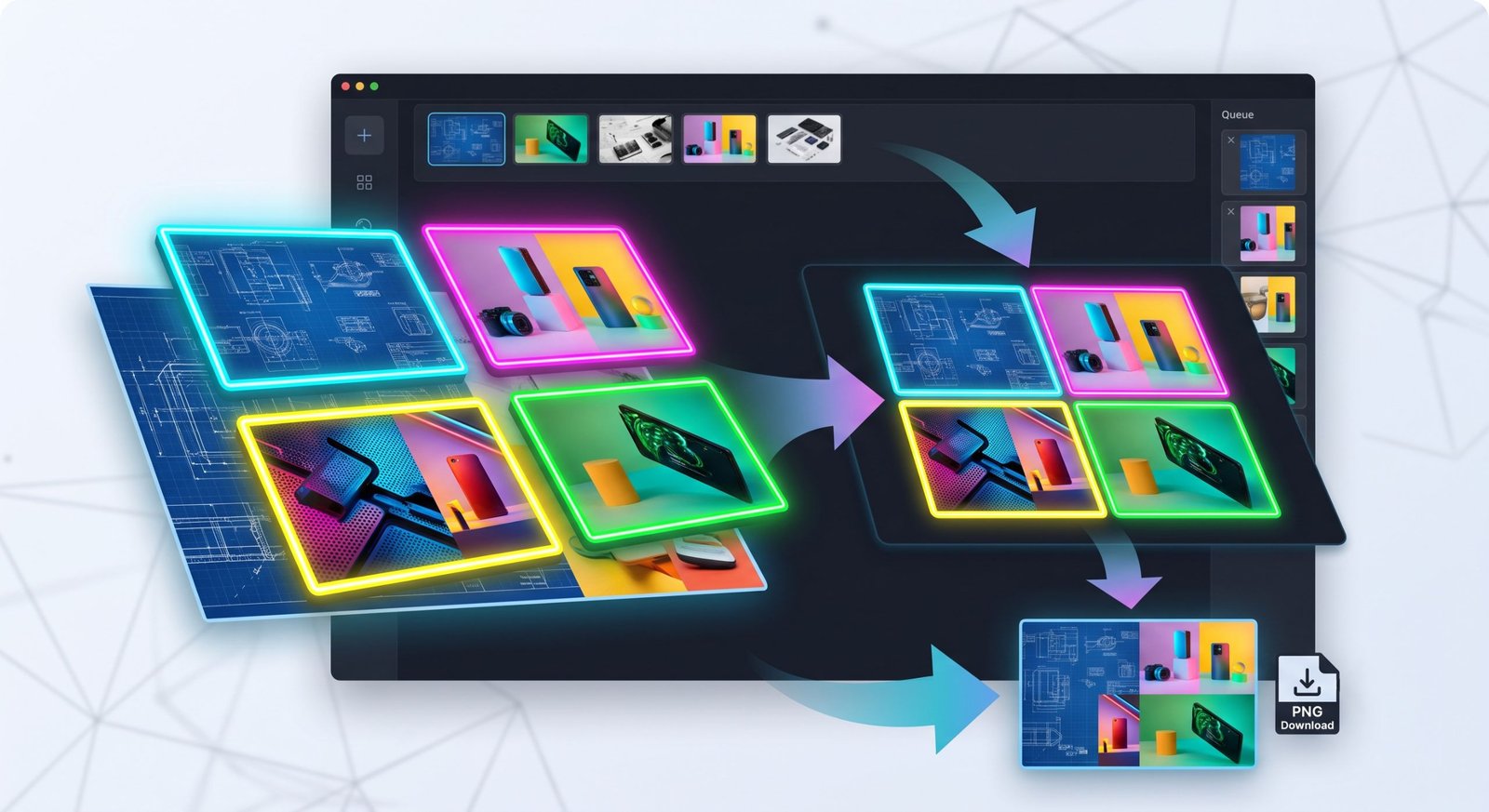

We engineered a streamlined, browser-native framework to address this challenge. We discovered that by integrating multi-image ingestion, dynamic pan-and-zoom viewports, non-destructive coordinate tracking, and automated directional merging into a unified pipeline, we could compress hours of painstaking cropping into seconds.
The Challenge of Precision Fragment Extraction
Standard image editing suites often introduce significant overhead when all we require is targeted region extraction across multiple assets. We frequently handle diverse source files—ranging from complex infographic sheets to gigapixel microscopy captures—where critical information lives in disparate quadrants.
When we attempt to stitch these regions together using standard desktop raster editors, we encounter distinct workflow impediments:
-
Canvas Clutter: Layer hierarchies quickly become unmanageable when slicing five or six distinct sub-regions from three separate 8K base assets.
-
Loss of Native Resolution: Downscaling or arbitrary canvas transformations often resample sub-regions prematurely, degrading fine detail and text legibility.
-
Repetitive File Management: Exporting temporary intermediate PNG files clutters local storage and disrupts creative focus.
-
Rigid Layout Engines: Reorganizing spliced fragments into balanced grids or directional sequences requires constant manual snapping, alignment calculations, and padding adjustments.
To solve these persistent friction points, we built an architecture centered around multi-image management, high-precision viewport navigation, cross-image selection, and lossless directional stitching.
- Download Crop Multiple Sections of an Image & Merge Tool in offline-Easily Works with any browser.
Multi-Image Management and Ingestion Architecture
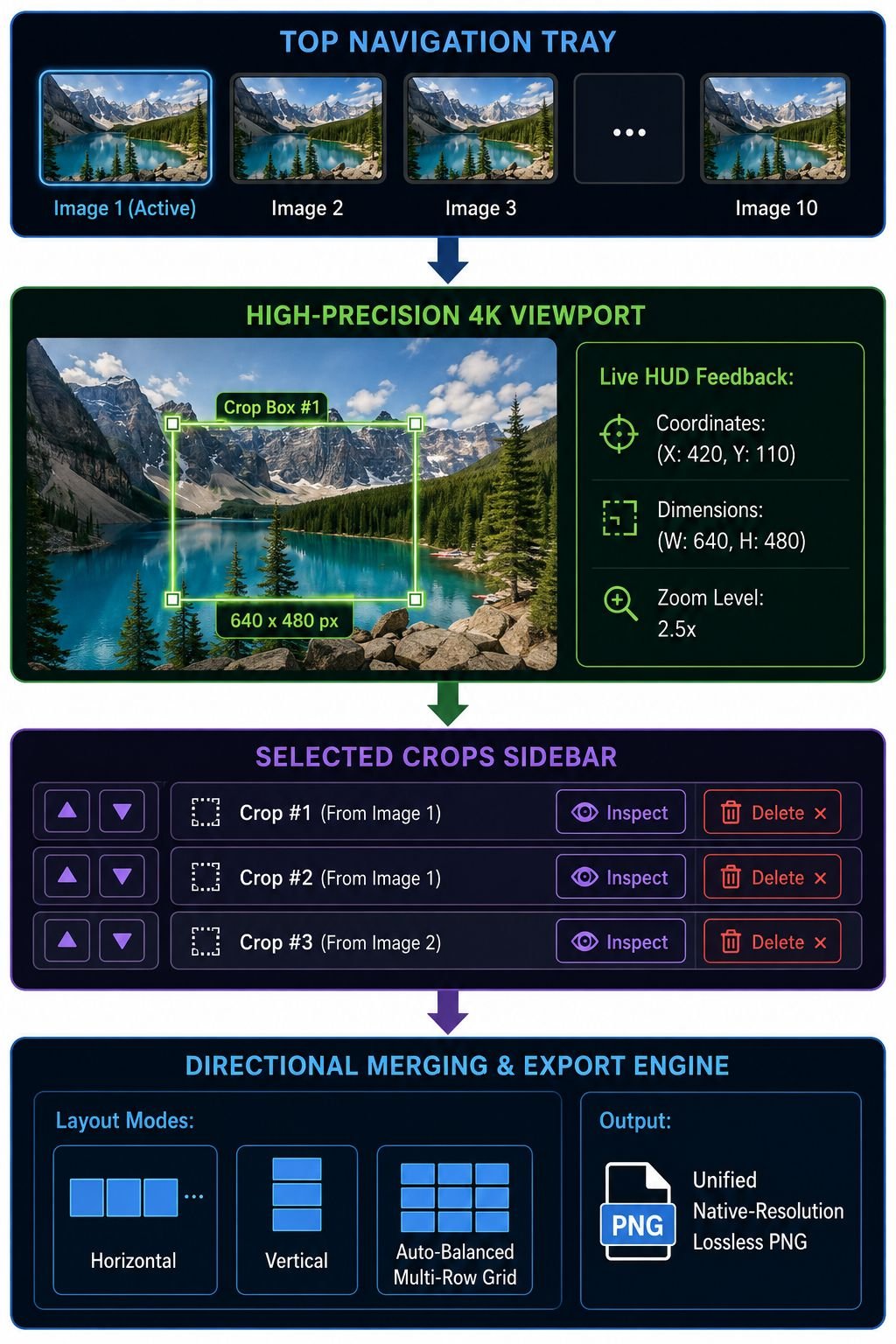
Our workflow begins by accepting complex image sets without requiring sequential, one-by-one processing. We structured the ingestion engine to handle up to ten simultaneous high-resolution image uploads, supporting rich standard formats as well as dense 4K and 8K visual assets.
Bulk Ingestion Pipeline
We can drag and drop raw files straight into the workspace target area. The interface immediately reads the file array into a unified Top Navigation Tray, initializing the primary image canvas while retaining secondary assets in memory.
Source Isolation and Asset Management
Working with multiple assets requires rapid context switching. Through the top tray tabs, we jump between different loaded sources instantly. If an image contains zero relevant data, our individual source deletion allows us to purge that specific file from the active session without invalidating or clearing the crops we already harvested from other files.
Navigating Ultra-High-Resolution Canvases
Accurate cropping requires seeing every detail without distortion. When isolating fine text labels, hardware serial numbers, or microscopic texture details, working at standard 1:1 screen resolution is insufficient.
Dual Interaction Modes
We split viewport manipulation into two discrete, high-performance operational states:
-
Move and Position Mode (M): Activating Move Mode decouples the cursor from the cropping engine. We freely pan across expansive visual planes, moving the canvas along the Cartesian plane without accidentally drawing stray crop boxes.
-
Crop Mode (C): Once the target region is centered, entering Crop Mode arms the cursor with a coordinate-locked selection tool designed to map rectangular boundary boxes down to the exact source pixel.
Deep-Zoom Engine and Coordinate HUD
Our zooming pipeline scales dynamically from 0.1x (broad macro layout view) to 10x (micro-level precision). By tracking the mouse wheel directly toward the cursor location, we zoom straight into our area of interest without losing spatial orientation.
To eliminate guesswork during technical work, a dynamic Heads-Up Display (HUD) renders live visual metrics directly inside our workspace:
-
Real-Time Coordinates: Precise $(X, Y)$ offsets relative to the native image origin.
-
Exact Dimensions: Dynamic $(W \times H)$ bounding-box pixel measurements that update continuously during click-and-drag selections.
Multi-Crop Extraction Across Disparate Files
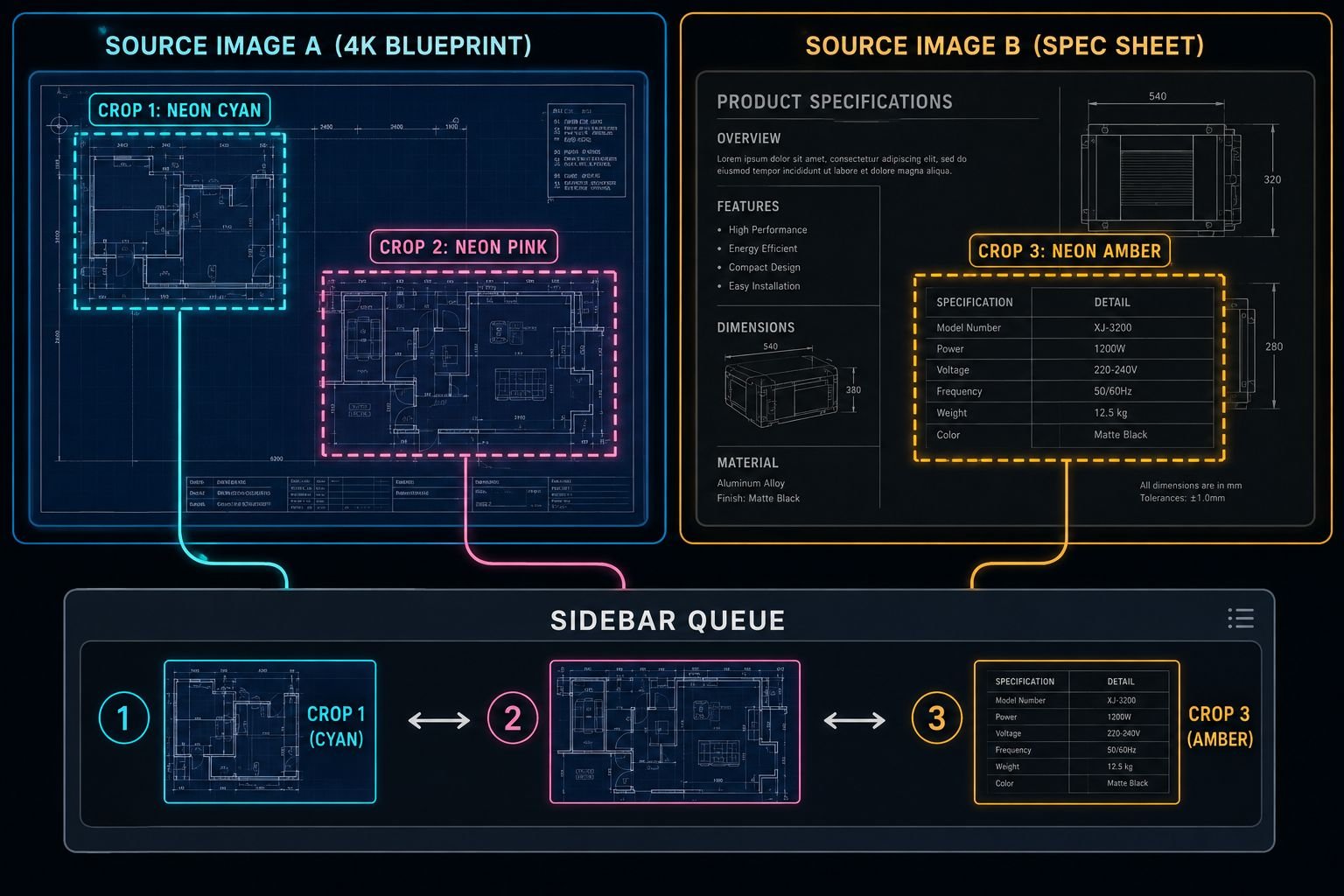
Extracting multiple elements from a single image or across diverse sources requires clear visual boundaries. Rather than limiting extraction to a single marquee selection per document, our workspace supports up to ten distinct, concurrent crop selections.
Visual Contrast via Color-Coded Enclosures
When drawing multiple boxes on visually complex backgrounds, overlapping boundaries can cause confusion. We address this by applying high-visibility neon bounding boxes to every new selection. Each box features high-contrast vector outlines and semi-transparent fills, allowing us to inspect the underlying source content while maintaining absolute clarity on boundary limits.
Cross-Image Harvesting
We frequently harvest details scattered across entirely separate files. We select an electrical diagram from Asset 1, switch tabs in our top tray to Asset 2 to capture a diagnostic graph, and jump to Asset 3 to grab a reference table. All selections populate directly into a centralized Selected Crops Sidebar, turning isolated files into a unified pool of visual fragments.
Granular Inspection and Non-Destructive Corrections
-
Full-Resolution Modal Inspection: Clicking any thumbnail in the sidebar opens an isolated preview modal displaying the extracted patch at native scale, confirming clarity before merging.
-
Individual Crop Removal: Drawing mistakes happen. Instead of resetting the workspace, we delete misdrawn selections individually via the sidebar, preserving the rest of our queue.
Directional Merging Algorithms and Layout Synthesis
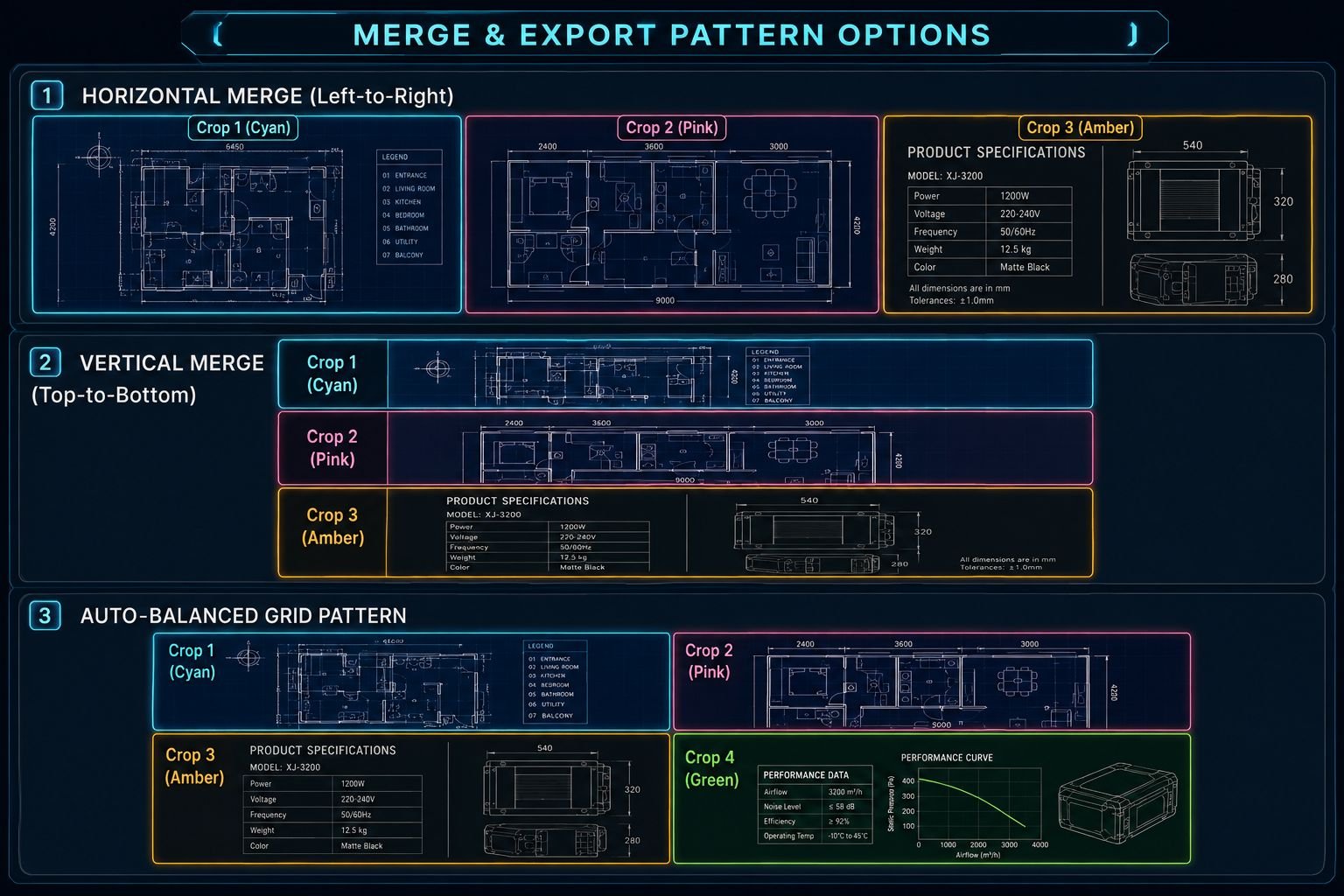
Once we gather our target crops, the next step is joining these disparate fragments into a cohesive, high-impact composite image. We built flexible assembly modes directly into our output pipeline to accommodate various presentation formats.
Dynamic Sequencing
Visual hierarchy relies heavily on sequence. Using the Move Up (▲) and Move Down (▼) controls in our sidebar, we adjust the positional index of each crop. The order established in the sidebar directly dictates the placement of each fragment in the final output.
Comprehensive Layout Configurations
We implement three distinct geometric merging strategies to support various visual and technical formats:
| Layout Mode | Directional Flow | Primary Use Case |
| Horizontal (L $\rightarrow$ R) | Index $1 \rightarrow 2 \rightarrow 3$ (Left to Right) | Chronological timelines, panoramic strips, step-by-step UI flows |
| Horizontal (R $\leftarrow$ L) | Index $3 \leftarrow 2 \leftarrow 1$ (Right to Left) | Right-to-left localization scripts, comparative before/after sweeps |
| Vertical (Top $\downarrow$ Down) | Index $1 \downarrow 2 \downarrow 3$ (Top to Bottom) | Mobile-first graphics, document columns, stacked component breakdowns |
| Vertical (Bottom $\uparrow$ Up) | Index $3 \uparrow 2 \uparrow 1$ (Bottom to Top) | Inverted technical analysis, sedimentary layers, data readouts |
| Grid Pattern | Auto-balanced Rows & Columns | Multi-item comparison sheets, mood boards, comprehensive product sheets |
Lossless PNG Rasterization
Our final export phase operates entirely without lossy compression algorithms. The output engine reads the native pixel data from each defined bounding box, maps the bounding coordinates onto a freshly instantiated virtual canvas based on the chosen layout arrangement, and exports a unified lossless PNG file. This guarantees that microscopic annotations, line art, and typography retain original clarity.
Step-by-Step Implementation Guide
To maximize output efficiency, we execute our extraction and compilation process using a standardized five-step sequence:
- [Upload Assets] ➔ [Position Viewport] ➔ [Draw Selections] ➔ [Review & Order] ➔ [Stitch & Export]
1. Ingest Assets into the Workspace
We drop our source images directly into the designated upload area or select them using the system file browser. As soon as the files are loaded, the primary image appears on the central canvas, and all associated files display as interactive tabs in the top tray.
2. Calibrate Viewport and Canvas Position
We activate Move Mode (M) to position our target region in the center of the screen. Using the mouse wheel, we zoom directly into our target area. For rapid canvas navigation while actively drafting, we hold the Spacebar to temporarily pan without dropping the active crop tool.
3. Draw High-Precision Crops
We switch to Crop Mode (C), verify the active image tab in our top tray, and click-and-drag across the desired target area. The real-time HUD confirms our exact pixel dimensions. When we release the mouse button, the selection saves into the sidebar. We repeat this process across any loaded images until we gather all necessary regions.
4. Inspect, Reorder, and Curate
We review our extracted slices in the sidebar. We click on individual thumbnails to confirm crop boundaries in the high-resolution inspection modal, use the ▲ / ▼ arrows to set our preferred sequence, and delete any extraneous slices.
5. Execute Merge and Download
We select our desired layout configuration—Horizontal, Vertical, or Grid—from the layout menu and click Merge & Preview. The stitched composition renders instantly in the preview canvas. After verifying the final layout, we click Download Merged Image to save the final PNG asset at full native resolution.
Efficiency Reference: Keyboard and Mouse Shortcuts
Operating at peak speed requires keeping our hands on the keyboard and mouse without breaking focus. We use the following hardware shortcuts to accelerate our workflow:
| Interaction / Command | Key / Input Binding | Functional Result |
| Move / Pan Mode | M Key |
Toggles viewport positioning without drawing boxes |
| Crop Mode | C Key |
Activates crosshair cursor for rectangular marquee slicing |
| Temporary Pan | Spacebar (Hold) + Drag |
Temporarily pans the canvas while retaining Crop Mode |
| Dynamic Zoom | Mouse Wheel Up / Down |
Zooms toward or away from the exact cursor point |
| Direct Canvas Pan | Middle Click or Right Click + Drag |
Pans the visual field regardless of the active tool mode |
| Inspect Fragment | Left Click on Sidebar Thumbnail |
Opens full-resolution preview modal |
| Dismiss Modal | Left Click anywhere off-modal |
Closes active preview inspection box |
Practical Applications Across Professional Disciplines
We consistently utilize this multi-crop and merge methodology across a variety of demanding technical and creative tasks:
Scientific Analysis and Technical Documentation
When preparing academic figures or technical manuals, we often need to present microscopic sample anomalies alongside macro control subjects. By harvesting details from multiple high-resolution scans and merging them into an auto-balanced grid, we build clear, comprehensive figures without using complex layout software.
Web Architecture and UI/UX Auditing
Reviewing complex digital platforms often requires comparing navigation states, call-to-action variants, and footer layouts across different viewport sizes. We import multiple full-page layout captures, crop the relevant interface components from each, and merge them into a single horizontal progression to clearly illustrate interface consistency.
E-Commerce Catalog Harmonization
Product catalogs demand visual clarity. We routinely take high-resolution product photography, isolate key details—such as fabric textures, stitching, hardware, and label typography—and combine them into a clean vertical stack. This provides prospective buyers with a comprehensive, high-resolution overview of product craftsmanship in a single visual asset.
Frequently Asked Questions
What file formats can we upload to the multi-crop workspace?
We can upload all standard raster graphic formats, including PNG, JPEG, WebP, and AVIF. The workspace handles extreme source resolutions, including full 4K and 8K uncompressed assets, without pre-scaling.
How many individual crops can we extract across our loaded images?
We can capture up to ten distinct crop regions within a single session. These selections can be taken entirely from one base image or distributed across up to ten different uploaded files.
Does cropping and merging reduce the native resolution of our images?
No. The engine reads source pixel data directly from native canvas memory based on coordinate vectors. Merged results are exported as lossless PNG files, preserving the original resolution and clarity of every cropped section.
How does the Auto-Balanced Grid layout organize uneven crop counts?
When we select an odd number of crops (such as five or seven slices), the grid layout dynamically adjusts column and row geometry. It distributes widths evenly across rows to generate a balanced, visually unified composite block.
Can we pan the workspace while staying in Crop Mode?
Yes. By holding down the Spacebar, we can temporarily pan the viewport across our image without deactivating the crop tool. Releasing the Spacebar immediately restores the active crop crosshair.
Will deleting a loaded image from the top tray remove the crops we already made from it?
No. Once a crop region is drawn and registered in the sidebar, its pixel data is preserved in the working queue. Removing the parent image from the top tray frees up memory without deleting existing crops.
What is the maximum zoom level supported by the viewport?
The viewport zoom engine supports continuous magnification up to 10x (1000%) native scale, allowing for pixel-precise boundary adjustments. It can also zoom out to 0.1x (10%) for a broad overview of massive images.
Can we export merged results in formats other than PNG?
The merge engine defaults to lossless PNG to prevent compression artifacts, edge bleeding, and text degradation. This ensures maximum visual fidelity for detailed diagrams and professional graphics.
How do we reorder our crops before final export?
Every entry in the Selected Crops sidebar features dedicated Move Up (▲) and Move Down (▼) controls. Shifting an item’s position in the sidebar list updates its placement in the final merged layout.
Is an active internet connection required to process images?
Our processing pipeline operates entirely client-side within the local browser environment. Once the workspace application assets are loaded into your session, image slicing, manipulation, and compilation occur directly on your local device without uploading raw media to external servers.

Selva Ganesh is a Computer Science Engineer, Android Developer, and Tech Enthusiast. As the Chief Editor of this blog, he brings over 10 years of experience in Android development and professional blogging. He has completed multiple courses under the Google News Initiative, enhancing his expertise in digital journalism and content accuracy. Selva also manages Android Infotech, a globally recognized platform known for its practical, solution-focused articles that help users resolve Android-related issues.




Leave a Reply