
Disable YouTube Picture-In-Picture in Android Mobiles- We understand how frustrating it is when a video you are trying to close suddenly shrinks into a small, persistent window that blocks your mobile screen. While Picture-in-Picture (PiP) is designed to assist with multitasking, it frequently disrupts a user’s workflow, clutters the visual interface, and causes accidental audio playback. We have thoroughly tested the latest interface variations to provide you with the ultimate, foolproof method for turning off this feature permanently. To give you complete control over your mobile device, we will walk you through the precise in-app navigation and the matching system-level overrides to stop the floating window once and for all.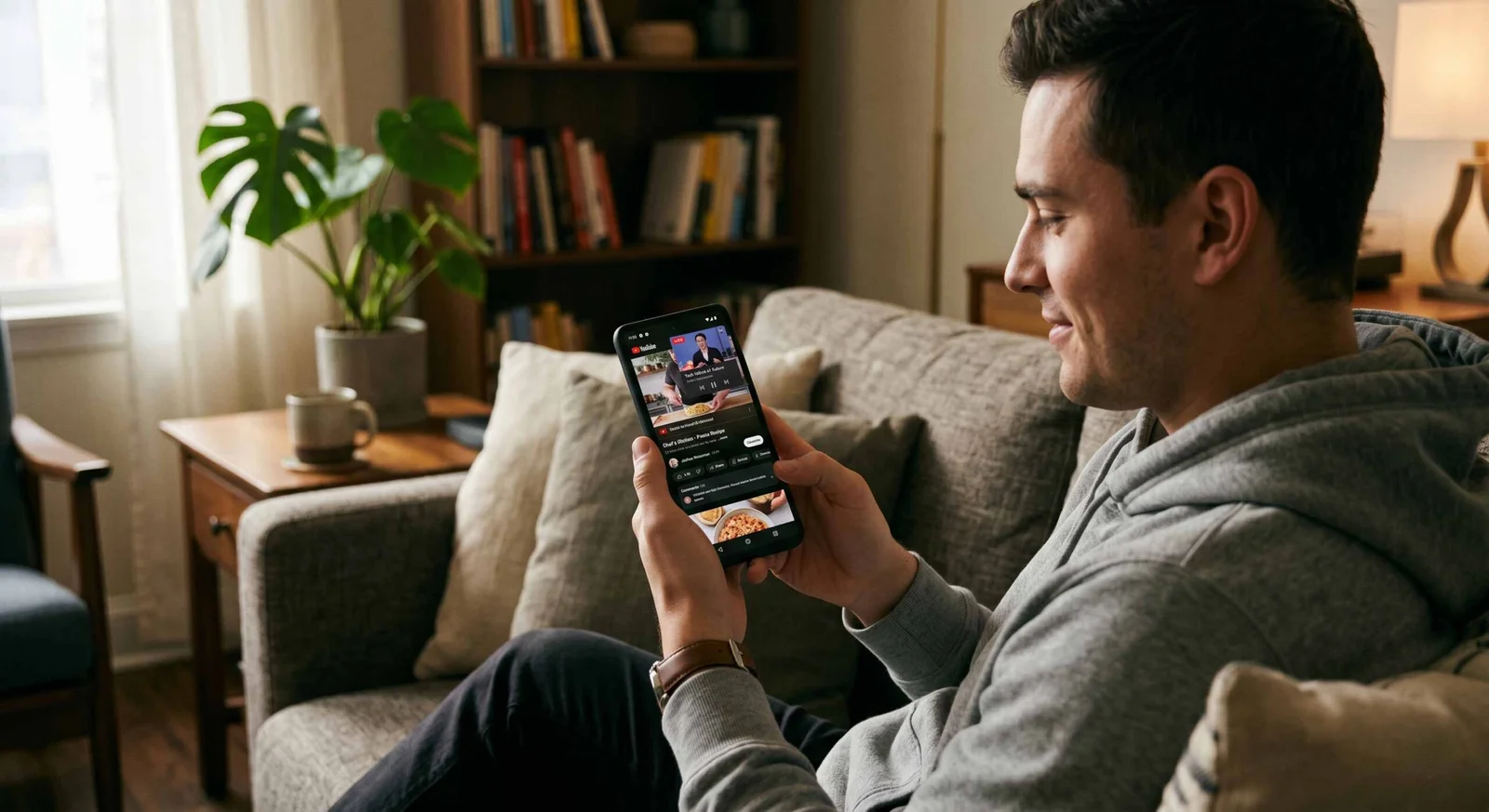
The Updated In-App Method for Modern Android Interfaces
Google frequently updates the layout of its video application, which leaves older online tutorials obsolete. We have verified the exact path within the current version of the application to save you from digging through hidden menus.

We recommend using this direct path inside the application first to change your video preferences.
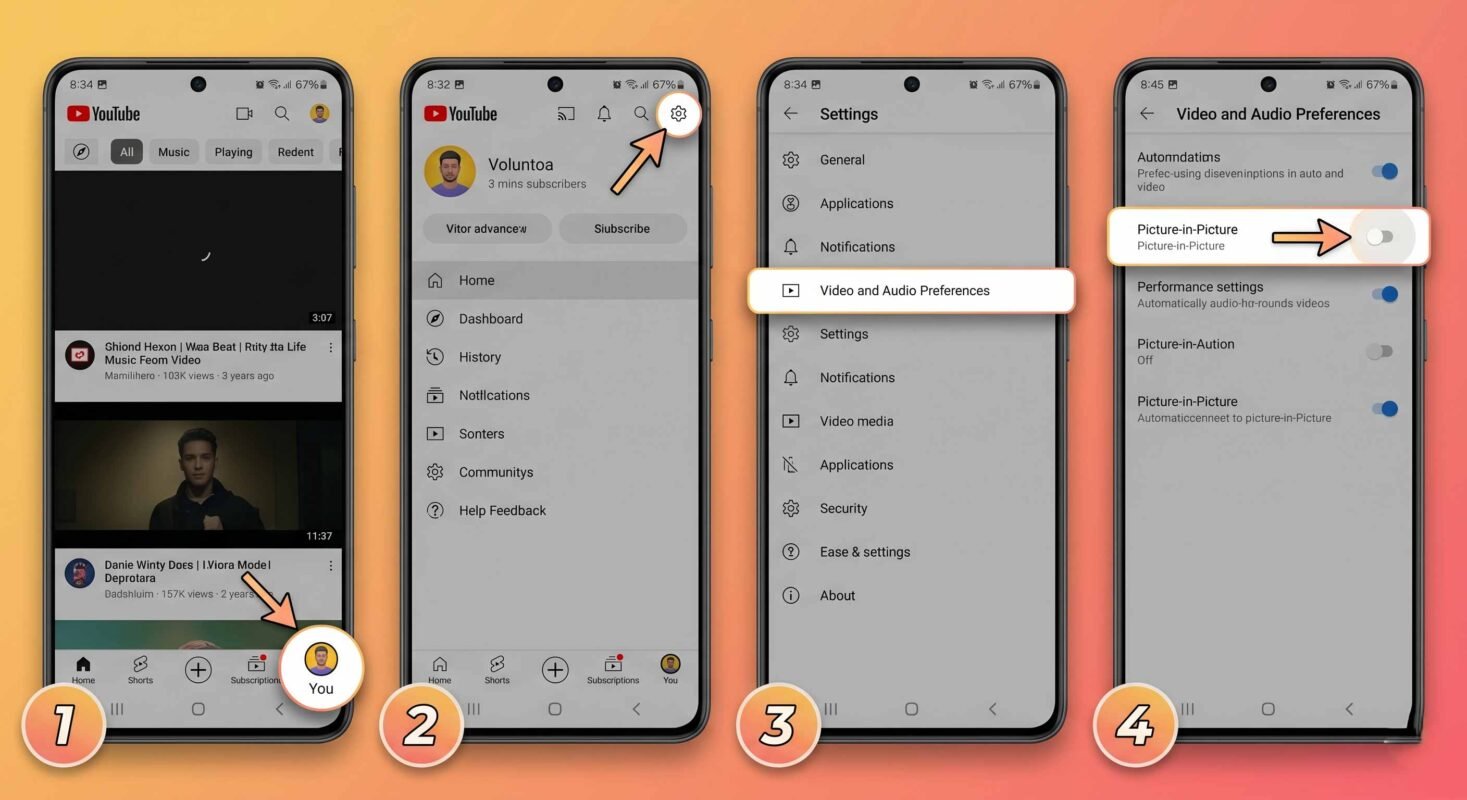
1. Access Your Profile Hub: Step 1.
Launch the video application on your Android mobile device. Look at the navigation bar located at the very bottom of your screen. Tap your profile icon, which is explicitly labeled You, located in the bottom-right corner.
2. Open the Global Settings Menu: Step 2.
Once you are on your profile dashboard, redirect your attention to the top-right corner of the screen. Tap the Gear Icon to launch the main application settings repository.
3. Navigate to Media Preferences: Step 3.
Scroll down the settings list until you locate the menu item titled Video and Audio Preferences. Select this option to open your playback rules.
4. Deactivate Picture in Picture: Step 4.
Inside this menu, look for the dedicated toggle switch labeled Picture-in-Picture. Tap the switch to change its state from enabled to disabled.
The Ultimate System Level Override Method
Sometimes, internal application settings fail to communicate properly with the core operating system, or background processes force the video box to stay open. When this happens, we must use a system-level permission revocation to completely block the app from drawing over other screens.
By stripping the application of its advanced display rights, the Android operating system will force the video timeline to pause the exact moment you swipe up or hit the home button.
Step-by-Step Android System Block
- Unlock your device and launch the native Settings application.
- Navigate down the menu and enter the Apps or Apps & Notifications management console.
- Tap on the option for Special App Access. On specific phone layouts, you might need to open an “Advanced” dropdown menu or tap three vertical dots in the upper-right corner to reveal this hidden pathway.
- From the specialized permissions index, select Picture-in-Picture.
- Scroll through your installed applications until you locate the specific video application and select it.
- Toggle the switch marked Allow picture-in-picture to the off position.
Why Changing This Behavior Optimizes Mobile Performance
We have observed significant device performance improvements after turning off background video overlays. It offers more than just a cleaner visual workspace.
Significant Reduction in System Resource Strain
Rendering a live, scaled-down video matrix on top of an active application forces your phone’s graphics processing unit to work twice as hard. By cutting off this feature, you immediately free up dynamic memory, reduce internal processor heat, and experience smoother animations across your device.
Elimination of Accidental Mobile Data Drain
When a video shrinks into the corner of your screen instead of closing, it continues to download high-definition media packages over your cellular network. Turning this feature off ensures that closing an app stops all data consumption immediately, protecting your monthly cellular data limit.
Frequently Asked Questions
Why does the video keep playing even after I turned off the setting?
This mismatch happens when your phone’s operating system permissions override the choices you made inside the app. You must use the Special App Access menu in your phone’s main settings to block the permission at the system level.
Will turning off this feature impact my premium member benefits?
No. Your premium membership benefits remain completely unchanged. You will still enjoy completely ad-free video streams, the ability to download media for offline use, and background audio playback.
Does disabling this setting save phone battery life?
Yes. Preventing your device from rendering a floating video box while simultaneously running another app reduces processor strain, which noticeably lowers battery consumption.
How do I reverse this choice if I want the floating window back?
You can easily reverse this choice by returning to your phone’s main Settings, navigating to Apps, selecting Special App Access, opening Picture-in-Picture, and flipping the toggle switch back to the allowed position.
Why is the option missing from my mobile settings menu?
This multitasking feature requires Android 8.0 Oreo or a newer version of the operating system. If the option is missing, check your device’s system settings to see if you need to install an official software update.
Does this block floating video boxes inside mobile web browsers, too?
No. The Android operating system treats each application independently. If you want to stop web browsers from creating floating video windows, you must update the permission rules for those specific browser apps.
Can I turn off the floating window for short videos while keeping it for long videos?
No. The operating system applies these display rules globally to the entire application. Changing this setting affects short-form looping content, standard video uploads, and live streams equally.
Why does my phone lag for a second when I go to the home screen?
This minor lag happens when your phone’s launcher struggles to instantly allocate hardware resources between the active app and the floating video window. Turning off the overlay feature usually fixes this interface stutter.
Will turning off this feature stop me from using split-screen multitasking?
No. Split-screen mode uses a completely separate multi-window system framework. You can still run two applications stacked on top of each other even after turning off the floating window option.
Will clearing my phone’s app cache turn this feature back on?
No. Clearing your temporary application cache will not alter your settings. However, selecting the Clear Data option or performing a full factory reset will return the application to its default state, which turns the feature back on.

Selva Ganesh is a Computer Science Engineer, Android Developer, and Tech Enthusiast. As the Chief Editor of this blog, he brings over 10 years of experience in Android development and professional blogging. He has completed multiple courses under the Google News Initiative, enhancing his expertise in digital journalism and content accuracy. Selva also manages Android Infotech, a globally recognized platform known for its practical, solution-focused articles that help users resolve Android-related issues.





Leave a Reply