
Microsoft continually innovates its Windows 11 operating system to deliver smarter, more efficient performance. One of its latest advancements is the Adaptive Energy Saver—a feature designed to intelligently optimize your device’s battery usage without compromising performance. This guide will walk you through how to enable Adaptive Energy Saver in Windows 11, explain how it works, and explore its benefits for laptops, tablets, and other battery-powered devices.
What is Adaptive Energy Saver in Windows 11?
The Adaptive Energy Saver is an innovative feature that automatically turns on or off the Energy Saver mode on Windows 11 devices based on system workload and power state rather than battery percentage alone. Unlike traditional energy saver modes, it does not dim the screen brightness, ensuring minimal disruption while still conserving battery life.

This feature is available only on devices with a battery, such as laptops, tablets, and handhelds. Desktop PCs won’t support Adaptive Energy Saver but can still use the regular Energy Saver mode.
⚙️ How to Enable Adaptive Energy Saver in Windows 11
Adaptive Energy Saver is being tested in the Canary Channel of the Windows Insider Program, and it’s expected to roll out widely later this year. Here’s how to enable it if you’re a Windows Insider or once the feature becomes generally available.

Step-by-Step Instructions:
- Join the Windows Insider Program
- Go to Settings > Windows Update > Windows Insider Program.
- Click Get Started, link your Microsoft Account, and choose the Canary Channel for early access features.
- Update to the Latest Windows 11 Build
- Navigate to Settings > Windows Update.
- Click Check for updates and install the latest build that supports Adaptive Energy Saver (look for builds released from June 2025 onwards in Canary Channel).
- Enable Adaptive Energy Saver
- Go to Settings > System > Power & Battery.
- Scroll down to Battery Saver.
- Look for a new toggle named Adaptive Energy Saver.
- Switch it ON to let Windows intelligently manage your energy saver settings.
Note: This feature is opt-in, meaning it won’t be turned on by default even if your system supports it.
How Adaptive Energy Saver Works
Adaptive Energy Saver is designed to be smart and invisible. Once enabled, it monitors two primary indicators:
- Device Power State: Whether the device is charging, plugged in, or running on battery.
- System Load: Background activity, CPU usage, and app behaviour.
Adaptive Energy Saver will automatically enable energy-saving protocols if your system is under light load while on battery. When load increases or critical tasks begin, it will turn off energy saver mode to avoid performance degradation.
This creates a dynamic and seamless experience where users benefit from energy efficiency without manually toggling power modes or noticing sudden dimming.
Features of Adaptive Energy Saver
Here’s a breakdown of what Adaptive Energy Saver includes and excludes:
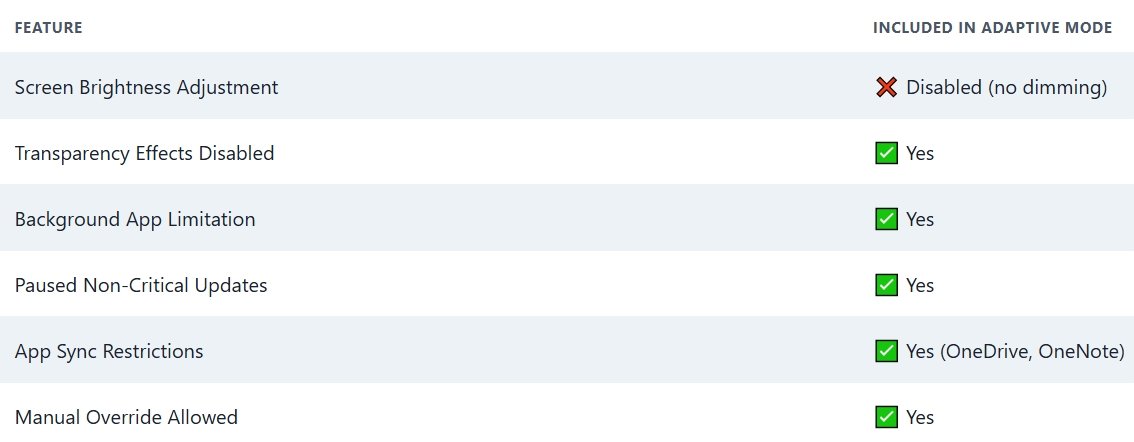
This combination ensures optimal battery life without affecting visibility or usability—perfect for students, professionals, and travellers who rely on battery endurance.
Benefits of Using Adaptive Energy Saver
1. Extended Battery Life
Your laptop will avoid wasting battery during idle or low-usage periods by intelligently toggling the energy saver.
2. No Compromise on Visibility
Since screen brightness remains unchanged, working in bright environments remains comfortable even when the energy saver is active.
3. Smooth User Experience
It avoids manual toggling and ensures that heavy applications perform at full performance when needed, while light tasks consume less power.
4. Eco-Friendly Computing
Adaptive power management reduces electricity consumption and contributes to greener usage patterns.
How to Verify If Adaptive Energy Saver Is Working
After enabling the feature, you can monitor it in action by:
- Opening Settings > System > Power & Battery > Battery Saver.
- Look for system messages stating “Energy Saver turned on by Adaptive Mode”.
- Use tools like Battery Report by running powercfg /batteryreport in Command Prompt to view power usage patterns.
Which Devices Support Adaptive Energy Saver?
To use Adaptive Energy Saver, you must meet the following criteria:
- Device Type: Laptop, tablet, or handheld with battery support.
- OS Version: Windows 11 Insider Build from Canary Channel (June 2025 and above).
- Hardware Compatibility: Most modern chipsets and devices have power monitoring features.
Microsoft may extend support to more devices as it evaluates feedback from testers and OEMs.
When Will Adaptive Energy Saver Launch for Everyone?
As of July 2025, Adaptive Energy Saver is in testing. Microsoft plans to release it in stable versions of Windows 11 later this year, likely starting with the 23H2 or 24H1 updates. Keep your system updated to be among the first to access it outside the Insider Program.
Quick Tips for Optimising Battery on Windows 11
Even without Adaptive Energy Saver, here are some pro tips:
- Enable Battery Saver manually at 40–50% for better results.
- Use Dark Mode and turn off unnecessary animations.
- Lower screen resolution when on battery.
- Turn off Bluetooth, Wi-Fi, or location services when not in use.
- Close background apps from Task Manager to reduce CPU load.
These small changes can maximise your battery runtime when combined with Adaptive Energy Saver.
Final Thoughts
Adaptive Energy Saver in Windows 11 marks a leap forward in intelligent power management. It’s designed for users who want extended battery life without compromising the smooth Windows experience they love. With its automatic toggling, no screen dimming, and seamless performance adjustments, this feature is bound to become a favourite among Windows users worldwide.
Be sure to join the Windows Insider Program or update your system to experience it as soon as it’s available.

Selva Ganesh is a Computer Science Engineer, Android Developer, and Tech Enthusiast. As the Chief Editor of this blog, he brings over 10 years of experience in Android development and professional blogging. He has completed multiple courses under the Google News Initiative, enhancing his expertise in digital journalism and content accuracy. Selva also manages Android Infotech, a globally recognized platform known for its practical, solution-focused articles that help users resolve Android-related issues.




This really helps during long commutes or travel. Amazing that such a small feature can make such a big difference!
Thank you for the detailed directions. Feature is now switched on across my whole family’s devices.
Great work on demystifying this option. My battery health graph is looking much better these days.
Battery savings are very noticeable after switching on Adaptive Energy Saver. Well-explained guide as always!
Efficient and straightforward—just what I like in a tech feature. I’ll be sharing this article with friends!
Saved me from carrying a power bank everywhere. Thanks for making this so easy to understand and activate!
More features like these please! This has been a lifesaver for all my traveling.
I see a big improvement in daily usage. Adaptive Energy Saver is a quiet hero in Windows 11!
Found exactly what I needed, thank you! Feature is working perfectly after following your steps.
My travel setup feels a lot more reliable now. Thanks for pointing out this option!
This feature should be shared more widely. Battery drain has greatly reduced for me.
Really liked the clear instructions and the explanation. The Adaptive Energy Saver is helping a lot during long flights.
Thanks for such a comprehensive guide. Adaptive Energy Saver is now on for all my Windows gadgets!
I’ve recommended your article to my entire team. We’re all seeing a positive impact from Adaptive Energy Saver!
The process to enable this was so intuitive, thanks to your article. My battery now easily gets me through a full day of work.
I’m happy Microsoft is making sustainability improvements. The new battery feature really works!
These improvements make Windows 11 a whole lot better for portable devices. Everything worked exactly as described, thanks!
Outstanding walkthrough of a lesser-known feature. Really appreciate the clarity in your explanation.
A fantastic addition to Windows 11, especially for frequent travelers. Your details on how to activate it were spot on.
So grateful for these tips, wish I had them sooner. My family is loving the increased battery runtime on all our devices!