
We understand the absolute frustration of opening a new browser tab, typing a query, and realizing that Google Chrome Switching to Other Search Engines, such as Yahoo, Bing, and Yandex. This disruptive behavior breaks your daily browsing workflow and triggers immediate security concerns. In our extensive experience handling browser configurations, this automatic redirection is rarely a user’s intentional choice. Instead, it points directly to an underlying software conflict, a malicious browser extension, or a deeper browser hijacker infecting your operating system.
We have designed this definitive architectural guide to walk you through the precise engineering steps required to reclaim your browser. By following our systematic troubleshooting pipeline, you will permanently eliminate the Other Search Engines redirect Virus, secure your user profile data, and ensure that your default search settings remain locked to Google.

Understand Why Chrome Automatically Changes to Other Search Engines
Before diving into the technical fixes, we must address the root cause of this alteration. When Google Search unexpectedly redirects to Other Search Engines, your browser environment has likely been modified by a third-party application or a corrupted extension. This phenomenon is broadly classified under browser hijacking.
Malicious actors bundle small pieces of tracking script inside seemingly benign software downloads, such as free PDF converters, media players, or custom themes. Once you install the host program, the bundled script modifies your browser’s core configuration files. The primary motivation behind this unauthorized shift is financial. The hijackers route your organic search queries through custom proxy networks to display targeted advertisements, generate illicit affiliate revenue, and track your online data footprint.
Remove Harmful Extensions From Your Chrome Profile
The most frequent vector for search modifications is a compromised browser extension. Even tools that functioned perfectly for months can silently update their source code to include malicious redirect scripts. We need to audit your extension directory completely.
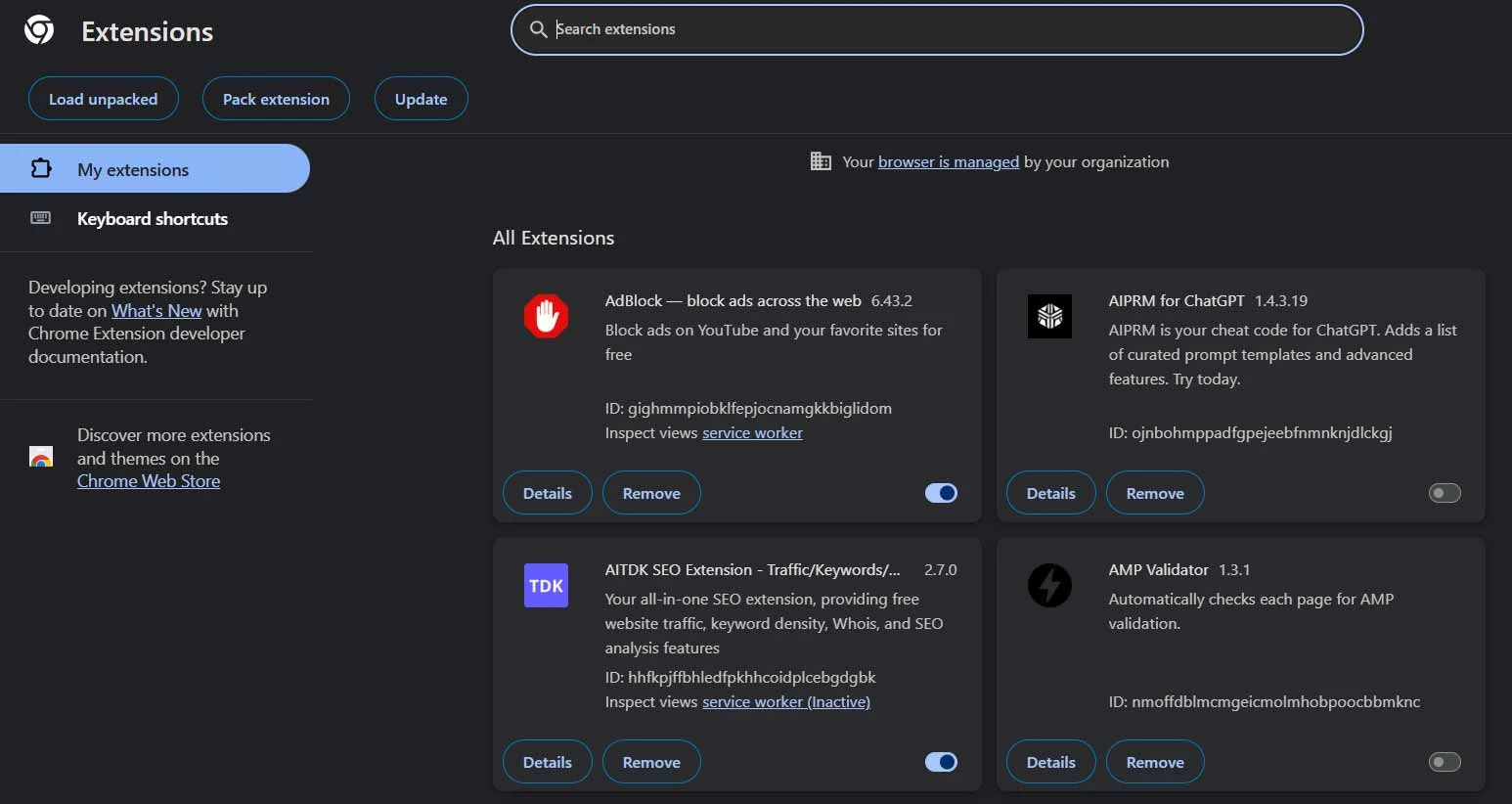
- Open your browser and navigate directly to the extension management panel by typing chrome://extensions/ into the URL address bar and pressing Enter.
- Carefully scrutinize every single item listed on this page. Do not merely look for obviously malicious names; examine tools you installed recently or utilities that you rarely use.
- Toggle the switch to Disable any extension that handles search optimization, custom new tab pages, proxy configurations, or ad blocking from unverified developers.
- If you identify an item you do not remember installing, or an extension that looks suspicious, click the Remove button immediately. Confirm the deletion in the pop-up dialogue box.
Once your extension environment is fully sanitized, restart your browser and test a query in the address bar to confirm whether the redirection persists.
Purge Unauthorized Search Providers from Chrome Settings
Once the problematic extension is removed, we must manually overwrite the configuration files it left behind. Chrome maintains a list of secondary search providers, and a lingering script might have set Other Search Engines as your primary search provider.
- Click the three vertical dots located at the absolute top-right corner of your screen to open the primary system menu.
- Select Settings from the drop-down options to open the centralized configurations interface.
- On the left-hand navigation sidebar, click directly on the Search engine tab.
- Locate the section labeled “Search engine used” in the address bar, then use the drop-down to select Google explicitly.
- Click the subsequent line labeled “Manage search engines and site search” to access the granular database of your search providers.
- Scroll down to the list of search engines, locate Other Search Engines, click the three contextual dots next to its name, and select Delete. This action completely erases the parameters that allow Chrome to automatically query other search engines’ servers.
Reset Google Chrome to Factory Default Configurations
If deep-seated registry keys or hidden script fragments continue to alter your preferences, a comprehensive browser reset is required. This operation will restore your startup page, new tab layout, search engine choice, and pinned tabs back to an absolute factory-fresh state. Crucially, it will also turn off all extensions globally and clear temporary site cache files without deleting your saved passwords, personal bookmarks, or browsing history.
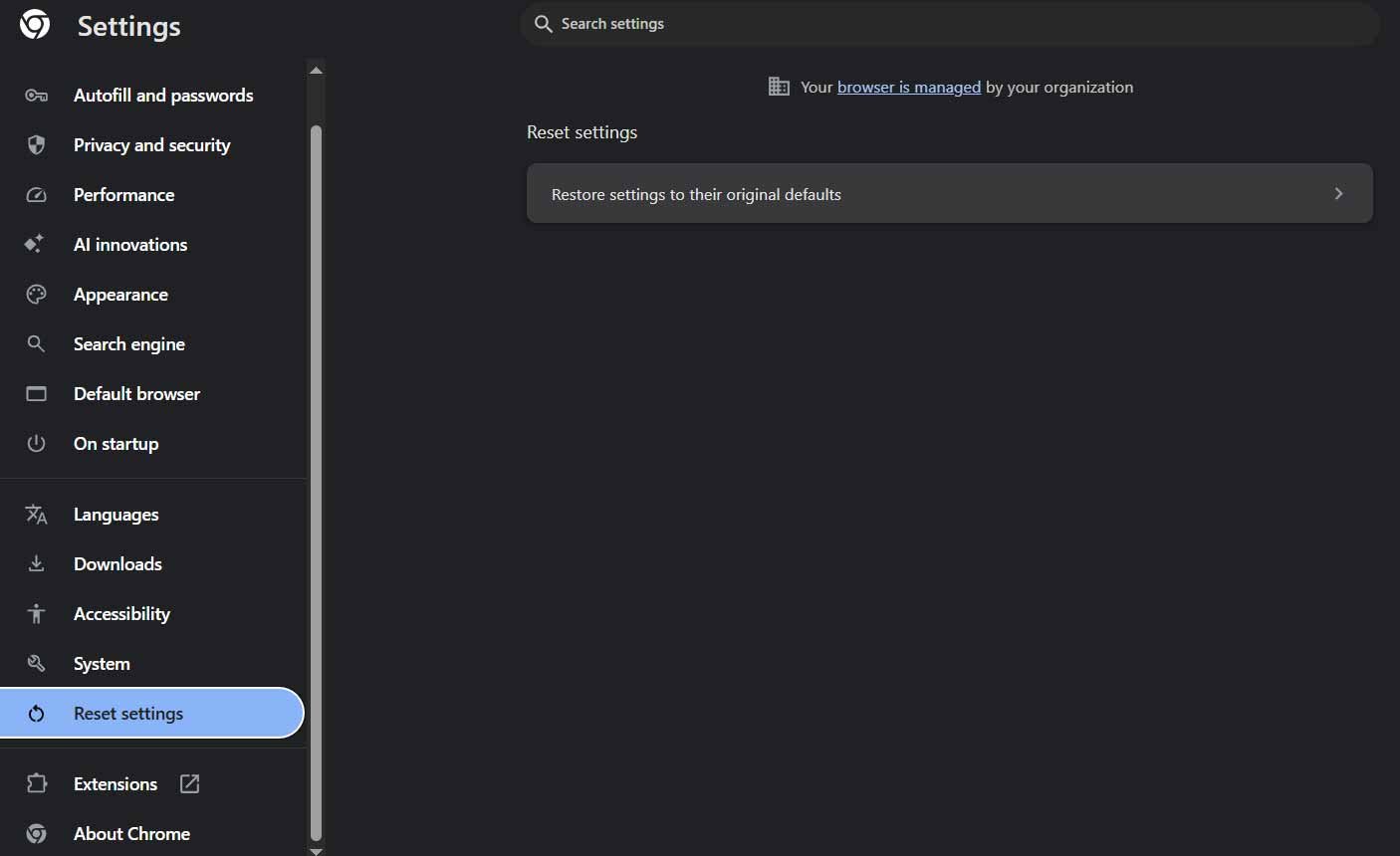
- Inside your Chrome Settings dashboard, navigate to the left-hand sidebar menu, locate the Reset settings option, and select it.
- Click the option titled “Restore settings to their original defaults.”
- A large informational confirmation modal will appear on your screen, explaining exactly what data points will be modified during the process.
- Click the blue Reset settings button to initiate the system sweep. Allow the browser several moments to reconstruct its default internal database files.
Execute a Complete Operating System Malware Scan
When browser-level adjustments fail to lock down your preferences permanently, it indicates that a persistent background process on your machine is dynamically rewriting your Chrome configuration files whenever the application starts. To break this loop, we must deploy system-level security scans.
For users operating on Windows architectures, we recommend leveraging the deep scanning capabilities built directly into the core operating system:
- Press the Windows Key on your keyboard, type Windows Security into the system search interface, and hit enter.
- Select the Virus & threat protection module from the localized dashboard.
- Rather than running a quick, superficial scan, click the Scan options link.
- Select the Full scan radio button to ensure that every directory, hidden file system, and background system registry is checked for adware.
- Click the Scan now button. This deep architectural process may take a significant amount of time, depending on your storage capacity. Ensure you let it finish and authorize the immediate removal or quarantine of any flagged item.
Uninstall Suspicious Software Applications from Your Control Panel
Many browser hijackers hide in plain sight as standard background helper tools or unwanted applications within your operating system’s software library. We must manually uninstall any application that matches the timeline of when your search problems first began.
- Open your system’s centralized application management panel by opening the Windows Control Panel and navigating straight to Programs and Features.
- Click the Installed On column header to sort your software catalog chronologically, with the most recent installations at the top.
- Look closely for applications that you do not explicitly recognize, especially freeware download managers, registry cleaners, third-party video downloaders, or toolbars.
- Right-click the target application, then select Uninstall. Follow the standard on-screen uninstallation prompts completely, then perform a full system restart.
Implement Proactive Measures to Prevent Future Browser Hijacking
Securing your browser today is only half the battle; ensuring that it remains locked down against future unauthorized structural changes requires adjusting your digital download habits.
- Audit Software Setup Wizards: Whenever you download software, never click through the installation windows rapidly. Always select the Custom Installation or Advanced Settings option. This exposes the hidden checkboxes that attempt to quietly install bundled search modifiers, unwanted browser bars, or home page overrides.
- Maintain Real-time System Updates: Ensure that your Google Chrome browser updates automatically. Developers regularly push critical security patches designed to block software exploits from gaining write access to your user preferences file.
- Source Files Electronically from Primary Domains: Avoid downloading application components from open peer-to-peer tracking networks or aggregate download hubs. Always secure installation executables directly from the official developer domains.
Frequently Asked Questions
Why does my Google Chrome keep automatically switching to Other Search Engines?
This automatic shift occurs because a malicious extension or background program has altered your default search provider settings via browser hijacking.
Is the Other Search Engines search engine redirect considered a dangerous virus?
It is technically classified as a browser hijacker or Potentially Unwanted Program rather than a destructive virus. However, it tracks your search queries, posing a privacy risk.
Will completely reinstalling Google Chrome fix this search engine error?
Reinstalling Chrome resets your core local files, which often fixes the issue. However, if root malware remains active on your PC, it will simply infect the new installation again.
Can a corrupted Chrome extension change my browser settings without permission?
Yes. Extensions can silently update in the background and install scripts that override your default search configuration to redirect traffic to Other Search Engines.
How do browser hijackers end up on my operating system in the first place?
They are almost always bundled, hidden inside free software installers, untrusted downloads, or fake media player update notifications on unauthorized websites.
Does Windows Security protect Google Chrome from search engine redirects?
Windows Security detects and removes the underlying malware executables causing the issue, but you still need to reset your default search engine in Chrome manually.
Why does the ‘Other Search Engines’ search keep returning after I delete it from Chrome?
If it reappears after manual deletion, a persistent background program or a system registry key is rewriting your browser preference file every time you launch Chrome.
Will performing a Chrome setting reset delete my personal saved bookmarks?
No. Resetting your Chrome settings will only turn off your extensions and clear temporary data. Your personal bookmarks, saved passwords, and history remain untouched.
What is the fastest way to check if an extension is causing the redirect?
Open an Incognito window. If the search engine works properly as Google in Incognito, an extension is highly likely the source of your redirection problem.
How often should I run a malware scan to prevent browser hijacking?
We highly recommend running a comprehensive system scan at least once a month to ensure no background adware or browser configuration trackers are running.

Selva Ganesh is a Computer Science Engineer, Android Developer, and Tech Enthusiast. As the Chief Editor of this blog, he brings over 10 years of experience in Android development and professional blogging. He has completed multiple courses under the Google News Initiative, enhancing his expertise in digital journalism and content accuracy. Selva also manages Android Infotech, a globally recognized platform known for its practical, solution-focused articles that help users resolve Android-related issues.




This guide was easy to follow from start to finish. The step-by-step troubleshooting saved me a lot of time.
The reset process was easier than I expected after reading this. Great article with useful advice.
Very well written and beginner friendly. Thanks for sharing these troubleshooting tips.
The screenshots and explanations made every step simple. Everything worked exactly as described.
The reset process was easier than I expected after reading this. Great article with useful advice.
I never realized browser hijackers could change search providers silently. This article was very informative and practical.
I was worried my PC had malware after Chrome kept changing search engines. Your article helped me identify the problem quickly.
I’ll definitely bookmark this page for future reference. Excellent troubleshooting guide.
Very well written and beginner friendly. Thanks for sharing these troubleshooting tips.
I tried several videos before finding this page. Yours was the only solution that actually solved the problem.
I was worried my PC had malware after Chrome kept changing search engines. Your article helped me identify the problem quickly.