
How Googlebook Works Seamlessly with Your Android Phone – In today’s fast-paced digital landscape, moving between multiple devices often feels fragmented. We constantly switch back and forth between our smartphones and laptops, emailing ourselves files, hunting for misplaced notifications, or downloading redundant software just to finish a simple task. Recognizing this friction, Google has completely reimagined personal computing with the introduction of the Googlebook.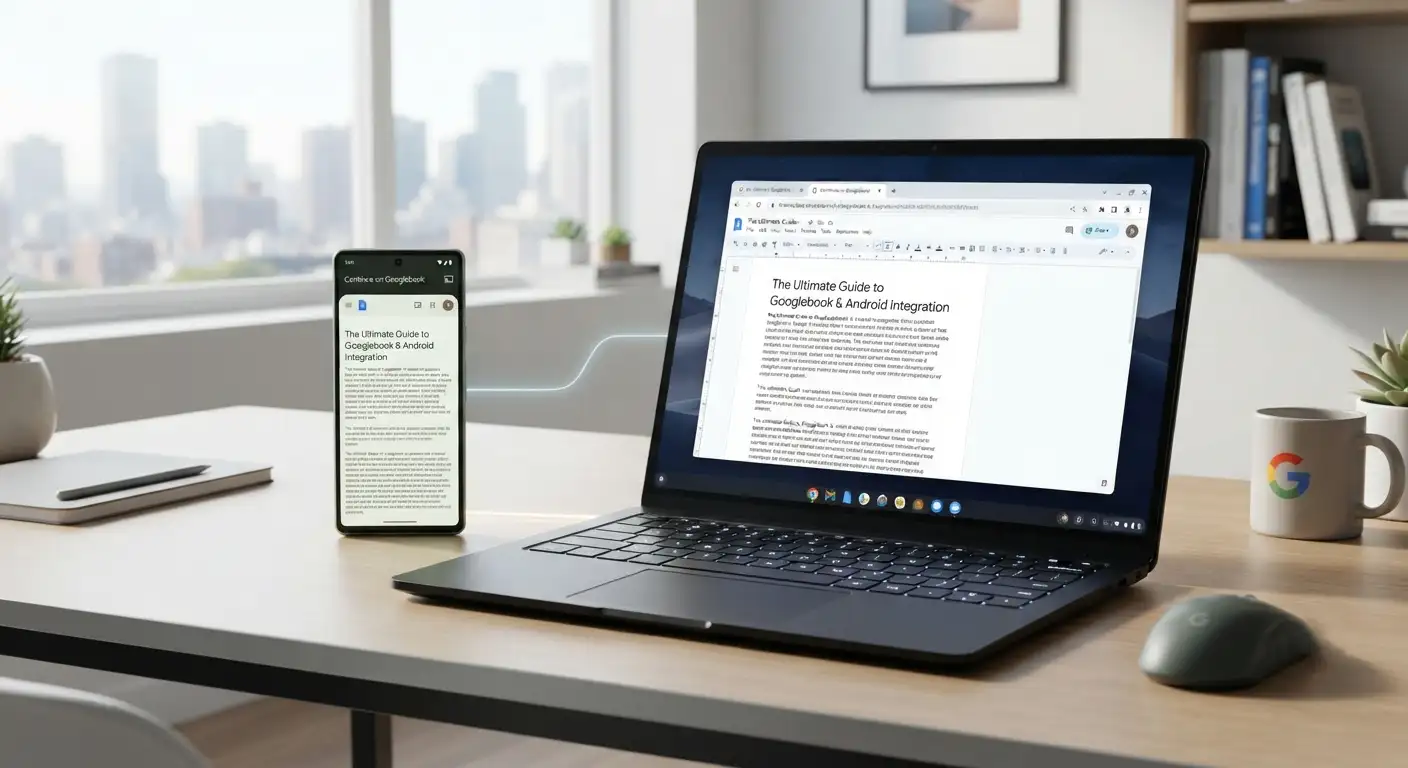
Designed from the ground up to integrate natively with the Android ecosystem, the Googlebook acts as a natural extension of the device already sitting in your pocket. Whether you are a tech enthusiast or someone who simply wants a hassle-free computing experience, understanding how these two devices communicate opens up an entirely new level of productivity. Below, we explore how the Googlebook and your Android phone work together to create a unified, effortless daily experience.
The Power of a Unified Ecosystem: Bridging Your Phone and Laptop
For years, connecting a phone to a computer required cumbersome cables, third-party apps, or slow cloud transfers. The Googlebook changes this paradigm by embedding cross-device continuity directly into its core software. Because the Googlebook shares a foundational language with Android, your personal files, notifications, and application states flow effortlessly between screens.
When you power on your Googlebook and pair it with your Android phone, the laptop instantly recognizes your digital environment. There is no complex configuration or steep learning curve required. The system establishes a secure, low-latency bridge that allows both devices to operate as a single, cohesive workstation.
Instant Access to Mobile Files Without Transfers
One of the most frustrating daily bottlenecks is needing a photo, document, or screenshot captured on your phone while you are working on your laptop. Traditionally, this meant emailing the file to yourself or opening a cloud storage folder.
With the Googlebook, your mobile storage is accessible directly through your laptop’s native file browser.
-
Quick Access Integration: Your recent phone photos, downloads, and documents appear instantly on your laptop screen.
-
Zero-Friction Retrieval: Need to attach a mobile screenshot to an email on your Googlebook? Simply pull it straight from your phone directory without ever opening a transfer utility.
This direct line of sight ensures that your data is always where you need it, exactly when you need it, eliminating redundant steps from your workflow.
Run Mobile Applications on Your Laptop with Cast My Apps
Not every mobile service has a dedicated desktop website, and switching to your tiny phone screen can break your concentration when you are deep into a project. The Googlebook solves this through an innovative feature known as Cast My Apps.
-
Direct App Streaming: You can open and interact with your phone’s applications directly on your Googlebook screen.
-
No Re-installation Required: Because the apps run through your synchronized mobile environment, you do not need to download separate desktop versions or log into separate accounts.
-
Distraction-Free Multitasking: Handle quick text messages, check food delivery updates, or monitor mobile-exclusive dashboards right from your laptop display while staying completely in the zone.
Pick Up Where You Left Off with Continue on Googlebook
Have you ever started reading an article, drafting a message, or looking up a recipe on your phone, only to realize it would be much easier to finish on a larger screen?
The Continue on Googlebook feature makes this transition entirely seamless. When active, the Googlebook senses what you were recently viewing or editing on your Android phone. A subtle, non-intrusive prompt allows you to click and instantly resume the exact same task on your laptop.
-
Zero Loss of Context: Browser tabs, documents, and active workflows jump across screens instantly.
-
Fluid Pacing: Move freely from your couch with your phone to your desk with your Googlebook without missing a single beat.
Intelligent Assistance Powered by Gemini Intelligence
Beyond simple file sharing and app streaming, the Googlebook leverages built-in Gemini Intelligence to act as a proactive partner throughout your day. Working in tandem with your Android phone, the system anticipates your needs by analyzing context across your screens.
-
Proactive Suggestions: The laptop surfaces relevant information from your emails, calendars, and on-screen content precisely when it becomes useful.
-
The Magic Pointer: Your cursor acts as an intuitive tool; pointing or selecting text activates Gemini to help you summarize, compare, or create content effortlessly.
-
Rambler Voice-to-Text: Speak naturally to ideate or draft documents while the system automatically filters out filler words and formats your thoughts into clean, professional text.
Designed for Everyone: Simplicity Meets Advanced Capability
While the engineering under the hood of the Googlebook involves cutting-edge hardware—such as high-performance processors and stunning OLED touchscreens—the user experience is meticulously crafted to be welcoming for non-tech individuals.
You do not need to understand complex technical specifications to appreciate how smoothly your devices work together. The pairing process is guided, the interface relies on familiar gestures, and the ecosystem prioritizes human convenience over manual configuration. By focusing on what matters most—saving time, reducing clutter, and keeping you connected—the Googlebook and your Android phone redefine what modern computing should feel like.
FAQs
-
How do I pair my Android phone with a Googlebook?
Pairing is designed to be automatic and guided. When you power on your Googlebook near your Android phone, the system detects your device and guides you through a quick, one-time secure pairing process without needing third-party utilities or cables.
-
Can I view mobile photos and files on my Googlebook without uploading them to the cloud?
Yes. Your Android phone’s recent photos, documents, and downloads show up directly in the native Googlebook file browser, allowing you to access or attach files without manual cloud uploads or email transfers.
-
What is Cast My Apps and how does it work?
Cast My Apps lets you stream and interact with your phone’s installed Android apps directly on the Googlebook screen. You can reply to messages, check food deliveries, or use mobile-only apps without installing desktop counterparts.
-
Do I need to install my phone apps again on the Googlebook?
No. Because the apps run through your synchronized mobile environment via app streaming, your apps, settings, and logins carry over directly without duplicate installations.
-
How does Continue on Googlebook help with ongoing tasks?
If you are reading an article, editing a note, or browsing on your Android phone, the Googlebook displays a prompt allowing you to pick up and resume that exact workflow or browser tab on the larger screen.
-
How does Gemini Intelligence enhance cross-device productivity?
Built-in Gemini Intelligence analyzes context across your connected devices to offer proactive suggestions, such as pulling relevant details from your mobile messages and calendar into your current desktop workflow.
-
What is the Magic Pointer feature?
The Magic Pointer uses the cursor to interact with text or content on-screen. Highlighting or pointing allows Gemini to quickly summarize text, compare details, or generate draft responses on the fly.
-
What does Rambler Voice-to-Text do?
Rambler Voice-to-Text lets you dictate your thoughts naturally. It automatically removes conversational filler words and structures spoken ideas into clean, professionally formatted notes and documents.
-
Does connecting the Googlebook to an Android phone require complex network setup?
No. The devices establish a direct, low-latency connection designed for non-technical users, requiring minimal configuration beyond initial pairing.
-
Can I manage Android notifications directly from the Googlebook?
Yes. Cross-device continuity syncs incoming mobile notifications directly to your laptop, allowing you to view and act on alerts without picking up your phone.

Selva Ganesh is a Computer Science Engineer, Android Developer, and Tech Enthusiast. As the Chief Editor of this blog, he brings over 10 years of experience in Android development and professional blogging. He has completed multiple courses under the Google News Initiative, enhancing his expertise in digital journalism and content accuracy. Selva also manages Android Infotech, a globally recognized platform known for its practical, solution-focused articles that help users resolve Android-related issues.





Leave a Reply