
You may already know, After Huawei banned in the US, Google stopped the Google Play Store support. Thus finding the trusted supporting apps store can be a complicated process. Also, Huawei selling the Non-Google Apps mobiles outside regions too. So, To make the process of getting Android apps made easy using the App search method. When you search using this search app, you will get the list of trusted sites to download the apps manually, and you can sideload them into your mobile. It may not the easy way, compare with the real Play Store experience. But, It is better than fall for the untrusted sites.
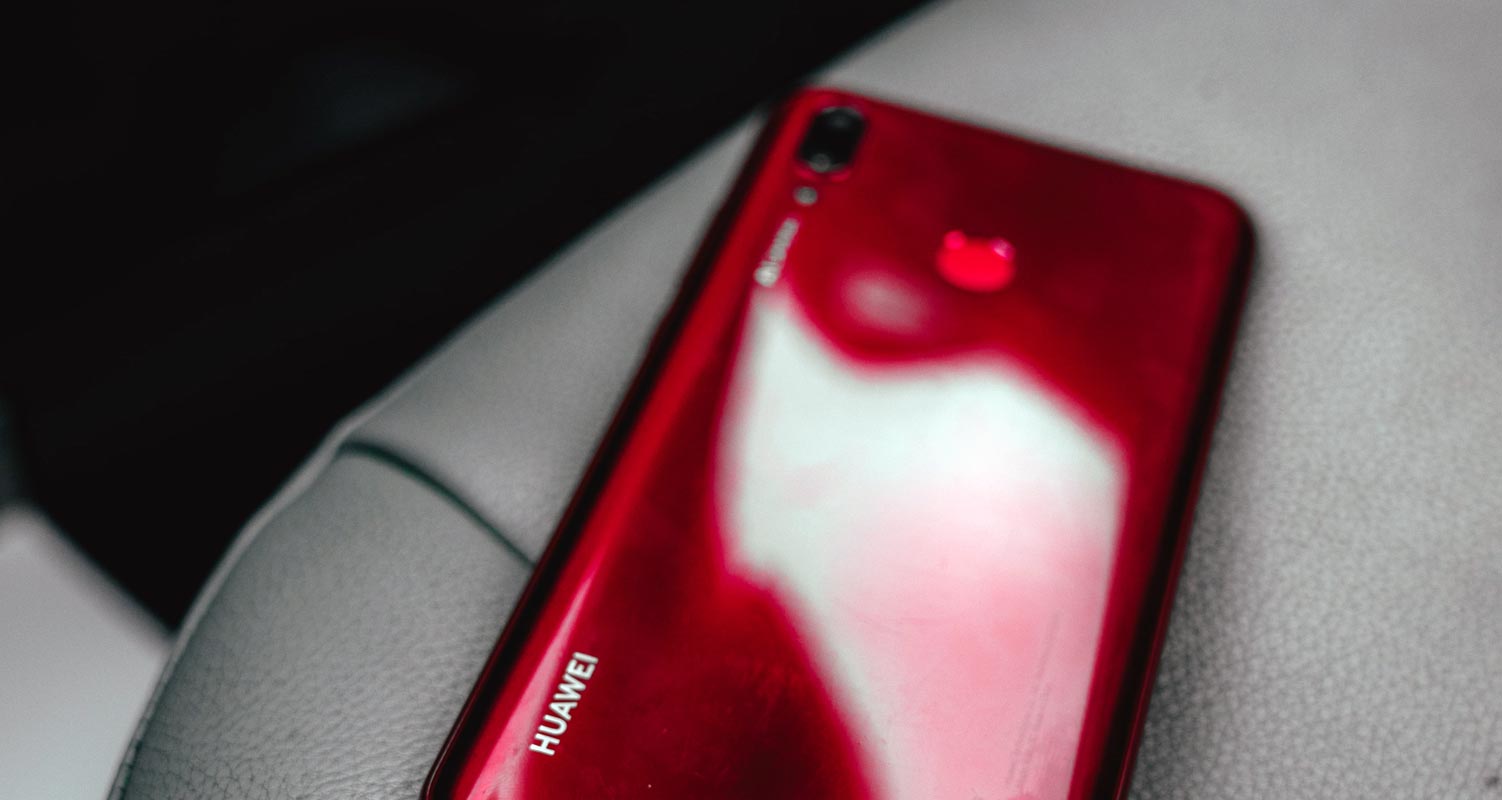
Huawei mobiles don’t have the Play Store
The following mobiles don’t have Google Play Store and Google apps support officially. You can use the following method on any Huawei mobiles that don’t have Play Store. There is a talk always going that the security patch updates will bring back the feature Once Google lifted the ban.
- Huawei Mate 30
- Mate 30 Pro
- Huawei Mate Xs
- Honor V30 series
Search Google Play Store Apps using Huawei App Search
When you search the app in this App Search, It will get you the available downloads page from the sites like APKMirror, APKMonk, APKPure, Huawei AppGallery, and Amazon App Store.
Note– This app search method is still in beta, So, you may not get all the available apps.
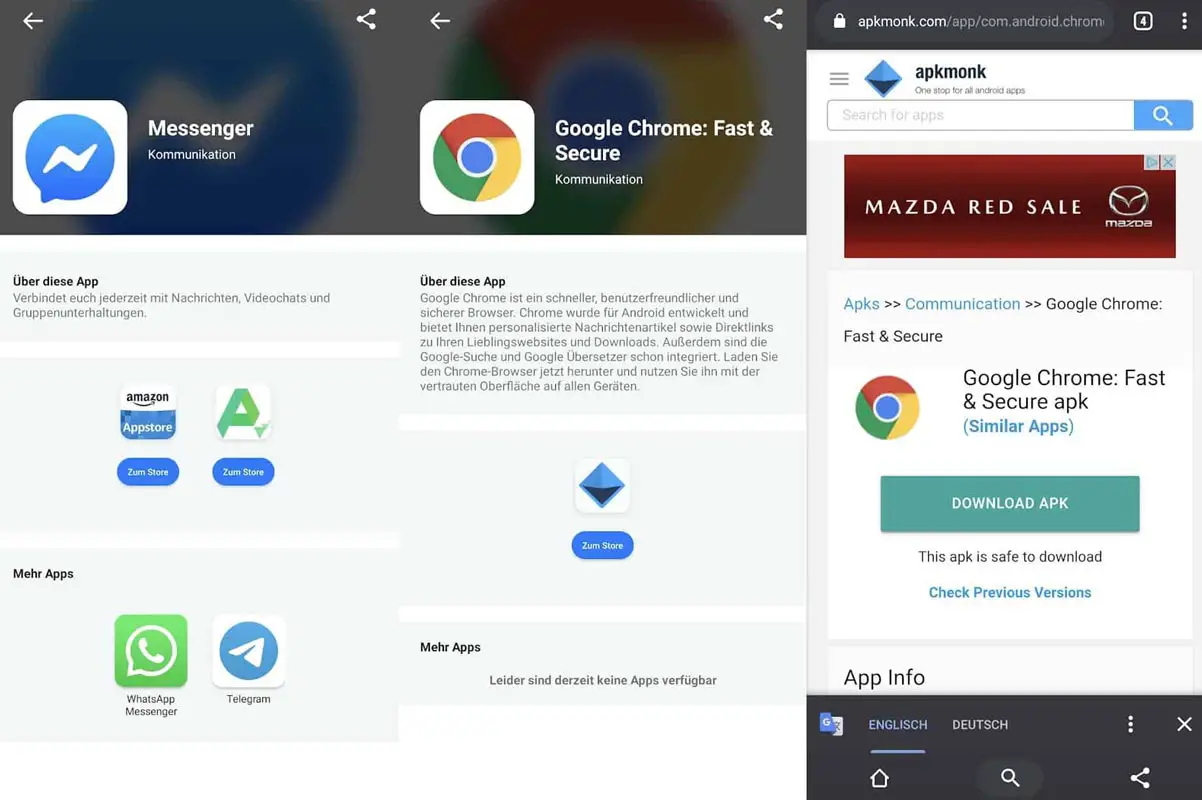
- Download Huawei App Search and install it on your mobile.
- Open the app and search for your desired app.
- You will get the available mirrors. From the mirrors, you can choose the site.
- After the download, you can sideload the app. You should enable unknown sources to install the downloaded apps.
Steps to Enable Unknown Apps Installation
You can’t install the apps If you didn’t enable the unknown source app installation. Follow the below steps to enable this option.
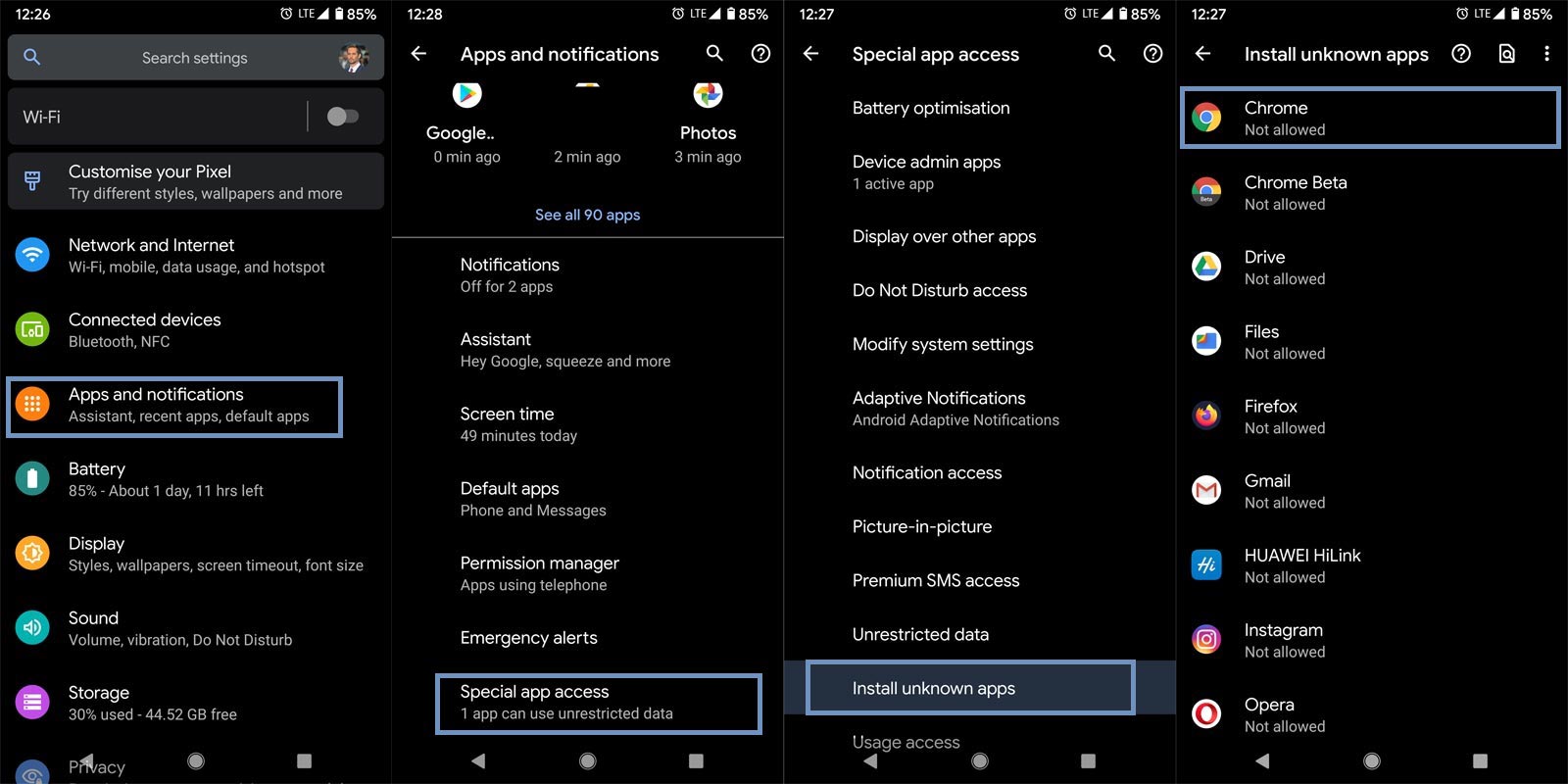
- Navigate to your device settings menu and select “Apps & Notifications.”
- Click on the “Advanced” row or click on the “three vertically arranged dots.”
This option varies by devices; some people will see the “Advanced” option, while some will have to click on the dots at the top-right-edge of their screen
- Click on “Special App Access.”
- Select “Install Unknown Apps.”
- Now, tick the apps you wish to grant access to sideload APK files on your Android device.
Interestingly, you can revoke this permission at any time you wish by simply turning off the access (following the same steps above).
And this is it; following these steps, you can grant permissions to certain apps on your Android to install APK files.
Install Google Apps using APK File
The following method is one of the ways to install Google apps in Huawei device, and that by installing Google Service Assistant on your Huawei device. This app lets you use Google applications and services on your mobile. To get the Google Service Assistant on your Huawei device so that you can run Google apps, follow our guide below. This is a third-party app. So, Do it at your own risk.
Step One:
Firstly, you have to visit https://www.lzplay.net/#/ / Mirror and install the app to your Huawei device. The webpage is written in Chinese; however, you need to click on the “Blue Button” and download the app. This application is not developed by Google, notwithstanding its name.
Step Two:
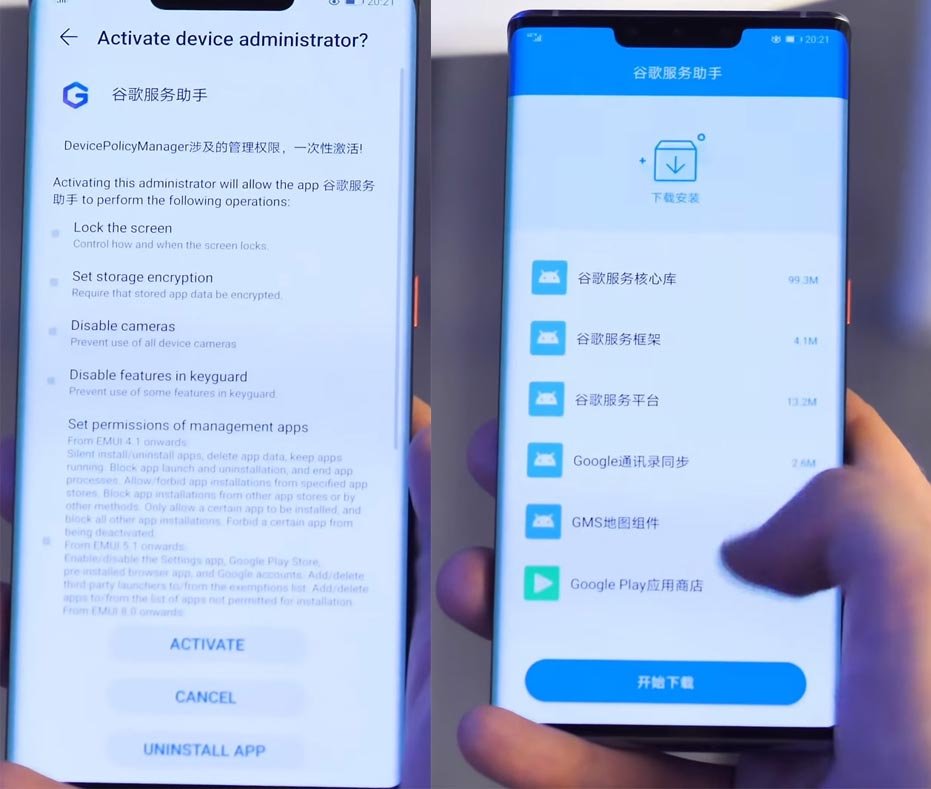
Click on the downloaded APK file; allow all required permissions (by clicking activate or the blue button you see) for this app to be installed on your device. By default, this app installs alongside with Google Play Store on your device. When you install this app on your device, it automatically installs the Google Play Store to your Huawei device.
Well, it’s not just the Google Play Store that installs alongside with this app; also, the app automatically installs some essential Google services.
Step Three:
Once after this app installs the Google services and Play Store, you are good to go. You can now open the Google Play Store and install other mobile apps offered by Google and other Android developers. This means that you can install Maps, YouTube, and other exciting apps.
However, you may have to reboot your device for these apps to start working correctly. Also, a reboot can fix many issues you’ll face using Google apps on Huawei’s new devices.
What more?
It is not secure when installing third-party apps other than Play Store. But, When you have no choice, you should carefully download the apps from the trusted sites. The Huawei App Search carefully searches from trusted sites. It is a safer way compare with the regular Search engine method. Other than the popular apps, other necessary device supporting apps can be updated using the Huawei App Store. Did you have one of the mentioned Huawei mobiles? What is your experience with this new Huawei App search way? Comment below.

Selva Ganesh is a Computer Science Engineer, Android Developer, and Tech Enthusiast. As the Chief Editor of this blog, he brings over 10 years of experience in Android development and professional blogging. He has completed multiple courses under the Google News Initiative, enhancing his expertise in digital journalism and content accuracy. Selva also manages Android Infotech, a globally recognized platform known for its practical, solution-focused articles that help users resolve Android-related issues.





Leave a Reply