
If you are already using a password manager, this can’t work well. I try to figure out the unique features not available in other password managers. Yes, if you are a newbie and have only a few accounts, this is for you. Did you know that Google has one of its own secure time reliable password managers for free? Well, Google offers dedicated services to its customers by providing a secure mobile application, a web app is also available, and it automatically has the power to save secure passwords. The Google inbuilt password has expanded its roots from a simple part of a chrome browser to a larger platform that provides a password manager service on your Android devices.
Photo by CMDR Shane on Unsplash
Why do we need to use Google Password Manager?
Even though there are other password managers available, in some cases, they do not fill the forms of some apps, especially those on Android devices. If you are already using a password manager, you know the pain. The primary aspect that makes us focus on Android devices is that most people who use mobile phones don’t see this service is available. At the moment, the Google inbuilt password can fill all the password forms in any application on your Android Device.

If you have never used the Google inbuilt password manager on your android device, I can confidently say you have not yet discovered how easy it is to hide and autofill your passwords. In cases where you have previously logged into the Google account in chrome or an Android device, you will get a notification in the form of a pop-up asking you if you would like to log in using the already saved personal details or whether you want to create new credentials. If you have only one account under the app or service, It will automatically fill in the certificates.
We are going to cover the following topics in this article.
-
What makes this password manager for android devices have an entirely new look
-
The unique features associated with the password manager for android devices
-
Advantages/Disadvantages
How does Google Password Manager work?
Note
- This Google account password manager works only with Oreo and the above versions because of Android version-related updates. It is not a specific app. If you use other password managers, they work above all 4.4+ versions.
If you pay keen attention every time you log into chrome using your credential, you will notice that Google will always ask you to save the password for later use. Google invented this way of efficiently storing passwords for its visitors when most of them forget their passwords quickly.
Currently, this password storage and recovery system got upgraded to perfectly fit the Android mobile version. You can comfortably use the smart password lock in your android device and secure all your passwords automatically. The accessible compatibility mode has brought a whole new experience to all android users.
Features
The ability to manage passwords from the web
Like other password managers, If you login into passwords.google.com, you will actively manage to view a complete list of all your saved passwords in chrome. In cases where you log in using a different computer, you will get required to verify second-factor authentication if you enabled it.
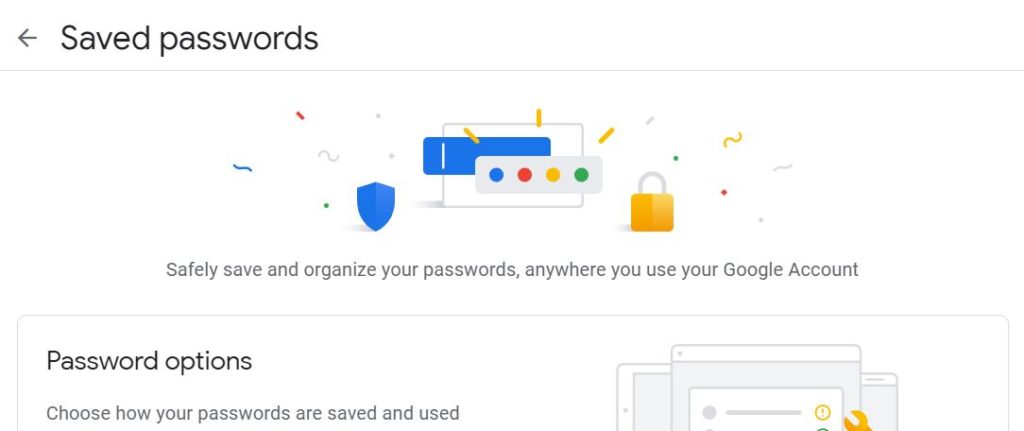
Ability to save app passwords
In the past, Google allowed users to save passwords for websites only. After upgrading the password manager services in Android devices, you can comfortably protect passwords from the selected applications.
The power to auto-sign in to your account
In some cases, you may find that Google’s inbuilt password manager does not only save your login details, but it automatically skips the login screen entirely. Other password managers can’t do this. Users have the freedom to activate the auto sign-in features by visiting the Google settings and turning on the part. Users can also turn off the auto-sign into the element in the Google settings.
How to use Google Password Manager in Android Mobiles?
-
As already mentioned, you should have Oreo and the above version to use this service.
-
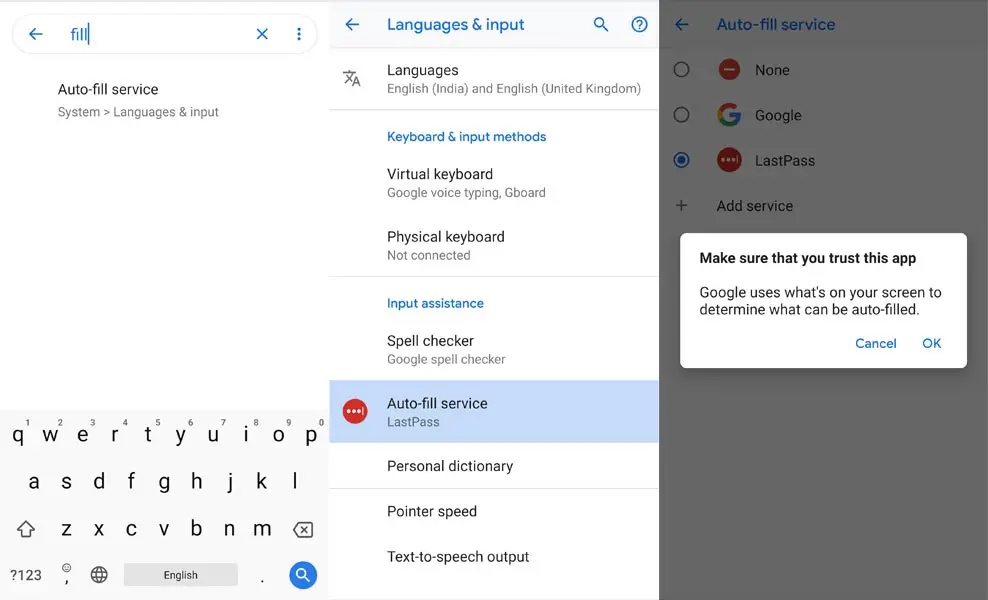
Now, Go to Settings-> Search-“fill”-> Auto-fill services ->Select Google.
-
You can find Google and other services if you already use a password manager. If you didn’t use any other third-party service, you could see only Google. Select Google. That’s all. The credentials will be filled automatically in all applications if you have already saved passwords in your Google account.
- If the passwords don’t fill automatically, Go to passwords.google.com, In Options-> Enable Auto Sign-In and Offer to save passwords(To save new passwords in the future).
Advantages
Available at an accessible cost
Unlike other applications where you need to subscribe to save your passwords, the intelligent lock comes at a free charge. To ensure that all Google users get the best service, It is available for free on both the desktop and Android mobile versions. For instance, LastPass is available on the desktop browser version at an accessible cost, but accessing it on your android version attracts a fee.
Automatic login to your account
You do not have to start with all the login processes into your account once you use the intelligent lock password manager. You will stay logged into your account, which will make it more convenient for you, and your password credentials will remain highly secured.
100% fill in all Android applications/Chrome Browser/Chrome OS
The feature I love most is using a third-party password manager, but in some apps, that password manager can’t fill the credentials; I have to copy/paste everything to Sign-in.
Disadvantages
Can’t Generate Passwords
You have to generate new passwords on your own. Unlike other password managers, this in-built service can’t create new passwords.
Can’t use other than Chrome browser, Chrome OS and Android
Yes, you can’t automatically fill in the credentials other than these three. Other password managers offer all kinds of extensions and apps (You can use them in Mozilla browser, Windows, and Linux-As an App). You have to Copy/Paste from chrome if you want to use it in other apps. In Android, no worry. It will work in all forms. It Doesn’t work in Windows/Linux Desktop. In Chrome OS, It can fill all forms.
Conclusion
Smart lock Google’s inbuilt password manager is convenient because it is compatible with Android mobile devices and chrome from a desktop computer. As I already mentioned earlier, if you are using Password Manager, you know the value; this service can’t satisfy you. But if you only deal with a few accounts, It can work well for you.
You can access the smart lock manager for both the desktop and mobile versions at an accessible cost which makes it convenient for usage by every individual. Based on the unique features associated with the smart lock Google password manager and the advantages, I highly recommend the smart lock Google, inbuilt password manager to everyone seeking to have all crucial accounts passwords saved and secured at all times.

Selva Ganesh is a Computer Science Engineer, Android Developer, and Tech Enthusiast. As the Chief Editor of this blog, he brings over 10 years of experience in Android development and professional blogging. He has completed multiple courses under the Google News Initiative, enhancing his expertise in digital journalism and content accuracy. Selva also manages Android Infotech, a globally recognized platform known for its practical, solution-focused articles that help users resolve Android-related issues.




Great article! It’s amazing how many useful tools are already in our phones.
Great article! It’s amazing how many useful tools are already in our phones.
Well written and easy to understand. Keep up the good work!
Great article! It’s amazing how many useful tools are already in our phones.
Loved this tutorial. The screenshots really helped me follow along.
Great article! It’s amazing how many useful tools are already in our phones.
Great article! It’s amazing how many useful tools are already in our phones.
Finally found a solution that doesn’t need an extra app. Thank you!
Finally found a solution that doesn’t need an extra app. Thank you!
I always used third-party apps, but this makes things much simpler. Appreciate the insight.
Who knew this was already on my phone? Excellent guide.
Well written and easy to understand. Keep up the good work!
Well written and easy to understand. Keep up the good work!
Who knew this was already on my phone? Excellent guide.
Finally found a solution that doesn’t need an extra app. Thank you!
Who knew this was already on my phone? Excellent guide.
Well written and easy to understand. Keep up the good work!
Thanks for sharing this! The built-in password manager is surprisingly effective.
I always used third-party apps, but this makes things much simpler. Appreciate the insight.
Loved this tutorial. The screenshots really helped me follow along.