
In the realm of PC usage, the last thing you want is to be in a perpetual state of toggling between your device and notifications each time an email lands in your inbox. Yet, the vexing scenario unfolds when Gmail notifications refuse to cooperate on your Windows 11 computer. Missing critical email alerts becomes a thorn in your side, disrupting your workflow and potentially causing you to overlook essential messages. But fret not, for we come bearing solutions—a total of seven strategic tweaks to put you back in the driver’s seat and ensure your Gmail notifications function flawlessly. Let’s embark on this journey to restore your email notifications to their optimal state so you can stay in the loop without the hassle and frustration.
Fix Gmail Notifications Not Showing Properly on Windows 11- Check Gmail Website Settings
- Go to the Gmail website, click Settings, and select See All Settings.
- Under the General tab, scroll to Desktop Notifications and select No Notifications.
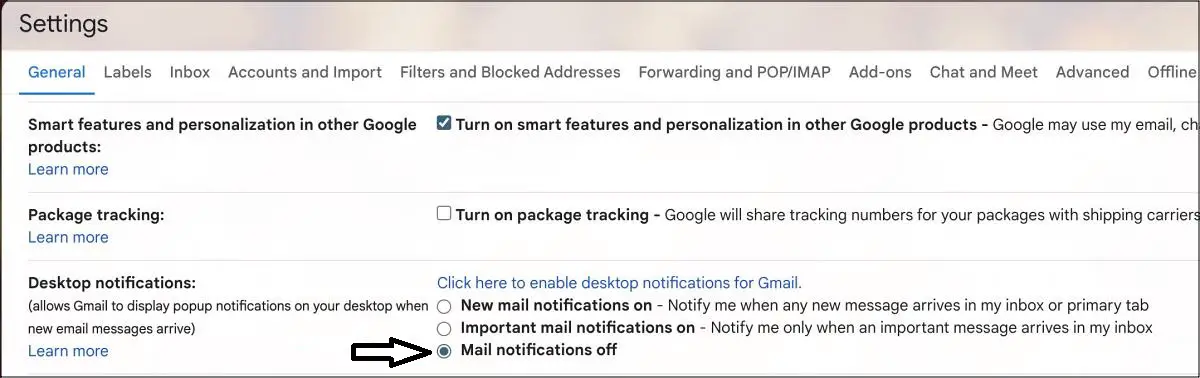
- Scroll down to the bottom and click the “Save Changes” button.
- Repeat the steps, but select “New mail notifications on” and click Save Changes.
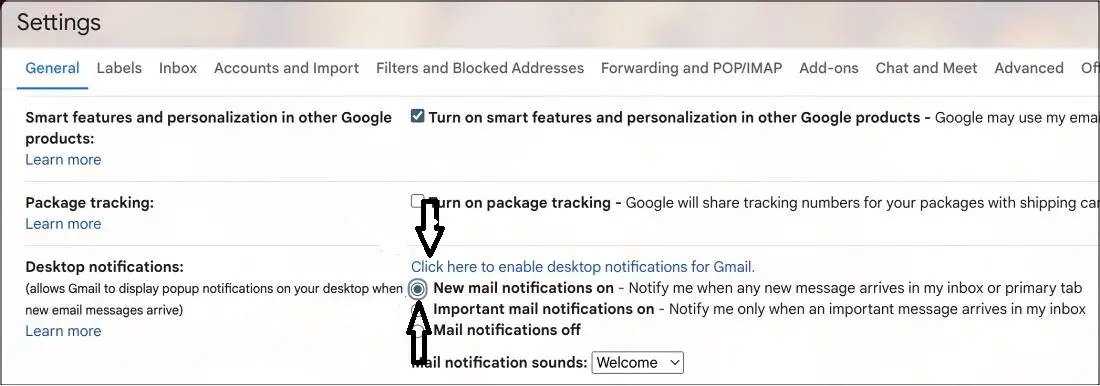
- At the exact location, choose the link, “Click here to activate desktop notifications for Gmail.”
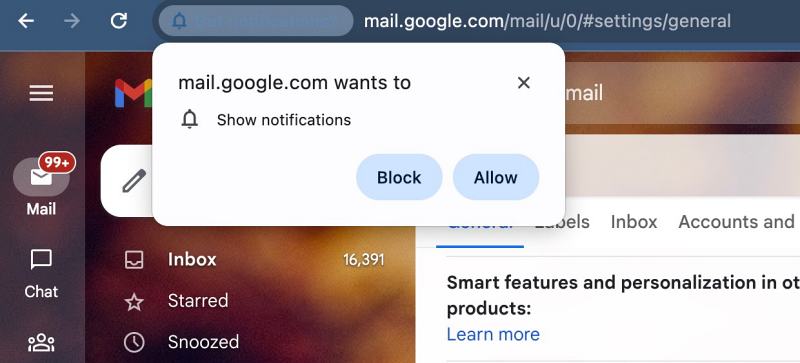
- Allow the prompt. Now, check if Gmail notifications are working on your Windows 11 PC.
Keep Gmail Awake
- You’ll want to ensure that the Gmail tab doesn’t go into a state of hibernation or sleep.
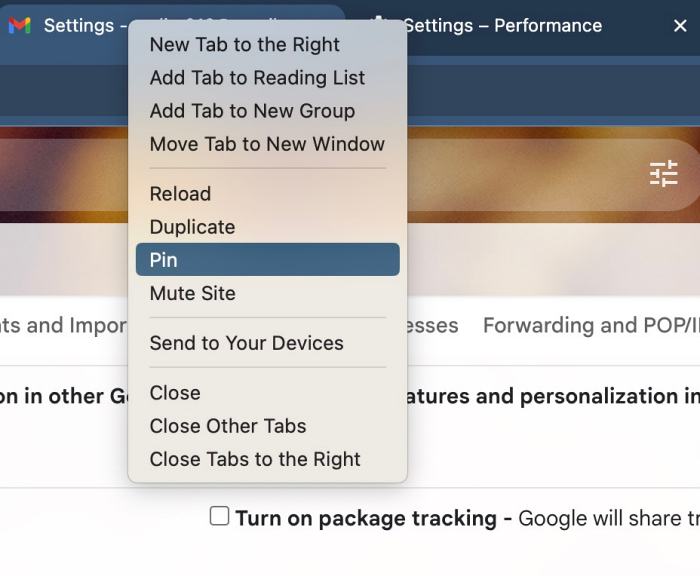
- Pin the Gmail website by right-clicking on it and selecting Pin.
- It will stay open in the background, and you should receive email alerts without issues.
Adjust Chromium Browser Settings
- Open any Chromium browser and click Add next to “Always keep these sites active.”
- Type in the URLs related to Gmail.
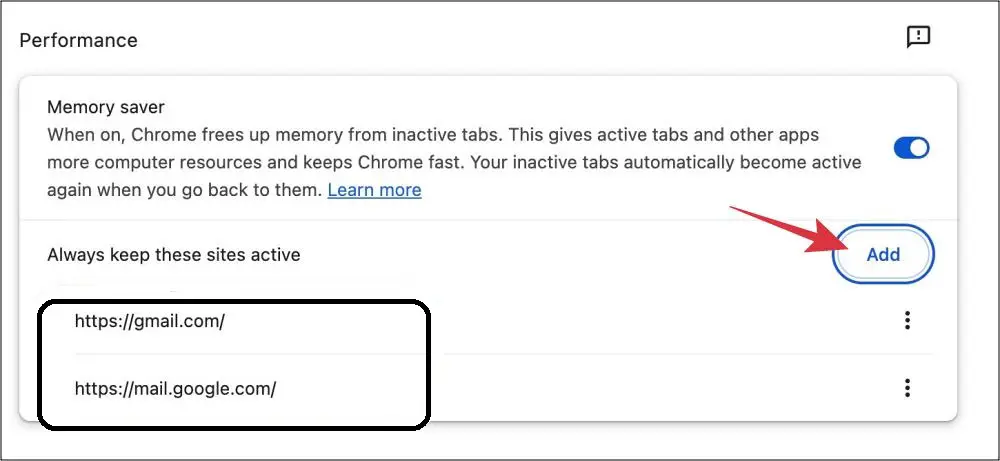
- Check if this fixes Gmail notifications not working on Windows 11.
Verify Chrome’s Notification Settings
- Open the Gmail website and click on the icon left of the URL bar.
- Select Site Settings and scroll to the Notifications section.
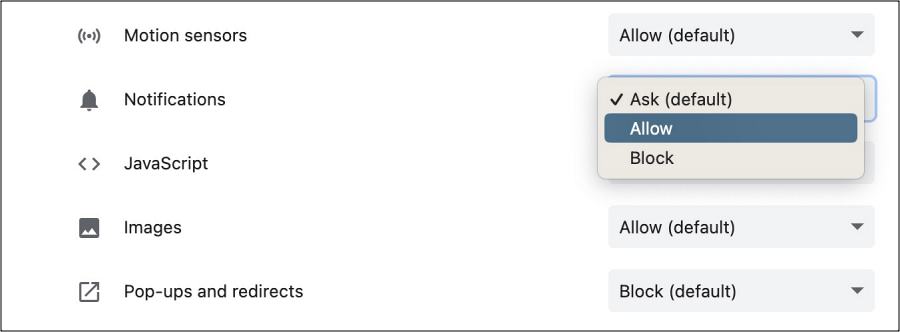
- Make sure it’s set to Ask or Allow and check the result.
Windows OS Notifications Settings
- Use the Windows+I shortcut keys to open the Settings menu.
- Go to System > Notifications and enable the toggle next to Chrome.
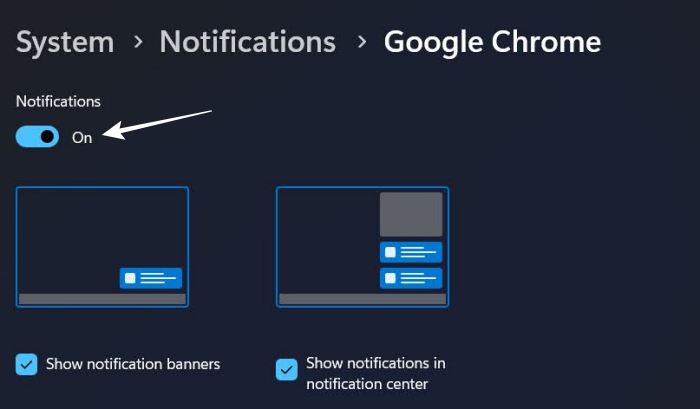
- Customize Chrome’s notification settings if needed.
Disable Focus Mode
- If Focus Mode is enabled, you won’t receive notifications from any app, including Chrome.
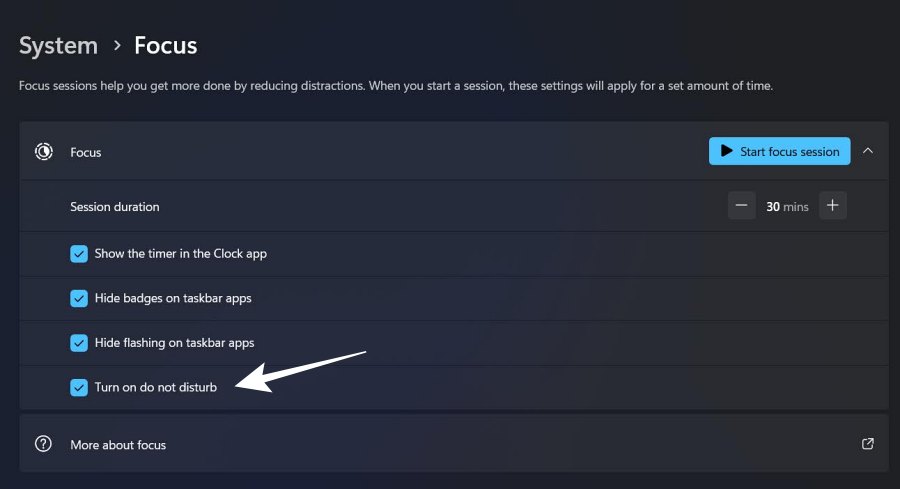
- Turn it off and see if that helps.
Last Resort: Reset Chrome
- If none of the techniques mentioned are effective, contemplate resetting Chrome to its original factory settings.
- Be aware that this will reset your startup page, new tab page, search engine, and pinned tabs, and it will turn off all extensions and precise temporary data like cookies.
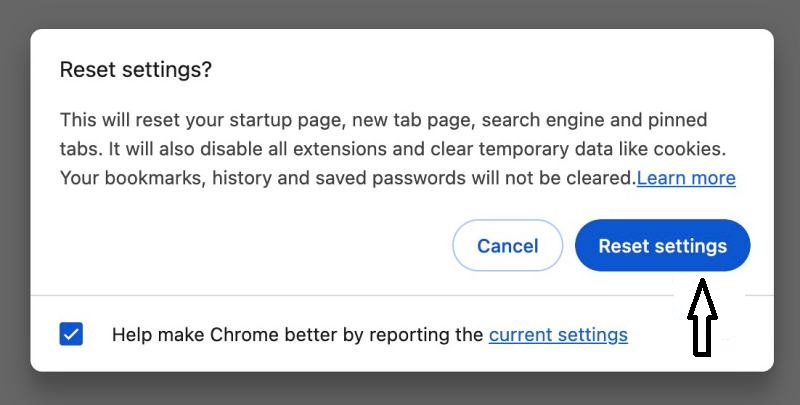
- Launch Chrome and head over to the specified location.
- Click on Reset Settings and then restart Chrome.
- This should resolve the underlying notification issues and get your Gmail notifications back on track.
FAQs
Why are my Gmail notifications not working on Windows 11?
The reason Gmail notifications might not function properly could be related to your browser or operating system settings. To address this problem, follow the steps outlined in this guide.
Do I need to reset Chrome as a last resort?
Resetting Chrome should be a last resort if all other methods fail to resolve the issue. Keep in mind that it will clear some settings and data.
Is it necessary to use a Chromium browser for these fixes?
Chromium browsers are used for specific fixes, but other methods involve adjusting Gmail and Windows settings, which are not browser-specific.
What is Focus Mode, and why should I turn it off?
Focus Mode can block notifications from all apps, including Chrome. Disabling it can help ensure you receive Gmail notifications.
Will resetting Chrome delete my email data?
No, resetting Chrome will not delete your email data, but it will reset some settings and remove extensions. Your email data should remain intact.
Wrap Up
In this comprehensive guide, we’ve delved into various effective strategies to resolve the frustrating issue of Gmail notifications failing to operate correctly on your Windows 11 PC. It’s crucial to approach each potential solution methodically, one at a time, allowing you to systematically troubleshoot the problem and identify the most suitable fix for your unique circumstances. Whether it involves tinkering with browser settings, fine-tuning your operating system preferences, or even considering the last-resort option of resetting Chrome, this guide equips you with a versatile toolkit of strategies.
By following these step-by-step procedures, you can regain the seamless functionality of Gmail notifications, ensuring you never miss out on vital email alerts again. Rest assured, you have the means to tailor your approach, ensuring you find the one that works optimally for your specific setup. So, don’t let Gmail notification issues disrupt your workflow; take control of these practical solutions.

Selva Ganesh is a Computer Science Engineer, Android Developer, and Tech Enthusiast. As the Chief Editor of this blog, he brings over 10 years of experience in Android development and professional blogging. He has completed multiple courses under the Google News Initiative, enhancing his expertise in digital journalism and content accuracy. Selva also manages Android Infotech, a globally recognized platform known for its practical, solution-focused articles that help users resolve Android-related issues.





Leave a Reply