
SuperSu CF-Auto-Root is the app you use to manage your mobile root permissions after a successful rooting process. Once you root them and install TWRP recovery for Samsung mobile devices, you can equally add SuperSu immediately. Two unique types of this app are available: the SuperSu.zip file and SuperSU. Pk. The app version, like you, may know what you’ll install directly on an Android device; Android OS supports apk files.
Also, as I said earlier, you can install this app on a Samsung or any other mobile device via T RP. To install SuperSU via TWRP, you will need the .zip file. When you get this app’s .zip type/version, you’ll extract its contents on a computer and save it to a particular folder. Furthermore, after rooting a smartphone, you can install any pp. However, the app must be a . pk. Otherwise, it will not accept to install on your Android device.

The SuperSu App
Meet the #1 mobile app on any rooted Samsung Galaxy device or other smartphone. The app allows you to manage root permissions on your smartphone. This means that if your device is not rooted, it is very likely that this app won’t be relevant, so ignore it.
On the other hand, if your device is rooted, you need this excellent pp. We will show you where to download the zip and app versions of the root permissions app.
Things to note before downloading any version of SuperSu
-
First and foremost, the mobile device you are trying to install it on must be Roo ed. We have helpful tutorials on rooting an Android device successfully using or without a PC.
-
This app is available as a flash file and equally a regular app for your smartphone; you have to know which is best for you and download
-
Take note of your device model no.
How do you install SuperSu on a Samsung device?
-
Download the SuperSu.Zip Form below and copy it into your Internal Memory.
-
Press the Power + Bixby (home) + Volume down buttons simultaneously to switch off the device and enter recovery mode.
-
Press the Volume Up button when you get a warning message
-
On “Recovery Mode”, tap on wipe >>> advance wipe >>> select cache data.
-
Return to the “Recovery Mode” main menu (Home) and tap on Install >> select SuperSu.Zip.
-
After the installation, reboot your mobile.
-
You will see the SuperSu app icon on your app drawer.
SuperSU zip Root Files Download links
This app works on all Android devices, but the device must be rooted to use it fully.
Here are the .zip files of this app.
Note: you cannot install these versions directly on a mobile dev ce. First, you must download them on a computer, extract the files, and then flash them to the desired dev ce. Below are the unique download links to this app’s zip versions.
SuperSU APK Root files Download links
Of course, you will find a lot of apps on the Google Play store with the name – SuperSU, trust me, over 80% of those apps are f ke. Here, we will provide you with various links to download any of the SuperSu apk versions you like.
How do you root a Samsung device using the ODIN method and Install this SuperSu.zip?
-
Download and install the respective Samsung USB driver on the computer
-
Get the latest version of the Odin flashing app – ODIN Download.
-
Also, download the unique Unikernel.
-
Extract the Odin files on your PC
-
Copy the Unikernel files on your PC.
-
Now, switch off the mobile device and boot into Download mode by simultaneously pressing the Volume Down + Home + Power Buttons.
-
Press the Volume Up button when you receive the warning message to conti ue. Don’t worry; the warning doesn’t matter.
-
Connect the mobile device to the prospective computer via a GOOD USB Cable.
-
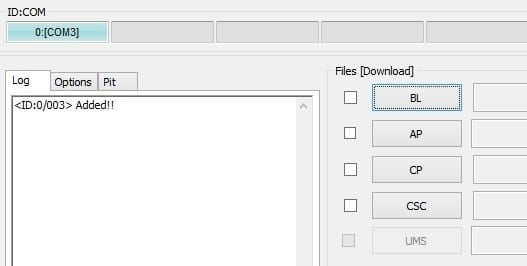
Launch the Odin application on your PC. You should receive a message showing whether your device has been successfully connected. However, if you do not see/receive such a signal, repeat the above steps.
-
If you received the message that your device is successfully connected, continue with the steps. The word shows “ADDED!” on the first command line.
-
Select the PDA or AP Button, “browse/search” for the Unikernel file, and then upload it to the Odin app.
-
Press Start and wait for the tasks to compl te. It may enter into Recovery mode to add the SuperSu permissi ns. Reboot again.
-
You will see the SuperSu app icon after rebooting the device.
-
Download the root checker to confirm if your device is rightly rooted.
Installing the SuperSU.apk file
Below is how to install this app on your smartphone direc ly. This process/step does not require a compu er. It should be something you already know even;
-
Download your version of the SuperSu.apk following any of the links we provided above.
-
After downloading, select and install the app.
-
Suppose you are prevented from installing this app if you haven’t activated “unknown sources” on your dev ce. So, when you get the “Installation Blocked” message, click on settings and activate “unknown sources.”
-
After activating the unknown sources option, the app can be installed
-
Launch it and grant it access {allows all permissions requested by the app}
What more?
You may need SuperSu Zip or Apk F le based on the process. It is a comprehensive review of the different types and versions of the SuperSu pp. Since this app is a must on a rooted Samsung device (most significantly), we believe sharing an article like this will greatly help some specified class of individuals out there. Hey, If you want any help or want to share thoughts, comment below.

Selva Ganesh is a Computer Science Engineer, Android Developer, and Tech Enthusiast. As the Chief Editor of this blog, he brings over 10 years of experience in Android development and professional blogging. He has completed multiple courses under the Google News Initiative, enhancing his expertise in digital journalism and content accuracy. Selva also manages Android Infotech, a globally recognized platform known for its practical, solution-focused articles that help users resolve Android-related issues.




Leave a Reply